































Table of Contents
- Key Points
- Effortless iOS App Creation with AI
- Advanced Customizations for your App
- How to Use Cursor AI and Xcode for iOS App Development
- Pricing of Xcode and Cursor AI
- Advantages and Disadvantages of Using AI for iOS App Development
- Core Features of Xcode and Cursor AI
- Use Cases of Xcode and Cursor AI
- Frequently Asked Questions
- Related Questions


Effortless iOS App Creation with AI
Introduction to AI-Powered iOS App Development
In today’s fast-paced digital world, creating mobile applications no longer requires extensive coding expertise. AI has democratized app development, allowing individuals with minimal technical knowledge to bring their app ideas to life. This guide focuses on utilizing AI to create iOS applications, simplifying the traditionally complex process into a manageable and efficient workflow. Forget the hurdles of intricate syntax and debugging; this method emphasizes visual design and AI-driven code generation.
Essential Tools for AI-Assisted iOS App Building
To begin your journey in AI-assisted iOS app development, you'll need two primary tools:
-
Xcode: Xcode is Apple's integrated development environment (IDE) for macOS, used to create apps for Apple platforms like iOS, macOS, watchOS, and tvOS. You'll need Xcode to create the basic project structure for your iOS application. It allows you to create a simulator, run tests, and deploy the app on your device.

Xcode is available for free on the Mac App Store.
-
Cursor AI: Cursor AI is an AI-powered code editor that helps you write code more efficiently. It leverages AI to generate code snippets, provide suggestions, and even debug your project. Cursor AI integrates seamlessly with Xcode, allowing you to use AI to write iOS app code. Cursor is free to download and use for basic functions.
Step-by-Step Guide: Building a Tide Times App Using AI
Let's walk through the process of creating a simple iOS app, a 'Tide Times' app, using Cursor AI and Xcode. This project will demonstrate how to generate code, design an interface, and deploy an app without manual coding.
-
**Setting Up the Xcode Project
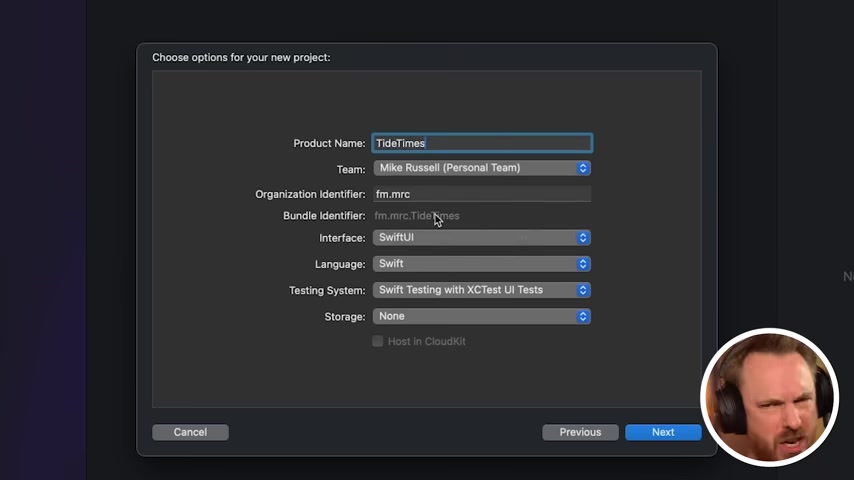
:**
- Launch Xcode and create a new project.
- Select 'iOS' as the platform.
- Choose the 'App' template.
- Name the project (e.g., 'TideTimes').
- Provide an 'Organization Identifier' (usually your domain name in reverse).
- Ensure the interface is set to 'SwiftUI' and the language is 'Swift'.
- Save the project to your desired location.
-
Linking Cursor AI with Xcode :
- Open Cursor AI and select 'Open a folder'.
- Navigate to the Xcode project folder you created in Step 1.
- Confirm that Cursor AI can access the project files.
- This step integrates the AI code editor into your project.
Leveraging Cursor AI for Code Generation
Cursor AI helps you avoid having to code manually.
-
**Apple's Best Practices
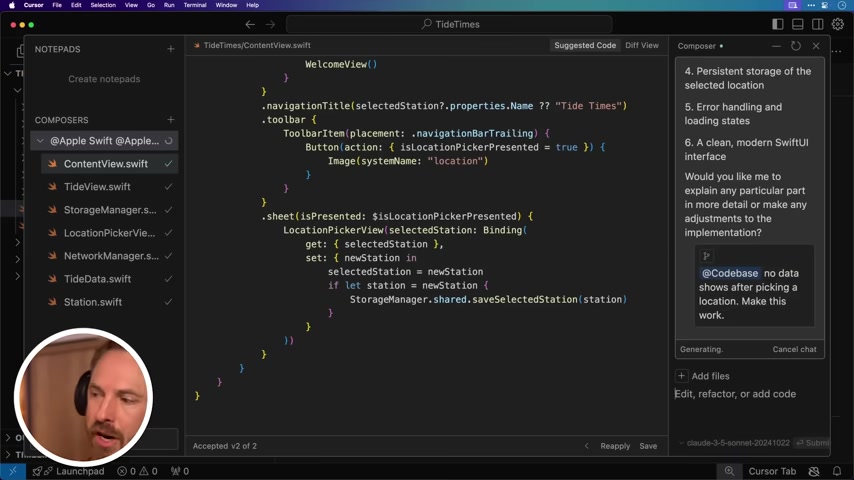
:** Follow Apple's guidelines when creating your app. These rules determine UI and UX.
-
Invoke Cursor Composer: Open the file ContentView.swift and hit 'Command + Shift + i', which enables you to add or edit code.
To create code with Cursor AI, it needs a command to tell it what you want to do. You can provide this using different means, such as @files, @docs, and @codebase, all of which tell Cursor AI where to find information on the project and Apple's preferences.
Next, you can Prompt for different features you'd like included in the app. For example, you can create a location search feature to find different tide times across various locations. This helps the user find what they need for the iOS app. These lines also work in code that requires more technical expertise, further adding value to your brand.
Building a Custom App Icon with AI
An engaging app icon is vital for attracting users. Instead of struggling with designing an icon manually, you can leverage AI Tools to create a compelling visual representation of your application:
-
Gather Design Guidelines: Visit Apple's developer website for app icon design guidelines.
-
Prompt AI for Design Ideas: To create an icon with no border, you need to prompt it for no rounded edges or water-based graphics.
-
Use Midjourney: For this step, you will need to head over to Midjourney. Enter /imagine and add your prompt from Apple's design to get multiple ideas of how to design your unique icon.
Once you have the icon saved, you can then add it to your iOS design within Xcode and test it before fully launching the application.
Testing Your AI-Built iOS App on a Physical Device
Before you call your app complete, it's important to test your fully-functioning iOS app on a physical iPhone device. This helps to show and confirm it looks and works in the best way. Do this, you'll need to:
- Connect your iPhone to your Mac using a USB cable.
- In Xcode, select your iPhone as the build destination.
- Click the 'Play' button to build and run the app on your device.
Ensure your Apple ID is linked in Xcode settings so the app can be installed on your device.
Benefits and Limitations of Free vs. Paid Apple Developer Accounts
When using a free Apple Developer Account to test apps on a physical iPhone device, be mindful that the program limits your usage to a 7-day period before requiring you to reload it through Xcode for testing purposes. Although convenient, a paid developer account through Apple, at the cost of $99/year, allows you to test the programs for longer before having to renew.
Advanced Customizations for your App
Adding Location Data to Your App
An app is only as great as the amount of information it is able to collect and process, helping users and brands alike. While this Tide Times app is great, there are ways to scale the program. For example, prompt Cursor AI to use a specific Tide Times API of your choice for your data. Use that connection to fetch tide time information and allow it to follow the latest trends. This ensures your data is always up to date.
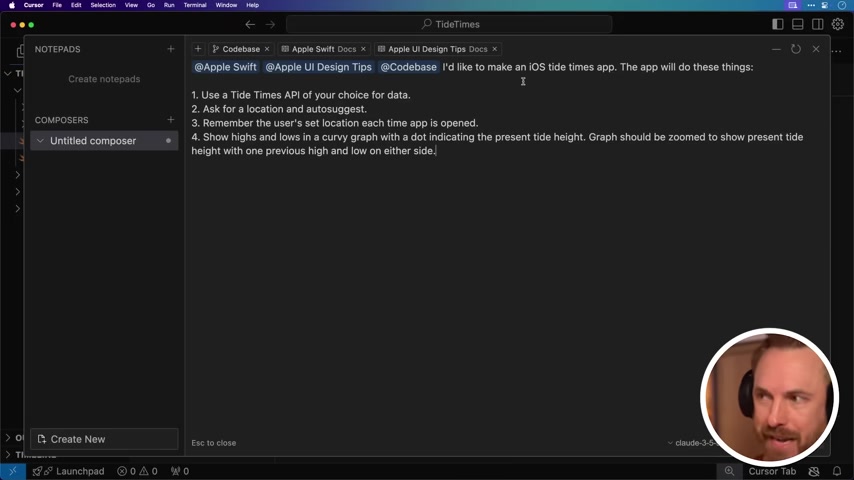
With these changes, your app could follow the best and latest trends using tide times, helping you generate the best version possible.
How to Use Cursor AI and Xcode for iOS App Development
Setting up Xcode
First, you must download Xcode from the Apple App Store.
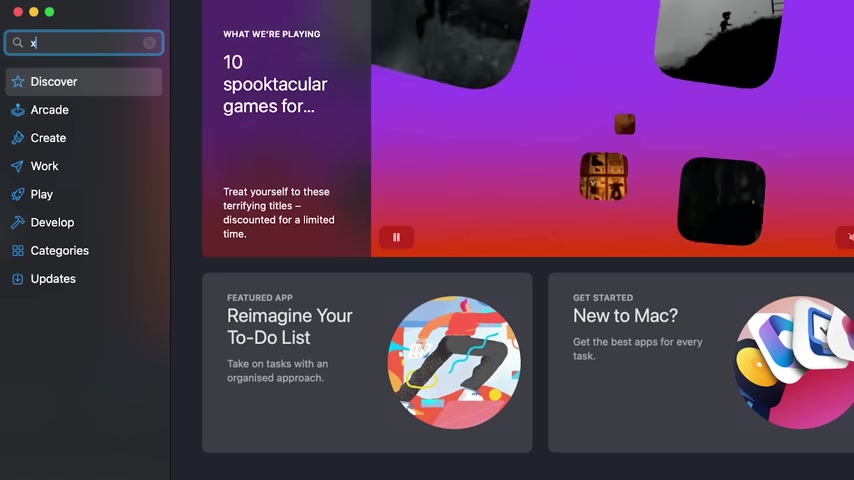
While it appears that coding skills are necessary, rest assured that this is for the AI to write the code; you'll only set the app up and get it ready for launch.
- Open Xcode and select, 'Create New Project'
- On the top navigation bar, ensure that iOS is selected
- After, select 'App'
- Name the product what you want, such as, Tide Times.
- Select a team in the dropdown bar (if not available, just select 'Personal Team')
- Type in your organization's identifier, such as, fm.mrc.
Adding AI Prompts in Cursor
Using an AI, such as Cursor or ChatGPT, can significantly improve your prompt and have it work on Apple's UI/UX structure. With prompts, you need to be concise and intentional. This can range from adding a location picker with a search functionality to a persistent storage of saved locations. With enough instructions and the right set up, you will start to see the AI-assisted coding come to life.








Most people like

































Report
Please select a reason for reporting
- 13 Reasons to Switch from Snapchat to Text Messaging
- 7 Powerful Speech to Text Apps to Boost Productivity
- 10 Best Speech to Text Tools for Effortless Transcription
- 13 Free Tools to Easily Transcribe Audio to Text
- 15 Surprising Ways Google's Speech-to-Text Boosts Productivity
- 7 Best Free Online Audio to Text Transcription Tools
- 9 Tips to Transcribe Speech to Text Faster and Better
- 13 Best Speech to Text Software for Windows 10 in 2023
- 7 Tips for Choosing the Best Transcriber for Audio to Text
- 11 Reasons Why Dragon Speech-to-Text Apps are Game-Changers
- 6 Secrets to Enhance Your Speech to Text Transcription
- 6 Brilliant Ways to Boost Productivity with Talk-to-Text on Your MacBook
- 6 Ways Transcription Software Converts Audio to Text
- 8 Tips to Transcribe Speech to Text Like a Pro
- 6 Reasons IBM Watson Speech to Text is a Game-Changer
- 14 Powerful Ways Talk-to-Text Improves Your Workflow
- 12 Top Windows Speech-to-Text Software for Efficient Transcription
- 12 Game-Changing Benefits of Apple's Speech to Text Technology
- 9 Powerful Use Cases for AWS Speech to Text Technology
- 10 Easy Steps to Transcribe YouTube Videos to Text
- transcription audio en texte
- online audio transcription
- free audio file transcription
- free ai audio transcription
- audio transcription service
- audio transcription online free
- audio transcription free online
- audio to transcription software
- audio and transcript
- ai audio transcription free
- voice recording to text converter
- translate voice recording to text
- record voice to text
- audio recording to text converter
- voice recording and transcription
- chatgpt voice to text
- gmail voice to text
- speech to text reader
- speech to text ai free
- speech to talk
- How to Use AI Tools to Find Internal Linking Opportunities Across a Business Website
- Discover Your Perfect Haircut with AI Hairstyle Apps
- Free Reputation Calculator Tools: How They're Adapting to Score AI Visibility, Not Just Rankings
- Design Professional Flyers for Free on Your Phone
- Best Free Flyer Maker Apps for Android: Design Like a Pro
- How to Know If Your Business Is Ready for an AI Customer Service Agent
- Revolutionizing Storytelling: From Novels to Screenplays with AI
- Create Engaging Animated Explainer Videos with a Free AI Tool
- Stop Multi-Subscribing: Benchmark Top AI Visual Models in One Canvas
- Best Seedance 2.5 API Provider: Every Price on the Market, Checked at Source
- Top AI Social Media Management Tools: Automate Your Content Strategy
- Free AI Text to Video Generator: Create Stunning Videos from Text
- Discover 17 ChatGPT Alternatives: A Comprehensive Comparison
- Character.AI vs. Janitor AI: Which AI Chat Platform Reigns Supreme?
- Top Virtual Assistant Companies in 2026: Reviews, Pricing, and Plans Compared
- Unveiling FaceCheck.ID: Revolutionizing Reverse Image Searches with AI
- 11 Best AI Dialers in 2026: Features, Pricing, Pros and Cons
- How I Direct Consistent AI Clips: A Hands-On Guide to Multi-Model Generation
- A Realistic Review of the Photo Generator Image Tool
- Playwright MCP Server: Automated Web Testing with Agent Mode

Copyright ©2026 toolify