































Table of Contents
- Key Points
- Unlocking the Power of Canva AI for Presentations
- Maximizing Your Canva AI Presentation Experience
- Step-by-Step Tutorial: Creating Presentations with Canva AI
- Benefits and Limitations of Using Canva AI for Presentations
- Frequently Asked Questions
- Related Questions


Unlocking the Power of Canva AI for Presentations
Why Use AI for Presentation Creation?
Traditional presentation creation can be time-consuming, requiring significant effort in design, content writing, and visual sourcing. Artificial intelligence (AI) streamlines this process, automating tasks and providing creative assistance. With AI, you can generate ideas, design layouts, and write compelling content in a fraction of the time it would take manually. This not only saves time but also enhances the overall quality of your presentations, making them more engaging and impactful. Embracing AI in presentation design allows you to focus on refining your message and connecting with your audience, ensuring your presentations leave a lasting impression.
Time Efficiency: AI Tools can significantly reduce the time spent on design and content creation.
Enhanced Creativity: AI Suggests design elements and content ideas you might not have considered.
Improved Engagement: AI helps create more visually appealing and engaging presentations.
Canva AI: Your Presentation Design Partner
Canva has emerged as a leading platform for Graphic Design, offering user-friendly tools for creating a wide range of visual content.

Canva AI integrates artificial intelligence to enhance its capabilities, making it an even more powerful tool for presentation design. With Canva AI, users can automate tasks, generate design ideas, and create compelling content quickly and easily. Its intuitive interface makes it accessible to both design professionals and beginners, allowing anyone to create visually stunning and effective presentations.
Intuitive Interface: Canva's drag-and-drop interface makes design accessible to users of all skill levels.
AI-Powered Assistance: Canva AI provides intelligent suggestions for design, content, and visuals.
Versatile Design Options: Canva offers a vast library of templates, fonts, and images to suit any presentation topic.
Maximizing Your Canva AI Presentation Experience
Exploring Canva's Magic Media
Canva's Magic Media extends beyond presentations, offering AI-driven image and video generation for various design needs. Experiment with text prompts to create unique visuals, perfect for social media content, marketing materials, and more.
This tool lets users produce visually captivating assets with minimal design expertise, saving both time and resources.
To use Magic Media effectively, consider these strategies:
- Use specific and descriptive prompts: The more precise your text Prompt, the better the AI can generate the image you envision.
- Experiment with different styles: Magic Media offers various styles, such as photographic, watercolor, and abstract, to suit your desired aesthetic.
- Refine and iterate: If the initial result isn't perfect, adjust your prompt and generate new images until you achieve the desired outcome.
Beyond Slides: Expanding Canva's AI Capabilities
Canva AI's versatility extends beyond presentations. It offers various AI-driven features for graphic design, social media content creation, and video editing. Explore these tools to enhance your creative workflow and produce high-quality visual content for all your needs.
These capabilities are particularly valuable for content creators, marketers, and educators looking to maximize their impact with visually appealing and informative content.
Explore the following areas:
- Social Media Content: Use Canva AI to create engaging social media posts, stories, and ads.
- Marketing Materials: Design brochures, flyers, and posters with AI-generated visuals and text.
- Video Editing: Enhance your video content with AI-powered tools for trimming, adding transitions, and more.
Choosing a Template
Before the creation of any presentation, the template you wish to use should be considered and well-thought-out. With the proper template, information can be structured and displayed in a more coherent manner. If information is too bunched together and too vague, the audience will likely not grasp the core concept being showcased.
Step-by-Step Tutorial: Creating Presentations with Canva AI
Accessing Canva AI Presentation Tools
To begin, navigate to the Canva website and either log in or create a new account. Once you're logged in, search for the 'ai presentation maker' or 'Create AI Presentation' option. This will lead you to the Canva ai presentation tool, where you can start designing your presentation.
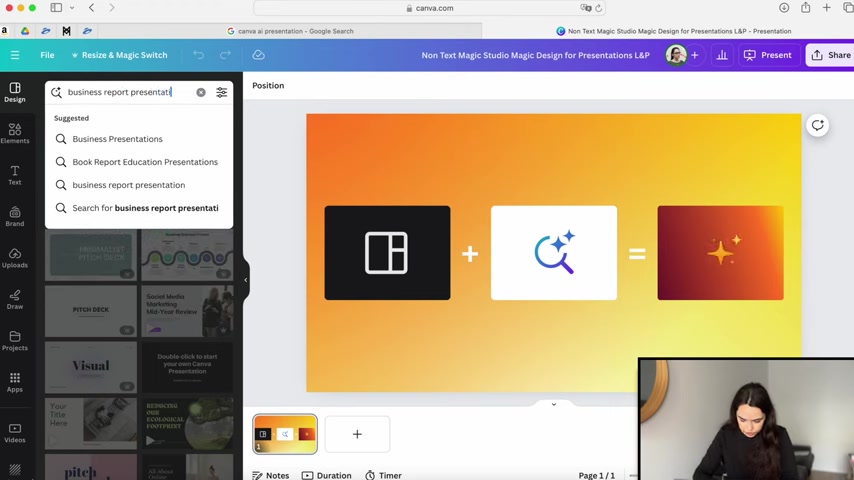
Alternatively, accessing Canva AI presentation tools is direct by navigating to Canva's Create AI Presentations page at canva.com/create/ai-presentations/.
Using Magic Design to Generate Slides
Canva AI's Magic Design feature allows you to create presentations based on a few keywords. Enter a description of your presentation topic, and the AI will generate a series of slides with Relevant layouts and content suggestions. This is a quick way to get started and explore different design options. For example, typing “business report presentation” generates several slide templates tailored to that concept.
Leveraging Magic Write for Text Generation
Canva's Magic Write is an AI-powered writing assistant that can help you generate text for your slides. Simply input a topic or a few keywords, and Magic Write will create engaging and informative content for you. This tool is particularly useful for crafting compelling headlines, bullet points, and descriptions, saving you time and effort in the writing process.
- Select a Text Element: Click on a text box on your slide.
- Activate Magic Write: Use the Magic Write prompt and use at least 5 words to describe what you want to write.
- Generate Text: Let Canva AI generate the text, with different styles based on different prompts.
Generating AI Images with Magic Media
Canva AI also provides access to AI image generation tools, allowing you to create custom visuals for your presentations.
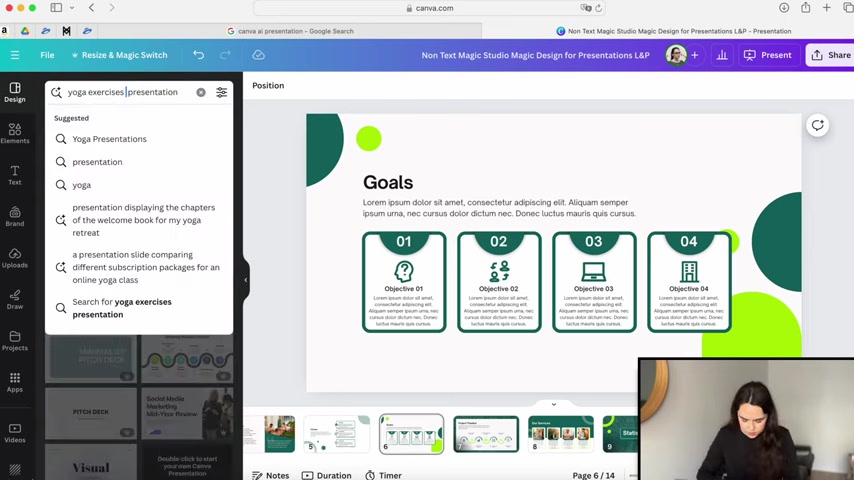
Use the 'Magic Media' feature to generate unique images based on your text prompts. Describe the image you want, and the AI will create a visual that perfectly complements your presentation content. This is an excellent way to add unique and relevant images to your presentations, enhancing their visual appeal.
- Navigate to Apps: Select Apps in the left navigation menu.
- Open Magic Media: Select Magic Media from the displayed options.
- Enter a Text Prompt: Enter at least 5 words to describe the image you want to generate.
- Select and Image: Canva will generate 4 images, select one and it will import into the Canva canvas.
Customizing Your Presentation
Once you have generated the basic slides and content, you can customize your presentation to fit your specific needs and preferences. Use Canva's drag-and-drop interface to rearrange elements, change fonts and colors, add images and videos, and more. Don't be afraid to experiment and let your creativity flow to create a presentation that truly reflects your vision. Remember, the AI is a tool to assist you, but the final design is in your hands.





Most people like

































Report
Please select a reason for reporting
- 13 Reasons to Switch from Snapchat to Text Messaging
- 7 Powerful Speech to Text Apps to Boost Productivity
- 10 Best Speech to Text Tools for Effortless Transcription
- 13 Free Tools to Easily Transcribe Audio to Text
- 15 Surprising Ways Google's Speech-to-Text Boosts Productivity
- 7 Best Free Online Audio to Text Transcription Tools
- 9 Tips to Transcribe Speech to Text Faster and Better
- 13 Best Speech to Text Software for Windows 10 in 2023
- 7 Tips for Choosing the Best Transcriber for Audio to Text
- 11 Reasons Why Dragon Speech-to-Text Apps are Game-Changers
- 6 Secrets to Enhance Your Speech to Text Transcription
- 6 Brilliant Ways to Boost Productivity with Talk-to-Text on Your MacBook
- 6 Ways Transcription Software Converts Audio to Text
- 8 Tips to Transcribe Speech to Text Like a Pro
- 6 Reasons IBM Watson Speech to Text is a Game-Changer
- 14 Powerful Ways Talk-to-Text Improves Your Workflow
- 12 Top Windows Speech-to-Text Software for Efficient Transcription
- 12 Game-Changing Benefits of Apple's Speech to Text Technology
- 9 Powerful Use Cases for AWS Speech to Text Technology
- 10 Easy Steps to Transcribe YouTube Videos to Text
- transcription audio en texte
- online audio transcription
- free audio file transcription
- free ai audio transcription
- audio transcription service
- audio transcription online free
- audio transcription free online
- audio to transcription software
- audio and transcript
- ai audio transcription free
- voice recording to text converter
- translate voice recording to text
- record voice to text
- audio recording to text converter
- voice recording and transcription
- chatgpt voice to text
- gmail voice to text
- speech to text reader
- speech to text ai free
- speech to talk
- How to Use AI Tools to Find Internal Linking Opportunities Across a Business Website
- Discover Your Perfect Haircut with AI Hairstyle Apps
- Free Reputation Calculator Tools: How They're Adapting to Score AI Visibility, Not Just Rankings
- Design Professional Flyers for Free on Your Phone
- Best Free Flyer Maker Apps for Android: Design Like a Pro
- How to Know If Your Business Is Ready for an AI Customer Service Agent
- Revolutionizing Storytelling: From Novels to Screenplays with AI
- Create Engaging Animated Explainer Videos with a Free AI Tool
- Stop Multi-Subscribing: Benchmark Top AI Visual Models in One Canvas
- Best Seedance 2.5 API Provider: Every Price on the Market, Checked at Source
- Top AI Social Media Management Tools: Automate Your Content Strategy
- Free AI Text to Video Generator: Create Stunning Videos from Text
- Discover 17 ChatGPT Alternatives: A Comprehensive Comparison
- Character.AI vs. Janitor AI: Which AI Chat Platform Reigns Supreme?
- Top Virtual Assistant Companies in 2026: Reviews, Pricing, and Plans Compared
- Unveiling FaceCheck.ID: Revolutionizing Reverse Image Searches with AI
- 11 Best AI Dialers in 2026: Features, Pricing, Pros and Cons
- How I Direct Consistent AI Clips: A Hands-On Guide to Multi-Model Generation
- A Realistic Review of the Photo Generator Image Tool
- Playwright MCP Server: Automated Web Testing with Agent Mode

Copyright ©2026 toolify