































Table of Contents
- Key Points
- Understanding Document AI
- Document AI and Google App Script: A Powerful Combination
- How to Use Document AI and App Script
- Pricing
- Pros and Cons of Using Document AI
- Core Features
- Ideal Use Cases for Implementation
- FAQ
- Related Questions



Understanding Document AI
What is Document AI?
Document AI is a cloud-based service that uses machine learning to automatically extract and analyze data from various document types. It supports a wide range of formats, including PDFs, images, and scanned documents, making it a versatile tool for businesses dealing with large volumes of paperwork.

Whether it's invoices, receipts, contracts, or forms, Document AI can accurately identify and extract key information, such as dates, amounts, names, and addresses.
With Document AI, paper transforms into actionable data, enhancing efficiency and accessibility across business operations. Its advanced algorithms are designed to improve over time, ensuring accurate and reliable data extraction for a streamlined workflow.
Core Features of Document AI
Document AI comes packed with features tailored to automate document-related tasks. It's built for any business that works with a lot of paper. Here are some of its notable capabilities:
- Optical Character Recognition (OCR):
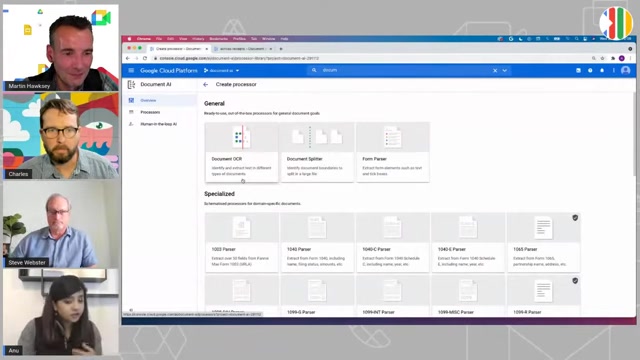
Converts scanned images and PDFs into machine-readable text. Because OCR is trained specifically for use in forms, the accuracy is higher than more general OCR applications
- Data Extraction: Automatically identifies and extracts key information from documents.
- Form Parsing: Parses data from structured and semi-structured forms, streamlining data entry.
- Pre-trained Models: Utilizes pre-trained models for various document types, minimizing setup time.
- Custom Model Training: Allows you to train custom models for unique document layouts and data requirements.
- Integration with Google Cloud Storage: Seamlessly integrates with Google Cloud Storage for secure document storage and processing.
Use Cases for Document AI
Document AI can be transformative in various sectors where document management is essential.

Here are some typical use cases:
- Financial Services: Automate invoice processing, loan applications, and customer onboarding. Streamline data entry, reduce manual errors, and speed up transaction times.
- Healthcare: Extract patient information from medical records and claims forms. Improve accuracy, reduce administrative overhead, and enhance compliance with data privacy regulations.
- Logistics: Automate shipping documentation, tracking, and customs clearance. Speed up supply chain operations, reduce costs, and improve Customer Service.
- Government: Streamline public service requests, forms processing, and compliance checks. Enhance efficiency, reduce bureaucracy, and improve citizen satisfaction.
How to Use Document AI and App Script
Step-by-Step Guide to Automate Document Processing
Here is a detailed guide that provides a roadmap for automating document processing with Document AI and App Script.
-
Set Up Document AI: Enable the Document AI API in your Google Cloud project.
-
Create a Processor: Create a processor in Document AI for the specific document type you want to analyze. You may use a pre-trained processor or train a custom model.
-
Store Documents in Google Cloud Storage: Upload your documents to a Google Cloud Storage bucket.
-
Write a Google App Script Function: Create a function in Google App Script that:
- Authenticates with the Document AI API.
- Sends a request to the Document AI API to process the document.
- Parses the response and extracts the relevant data.
- Performs any necessary actions, such as updating a Google Sheet or sending an email.
-
Create Triggers: Set up triggers to automatically run your App Script function when new documents are added to your Google Cloud Storage bucket.
-
Test and Refine: Thoroughly test your automated workflow and refine the App Script function and Document AI processor as needed to ensure accuracy and efficiency.


Most people like



































Report
Please select a reason for reporting
- 13 Reasons to Switch from Snapchat to Text Messaging
- 7 Powerful Speech to Text Apps to Boost Productivity
- 10 Best Speech to Text Tools for Effortless Transcription
- 13 Free Tools to Easily Transcribe Audio to Text
- 15 Surprising Ways Google's Speech-to-Text Boosts Productivity
- 7 Best Free Online Audio to Text Transcription Tools
- 9 Tips to Transcribe Speech to Text Faster and Better
- 13 Best Speech to Text Software for Windows 10 in 2023
- 7 Tips for Choosing the Best Transcriber for Audio to Text
- 11 Reasons Why Dragon Speech-to-Text Apps are Game-Changers
- 6 Secrets to Enhance Your Speech to Text Transcription
- 6 Brilliant Ways to Boost Productivity with Talk-to-Text on Your MacBook
- 6 Ways Transcription Software Converts Audio to Text
- 8 Tips to Transcribe Speech to Text Like a Pro
- 6 Reasons IBM Watson Speech to Text is a Game-Changer
- 14 Powerful Ways Talk-to-Text Improves Your Workflow
- 12 Top Windows Speech-to-Text Software for Efficient Transcription
- 12 Game-Changing Benefits of Apple's Speech to Text Technology
- 9 Powerful Use Cases for AWS Speech to Text Technology
- 10 Easy Steps to Transcribe YouTube Videos to Text
- transcription audio en texte
- online audio transcription
- free audio file transcription
- free ai audio transcription
- audio transcription service
- audio transcription online free
- audio transcription free online
- audio to transcription software
- audio and transcript
- ai audio transcription free
- voice recording to text converter
- translate voice recording to text
- record voice to text
- audio recording to text converter
- voice recording and transcription
- chatgpt voice to text
- gmail voice to text
- speech to text reader
- speech to text ai free
- speech to talk
- ChatGPT Knows Ford. It Just Doesn't Quote Ford
- Meshy AI: How to Create 3D Models from Text and Images
- How SEO and Marketing Dashboards Empower Agencies to Drive Results
- How to Use AI Tools to Find Internal Linking Opportunities Across a Business Website
- Discover Your Perfect Haircut with AI Hairstyle Apps
- Free Reputation Calculator Tools: How They're Adapting to Score AI Visibility, Not Just Rankings
- Design Professional Flyers for Free on Your Phone
- Best Free Flyer Maker Apps for Android: Design Like a Pro
- How to Know If Your Business Is Ready for an AI Customer Service Agent
- Revolutionizing Storytelling: From Novels to Screenplays with AI
- Can an eSIM Plan Save You Time During Travel Setup?
- AI Video Editor Review: A Hands-On Look at Prompt-Based Video Editing
- Keep Characters Consistent Across Scenes With Image-to-Video AI
- How to Convert BTC to HNT
- ProxyWing DuckDuckGo Proxy Review: Plans, Setup and Who It Is For
- ChatGPT Knows Ford. It Just Doesn't Quote Ford
- Automate Lead Generation: A Comprehensive Guide with AI Agents
- Revideo.io: The Future of Reverse Video Search Technology
- Revolutionizing Email Marketing Agency with AI
- Breaking the Character Drift Dilemma: A Practical Test of Smart Shot

Copyright ©2026 toolify