






















Efficiently Edit Word Documents with Microsoft Copilot: A Guide

Updated on Sep 04,2025

In today's fast-paced world, efficiency is key. Microsoft Copilot emerges as a game-changer for document editing. It provides tools that streamline the editing process, expand ideas, and refine text within your Microsoft Word documents. By leveraging Copilot, users can significantly reduce the time spent editing, making it an invaluable asset for professionals, students, and anyone dealing with text-heavy tasks. This guide explores how to use Copilot to enhance your document editing workflow, saving time and improving the quality of your written content.

Key Points

Copilot allows users to expand on ideas and refine text within Microsoft Word documents.

Using Copilot saves significant time in the document editing process.

Copilot's integration is seamless, appearing directly within the Word interface.

Users can quickly summarize sections of their documents to distill key points.

Copilot can re-write content to improve engagement and use active voice.

The AI can help brainstorm and expand on ideas, providing fresh perspectives and additional information.

Copilot can be prompted to exclude source links from the output for cleaner formatting.

User input is essential to ensure the AI generates contextually appropriate and desired results.

Unlocking Efficiency: Editing Documents with Microsoft Copilot

What is Microsoft Copilot?

Microsoft Copilot is an artificial intelligence-powered tool designed to enhance productivity across various Microsoft applications, including Microsoft Word. It aims to assist users in generating, editing, and refining content more efficiently. Integrated directly into the Word interface, Copilot provides real-time suggestions and automated features that streamline the document creation and editing process. The overarching goal of Copilot is to empower users to produce high-quality documents in less time, thereby increasing overall productivity. This powerful tool enhances writing by offering suggestions, rephrasing content, and even summarizing entire documents or sections. Its machine learning algorithms learn from user interactions to provide increasingly relevant and accurate assistance, making it a valuable tool for both novice and experienced writers. By using Copilot, individuals can focus more on the substance of their writing, while the AI handles the more tedious aspects of editing and formatting. Overall, Microsoft Copilot is designed to be a collaborative partner in document creation, offering support and suggestions to help users achieve their writing goals more effectively and efficiently. The continuous improvements to Copilot’s algorithms ensure that it remains a cutting-edge tool for enhancing productivity and document quality in Microsoft Word.

Streamlining the Editing Process with Copilot's AI

The editing feature within Copilot allows for expanding on ideas and refining text, saving time in the editing process. Copilot is a valuable tool to speed up the editing process, helping users produce higher-quality work more efficiently. This is achieved through several key functions, such as content summarization, re-writing, and idea expansion. By using Copilot, the user can focus on overall improvements to their writing, as well as ensure a uniform voice throughout the document. Copilot analyzes the text in real-time and offers suggestions to enhance clarity, conciseness, and engagement. This constant feedback helps in refining the writing style, making it more appealing to the target audience. With Copilot, the editing process becomes less about manual correction and more about strategic refinement. Copilot can summarize lengthy sections into concise paragraphs, saving time and providing a clear overview of the content. This function is especially useful for long documents where quick comprehension is essential. Copilot can identify key points and create a cohesive summary, allowing users to quickly grasp the core ideas without having to read through the entire text. By automating the summarization process, Copilot helps in accelerating review cycles and decision-making. Copilot can rewrite sentences and paragraphs to enhance their impact. Copilot suggests better WORD choices, improves sentence structure, and ensures that the writing is more engaging. It can also adapt the writing style to suit different audiences, making the text more accessible and relevant. This re-writing functionality is useful for refining the document, making it more engaging to read. The AI works to create a document that meets a variety of audiences.

Summarizing Sections for Quick Comprehension

Copilot's ability to summarize key sections of a document is a powerful feature for quickly grasping the main points. To start, select the section you wish to summarize. Input into the Copilot Prompt window to rewrite the information into a single paragraph. Copilot will then distill the key points and generate a concise summary
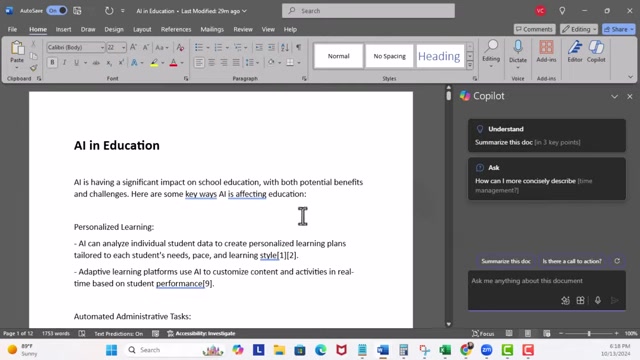
. This function saves time and allows users to quickly review the content. This streamlined approach is useful for long documents, where quickly grasping the core ideas is essential. Copilot analyzes the selected text and extracts the essential information, creating a summary that retains the original meaning while significantly reducing the length. This is particularly beneficial in academic settings, where research Papers often contain lengthy abstracts that need to be quickly understood. Similarly, in professional contexts, summarizing sections of reports and proposals can facilitate faster decision-making. In addition to summarizing, Copilot offers options to adjust the length and detail level of the summary, providing flexibility to meet different needs. Users can choose between a brief overview or a more detailed synopsis, ensuring that the summary is tailored to the specific context and audience. Copilot's summarization feature enhances productivity and improves comprehension, making it an invaluable tool for anyone dealing with large volumes of text.

Enhancing Writing Style: Making Paragraphs More Engaging

Copilot can also enhance the writing style of a paragraph, making it more engaging and professional. This helps refine writing style, making documents more appealing and impactful. AI algorithms are employed to analyze the selected paragraph and provide suggestions to improve its clarity, conciseness, and overall engagement. Rewrite the paragraph under challenges and concerns by making it more engaging and use active voice. Copilot offers options to adjust the tone of the writing, ensuring that it aligns with the intended audience and purpose. The ability to enhance writing style ensures that the document effectively communicates its message. With Copilot, it's possible to refine a document to engage a variety of readers.

Mastering Prompts: Excluding Source Links and Refining Instructions

Why Exclude Source Links?

In academic or professional writing, it's often necessary to cite sources to give credit to the original authors and provide credibility to your work. However, there are situations where including these source links directly within the main body of the text can disrupt the flow and readability of the document. This is where Copilot's prompt customization becomes invaluable. Source links may be included for reference, but are not always necessary for readability. Users may want to ensure that a document is easy to read, and remove the source links from the original text. These customizations help to make the document more engaging and uniform to read, which makes the work easier for readers to understand.

How to Exclude Source Links Effectively

To exclude source links, users need to provide specific instructions within their prompts. This involves clearly stating that source links should not be included in the output. This helps to streamline the document's readability. This ensures that Copilot generates content that aligns with the desired style and formatting. Rewrite the information under personalized learning into 1 paragraph make sure to not include source links. The following are some best practices when including these restrictions:

  • Be Direct and Clear: Use straightforward language to instruct Copilot to exclude source links. This leaves no room for ambiguity and ensures that the AI understands the requirement.

  • Placement Matters: Include the exclusion instruction at the beginning or end of your prompt to emphasize its importance. This ensures that Copilot prioritizes this instruction when generating the content.

  • Test and Verify: After receiving the output, review the generated content to ensure that no source links have been inadvertently included. This step confirms that the exclusion instruction was successfully implemented.

  • Iterate if Necessary: If the initial output still contains source links, refine your prompt and reiterate the instruction. AI learns from each interaction, so refining your instructions can improve future results.

The Importance of Clear and Precise Prompts

While Copilot is designed to assist users in generating high-quality documents, the quality of the output depends heavily on the clarity and precision of the input prompts. AI cannot read minds, and therefore requires detailed instructions to generate content. Providing specific instructions ensures that Copilot generates relevant and accurate content, aligning with the user's intentions. Being clear in prompts will ensure the AI generates the document you want. The following are some best practices when using these prompts:

  • Specify Desired Output: Clearly state the type of output you expect, whether it's a summary, rewritten paragraph, or expanded content. Copilot can tailor its output to meet specific requirements.

  • Provide Context: Give Copilot enough context to understand the topic and purpose of the document. This helps the AI generate content that is relevant and coherent.

  • Use Active Voice: Encourage the use of active voice to make the writing more engaging and impactful. By indicating the voice you want the AI to use, you will ensure the readability of the document.

  • Iterate and Refine: AI can learn from each interaction, so continuously refining your instructions can improve future results.

Step-by-Step Guide: Editing Documents with Copilot

Activating Copilot in Microsoft Word

First, open the Microsoft Word document you wish to edit. Once the document is open, navigate to the “Home” tab on the ribbon. Look for the “Copilot” button, typically located on the right side of the ribbon. Click on the “Copilot” button to activate the tool. Activating the app starts the process of improving your document. Copilot will appear as a sidebar on the right side of the Word interface, ready to assist you in the editing process. This seamless integration allows you to work within your existing workflow while leveraging the power of AI to enhance your document.

Summarizing a Section of Your Document

Select the specific section of your document that you want to summarize. Once selected, type a prompt into the Copilot window, such as “Summarize this section into one paragraph”. Review the summary generated by Copilot. Copilot’s summary will generate key concepts from the document, highlighting the essential information. If the summary is satisfactory, proceed to copy and paste it into your document. Copilot’s summaries can significantly reduce the length of the original text, saving time and improving comprehension.

Rewriting Paragraphs for Enhanced Engagement

Select the paragraph you want to rewrite. In the Copilot prompt window, enter a request like “Rewrite this paragraph to be more engaging and use active voice”. Copilot will generate a revised version of the paragraph, incorporating suggestions for improved clarity and impact. Evaluate the rewritten paragraph to determine if it meets your expectations. AI often improves the readability of a document, so it's beneficial to implement these edits. If necessary, refine the prompt and regenerate the paragraph until you achieve the desired result. Copy the revised paragraph and replace the original text in your document. This enhances engagement to improve readability.

Expanding on a Topic with Copilot’s Brainstorming

Place the cursor where you want to expand on a particular topic. In the Copilot prompt window, ask a question or provide a directive, such as “Provide three specific examples of how AI can automate administrative tasks in education”. Copilot will generate additional content, offering fresh perspectives and additional information on the topic. These additions will improve and expand on the original ideas in your text. Review the generated content and integrate it into your document as needed. By following these steps, Copilot can be leveraged to refine and enhance the document, expanding on its original concepts.

Microsoft Copilot Pricing Details

Understanding the Cost Structure of Microsoft Copilot

Microsoft Copilot is integrated into various Microsoft 365 plans, the pricing can vary based on the specific plan. The price can also change from time to time, depending on the subscription model. For users who need continuous access to AI-driven support, Microsoft Copilot proves to be a worthwhile investment. By helping you save time and enhance your productivity, the tool easily pays for itself. Microsoft Copilot is often included as a feature within broader Microsoft 365 subscriptions. Individuals who are already using Microsoft 365 may have access to Copilot without incurring additional costs. The exact price depends on how the license was purchased.

Analyzing Microsoft Copilot: Weighing the Pros and Cons

👍 Pros

Efficient Editing: Streamlines the editing process with AI-driven tools, saving time and improving productivity.

Content Refinement: Enhances writing style by improving clarity, conciseness, and engagement.

Idea Expansion: Generates additional content, offering fresh perspectives and expanding on topics.

Seamless Integration: Integrates directly into the Microsoft Word interface for a streamlined workflow.

Prompt Customization: Provides specific instructions to tailor the output and exclude source links.

Continuous Learning: Machine learning algorithms learn from user interactions to provide increasingly relevant and accurate assistance.

Beginner Friendly: Easy and intuitive to use, for a variety of users

👎 Cons

Quality Dependency: Output depends on the clarity and precision of the input prompts.

Limited Insertion: Can't automatically insert rewritten text directly into the document.

Potential Confusion: May get confused by complex or ambiguous prompts, requiring reiteration.

Reliance on the Internet: Relies on connection and data connection to work

Key Features of Microsoft Copilot

What Makes Copilot a Powerful Tool?

Microsoft Copilot has powerful capabilities and offers a variety of features to improve readability. This tool can summarize large documents, rewrite for tone, and create new content to expand on ideas. By utilizing AI, Microsoft Copilot is changing the way we complete writing tasks. The following are some of the key features:

  • Content Summarization: Condenses large documents into concise summaries.
  • Rewriting Assistance: Enhances writing style by improving clarity, conciseness, and engagement.
  • Brainstorming Support: Generates additional content, offering fresh perspectives and expanding on topics.
  • Prompt Customization: Provides specific instructions to tailor the output, such as excluding source links.
  • Seamless Integration: Integrates directly into the Microsoft Word interface for a streamlined workflow.
  • Continuous Learning: Machine learning algorithms learn from user interactions to provide increasingly relevant and accurate assistance.
  • Voice Alteration: Choose the voice you want for your document, tailoring its reading for different audiences.

Use Cases: How Microsoft Copilot Can Be Applied

Exploring the Versatile Applications of Copilot

Microsoft Copilot offers a broad range of applications across different fields. It is a useful tool for writing research, and for completing small tasks such as rewrites. Microsoft Copilot can be applied to a variety of jobs, to assist in document drafting. The following are some of its use cases:

  • Academic Research: Summarizing research papers and generating additional content for literature reviews.
  • Professional Reports: Rewriting sections of reports to improve clarity and engagement.
  • Content Creation: Expanding on ideas and brainstorming topics for blog posts and articles.
  • Business Proposals: Improving the persuasiveness and impact of business proposals.
  • Student learning: Students learning various concepts benefit from having an AI that can assist in writing and content creation.

FAQ

Can Copilot automatically insert rewritten text directly into my document?
As of now, Microsoft does not automatically insert rewritten text, but can copy and paste directly into the work. It is important that Copilot can only rewrite in a limited way.
How do I ensure Copilot doesn’t include source links in the rewritten content?
You will want to be sure to specifically exclude the source links from the writing. To do this, clearly state that source links should not be included in the output. This ensures that Copilot generates content that aligns with the desired style and formatting.
What if Copilot gets confused by my prompt?
If Copilot gets confused by your prompt, reiterate the prompt into the AI to receive the correct written output. If the AI is still not generating what is needed, try to reword the prompt into simple concepts that can improve and encourage Copilot to create more cohesive writings.

Related Questions

What other AI tools are available in Microsoft Word?
Microsoft Word is continuously evolving with the integration of various AI-powered tools designed to enhance writing and productivity. In addition to Copilot, users can access other AI features that streamline document creation and editing. Microsoft Editor offers advanced grammar and style checking, providing suggestions to improve sentence structure, clarity, and conciseness. It helps users refine their writing by identifying potential errors and suggesting improvements in real-time. Editor’s AI algorithms learn from user interactions to provide increasingly relevant and accurate feedback, making it a valuable tool for novice and experienced writers alike. The Smart Lookup feature uses AI to provide contextual information and insights related to specific words or phrases in your document. By highlighting a word or phrase and selecting Smart Lookup, Word will access online sources and display relevant definitions, images, and related content in a sidebar. This feature enhances research and helps users understand the context of their writing more thoroughly. Designer is an AI-powered tool that assists in creating visually appealing documents by suggesting design layouts and formatting options. Designer analyzes the content of your document and recommends themes, styles, and layouts that enhance its visual appeal. It provides options to customize the design, ensuring that the document aligns with your preferences and brand identity. Dictate allows users to convert speech to text, enabling hands-free writing and improved accessibility. Using speech recognition technology, Dictate accurately transcribes spoken words into written text in real-time. This feature is useful for drafting documents quickly, especially when typing is not feasible or convenient. Researcher helps users find relevant sources and insert citations directly into their documents. By entering keywords related to your topic, Researcher will access online databases and display relevant articles, books, and websites. Users can then insert citations and create a bibliography with ease, ensuring that their research is properly credited and formatted.

Most people like













