































Table of Contents
- Key Points
- The Challenge of Handwritten Notes: Why Digitize?
- Beyond Basic Conversion: Enhancing Your Digitized Notes
- Further Use of Digitized Text
- Free and Accessible: The Beauty of These Tools
- Weighing the Options: Pros and Cons of the Google Lens Method
- Key Features of Google Lens and Google Docs
- Transforming Notes into Actionable Information
- Frequently Asked Questions
- Related Questions


Beyond Basic Conversion: Enhancing Your Digitized Notes
Styling and Formatting for Readability
Once your notes are digitized, take advantage of Google Docs' formatting options to improve readability. Use headings, subheadings, bullet points, and numbered lists to organize your content logically. Adjust the Font size, style, and color to create a visually appealing and easy-to-scan document. These formatting tweaks can significantly enhance the overall usability of your notes.
Key formatting tips:
- Use clear and concise headings to Delineate different sections.
- Employ bullet points or numbered lists to highlight key points and steps.
- Choose a readable font style and size that minimizes eye strain.
- Use bolding, italics, and color to emphasize important information.
Leveraging the 'Kalam' Font for Handwritten Aesthetic
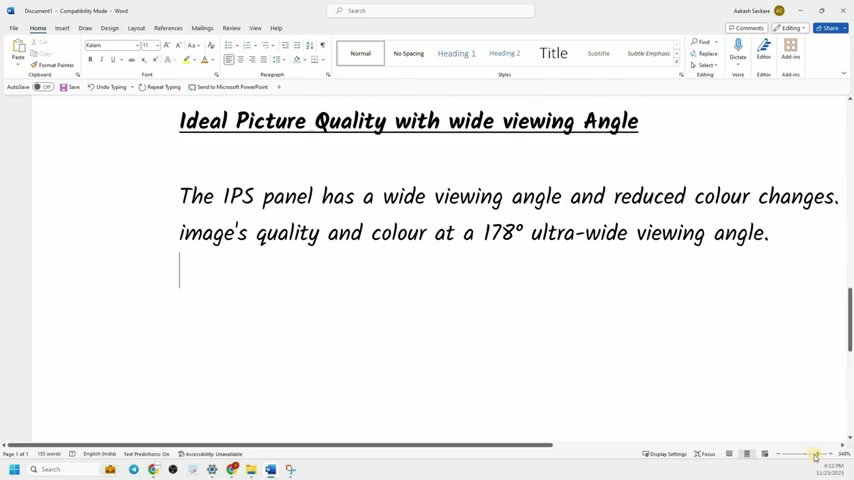
For those who appreciate the look and feel of handwritten notes, consider using the 'Kalam' font in Google Docs. This font is designed to mimic natural Handwriting, adding a personal touch to your digitized content. While retaining the benefits of digital text, the 'Kalam' font helps to recreate the familiar aesthetic of your original handwritten notes.
To use the 'Kalam' font:
- Download the Kalam Font Family: The Kalam font family available through google fonts.
- Install the Fonts: Open the Kalam folder in your downloads, then extract all.
- Install the individual fonts by right clicking them and choosing 'install' then selecting either 'install' or 'install for all users'.
- Select Text and Apply Kalam: Select the text in your Google Doc that you want to style. Go to the font selection menu and choose “Kalam” and choose a variant if available.
This technique allows you to bridge the gap between the convenience of digital text and the comforting familiarity of handwriting.
Additional tips for capturing better quality handwriting
As Mentioned previously , the image quality affects the scan quality, these three tips are sure to enhance how google lens detects your handwriting!
- Make sure that the pages that your scanning are flat, if scanning a notebook, make sure to apply pressure to flatten the page.
- Try using a dark pen on lighter pages so that contrast is at a maximum for text detection.
- Make sure there is sufficient lighting when taking the photos.
Free and Accessible: The Beauty of These Tools
Cost-Effective Digitization
The best part of this conversion process is that it leverages readily available and completely free tools. Google Lens and Google Docs are accessible to anyone with a smartphone or tablet and a Google account. This eliminates the need for expensive software or specialized equipment, making handwritten note digitization affordable for everyone.






Most people like
































Report
Please select a reason for reporting
- 13 Reasons to Switch from Snapchat to Text Messaging
- 7 Powerful Speech to Text Apps to Boost Productivity
- 10 Best Speech to Text Tools for Effortless Transcription
- 13 Free Tools to Easily Transcribe Audio to Text
- 15 Surprising Ways Google's Speech-to-Text Boosts Productivity
- 7 Best Free Online Audio to Text Transcription Tools
- 9 Tips to Transcribe Speech to Text Faster and Better
- 13 Best Speech to Text Software for Windows 10 in 2023
- 7 Tips for Choosing the Best Transcriber for Audio to Text
- 11 Reasons Why Dragon Speech-to-Text Apps are Game-Changers
- 6 Secrets to Enhance Your Speech to Text Transcription
- 6 Brilliant Ways to Boost Productivity with Talk-to-Text on Your MacBook
- 6 Ways Transcription Software Converts Audio to Text
- 8 Tips to Transcribe Speech to Text Like a Pro
- 6 Reasons IBM Watson Speech to Text is a Game-Changer
- 14 Powerful Ways Talk-to-Text Improves Your Workflow
- 12 Top Windows Speech-to-Text Software for Efficient Transcription
- 12 Game-Changing Benefits of Apple's Speech to Text Technology
- 9 Powerful Use Cases for AWS Speech to Text Technology
- 10 Easy Steps to Transcribe YouTube Videos to Text
- transcription audio en texte
- online audio transcription
- free audio file transcription
- free ai audio transcription
- audio transcription service
- audio transcription online free
- audio transcription free online
- audio to transcription software
- audio and transcript
- ai audio transcription free
- voice recording to text converter
- translate voice recording to text
- record voice to text
- audio recording to text converter
- voice recording and transcription
- chatgpt voice to text
- gmail voice to text
- speech to text reader
- speech to text ai free
- speech to talk
- How to Use AI Tools to Find Internal Linking Opportunities Across a Business Website
- Discover Your Perfect Haircut with AI Hairstyle Apps
- Free Reputation Calculator Tools: How They're Adapting to Score AI Visibility, Not Just Rankings
- Design Professional Flyers for Free on Your Phone
- Best Free Flyer Maker Apps for Android: Design Like a Pro
- How to Know If Your Business Is Ready for an AI Customer Service Agent
- Revolutionizing Storytelling: From Novels to Screenplays with AI
- Create Engaging Animated Explainer Videos with a Free AI Tool
- Stop Multi-Subscribing: Benchmark Top AI Visual Models in One Canvas
- Best Seedance 2.5 API Provider: Every Price on the Market, Checked at Source
- Top AI Social Media Management Tools: Automate Your Content Strategy
- Free AI Text to Video Generator: Create Stunning Videos from Text
- Discover 17 ChatGPT Alternatives: A Comprehensive Comparison
- Character.AI vs. Janitor AI: Which AI Chat Platform Reigns Supreme?
- Top Virtual Assistant Companies in 2026: Reviews, Pricing, and Plans Compared
- Unveiling FaceCheck.ID: Revolutionizing Reverse Image Searches with AI
- 11 Best AI Dialers in 2026: Features, Pricing, Pros and Cons
- How I Direct Consistent AI Clips: A Hands-On Guide to Multi-Model Generation
- A Realistic Review of the Photo Generator Image Tool
- Playwright MCP Server: Automated Web Testing with Agent Mode

Copyright ©2026 toolify