






















Effortlessly Extract Bank Statement Data into Google Sheets

Updated on Oct 29,2025

Table of Contents

Do you dream of automatically transferring your bank statement details directly into your Google Sheets? In this guide, we'll explore how to make this happen seamlessly. You’ll discover how to effortlessly extract data from your bank statements without any coding knowledge. Using Pabbly Connect, a powerful automation tool, you can easily create an automated system to manage your financial data efficiently and effectively. Save time, reduce manual data entry, and gain better insights into your financial transactions with this step-by-step process.

Key Points

Automate bank statement data extraction.

Integrate bank statements into Google Sheets effortlessly.

Use Pabbly Connect for automation without coding.

Streamline financial data management.

Save time and reduce manual data entry.

Automating Bank Statement Data Extraction to Google Sheets

Why Automate Bank Statement Data Extraction?

Manually entering data from bank statements into Google Sheets can be a tedious and time-consuming task. Automating this process not only saves time but also minimizes the risk of errors. By extracting bank statement data automatically, you can ensure that your Google Sheets are always up-to-date with accurate financial information. This is particularly useful for businesses and individuals who need to monitor their finances closely. Automation allows for better analysis and reporting, providing valuable insights for financial planning and decision-making.

Benefits of Automation:

  • Time-Saving: Reduce the hours spent on manual data entry.
  • Accuracy: Minimize human errors in data transfer.
  • Real-Time Updates: Keep your Google Sheets current with the latest transactions.
  • Improved Analysis: Facilitate detailed financial analysis and reporting.
  • Better Decision-Making: Gain clear insights for informed financial decisions.

Overview of Pabbly Connect

Pabbly Connect is an integration and automation platform that enables you to connect various applications and automate workflows without needing any coding knowledge. It acts as a bridge between different apps, allowing data to flow seamlessly between them. With Pabbly Connect, you can automate repetitive tasks, streamline business processes, and improve overall efficiency. It offers a user-friendly interface, making it accessible for both technical and non-technical users. The platform supports a wide range of integrations, ensuring that you can connect the tools you use every day.

Key Features of Pabbly Connect:

  • Workflow Automation: Create automated workflows to connect different applications.
  • No-Code Platform: Automate tasks without writing any code.
  • Wide Range of Integrations: Connect with various apps and services.
  • User-Friendly Interface: Easy to use for both technical and non-technical users.
  • Real-Time Monitoring: Track the performance of your automated workflows.

Data Extraction Best Practices

Ensuring Accuracy and Efficiency

When extracting data, accuracy and efficiency are paramount. Here are some best practices to ensure you get the most out of your data extraction efforts:

  • Define Clear Objectives: Before you start extracting data, define what you want to achieve. What questions do you want to answer? What insights are you looking for?
  • Choose the Right Tools: Select the right tools for the job. Consider factors such as the type of data you're extracting, the complexity of the extraction process, and your technical expertise.
  • Clean and Prepare Data: Clean and prepare your data before you start extracting it. Remove any unnecessary characters, correct any errors, and format the data consistently.
  • Use Regular Expressions: Use regular expressions to extract specific patterns from text. Regular expressions can help you identify and extract dates, numbers, email addresses, and other types of data.
  • Validate Data: Validate your data after you extract it. Check for errors, inconsistencies, and missing values. Use data validation techniques to ensure that your data is accurate and reliable.
  • Document Your Process: Document your data extraction process. Keep track of the tools you used, the steps you took, and any issues you encountered. This will help you repeat the process in the future and troubleshoot any problems that may arise.
  • Automate Where Possible: Automate as much of the data extraction process as possible. This will save you time and reduce the risk of errors. Use tools like Pabbly Connect to automate data extraction workflows.
  • Protect Sensitive Data: Protect sensitive data during the extraction process. Use encryption, access controls, and other security measures to prevent unauthorized access to your data.

By following these best practices, you can ensure that your data extraction efforts are accurate, efficient, and secure.

Maximizing Data Analysis with Google Sheets

Google Sheets is a powerful tool for analyzing and visualizing data. Here are some tips to maximize your data analysis with Google Sheets:

  • Use Formulas and Functions: Google Sheets offers a wide range of formulas and functions that can help you analyze your data. Use formulas to perform calculations, aggregate data, and create reports.
  • Create Charts and Graphs: Visualize your data with charts and graphs. Google Sheets offers a variety of chart types, including bar charts, line charts, pie charts, and scatter plots. Choose the chart type that best represents your data.
  • Use Pivot Tables: Use pivot tables to summarize and analyze large datasets. Pivot tables allow you to quickly group and aggregate data, making it easier to identify patterns and trends.
  • Use Conditional Formatting: Use conditional formatting to highlight important data points. Conditional formatting allows you to apply formatting rules based on the values in your data.
  • Use Filters: Use filters to focus on specific subsets of your data. Filters allow you to quickly hide or show rows based on specific criteria.
  • Use Data Validation: Use data validation to ensure that your data is accurate and consistent. Data validation allows you to restrict the values that can be entered into a cell.
  • Collaborate with Others: Collaborate with others on your data analysis projects. Google Sheets allows multiple users to work on the same spreadsheet simultaneously.
  • Use Add-ons: Extend the functionality of Google Sheets with add-ons. There are many add-ons available that can help you with tasks such as data extraction, data analysis, and data visualization.

By following these tips, you can maximize your data analysis with Google Sheets and gain valuable insights from your data.

Example Data Table:

Date Description Withdrawals Deposits Balance
2025-01-01 Opening Balance 12,340.00
2025-01-05 Payment to Vendor A 500.00 11,840.00
2025-01-10 Deposit from Client B 1,000.00 12,840.00
2025-01-15 Online Purchase - Amazon 150.00 12,690.00
2025-01-20 Salary Deposit 5,000.00 17,690.00

Step-by-Step Guide to Extracting Bank Statement Data

Step 1: Set Up Pabbly Connect

The first step is to set up your Pabbly Connect account. If you don't already have one, sign up for a free trial. Once you're logged in, you'll be directed to the dashboard where you can start creating your workflow. This involves configuring the necessary triggers and actions to automate the data extraction process.

  • Sign Up: Create a Pabbly Connect account.
  • Access Dashboard: Navigate to the Pabbly Connect dashboard.
  • Start New Workflow: Click on 'Create Workflow' to begin.

Step 2: Connect Your Email Parser

Pabbly Connect will parse bank statements from your email. Select email parser as a trigger and connect your account
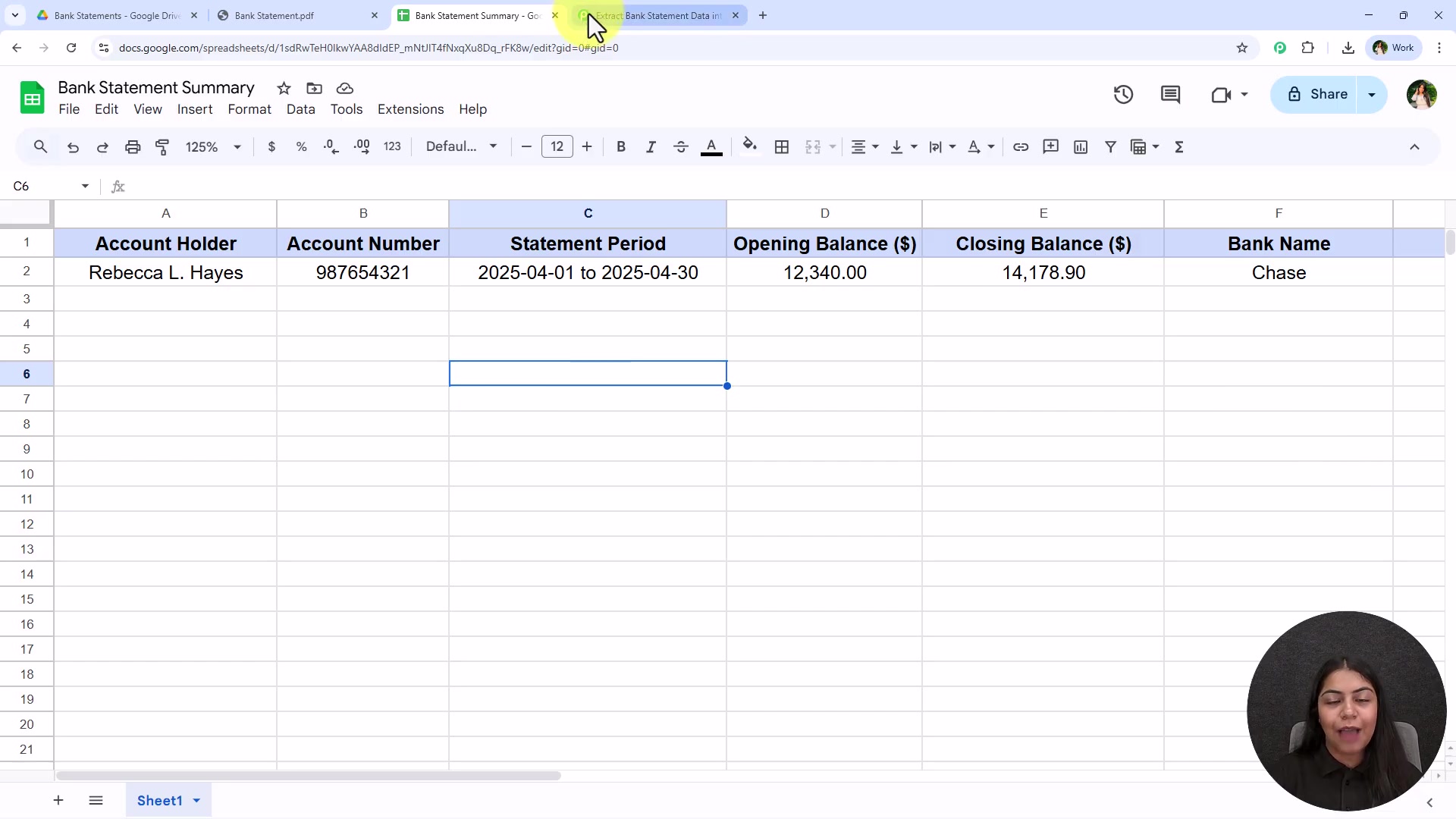
.

Step 3: Configure the Trigger

The trigger is the event that starts your workflow. In this case, the trigger is receiving a new email with your bank statement. You need to configure the trigger to specify the conditions under which the workflow should be activated. This includes setting up filters to identify emails containing bank statements. You can filter emails based on sender, subject line, or keywords in the body.

  • Choose Trigger App: Select the email application you use to receive bank statements (e.g., Gmail, Outlook).
  • Select Trigger Event: Choose 'New Email' as the trigger event.
  • Configure Filters: Set up filters to identify bank statement emails.

Step 4: Extract Data with Email Parser by Pabbly

Pabbly Connect supports Email Parser by Pabbly. Add Email Parser as the Action and set up the extraction of the fields you need from the bank statements.

Step 5: Connect to Google Sheets

Connect Email Parser by Pabbly with Google Sheets. Choose the Google Sheets application and select 'Add New Row' as the action event. This will enable Pabbly Connect to add the extracted data as a new row in your Google Sheet. You’ll need to authenticate your Google account and select the specific spreadsheet and worksheet where you want the data to be stored.

  • Choose Action App: Select 'Google Sheets' as the action app.
  • Select Action Event: Choose 'Add New Row' as the action event.
  • Authenticate Account: Connect your Google account to Pabbly Connect.
  • Select Spreadsheet and Worksheet: Specify where the data should be added.

Step 6: Map the Data

The final step is to map the extracted data from the email parser to the corresponding columns in your Google Sheet. This involves matching the data fields from the email parser (e.g., transaction date, description, amount) to the appropriate columns in your Google Sheet (e.g., Date, Description, Amount). Mapping ensures that the data is correctly organized in your spreadsheet.

  • Match Data Fields: Link the email parser data fields to Google Sheet columns.
  • Ensure Correct Mapping: Double-check the mapping to prevent data misplacement.
  • Test the Integration: Send a test email to verify that the data is being added correctly.

Pabbly Connect Pricing

Understanding Pabbly Connect's Plans

Pabbly Connect offers a range of pricing plans to cater to different user needs. These plans vary based on the number of tasks, operations, and connections you require. Understanding the different plans can help you choose the one that best suits your business needs.

  • Free Plan: Limited features, ideal for trying out the platform.
  • Standard Plan: Suitable for small businesses with moderate automation needs.
  • Pro Plan: Designed for larger organizations with extensive automation requirements.
  • Ultimate Plan: Comprehensive features for enterprises with complex workflows.

For the most accurate and up-to-date pricing information, visit the Pabbly Connect website. They often have special offers and discounts available, so it's worth checking their pricing page directly.

Pros and Cons of Using Pabbly Connect

👍 Pros

User-Friendly Interface: Easy to navigate and use, even for non-technical users.

Wide Range of Integrations: Connect with various apps and services.

Affordable Pricing: Offers competitive pricing plans.

Multi-Step Workflows: Create complex automation workflows.

24/7 Support: Get assistance whenever you need it.

👎 Cons

Learning Curve: Some advanced features may require a bit of learning.

Limited Free Plan: The free plan has limited features and usage.

Occasional Bugs: Some users have reported occasional bugs or glitches.

Integration Limitations: Some integrations may have limitations or require custom development.

Documentation Gaps: The documentation could be more comprehensive in certain areas.

Core Features of Pabbly Connect

Key Capabilities of Pabbly Connect

Pabbly Connect is packed with features designed to make automation simple and effective. Here are some of its core features:

  • Multi-Step Workflows: Create complex workflows with multiple steps and actions.
  • Built-In Apps: Access a variety of built-in apps and integrations.
  • Custom Apps: Develop custom apps to connect with any API.
  • Data Mapping: Easily map data fields between different applications.
  • Webhooks: Use webhooks for real-time data transfer.
  • Conditional Logic: Implement conditional logic to create dynamic workflows.
  • Error Handling: Automatically handle errors and prevent workflow disruptions.
  • Task History: Track the history of your automated tasks.
  • Team Collaboration: Collaborate with your team on automation projects.
  • 24/7 Support: Get support whenever you need it.

Use Cases for Pabbly Connect

How Different Industries Can Benefit

Pabbly Connect's versatility makes it suitable for a wide range of industries and use cases. Here are some examples:

  • E-commerce: Automate order processing, customer notifications, and inventory management.
  • Marketing: Create automated email campaigns, social media posts, and Lead Generation workflows.
  • Customer Service: Automate ticket creation, customer support responses, and feedback collection.
  • Finance: Automate bank statement data extraction, invoice processing, and expense tracking.
  • Human Resources: Automate employee onboarding, payroll processing, and performance evaluations.
  • Healthcare: Automate appointment Scheduling, patient reminders, and data synchronization.

By automating these tasks, businesses can improve efficiency, reduce costs, and focus on strategic initiatives.

Frequently Asked Questions

Is coding knowledge required to use Pabbly Connect?
No, Pabbly Connect is a no-code platform, meaning you can automate tasks without writing any code. It offers a user-friendly interface with drag-and-drop functionality, making it accessible for both technical and non-technical users.
Can I connect Pabbly Connect with any application?
Pabbly Connect supports a wide range of integrations with various applications and services. It also allows you to develop custom apps to connect with any API, giving you the flexibility to integrate with virtually any tool you use.
How secure is Pabbly Connect?
Pabbly Connect employs robust security measures to protect your data. It uses encryption, secure servers, and regular security audits to ensure the confidentiality and integrity of your information.
What kind of support does Pabbly Connect offer?
Pabbly Connect offers 24/7 support to assist you with any questions or issues you may encounter. You can reach out to their support team via email, chat, or phone, and they also have a comprehensive knowledge base with tutorials and documentation.

Related Questions

What are the alternatives to Pabbly Connect?
There are several alternatives to Pabbly Connect, each with its own strengths and weaknesses. Some popular options include: Zapier: A widely used automation platform with a vast library of integrations. It's known for its ease of use and extensive app support. Integromat (now Make): A powerful automation tool that offers advanced features and visual workflow design. It's suitable for complex automation scenarios. Microsoft Power Automate: An automation platform integrated with Microsoft's ecosystem. It's ideal for businesses that heavily rely on Microsoft products. IFTTT (If This Then That): A simple automation tool designed for personal use. It's easy to set up and use for basic automation tasks. Choosing the right automation tool depends on your specific needs, technical expertise, and budget. Consider factors such as the number of integrations, complexity of workflows, and pricing when making your decision.

Most people like













