































Table of Contents
- Key Points
- Introduction to OpenArt and AI-Powered Background Removal
- Step-by-Step Guide to Removing Backgrounds with OpenArt
- OpenArt Pricing Plans
- Advantages and Disadvantages of Using OpenArt for Background Removal
- Key Features of OpenArt for Background Removal
- Real-World Applications of OpenArt's Background Removal Tool
- Frequently Asked Questions About OpenArt Background Removal
- Related Questions About Image Background Removal


Step-by-Step Guide to Removing Backgrounds with OpenArt
Creating an OpenArt Account
Before you can start removing backgrounds, you'll need to create an account on OpenArt. The process is simple and straightforward:
- Visit the OpenArt Website: Go to openart.ai in your web browser.
- Sign Up:
Look for the 'Sign Up' or 'Create Account' button, typically located in the upper right corner of the page.
- Choose a Registration Method: You'll usually have the option to sign up using your email address, Google account, or other social media accounts.
- Fill in the Required Information: If you choose to sign up with your email address, you'll need to provide your name, email address, and a secure password.
- Verify Your Email: OpenArt may send a verification email to your registered address. Click on the verification link to activate your account.
Once your account is created and verified, you can log in and access the OpenArt platform. Note that OpenArt offers both free and paid plans. The free plan usually comes with a limited number of credits that can be used for AI operations. If you plan to use OpenArt extensively, you may want to consider upgrading to a paid plan to unlock additional features and increase your credit limit.
Accessing the 'Edit Image' Feature
Once logged in, navigate to the 'Edit Image' feature.
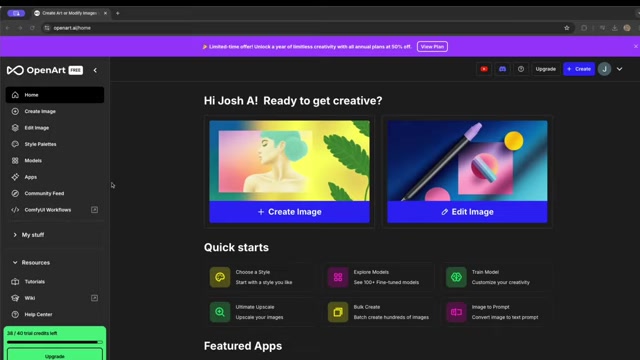
This is generally located on the left-hand side menu. Clicking on it will open the image editing interface, where you can upload your image and begin the background removal process.
Uploading Your Image
Now that you're in the image editing interface, it's time to upload the image you want to work with:
-
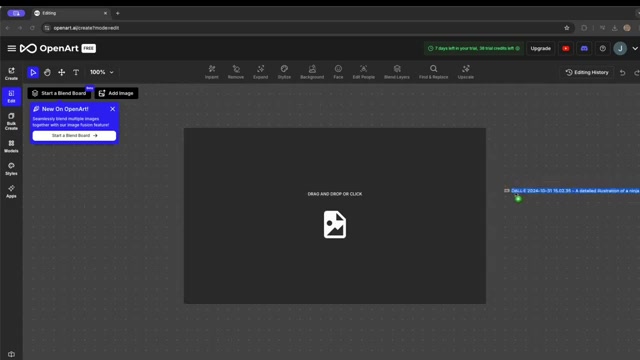
Locate the Upload Area: Look for a designated area for uploading images. This might be a button that says 'Upload Image', 'Add Image', or a drag-and-drop zone.
-
Choose Your Image: Click the upload button and select the image file from your computer. You can also drag and drop the image directly into the designated area.
-
Supported File Formats: OpenArt typically supports a variety of common image formats, such as JPG, PNG, and GIF. Ensure that your image is in a supported format before uploading.
-
Image Loading: Once you've selected your image, it will begin to load into the OpenArt editor. The loading time will depend on the size and resolution of your image.
Once the image is successfully uploaded, it will be displayed in the editor, ready for background removal.
Removing the Background
With your image loaded, removing the background is incredibly simple:
- Select the 'Background' Button: In the OpenArt editor, find the 'Background' button, usually located in the toolbar at the top of the interface.
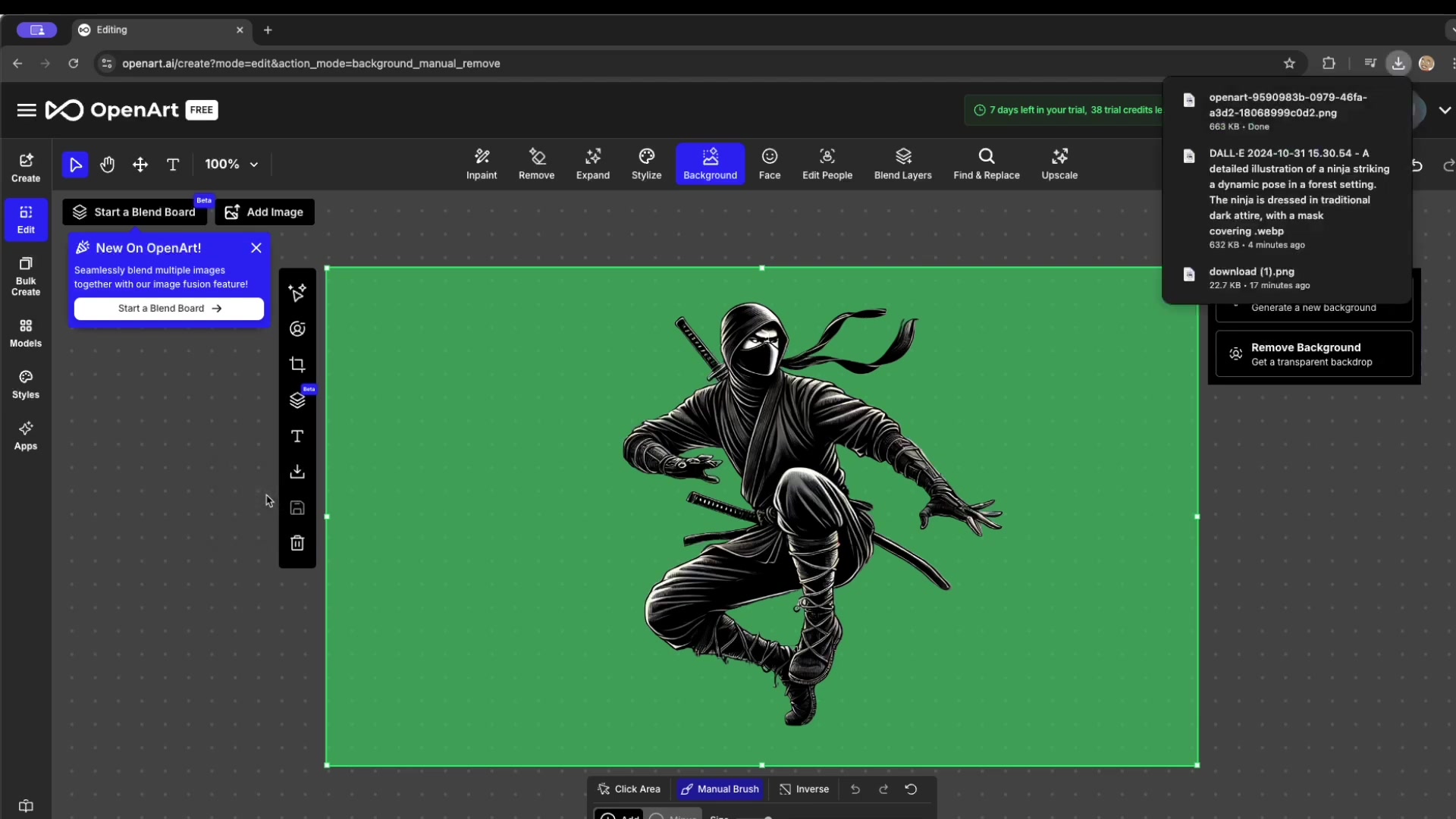
This button activates the AI-powered background removal tool.
- Automatic Background Detection: Click the 'Background' button, and OpenArt's AI will automatically analyze your image and detect the background. The platform highlights background with a green overlay.
- Remove Background: After the background is detected, select the option to remove the background. The platform will then remove the background from the picture.
- Background Removal Processing: The AI will process the image, removing the detected background. This process usually takes just a few seconds.
- Transparent Background: Once the background is removed, you'll be left with a transparent background, allowing the subject of your image to stand out.
With OpenArt's AI-powered background removal, the entire process is automated, requiring minimal effort from the user.
Downloading Your Image
After successfully removing the background, you'll want to download your image for use in various projects:
-
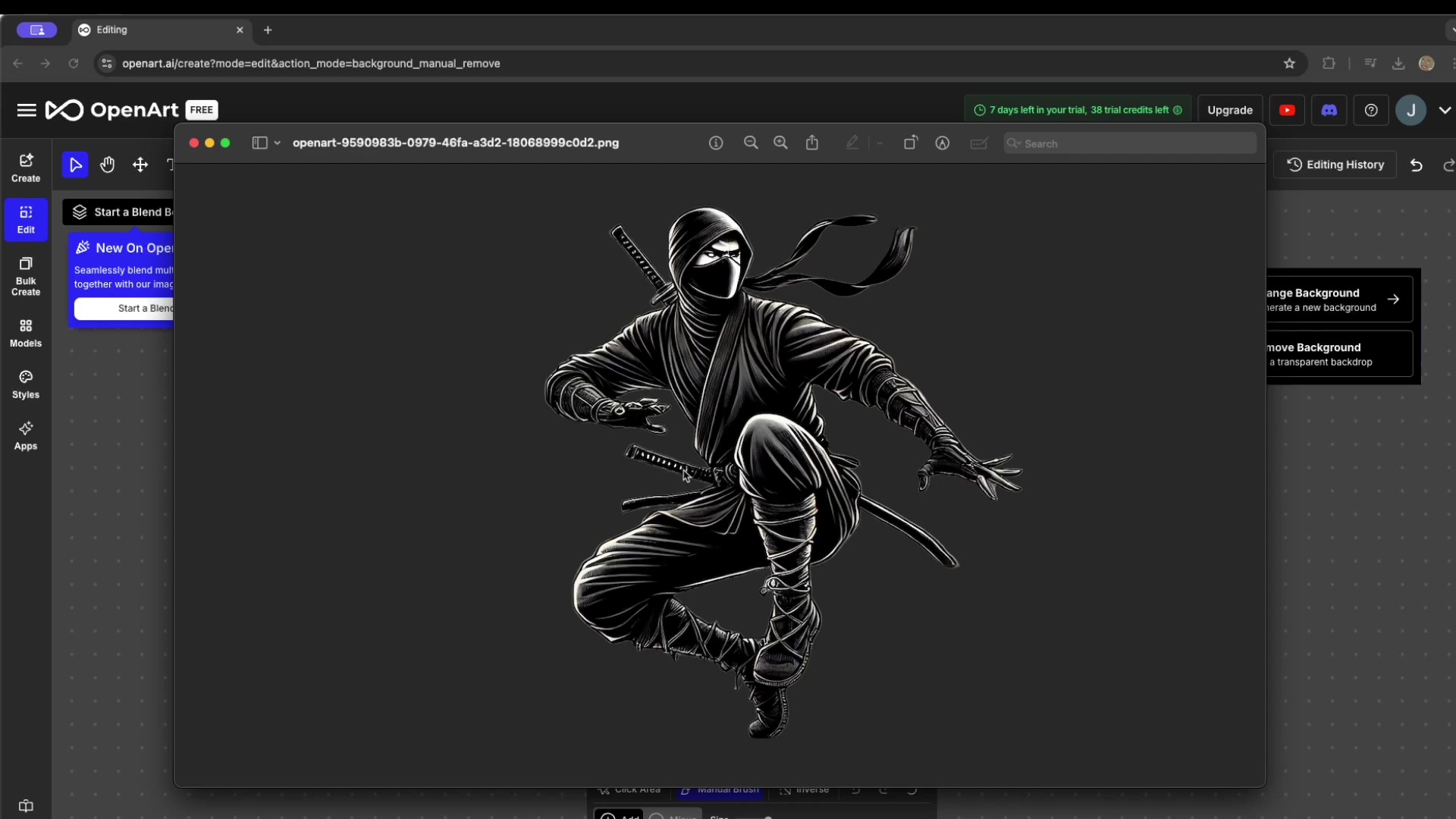
Locate the Download Icon: Find the download icon, often represented by a downward-pointing arrow, in the OpenArt editor. The download option is generally on the left side of the platform.
-
Choose Your File Format: Click the download icon, and you'll be presented with options for the file format. For images with transparent backgrounds, it's crucial to choose PNG format. JPG format does not support transparency and will fill the background with a solid color.
-
Download to Local: Select the 'Download to Local' and then download the image in the desired file format.
-
Save to Your Computer: Choose a location on your computer to save the downloaded image file.
Your image, now with a transparent background, is ready to be used in your projects!
OpenArt Pricing Plans
Understanding OpenArt's Subscription Options
OpenArt provides a variety of pricing plans to suit different user needs, including:
- Free Plan: This plan offers a limited number of credits per month, allowing you to try out OpenArt's features without any cost. It's a great option for casual users or those who want to test the platform's capabilities.
- Paid Plans: OpenArt's paid plans provide a higher number of credits per month, unlocking additional features and benefits. These plans are ideal for professionals and businesses that require frequent image editing.
OpenArt also provides an Upgrade option for a trial account with limited free trial credits and days.
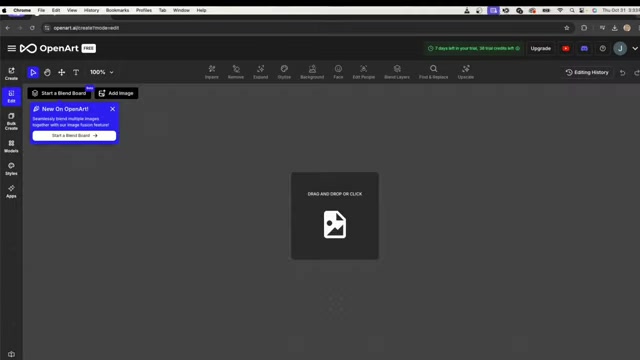
You can upgrade the account for more features, credits, and days.






Most people like
































Report
Please select a reason for reporting
- 13 Reasons to Switch from Snapchat to Text Messaging
- 7 Powerful Speech to Text Apps to Boost Productivity
- 10 Best Speech to Text Tools for Effortless Transcription
- 13 Free Tools to Easily Transcribe Audio to Text
- 15 Surprising Ways Google's Speech-to-Text Boosts Productivity
- 7 Best Free Online Audio to Text Transcription Tools
- 9 Tips to Transcribe Speech to Text Faster and Better
- 13 Best Speech to Text Software for Windows 10 in 2023
- 7 Tips for Choosing the Best Transcriber for Audio to Text
- 11 Reasons Why Dragon Speech-to-Text Apps are Game-Changers
- 6 Secrets to Enhance Your Speech to Text Transcription
- 6 Brilliant Ways to Boost Productivity with Talk-to-Text on Your MacBook
- 6 Ways Transcription Software Converts Audio to Text
- 8 Tips to Transcribe Speech to Text Like a Pro
- 6 Reasons IBM Watson Speech to Text is a Game-Changer
- 14 Powerful Ways Talk-to-Text Improves Your Workflow
- 12 Top Windows Speech-to-Text Software for Efficient Transcription
- 12 Game-Changing Benefits of Apple's Speech to Text Technology
- 9 Powerful Use Cases for AWS Speech to Text Technology
- 10 Easy Steps to Transcribe YouTube Videos to Text
- transcription audio en texte
- online audio transcription
- free audio file transcription
- free ai audio transcription
- audio transcription service
- audio transcription online free
- audio transcription free online
- audio to transcription software
- audio and transcript
- ai audio transcription free
- voice recording to text converter
- translate voice recording to text
- record voice to text
- audio recording to text converter
- voice recording and transcription
- chatgpt voice to text
- gmail voice to text
- speech to text reader
- speech to text ai free
- speech to talk
- How to Use AI Tools to Find Internal Linking Opportunities Across a Business Website
- Discover Your Perfect Haircut with AI Hairstyle Apps
- Free Reputation Calculator Tools: How They're Adapting to Score AI Visibility, Not Just Rankings
- Design Professional Flyers for Free on Your Phone
- Best Free Flyer Maker Apps for Android: Design Like a Pro
- How to Know If Your Business Is Ready for an AI Customer Service Agent
- Revolutionizing Storytelling: From Novels to Screenplays with AI
- Create Engaging Animated Explainer Videos with a Free AI Tool
- Stop Multi-Subscribing: Benchmark Top AI Visual Models in One Canvas
- Best Seedance 2.5 API Provider: Every Price on the Market, Checked at Source
- Top AI Social Media Management Tools: Automate Your Content Strategy
- Free AI Text to Video Generator: Create Stunning Videos from Text
- Discover 17 ChatGPT Alternatives: A Comprehensive Comparison
- Character.AI vs. Janitor AI: Which AI Chat Platform Reigns Supreme?
- Top Virtual Assistant Companies in 2026: Reviews, Pricing, and Plans Compared
- Unveiling FaceCheck.ID: Revolutionizing Reverse Image Searches with AI
- 11 Best AI Dialers in 2026: Features, Pricing, Pros and Cons
- How I Direct Consistent AI Clips: A Hands-On Guide to Multi-Model Generation
- A Realistic Review of the Photo Generator Image Tool
- Playwright MCP Server: Automated Web Testing with Agent Mode

Copyright ©2026 toolify