






















Exporting Transcripts from Otter.ai: A Comprehensive Guide

Updated on Jul 03,2025

Otter.ai has revolutionized transcription services, enabling users to convert audio and video files into accurate text. Once you have a transcript generated, exporting it is crucial for various applications, from documentation to content creation. This guide will walk you through the simple steps to export your transcripts from the Otter.ai web interface, along with tips to utilize them effectively.

Key Points

Understanding the Otter.ai Web Interface.

Locating the Export Function.

Copying Text to Clipboard for quick use.

Exporting audio for collaboration.

Pasting transcripts into Microsoft Word and Notepad.

Using transcripts for YouTube captions and descriptions.

Optimizing transcripts for better readability.

Troubleshooting common export issues.

Understanding Otter.ai and Its Transcription Capabilities

What is Otter.ai?

Otter.ai is a powerful transcription tool that leverages AI to convert audio and video into text. It’s designed for professionals, students, and anyone who needs to quickly and accurately transcribe recordings. Otter.ai supports various file formats and offers a user-friendly interface, making it an essential tool for productivity. This includes accurately transcribing audio and video files with minimal manual correction, real-time Transcription during live meetings or lectures, and seamless integration with other apps and services, enhancing productivity and workflow. Otter.ai uses advanced artificial intelligence and machine learning algorithms to provide highly accurate transcriptions. This technology allows the software to continuously learn and improve, resulting in increasingly precise results over time.

Why Export Transcripts from Otter.ai?

Exporting transcripts from Otter.ai is crucial for several reasons: archival purposes, offline editing and formatting, integrating transcripts into documents and reports, creating subtitles and captions for videos, and sharing transcripts with colleagues and clients. Imagine you've recorded an important meeting and need to share the key discussion points with your team or using the text for YouTube. Exporting the transcript allows you to do all of this with ease. Moreover, having a local copy ensures that you retain the information even if you lose access to the online platform or the original audio file becomes corrupted. By exporting, you maintain control over your data and can manipulate it according to your specific requirements. Whether it's for legal documentation or simply making notes during a lecture, the flexibility that comes with exporting is unparalleled. This allows for efficient documentation and information management, repurposing content for various media and platforms, and ensures data accessibility and security, maintaining control over your transcriptions. In addition, exporting transcripts offers greater flexibility and control in repurposing content for various media and platforms. For example, you can easily convert the transcript into a blog post, an ebook, or a series of social media updates.

Advanced Tips for Using Exported Transcripts

Using Transcripts for YouTube Captions and Descriptions

Transcripts can significantly boost your YouTube SEO and accessibility. Use the copied transcript in your video descriptions to provide additional context and keywords. Moreover, convert the transcript into a SubRip Subtitle (.srt) file to add captions to your videos. This makes your content accessible to a broader audience, including those who are deaf or hard of hearing.

Here’s how to use transcripts for YouTube captions:

  1. Copy the Transcript: Follow the steps above to copy the transcript to your clipboard.
  2. Format the Transcript: Use a text editor to format the transcript into .srt format. The format includes timestamps and text segments.
  3. Upload to YouTube: In YouTube Studio, navigate to Subtitles, upload the .srt file, and sync it with your video.

Optimizing Transcripts for Readability

Once you've exported your transcript, consider optimizing it for better readability. This may involve breaking up long paragraphs, adding headings and subheadings, and correcting any transcription errors. Ensure that the formatting is consistent and easy to follow, making the transcript more useful for your intended audience. This could also include running it through a grammar checking tool to ensure it is free of errors or adding a table of contents for quick navigation.

Collaborating with Team Members Using Exported Transcripts

Exported transcripts are excellent for team collaboration. Share the exported text file or document with your team members, allowing them to review and provide feedback. Using platforms like Google Docs or Microsoft WORD enables real-time collaboration, making the process more efficient. Sharing the transcript ensures everyone is on the same page and can contribute to refining the information.

Creating shared documents encourages team participation, and incorporating feedback improves the overall quality of the transcript. Providing access for team members allows them to make necessary edits, clarify ambiguities, and add their insights, making the final version more comprehensive and accurate. This collaborative approach not only enhances the transcript's value but also promotes teamwork and alignment within the organization.

Step-by-Step Guide: Exporting Transcripts from Otter.ai

Accessing the Otter.ai Web Interface

First, navigate to the Otter.AI Website and log in to your account. The web interface provides access to all your transcribed conversations and settings. Make sure you have a stable internet connection to avoid any interruptions during the export process.

Selecting the Transcript to Export

Once logged in, you will see a list of your conversations.
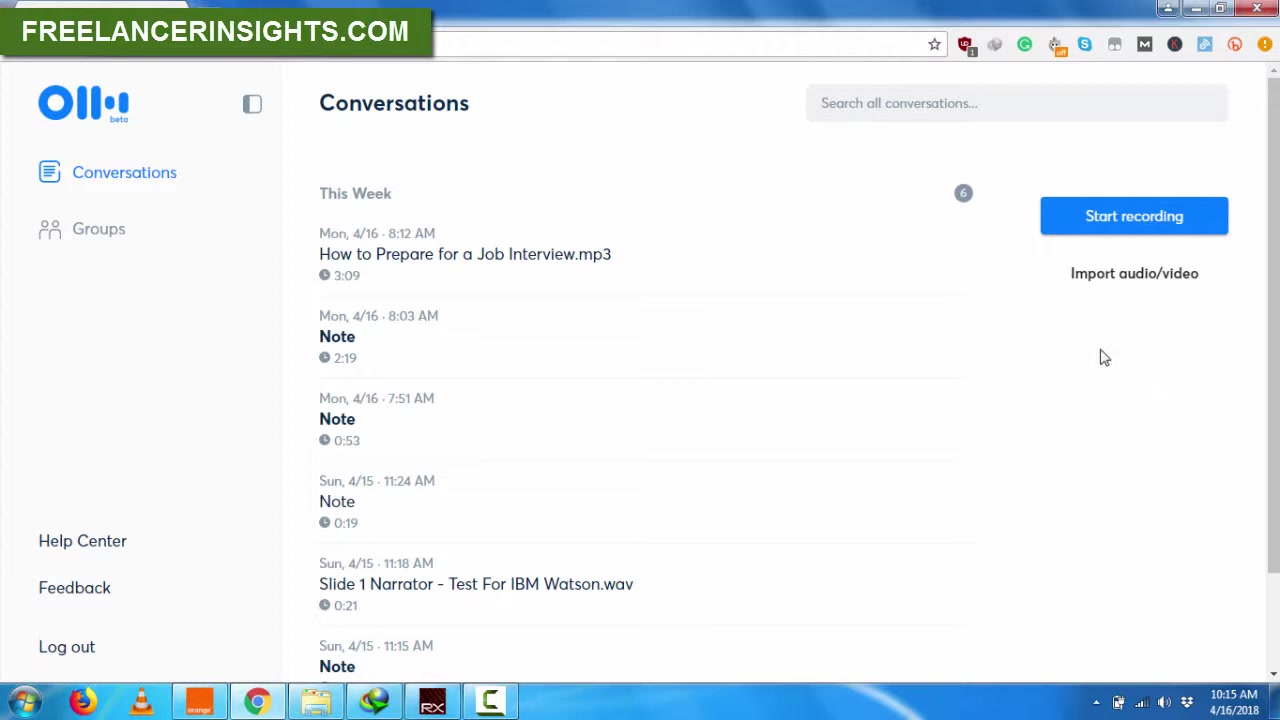
Choose the transcript you want to export by clicking on it. This will open the transcript in the editor, allowing you to review and edit the text before exporting.

Locating the Export Options
In the top-right corner of the transcript editor, look for the three vertical dots. Clicking on these dots will reveal a dropdown menu with several options, including "Copy Text to Clipboard," "Export Audio," and "Delete."

Copying Text to Clipboard
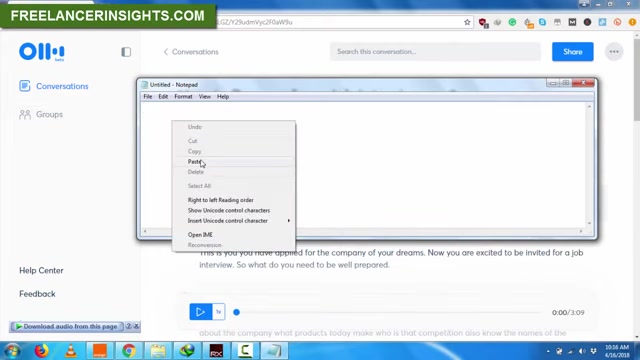
For a quick export, you can select "Copy Text to Clipboard." This copies the entire transcript to your clipboard, allowing you to paste it into any text editor or document.

Pasting into Notepad or Microsoft Word
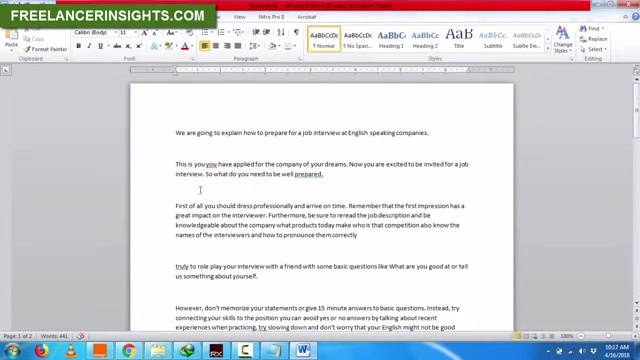
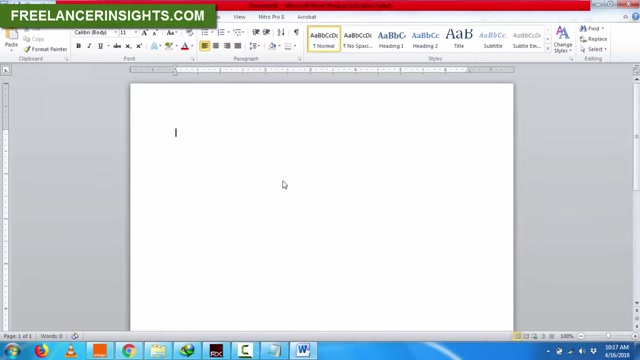
Open Notepad or Microsoft Word and paste the copied text (Ctrl+V or right-click and select "Paste"). This provides you with a plain text or formatted version of your transcript, ready for further editing or use.

Exporting Audio File

Click 'Export audio' to export the transcript's audio file. This downloads the audio in MP3 format to your computer, useful for archiving or sharing with collaborators.

Otter.ai Pricing

Otter.ai Pricing Plans

Otter.ai offers several pricing plans to accommodate different user needs. The Basic plan is free and includes 600 transcription minutes per month, making it suitable for occasional users. The Pro plan, priced at $12.99 per month, offers 6,000 transcription minutes per month and advanced features like custom vocabulary and Dropbox sync. The Business plan, at $30 per user per month, adds team collaboration features and priority support. Enterprise plans are also available for larger organizations with custom needs.

Otter.ai: Weighing the Pros and Cons

👍 Pros

High transcription accuracy powered by advanced AI.

Seamless integration with popular productivity tools like Zoom and Google Meet.

Real-time transcription for live meetings and lectures.

Easy-to-use web interface for quick navigation and transcript management.

Cost-effective pricing plans suitable for various user needs.

Separate export function for original audio files.

👎 Cons

Limited direct file format export options (primarily supports copy-paste).

Accuracy can be affected by poor audio quality and background noise.

Reliance on internet connectivity for access and functionality.

Absence of advanced editing features compared to dedicated audio editing software.

Some advanced features may require higher-tier subscription plans.

Does not offer the same level of in-app editing as Descript or Trint.

Key features of Otter.ai

Otter.ai's key features

Otter.ai offers several key features that make it a powerful tool for transcription and collaboration. Some of these key features include Transcription Accuracy, Real-Time Transcription, Integration with Other Apps, and Sharing and Collaboration. As stated above, Otter.ai uses advanced artificial intelligence and machine learning algorithms to provide highly accurate transcriptions. This technology allows the software to continuously learn and improve, resulting in increasingly precise results over time. The software also offers Automatic Speaker Identification, which it automatically identifies and labels different speakers in the transcription. This feature makes it easier to follow conversations and keep track of who said what. Furthermore, it supports the transcription of meetings, lectures, and other live events as they happen. This feature allows users to follow along in real-time and review the transcription afterward. Lastly, Otter.ai seamlessly integrates with other apps and services, such as Zoom, Google Meet, and Microsoft Teams. These integrations make it easy to record and transcribe meetings and calls directly from the apps you already use.

Common use cases for Otter.ai

Otter.ai's key use cases

Otter.ai offers various use cases that make it a powerful tool for transcription and collaboration. Some of these use cases include Meeting Transcription, Interview Transcription, Academic Transcription, and Legal Transcription. Otter.ai is commonly used to transcribe meetings, allowing participants to review the discussion afterward. This can be helpful for those who missed the meeting or want to refresh their memory of what was said. The software supports the transcription of interviews, allowing researchers and journalists to easily record and transcribe their conversations. This is useful for creating accurate and detailed notes. In an academic environment, Otter.ai supports lectures, allowing students to easily record and transcribe their classes. This can be helpful for those who want to review the material or cannot attend the lecture. Lastly, Otter.ai supports the transcription of legal proceedings, allowing lawyers and paralegals to easily record and transcribe their cases. This is useful for creating accurate and detailed records of legal events.

Frequently Asked Questions About Otter.ai Transcript Export

What file formats can I export transcripts to?
Currently, Otter.ai primarily supports copying text to the clipboard. While direct export to file formats like .docx or .txt isn't available through the web interface, you can paste the copied text into any text editor or document for further editing. Keep an eye on Otter.ai's updates, as they frequently introduce new features.
Can I export the audio file along with the transcript?
Yes, Otter.ai allows you to export the audio file separately. This can be helpful for archiving the original recording or sharing it with team members who need to listen to the audio. Look for the "Export Audio" option in the dropdown menu within the transcript editor.
How accurate are Otter.ai's transcriptions?
Otter.ai boasts high accuracy rates thanks to its advanced AI algorithms. However, transcription accuracy can vary depending on audio quality, background noise, and the clarity of speech. Always review and edit the transcript to ensure it is error-free.
Is there a limit to the length of transcripts I can export?
Otter.ai's export capabilities are generally robust, but very long transcripts may pose challenges due to system limitations. If you encounter issues, consider breaking the transcript into smaller segments for export or contacting Otter.ai support for assistance.
Can I use exported transcripts for commercial purposes?
Yes, you can generally use exported transcripts for commercial purposes, provided you adhere to Otter.ai's terms of service. Ensure that you have the necessary permissions and rights to use the content within the transcript.

Related Questions

What are some best practices for improving transcription accuracy in Otter.ai?
To enhance transcription accuracy, ensure you record audio in a quiet environment with minimal background noise. Speak clearly and at a moderate pace. Using a high-quality microphone can also significantly improve results. After transcription, always review and correct any errors to ensure the transcript is accurate.
How does Otter.ai compare to other transcription services like Descript or Trint?
Otter.ai, Descript, and Trint each offer unique features. Otter.ai excels in real-time transcription and collaboration. Descript provides advanced editing capabilities, and Trint focuses on multilingual support. The best choice depends on your specific needs and priorities. Consider factors like accuracy, features, pricing, and ease of use when making your decision.
What are the benefits of using AI-powered transcription services for content creation?
AI-powered transcription services offer numerous benefits, including time savings, cost efficiency, and improved accuracy. They allow you to quickly convert audio and video into text, freeing up time for other content creation tasks. This can lead to increased productivity and reduced labor costs. AI transcription can also improve accessibility and SEO, making your content more discoverable and inclusive.
How can I integrate Otter.ai with other productivity tools and workflows?
Otter.ai integrates seamlessly with various productivity tools, such as Zoom, Google Meet, and Microsoft Teams. You can connect Otter.ai to these platforms to automatically transcribe your meetings and calls. Otter.ai also offers API access, allowing developers to integrate transcription capabilities into custom applications and workflows.
Are there any security and privacy considerations when using Otter.ai?
Yes, security and privacy are essential considerations when using any cloud-based service. Otter.ai employs robust security measures to protect your data, including encryption and compliance with industry standards. However, it's crucial to review their privacy policy and security practices to ensure they align with your requirements and data protection policies.

Most people like













