































Table of Contents
- Key Points
- Introduction to Free Text-to-Speech Conversion
- Google Gemini Integration
- Step-by-Step Guide to Converting Text to Speech Using Clipchamp
- Clipchamp Pricing Plans
- Advantages and Disadvantages of Clipchamp Text-to-Speech
- Core Features of Clipchamp for Text-to-Speech
- Versatile Use Cases for Clipchamp's Text-to-Speech
- Frequently Asked Questions About Clipchamp Text-to-Speech
- Related Questions


Introduction to Free Text-to-Speech Conversion
The Need for Free Text-to-Speech Tools
The digital age demands content creators to be versatile and efficient. Text-to-Speech (TTS) tools have emerged as a boon, allowing users to generate audio content quickly and easily. These tools are beneficial for creating audiobooks, voiceovers for videos, accessibility solutions, and more. However, many TTS services come with hefty price tags or restrictive licensing, making them inaccessible to many. This is where free TTS converters become invaluable.
Finding a free TTS converter that delivers high-quality results and offers commercial usage rights can be challenging. Many free options come with limitations like restricted usage, poor voice quality, or hidden costs. Fortunately, Clipchamp, a Microsoft-owned video editing software, provides a robust and completely free Text-to-Speech feature that can be used for various projects without any copyright concerns. Clipchamp offers users a free and accessible way to convert text to speech for diverse applications like content creation, education, and accessibility.
This comprehensive guide will walk you through the process of using Clipchamp for text-to-speech conversion, ensuring you can create engaging audio content without spending a dime. We will cover everything from accessing the software to adjusting voice settings, exporting your audio, and converting it to different formats for different platforms.
Why Choose Clipchamp for Text-to-Speech?
Clipchamp stands out as a top choice for free text-to-speech conversion for several reasons:
-
Completely Free: Clipchamp offers its text-to-speech feature entirely free of charge. There are no hidden costs, subscription fees, or credit systems that limit usage.
-
Commercial Usage Rights: The audio generated through Clipchamp can be used for commercial purposes without any copyright issues. This means you can confidently use the audio in your YouTube videos, Instagram reels, Facebook ads, and more.
-
High-Quality Voices: Clipchamp provides a range of natural-sounding voices in multiple languages. You can choose the voice that best fits your project’s needs, ensuring professional-sounding audio output.
-
Easy to Use: The software is designed with a user-friendly interface, making it accessible to both beginners and experienced content creators. The text-to-speech conversion process is straightforward and requires no technical expertise.
-
Integrated Video Editor: Clipchamp is primarily a video editing software, which means you can seamlessly integrate your text-to-speech audio into video projects. This eliminates the need for multiple tools and streamlines your content creation process.
By choosing Clipchamp, you gain access to a powerful text-to-speech tool that is not only free but also versatile and easy to use. Whether you’re a content creator, educator, or business professional, Clipchamp can help you create engaging audio content without breaking the bank.
Step-by-Step Guide to Converting Text to Speech Using Clipchamp
Step 1: Accessing Clipchamp
The first step is to access Clipchamp. You can do this in two ways:
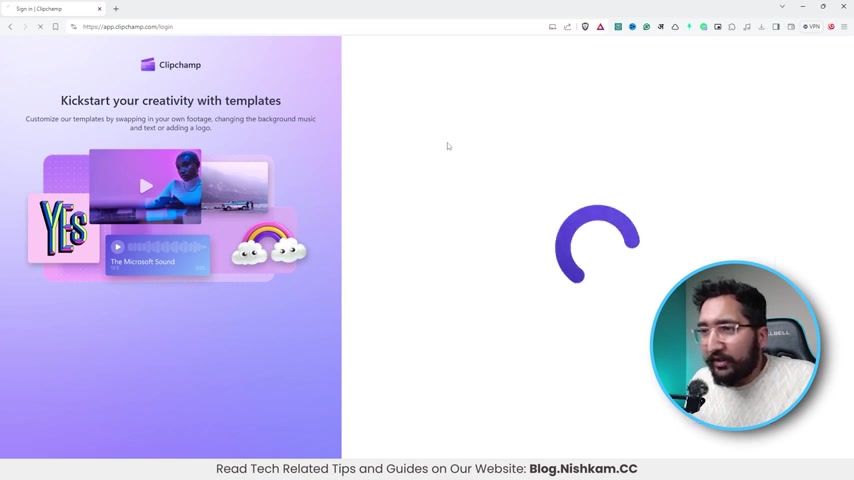
- Through Your Browser: Clipchamp can be used directly in your browser without the need to download any software. Simply go to the Clipchamp website (app.clipchamp.com)
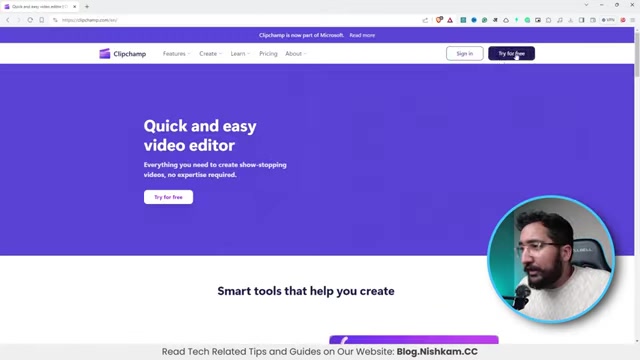
and sign in with your Microsoft account, Google account, or email.
- Download the Desktop App: Alternatively, you can download the Clipchamp desktop app for Windows. This can be done either from the Clipchamp website or through the Microsoft Store. The desktop app provides a more seamless experience and may offer better performance for some users.
Regardless of which method you choose, ensure you have a stable internet connection for optimal performance.
Step 2: Creating a New Project
Once you've accessed Clipchamp, you'll need to create a new video project to use the text-to-speech feature:
-
Click on 'Create a New Video': On the Clipchamp home screen, you'll see an option labeled 'Create a New Video'. Click on this to start a new project.
-
Select Aspect Ratio: Choose the aspect ratio that best suits your project. For YouTube videos, a 16:9 aspect ratio is typically used. For Instagram Reels or TikTok videos, a 9:16 (portrait) aspect ratio is more appropriate.
This will open the video editing interface where you can start adding and editing content.
Step 3: Accessing the Text-to-Speech Feature
With your new project open, you can now access the text-to-speech feature:
- Click on 'Record & Create': In the left-hand sidebar, find the 'Record & Create' option and click on it. This will open a menu with various Recording and creation tools.
- Select 'Text to Speech': From the 'Record & Create' menu, choose the 'Text to Speech' option. This will open the text-to-speech settings panel on the right side of the screen.
This is where you'll input your text and configure the voice settings for the conversion.
Step 4: Configuring the Text-to-Speech Settings
The text-to-speech settings panel allows you to customize the voice and language for your audio output:
-
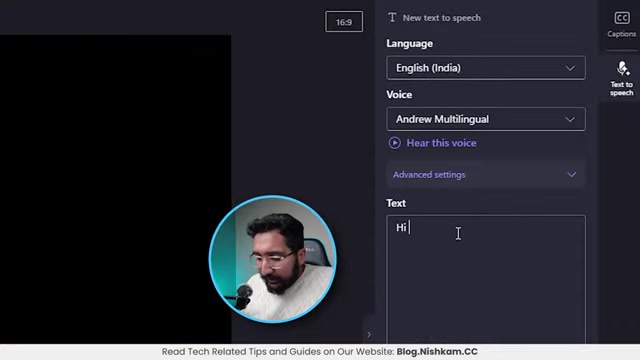
Choose Language: At the top of the settings panel, you'll find a dropdown menu labeled 'Language'. Select the language you want the audio to be in. Clipchamp supports a wide range of languages, including English, Spanish, French, German, and more.
-
Select Voice: Below the language setting, you'll find a dropdown menu labeled 'Voice'. This menu lists the available voices for the selected language. You can choose from a variety of male and female voices, each with its own unique tone and accent.
-
Preview Voice: To hear a sample of each voice, click on the 'Hear this voice' button next to the voice selection menu. This will play a short audio clip, allowing you to determine if the voice is suitable for your project.
-
Adjust Advanced Settings (Optional): Clipchamp also offers advanced settings that allow you to further customize the audio output. These settings may include options to adjust the pitch, speed, and volume of the voice. Experiment with these settings to achieve the desired sound.
Step 5: Inputting Your Text
Once you've configured the voice settings, it's time to input the text you want to convert to speech:
-
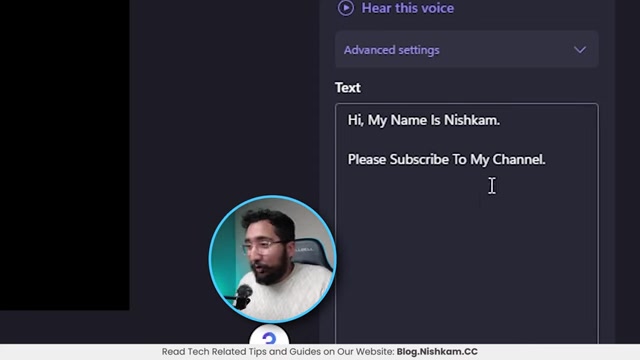
Type or Paste Your Text: In the text box provided, type or paste the text you want to convert to speech. Ensure your text is clear and well-formatted, as this will affect the quality of the audio output. Clipchamp also recognizes the type of punctuation used in your text.
-
Note the Duration Limit: Clipchamp has a maximum duration limit of 10 minutes for each text-to-speech conversion. If your text exceeds this limit, you'll need to divide it into smaller sections and convert them separately.
Clipchamp’s AI also recognizes punctuation, such as commas, which will create a small pause and full stops that will create a slightly larger pause. If you use an exclamation mark, the tone of the reading will be more excited.
Step 6: Generating and Saving the Audio
After inputting your text, you can generate the audio and add it to your project:
- Click on 'Preview': Click the preview button at the bottom to hear the result of the configuration you have setup.
- Click on 'Save to Media': Once you are happy, click the 'Save' button at the bottom of the settings panel. This will generate the audio and add it to your Clipchamp media library and timeline. From there, you can drag it to any point on your time line.
- Export the Video: Once your clip is in the timeline, select “Export”. You will only be able to export as a video file.
- Select file format: Select your file format to export as. Different subscription levels within Clipchamp will determine the quality of the exported file.
- Save your file: After rendering, the file will save to your specified location.
Step 7: Converting to MP3 (Optional)
Clipchamp exports audio as a video file. If you need the audio in MP3 format, you can use an online converter:
- Go to TinyWow.com: Open your web browser and go to TinyWow.com, a free online tool for various file conversions.
- Select 'MP4 to MP3': On the TinyWow website, find the 'Video' section and select the 'MP4 to MP3' converter.
- Upload Your Video: Click on the 'Upload from PC or Mobile' button and select the video file you exported from Clipchamp.
- Convert and Download: TinyWow will automatically convert the video to MP3 format. Once the conversion is complete, click on the 'Download' button to save the MP3 file to your device.
Now you have your text-to-speech audio in MP3 format, ready to be used on any platform.
Core Features of Clipchamp for Text-to-Speech
Key Functionalities for Effective Audio Conversion
Clipchamp’s text-to-speech feature is packed with functionalities that make it a powerful tool for content creation:
-
Multiple Languages and Voices: Clipchamp supports a wide array of languages and offers various voices to choose from, allowing you to create audio that resonates with your target audience. Each voice has its unique tone and accent, ensuring a professional and engaging audio output.
-
Customizable Settings: The software allows you to adjust the pitch, speed, and volume of the voice, giving you complete control over the audio's characteristics. Experimenting with these settings can help you achieve the perfect tone for your project.
-
Easy Integration with Video Editing: Clipchamp is primarily a video editor, which means you can seamlessly integrate your text-to-speech audio into video projects. This eliminates the need for multiple tools and streamlines your workflow.
-
Commercial Usage Rights: The audio generated through Clipchamp can be used for commercial purposes without any copyright concerns. This is a significant advantage for content creators who want to monetize their work.
-
User-Friendly Interface: Clipchamp’s intuitive interface makes it easy for both beginners and experienced users to create high-quality audio content. The text-to-speech conversion process is straightforward and requires no technical expertise.
Versatile Use Cases for Clipchamp's Text-to-Speech
Diverse Applications for Audio Content
Clipchamp’s text-to-speech feature can be used in a variety of scenarios:
-
YouTube Voiceovers: Create engaging voiceovers for your YouTube videos without the need for expensive voice actors or recording equipment. This is especially useful for tutorials, explainers, and review videos.
-
Instagram Reels and TikTok Videos: Add compelling audio to your short-form videos on Instagram Reels and TikTok. Use text-to-speech to create engaging narrations, dialogues, or sound effects.
-
Facebook and Twitter Content: Enhance your social media content by adding audio descriptions to your posts. This makes your content more accessible and engaging for users on Facebook and Twitter.
-
E-Learning Materials: Develop high-quality audio content for e-learning courses and training materials. Use text-to-speech to create narrations, lectures, and Quizzes.
-
Accessibility Solutions: Create audio versions of written content to make it more accessible to individuals with visual impairments or reading disabilities.
-
Audiobooks: Convert written books and articles into audiobooks for easy listening on the go.
-
Podcasts: Supplement your podcasts with audio content generated from written scripts or articles.
By leveraging Clipchamp’s text-to-speech feature, you can create a wide range of audio content for various applications, enhancing your communication and engagement with your audience.





Most people like


































Report
Please select a reason for reporting
- 13 Reasons to Switch from Snapchat to Text Messaging
- 7 Powerful Speech to Text Apps to Boost Productivity
- 10 Best Speech to Text Tools for Effortless Transcription
- 13 Free Tools to Easily Transcribe Audio to Text
- 15 Surprising Ways Google's Speech-to-Text Boosts Productivity
- 7 Best Free Online Audio to Text Transcription Tools
- 9 Tips to Transcribe Speech to Text Faster and Better
- 13 Best Speech to Text Software for Windows 10 in 2023
- 7 Tips for Choosing the Best Transcriber for Audio to Text
- 11 Reasons Why Dragon Speech-to-Text Apps are Game-Changers
- 6 Secrets to Enhance Your Speech to Text Transcription
- 6 Brilliant Ways to Boost Productivity with Talk-to-Text on Your MacBook
- 6 Ways Transcription Software Converts Audio to Text
- 8 Tips to Transcribe Speech to Text Like a Pro
- 6 Reasons IBM Watson Speech to Text is a Game-Changer
- 14 Powerful Ways Talk-to-Text Improves Your Workflow
- 12 Top Windows Speech-to-Text Software for Efficient Transcription
- 12 Game-Changing Benefits of Apple's Speech to Text Technology
- 9 Powerful Use Cases for AWS Speech to Text Technology
- 10 Easy Steps to Transcribe YouTube Videos to Text
- transcription audio en texte
- online audio transcription
- free audio file transcription
- free ai audio transcription
- audio transcription service
- audio transcription online free
- audio transcription free online
- audio to transcription software
- audio and transcript
- ai audio transcription free
- voice recording to text converter
- translate voice recording to text
- record voice to text
- audio recording to text converter
- voice recording and transcription
- chatgpt voice to text
- gmail voice to text
- speech to text reader
- speech to text ai free
- speech to talk
- Meshy AI: How to Create 3D Models from Text and Images
- How SEO and Marketing Dashboards Empower Agencies to Drive Results
- How to Use AI Tools to Find Internal Linking Opportunities Across a Business Website
- Discover Your Perfect Haircut with AI Hairstyle Apps
- Free Reputation Calculator Tools: How They're Adapting to Score AI Visibility, Not Just Rankings
- Design Professional Flyers for Free on Your Phone
- Best Free Flyer Maker Apps for Android: Design Like a Pro
- How to Know If Your Business Is Ready for an AI Customer Service Agent
- Revolutionizing Storytelling: From Novels to Screenplays with AI
- Create Engaging Animated Explainer Videos with a Free AI Tool
- Meshy AI: How to Create 3D Models from Text and Images
- ASOMobile Helps Teams Benchmark App Store Screenshots Against Competitors
- How to Match LMS Software With Your Organization's Training Plan
- Revolutionizing Email Marketing Agency with AI
- How to Convert BTC to HNT
- Unleashing the Power of AI: Cognizant's Roadmap for Transformation
- Frame to Video Review: A Practical Look at Turning Two Still Frames Into Motion
- NVIDIA NIM: Revolutionizing Supply Chain Data Analysis with AI
- Top AI Tools That Help Brands Stand Out Offline (Not Just Online)
- Top 5 Cold Email Software: Maximize Your Outreach in 2025

Copyright ©2026 toolify