































Table of Contents
- Key Points
- Crafting Compelling Chapters with Chapter Studio
- Step-by-Step Guide to Creating Your Book
- Step-by-Step Guide
- Pros and Cons
- FAQ
- Related Questions


Crafting Compelling Chapters with Chapter Studio
Navigating to the Chapter Studio
To begin crafting your book, access the Chapter Studio, Ghostwriter Express's Ultimate AI tool for creating compelling chapters. This Studio is designed to provide you with a diverse array of formats and styles, ranging from full-length chapters to checklists and personal stories. It empowers you to reflect your unique voice and brand, ensuring your content resonates deeply with your target audience. This process is a great first step for authors to use AI to help write their next book.
Crafting compelling chapters involves selecting from various chapter templates, and understanding the versatility and purpose of each style
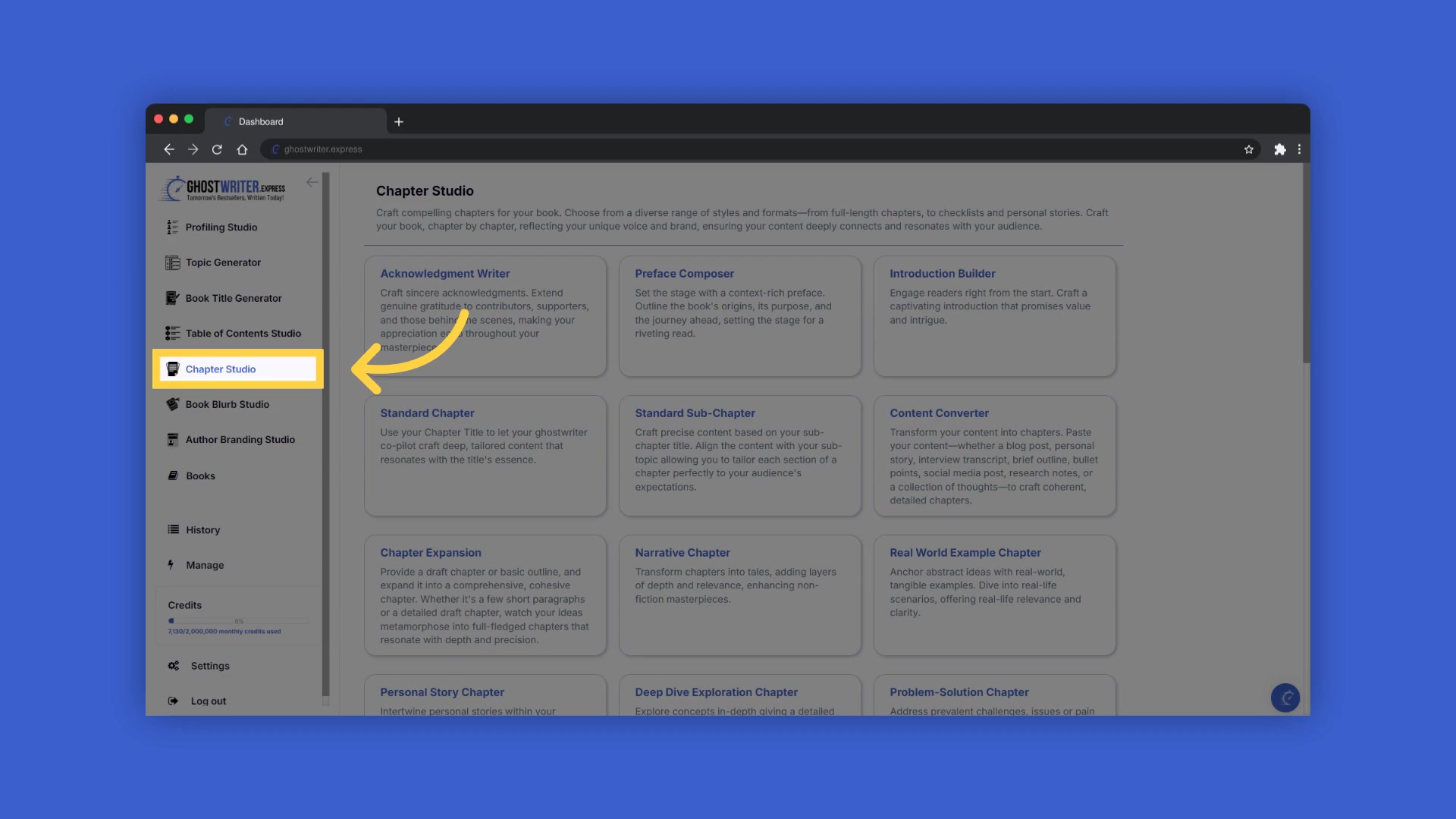
. Templates range from acknowledgment writers to real-world example chapters. The Chapter Studio transforms content into chapters, allowing you to paste raw content, from blog posts to social media posts, into detailed chapters.
Understanding the Content Converter
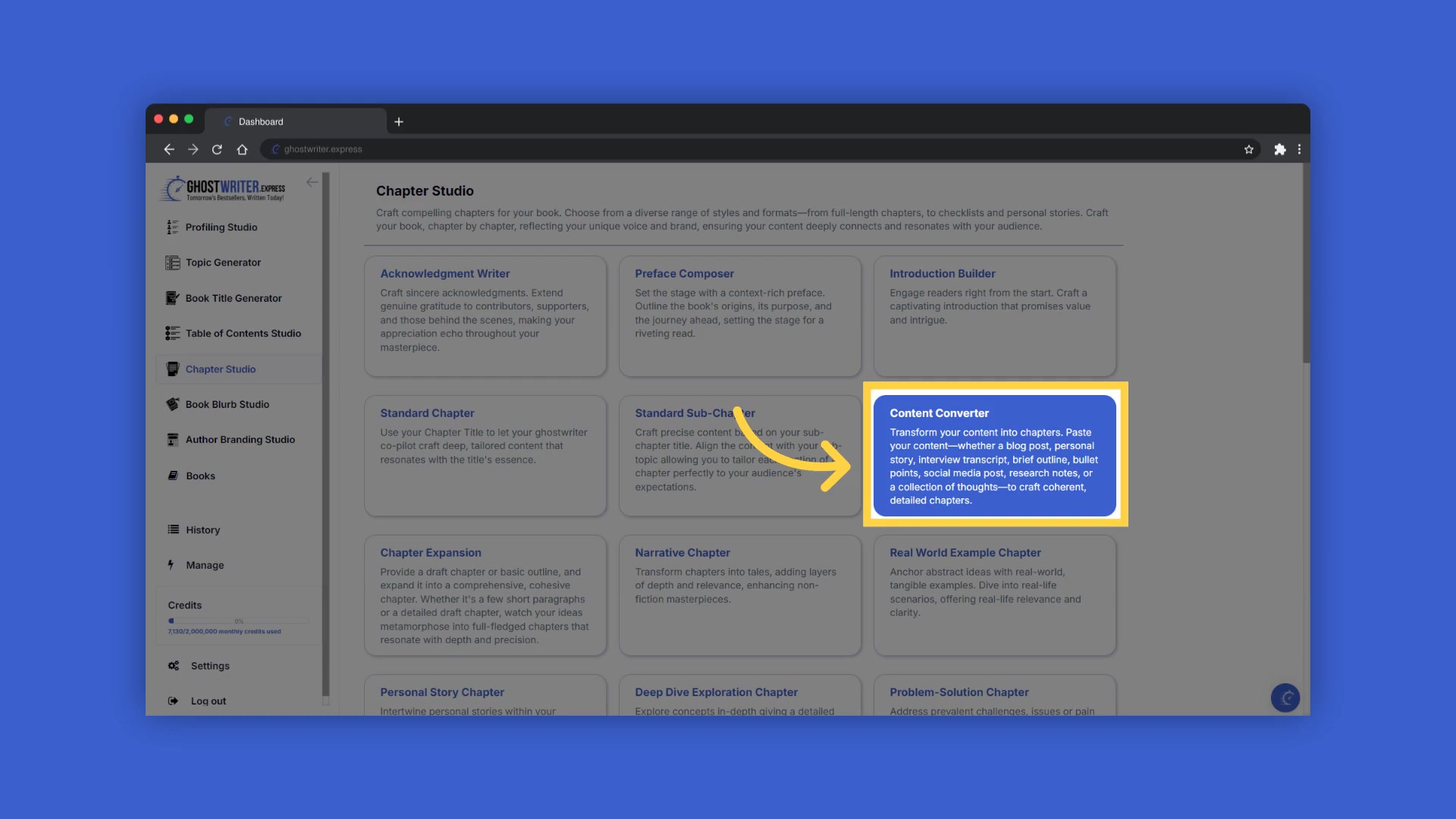
Content Converter transforms raw content into high-quality chapters. It excels at restructuring and refining raw material, so social media posts are transformed into well-structured and detailed non-fiction chapters. The content converter is designed for authors to repurpose existing content into comprehensive chapters that enhance their book's narrative flow and depth.
Ghostwriter.express presents versatile options to craft any idea into a compelling book chapter. It restructures and refines initial material, ensuring each chapter reads coherently and engagingly as part of the overall book. It's perfect for authors looking to repurpose content into comprehensive chapters that enhance the book's narrative flow and depth.
Step-by-Step Guide to Creating Your Book
Initiating Book Creation
To begin your book creation journey, start by creating a new book within Ghostwriter Express. If you're starting fresh, click the 'Create New' button in the book builder, then hit 'Generate' to be whisked away to the book title generator—here, you craft and add titles to your burgeoning masterpiece. If you have already written a book, Ghostwriter Express also offers services like Author Branding Studio which can help your books sell better.
If a book has already been created, select a book from the drop-down menu to continue crafting chapters and add content, ensuring that your non-fiction narrative gains the structure and polish it deserves.
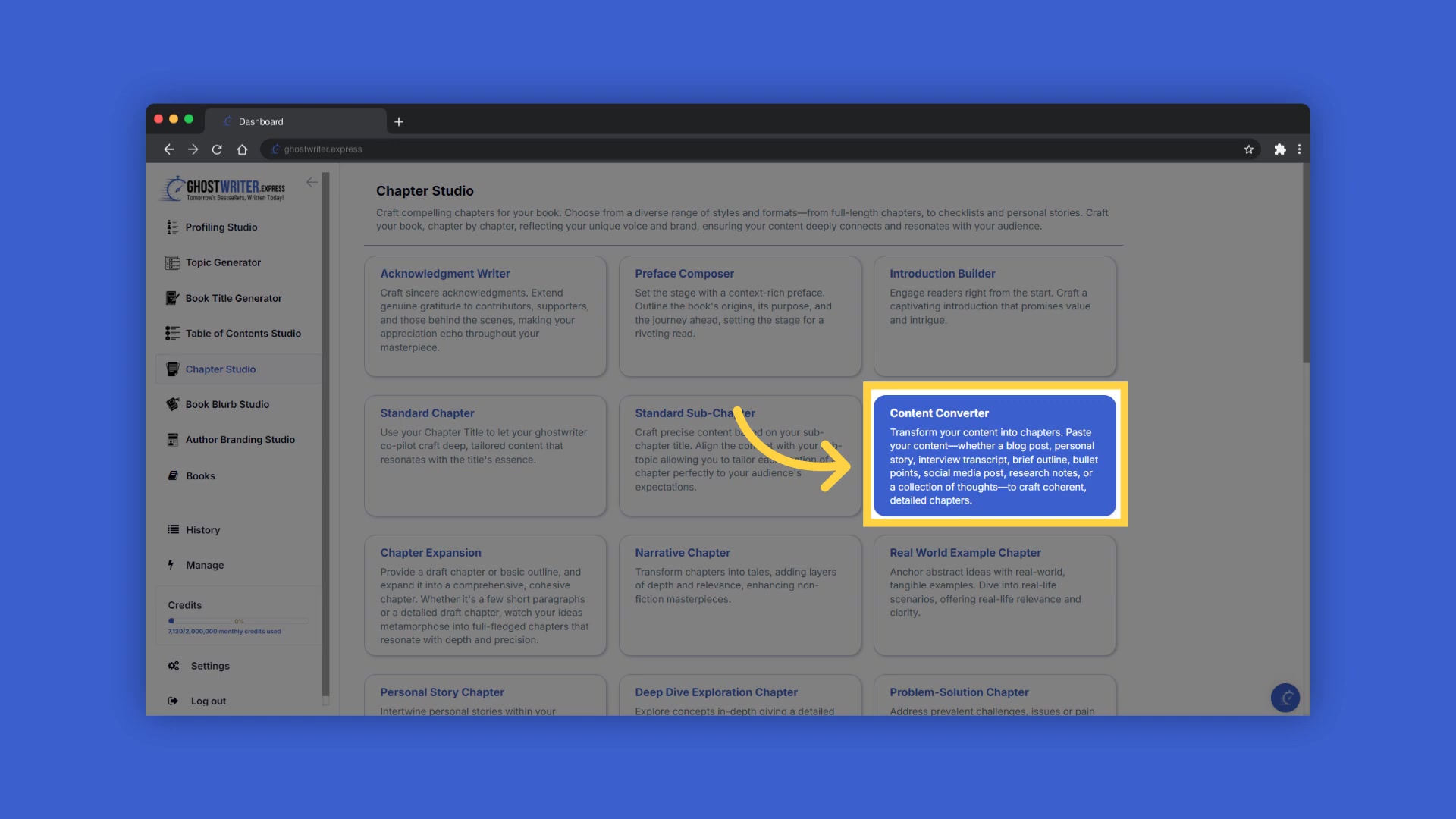
This process of selection ensures that every subsequent action taken resonates with the unique needs of the selected book, adding layers of personalization and relevance to each chapter.
Customizing and Adding Content
After initiating the book in Ghostwriter Express, adjust different templates for desired results and output the best content that you aim to create in each section. Each template provides a unique style and format. Make a selection within each section that best fits the content you aim to create. Remember, changing the template also changes the content and style.
For assistance in crafting your content, you can view the Tutorial, and find more about building your best non-fiction book with AI. Transform your content with AI and find out more about a particular field by selecting the blue tooltip beside each field name. A popup displays information and explains the type of information to enter in that field. To ensure high-quality, Relevant content, each generation has a fixed WORD count.
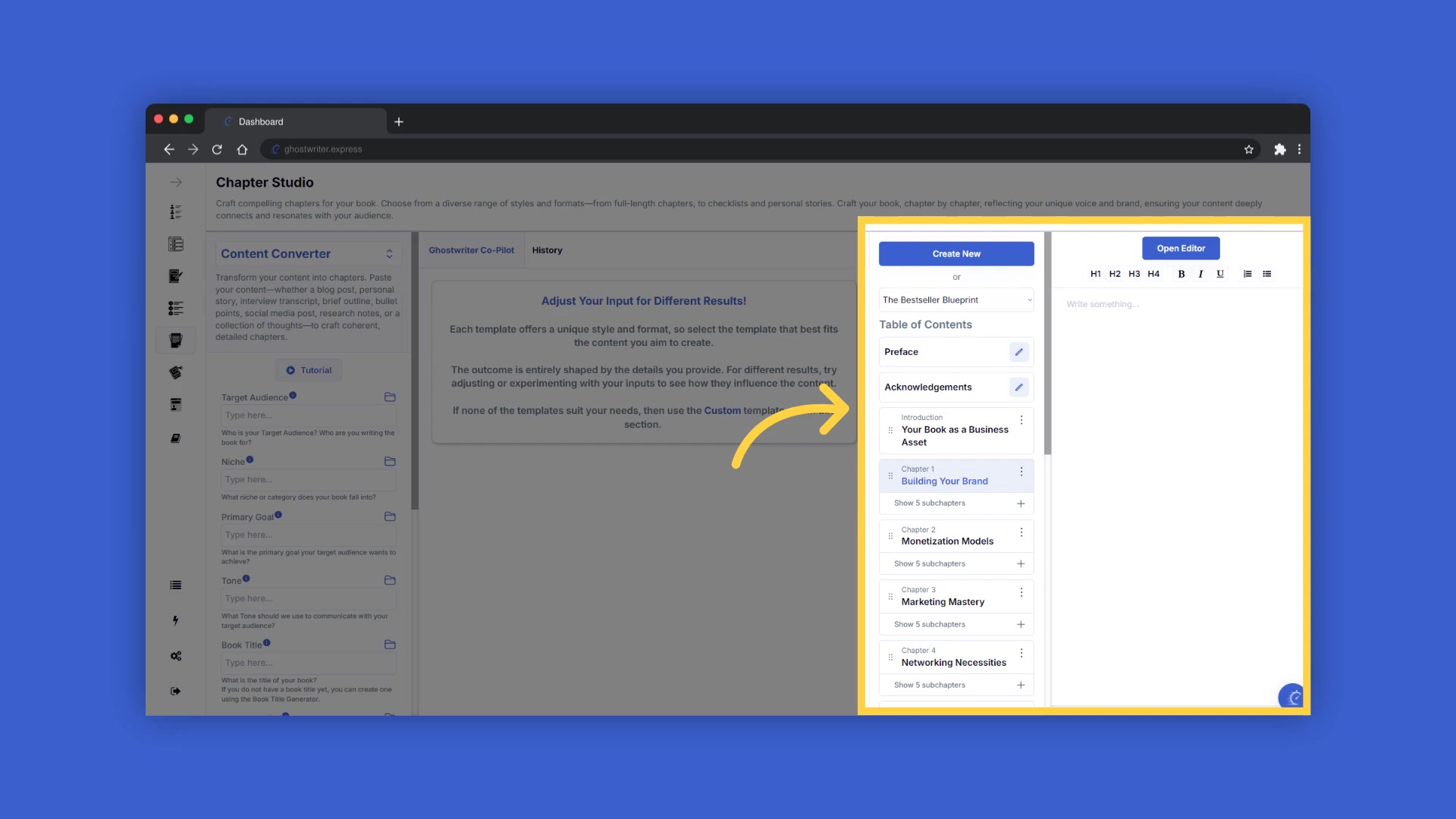
For longer chapters, add subchapters to the main chapter. Then, generate additional content for the same chapter.
Streamlining Content Generation
With your book created, the table of contents appears on the right, a navigational beacon guiding you through each chapter and subchapter. It allows you to craft and add content to your chapters and subchapters. Each field is also equipped with a folder on the right containing the history of the last ten entries to each respective field. Copy-and-paste the chapter sub-chapter titles into the corresponding fields on the left to generate content, refining the process and minimizing potential redundancies
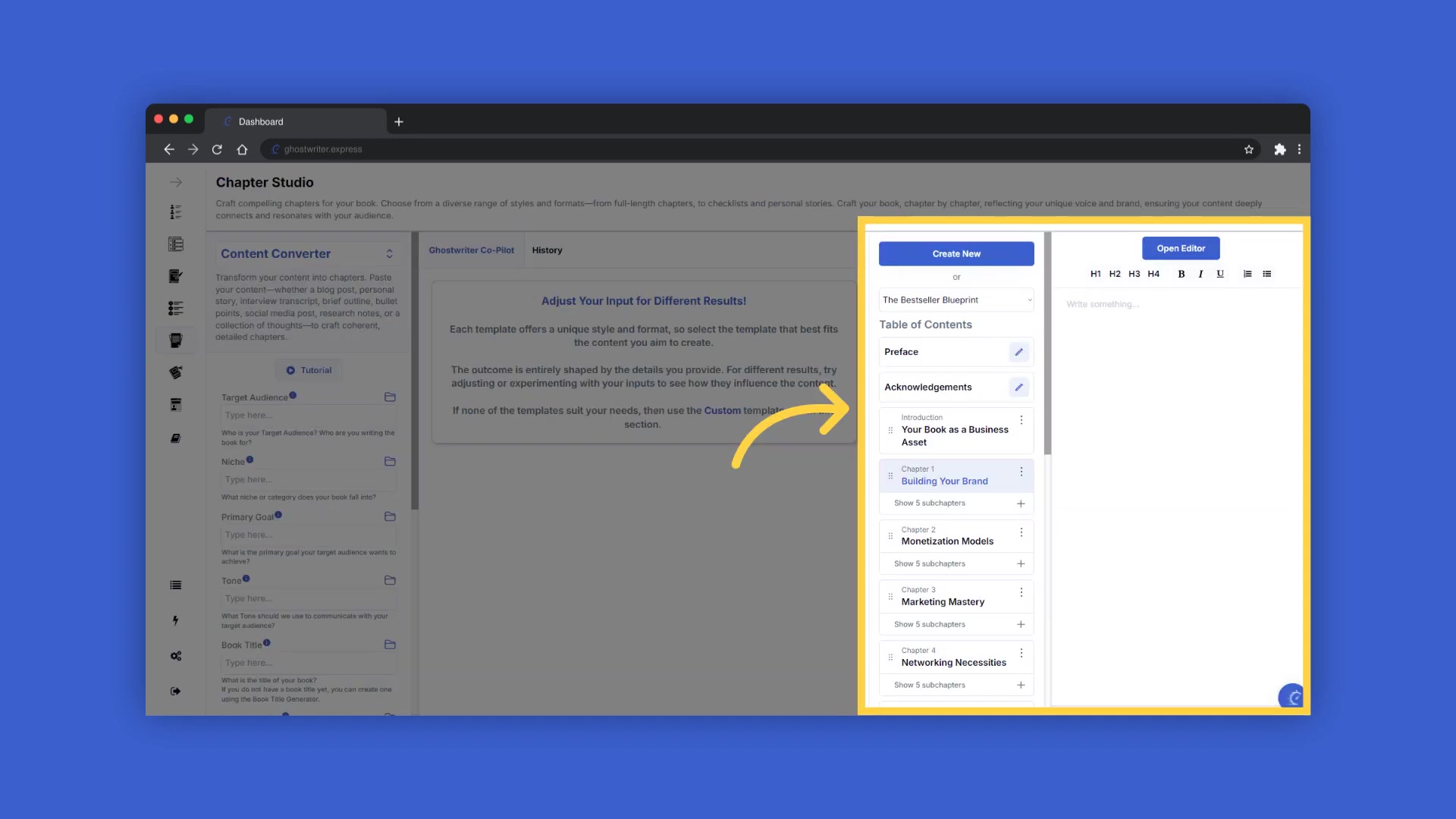
. If you reach your monthly book export limit, use the 'copy' button to continue generating, and manually add updates to the already exported book, which can be sent to your editor.








Most people like

































Report
Please select a reason for reporting
- 13 Reasons to Switch from Snapchat to Text Messaging
- 7 Powerful Speech to Text Apps to Boost Productivity
- 10 Best Speech to Text Tools for Effortless Transcription
- 13 Free Tools to Easily Transcribe Audio to Text
- 15 Surprising Ways Google's Speech-to-Text Boosts Productivity
- 7 Best Free Online Audio to Text Transcription Tools
- 9 Tips to Transcribe Speech to Text Faster and Better
- 13 Best Speech to Text Software for Windows 10 in 2023
- 7 Tips for Choosing the Best Transcriber for Audio to Text
- 11 Reasons Why Dragon Speech-to-Text Apps are Game-Changers
- 6 Secrets to Enhance Your Speech to Text Transcription
- 6 Brilliant Ways to Boost Productivity with Talk-to-Text on Your MacBook
- 6 Ways Transcription Software Converts Audio to Text
- 8 Tips to Transcribe Speech to Text Like a Pro
- 6 Reasons IBM Watson Speech to Text is a Game-Changer
- 14 Powerful Ways Talk-to-Text Improves Your Workflow
- 12 Top Windows Speech-to-Text Software for Efficient Transcription
- 12 Game-Changing Benefits of Apple's Speech to Text Technology
- 9 Powerful Use Cases for AWS Speech to Text Technology
- 10 Easy Steps to Transcribe YouTube Videos to Text
- transcription audio en texte
- online audio transcription
- free audio file transcription
- free ai audio transcription
- audio transcription service
- audio transcription online free
- audio transcription free online
- audio to transcription software
- audio and transcript
- ai audio transcription free
- voice recording to text converter
- translate voice recording to text
- record voice to text
- audio recording to text converter
- voice recording and transcription
- chatgpt voice to text
- gmail voice to text
- speech to text reader
- speech to text ai free
- speech to talk
- How to Use AI Tools to Find Internal Linking Opportunities Across a Business Website
- Discover Your Perfect Haircut with AI Hairstyle Apps
- Free Reputation Calculator Tools: How They're Adapting to Score AI Visibility, Not Just Rankings
- Design Professional Flyers for Free on Your Phone
- Best Free Flyer Maker Apps for Android: Design Like a Pro
- How to Know If Your Business Is Ready for an AI Customer Service Agent
- Revolutionizing Storytelling: From Novels to Screenplays with AI
- Create Engaging Animated Explainer Videos with a Free AI Tool
- Stop Multi-Subscribing: Benchmark Top AI Visual Models in One Canvas
- Best Seedance 2.5 API Provider: Every Price on the Market, Checked at Source
- Top AI Social Media Management Tools: Automate Your Content Strategy
- Free AI Text to Video Generator: Create Stunning Videos from Text
- Discover 17 ChatGPT Alternatives: A Comprehensive Comparison
- Character.AI vs. Janitor AI: Which AI Chat Platform Reigns Supreme?
- Top Virtual Assistant Companies in 2026: Reviews, Pricing, and Plans Compared
- Unveiling FaceCheck.ID: Revolutionizing Reverse Image Searches with AI
- 11 Best AI Dialers in 2026: Features, Pricing, Pros and Cons
- How I Direct Consistent AI Clips: A Hands-On Guide to Multi-Model Generation
- A Realistic Review of the Photo Generator Image Tool
- Playwright MCP Server: Automated Web Testing with Agent Mode

Copyright ©2026 toolify