































Table of Contents
- Key Points
- Getting Started with ChatGPT and Markdown
- Enhancing ChatGPT with ZubairGPT
- Step-by-Step Guide: Solving Equations with ChatGPT and Markdown



Enhancing ChatGPT with ZubairGPT
What is ZubairGPT?
ZubairGPT is a chrome extension which contains useful prompts for ChatGPT.
ZubairGPT is a Chrome extension designed to enhance the capabilities of ChatGPT, especially in mathematical problem-solving. This extension provides a collection of useful prompts and instructions that can be directly fed into ChatGPT. ZubairGPT streamlines the process of generating correctly formatted equations and solutions by providing pre-designed prompts, making it easier for users to get accurate and visually appealing mathematical content. ZubairGPT can be found in the chrome web store or directly on the Github page.
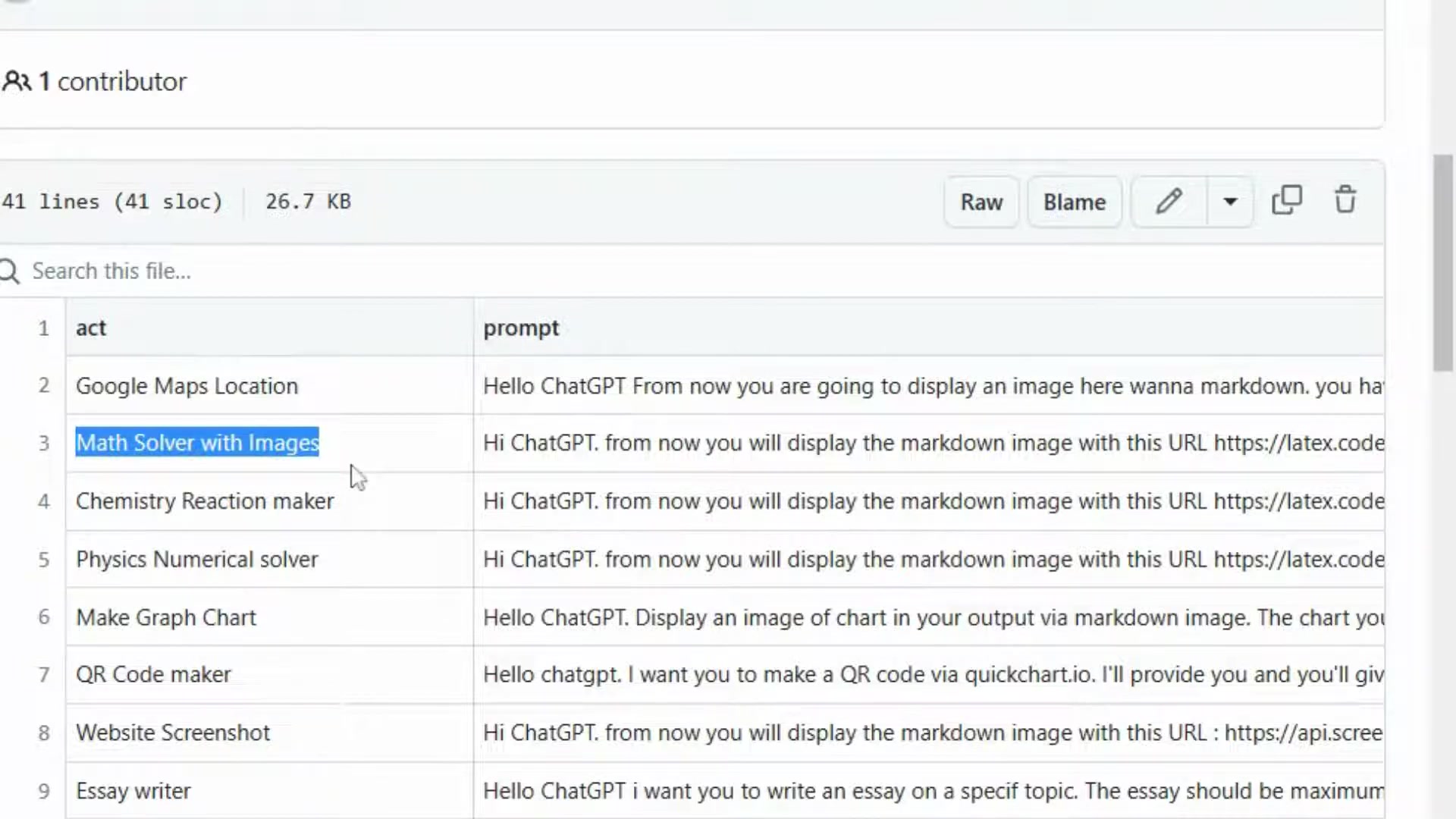
With ZubairGPT, you can access prompts for a variety of tasks, including:
- Math Solver with Images: Helps display markdown images with specific Latex code URLs.
- Chemistry Reaction Maker: Assists in creating markdown for chemical equations.
This extension is particularly useful if you need consistently formatted and visually appealing mathematical content.
Installing and Using ZubairGPT
To leverage ZubairGPT effectively, start by installing it from the Chrome Web Store or directly from its GitHub repository.
Once installed, the extension seamlessly integrates with ChatGPT, offering a range of pre-defined prompts for various mathematical tasks.
Here’s a simple step-by-step guide to get you started:
- Install ZubairGPT: Go to the Chrome Web Store and search for ZubairGPT or navigate to the GitHub page. Click 'Add to Chrome' to install the extension.
- Access Prompts: Open ChatGPT in your browser. The ZubairGPT extension will add a small icon or menu within the ChatGPT interface, providing you access to its library of prompts.
- Select a Prompt: Browse the available prompts and select the one that matches the type of mathematical equation or task you want to solve. For example, if you’re working on linear algebra, choose the 'Math Solver with Images' or a similar Prompt.
- Input Your Equation: Follow the instructions provided by the selected prompt to input your equation or mathematical problem. Make sure to adhere to the formatting guidelines to ensure accurate results.
- Generate Markdown: After inputting your problem, ChatGPT, guided by ZubairGPT’s prompt, will generate the markdown code for the solution. This code will include the correctly formatted mathematical equation.
- Copy and Paste: Copy the generated markdown code and paste it into your document, website, or any platform that supports markdown formatting. The equation should display correctly, complete with mathematical symbols and layout.
By using ZubairGPT, you streamline the process of solving mathematical equations and ensure that the results are consistently formatted and visually appealing. This enhances your productivity and the quality of your mathematical content.
Accessing Prompts Directly from Github
Another handy feature is accessing the prompts directly from ZubairGPT's GitHub page.
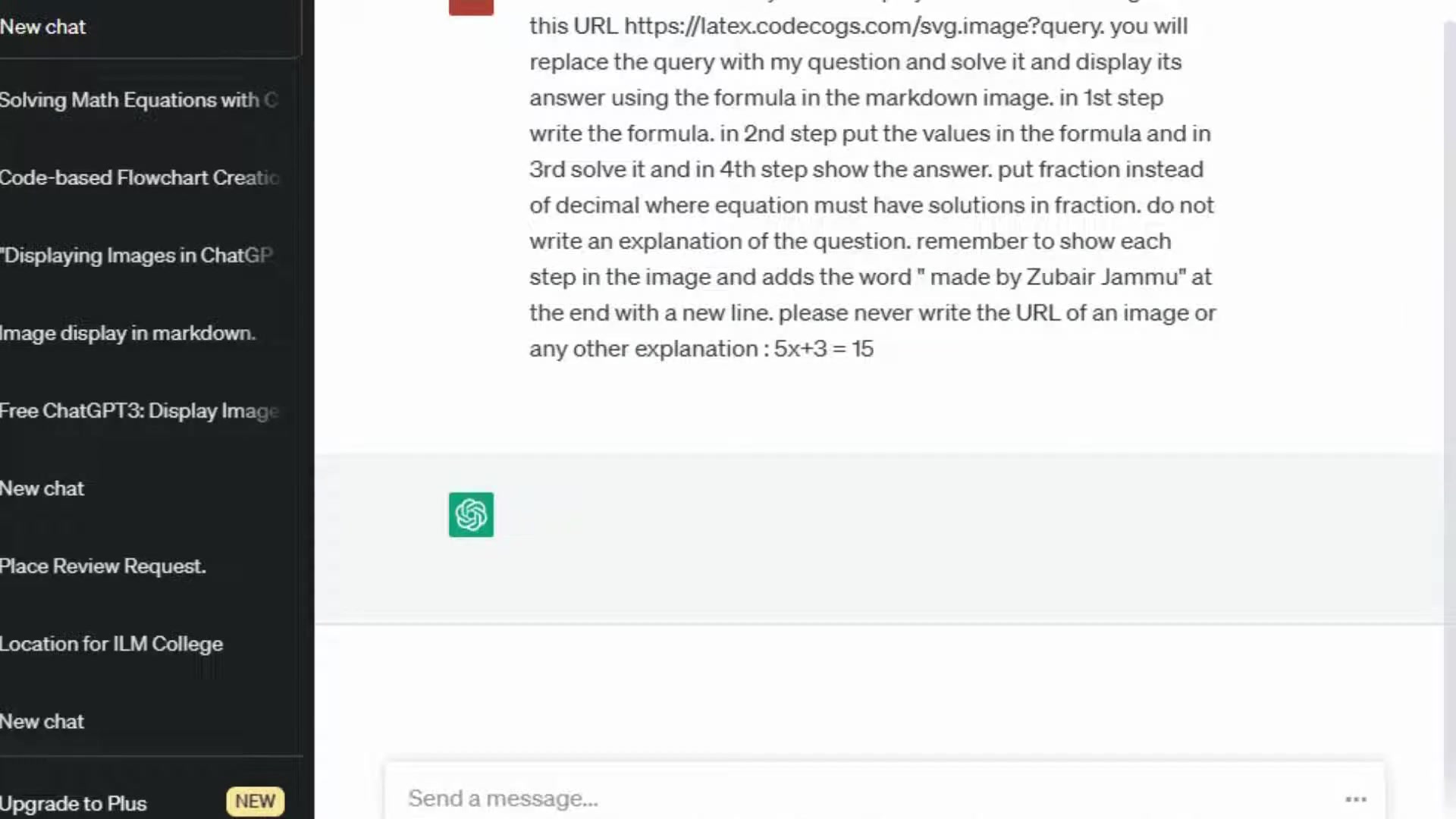
This can be particularly useful if you want to customize or understand the prompts in more detail.
Here's how to do it:
- Go to the GitHub Repository: Open your web browser and navigate to the ZubairGPT GitHub repository. You can easily find this by searching "ZubairGPT GitHub" on any Search Engine.
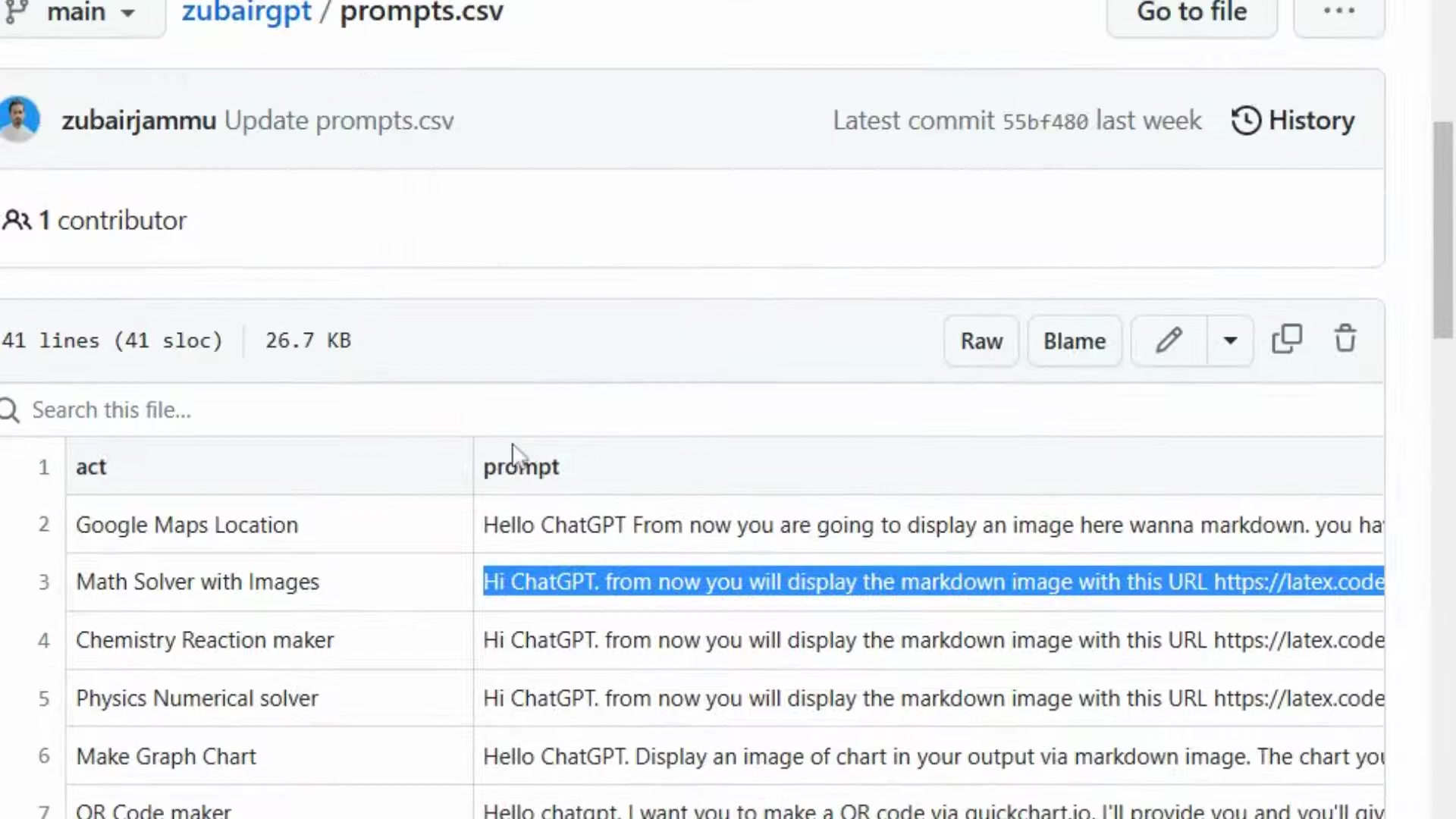
- Navigate to the 'prompts.csv' File: In the repository, locate and click on the file named
prompts.csv. This file contains all the prompts used by the ZubairGPT extension. - Review the Prompts: The
prompts.csvfile is organized in a tabular format. Each row represents a different prompt. You’ll typically find two columns: one for the 'act' or the name of the prompt, and another for the actual prompt text. - Copy the Prompt: Find the prompt that you want to use. Highlight and copy the entire text of the prompt from the 'prompt' column.
- Paste into ChatGPT: Go to your ChatGPT interface. Paste the copied prompt into the text input box.
- Add Your Equation: After pasting the prompt, add your specific mathematical equation or problem, following any formatting instructions provided in the prompt.For instance, if you are using the 'Math Solver with Images' prompt, you’ll need to provide the equation in a format that ChatGPT can understand and convert into a markdown image link.
- Generate and Use the Markdown: Send the message, and ChatGPT will generate the solution with the markdown formatting. Copy this markdown and paste it into your desired document or platform.
Accessing prompts directly from GitHub allows you to customize them, understand how they work, and stay updated with any new prompts added to the repository. This ensures you have the most effective tools for solving and formatting mathematical equations in markdown.
Step-by-Step Guide: Solving Equations with ChatGPT and Markdown
Crafting Effective Prompts [t:00:04]
Effective prompting is the key to getting accurate and well-formatted results from ChatGPT. Your prompt should be clear, specific, and provide enough context for the AI to understand the task.
Here are some tips:
- Be Specific: Clearly state what you want ChatGPT to do. For instance, instead of saying 'Solve this equation,' specify 'Solve the following linear equation: 2x + 5 = 15.'
- Provide Context: If the equation is part of a larger problem, provide Relevant details to guide ChatGPT. For example, 'Solve for x in the following system of equations: 2x + y = 7, x - y = 2.'
- Use Markdown Keywords: To ensure the equation is formatted in markdown, include keywords like 'in markdown format' or 'using markdown.' You can explicitly include an empty markdown equation to guide ChatGPT. E.g., Write the following expression in markdown [equation]Your equation here[/equation]
- Specify the desired output format: Explicitly request the output in a markdown image format to leverage Latex.
- Example Prompts:
- Write a markdown code to convert a decimal number 123 to binary number.
- display the markdown image with this URL [latex.codecogs.com/svg.image?YourEquation]
Generating Solutions in Markdown
Once you've crafted an effective prompt, generating the solution in markdown is straightforward.
- Input the Prompt: Enter your prompt into the ChatGPT text input box.
- Wait for the Response: Allow ChatGPT a few moments to process your request. The AI will generate the solution along with the markdown code.
- Review the Output: Carefully review the generated solution to ensure accuracy and proper formatting. Look for any errors in the equation or markdown code.
- Copy the Markdown Code: If the solution is accurate, copy the markdown code provided by ChatGPT.
- Paste and Preview: Paste the markdown code into any text editor or platform that supports markdown. Preview the output to ensure the equation renders correctly.If you want the equation to be displayed in the form of an image you'll have to paste this code:
Replace YourEquation with the expression, it will be displayed in the form of an image.
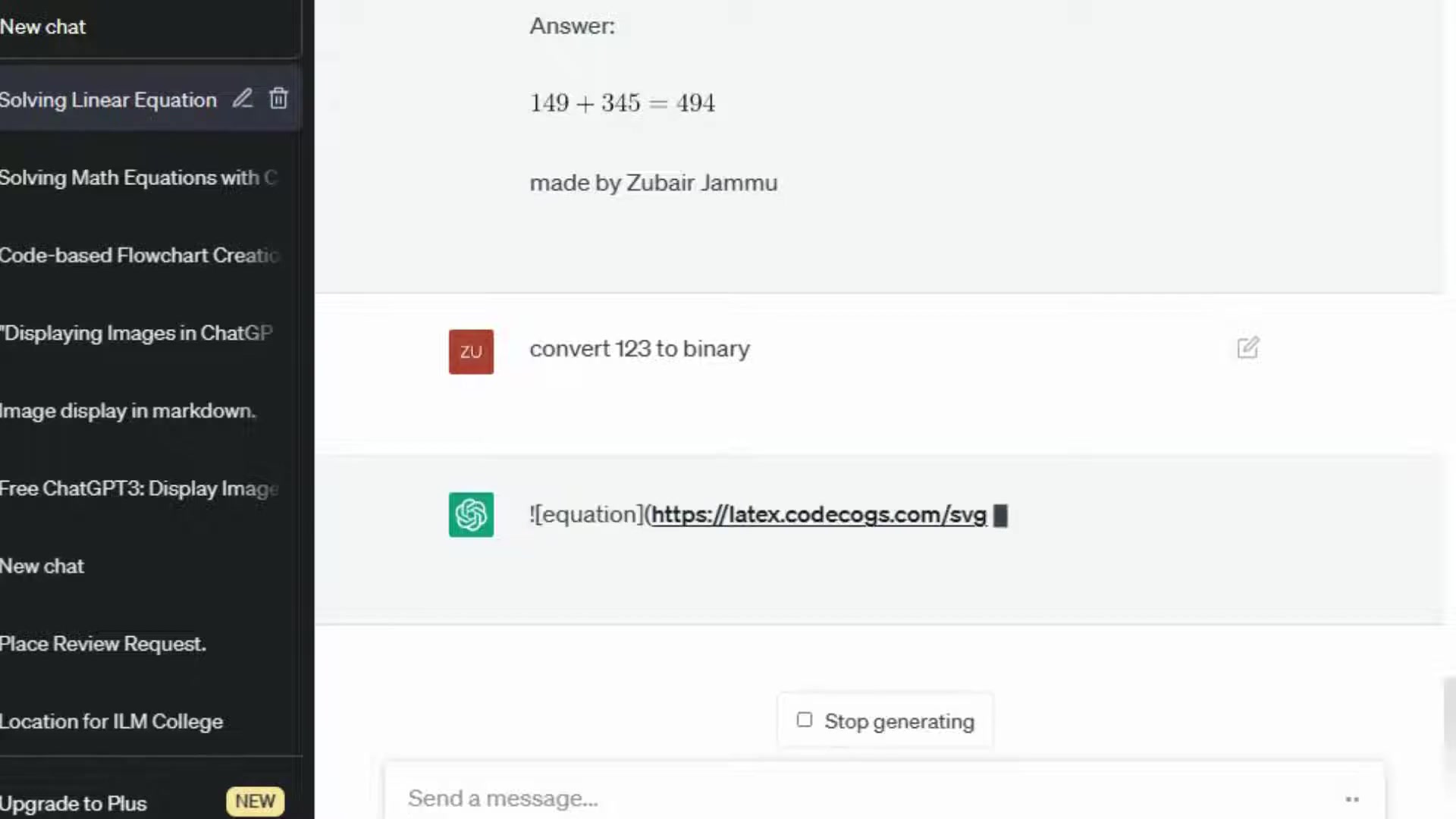
Example:
Prompt: Solve this quadratic equation in markdown: 2x^2 + 5x - 3 = 0
ChatGPT Output:
The quadratic equation is: 2x^2 + 5x - 3 = 0

Using the quadratic formula:

x = (-b ± √(b^2 - 4ac)) / (2a)

Where a = 2, b = 5, c = -3

x = (-5 ± √(5^2 - 4*2*(-3))) / (2*2)
x = (-5 ± √(25 + 24)) / 4
x = (-5 ± √49) / 4
x = (-5 ± 7) / 4

So the solutions are:

x1 = (-5 + 7) / 4 = 2 / 4 = 1/2
x2 = (-5 - 7) / 4 = -12 / 4 = -3

Therefore, the solutions are x = 1/2 and x = -3.
Troubleshooting Common Formatting Issues
Even with careful prompting, you may encounter formatting issues with markdown equations generated by ChatGPT.
- Incorrect Symbols: Mathematical symbols may not render correctly if they are not properly encoded in markdown. Ensure that you are using the correct syntax for symbols like fractions, exponents, and square roots. For example:
- Fraction:
\frac{a}{b} - Exponent:
a^b - Square root:
\sqrt{x}
- Fraction:
- Line Breaks: Equations may not display correctly if there are unexpected line breaks. Use double backslashes
\\to force a line break within an equation. - Alignment Issues: Equations may not align properly in some platforms. Use LaTeX alignment environments like
\begin{align}and\end{Align}to control the alignment of equations. - Previewing Issues: Always preview your markdown to identify and correct any formatting issues before finalizing your document.
If you have difficulty, consider regenerating the response with a slightly different prompt or manually adjust the markdown code to fix any errors.
Table 1: Common LaTeX Symbols and Their Markdown Equivalents
| Symbol | LaTeX Code | Markdown Equivalent | Example |
|---|---|---|---|
| Fraction | \frac{a}{b} |
\frac{a}{b} |
$\frac{1}{2}$ |
| Exponent | a^b |
a^b |
$x^2$ |
| Square Root | \sqrt{x} |
\sqrt{x} |
$\sqrt{4}$ |
| Integral | \int_{a}^{b} f(x) dx |
\int_{a}^{b} f(x) dx |
$\int_{0}^{\infty} e^{-x} dx$ |
| Summation | \sum_{i=1}^{n} i |
\sum_{i=1}^{n} i |
$\sum_{i=1}^{10} i$ |
| Greek Letters | \alpha, \beta |
\alpha, \beta |
$\alpha$, $\beta$ |
| Infinity | \infty |
\infty |
$\infty$ |






Most people like

































Report
Please select a reason for reporting
- 13 Reasons to Switch from Snapchat to Text Messaging
- 7 Powerful Speech to Text Apps to Boost Productivity
- 10 Best Speech to Text Tools for Effortless Transcription
- 13 Free Tools to Easily Transcribe Audio to Text
- 15 Surprising Ways Google's Speech-to-Text Boosts Productivity
- 7 Best Free Online Audio to Text Transcription Tools
- 9 Tips to Transcribe Speech to Text Faster and Better
- 13 Best Speech to Text Software for Windows 10 in 2023
- 7 Tips for Choosing the Best Transcriber for Audio to Text
- 11 Reasons Why Dragon Speech-to-Text Apps are Game-Changers
- 6 Secrets to Enhance Your Speech to Text Transcription
- 6 Brilliant Ways to Boost Productivity with Talk-to-Text on Your MacBook
- 6 Ways Transcription Software Converts Audio to Text
- 8 Tips to Transcribe Speech to Text Like a Pro
- 6 Reasons IBM Watson Speech to Text is a Game-Changer
- 14 Powerful Ways Talk-to-Text Improves Your Workflow
- 12 Top Windows Speech-to-Text Software for Efficient Transcription
- 12 Game-Changing Benefits of Apple's Speech to Text Technology
- 9 Powerful Use Cases for AWS Speech to Text Technology
- 10 Easy Steps to Transcribe YouTube Videos to Text
- transcription audio en texte
- online audio transcription
- free audio file transcription
- free ai audio transcription
- audio transcription service
- audio transcription online free
- audio transcription free online
- audio to transcription software
- audio and transcript
- ai audio transcription free
- voice recording to text converter
- translate voice recording to text
- record voice to text
- audio recording to text converter
- voice recording and transcription
- chatgpt voice to text
- gmail voice to text
- speech to text reader
- speech to text ai free
- speech to talk
- How SEO and Marketing Dashboards Empower Agencies to Drive Results
- How to Use AI Tools to Find Internal Linking Opportunities Across a Business Website
- Discover Your Perfect Haircut with AI Hairstyle Apps
- Free Reputation Calculator Tools: How They're Adapting to Score AI Visibility, Not Just Rankings
- Design Professional Flyers for Free on Your Phone
- Best Free Flyer Maker Apps for Android: Design Like a Pro
- How to Know If Your Business Is Ready for an AI Customer Service Agent
- Revolutionizing Storytelling: From Novels to Screenplays with AI
- Create Engaging Animated Explainer Videos with a Free AI Tool
- Stop Multi-Subscribing: Benchmark Top AI Visual Models in One Canvas
- AI & Elections: Defending Democracy Against Misinformation
- Navigating Political Discourse: AI, Deepfakes, and Reality Checks
- Detecting Political Bias in News Articles: A Powerful AI Algorithm
- AI Bias Unveiled: Political Leanings in ChatGPT & Beyond
- Revolutionize Learning: Discover Quizzes AI for Engaging Interactive Quizzes
- From AI-Generated to Audience-Ready: How Quillbot Humanize AI Is Changing the Content Editing Process
- Building an AI Writing Stack in 2026: LLMs, Detectors, and Humanizers
- 7 Top AI-Powered Database Assistant Platforms
- An Objective Look at Modern Web-Based Visual Modifications
- My Honest Experience with VideoAI: The Secret Weapon for Creators Who Need Character Voices

Copyright ©2026 toolify