































Table of Contents
- Key Points
- Introducing GitHub Copilot CLI
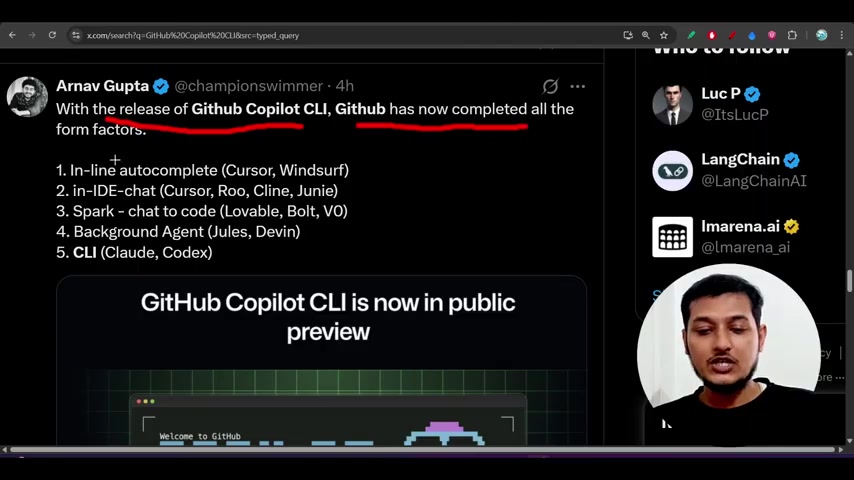
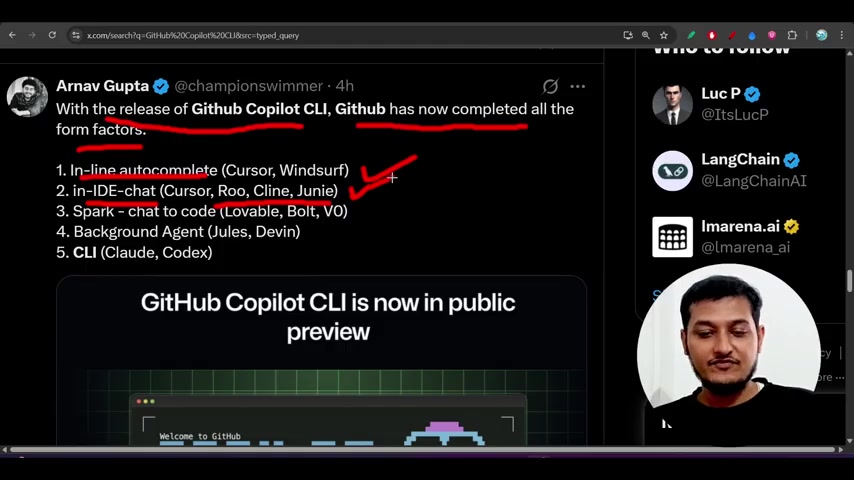
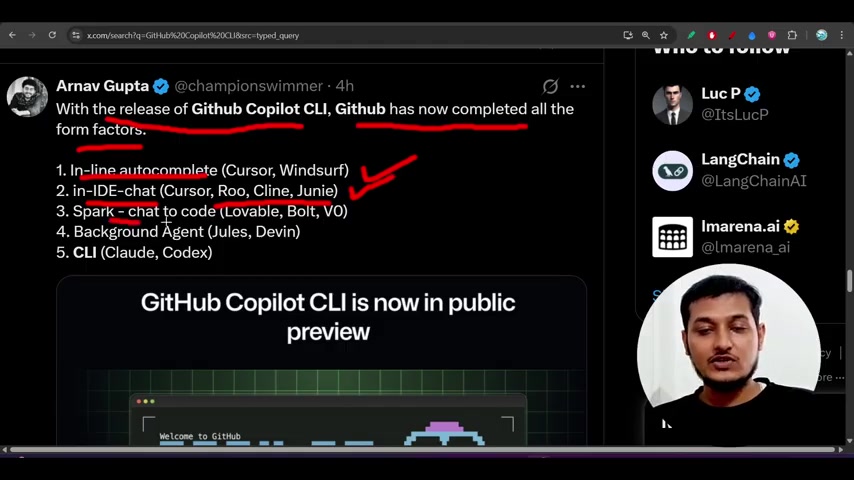
- Comparing GitHub Copilot CLI With Other AI Coding Tools
- Getting Started with GitHub Copilot CLI
- Advantages and Disadvantages
- Key Features and Capabilities
- Use Cases for GitHub Copilot CLI
- Frequently Asked Questions (FAQ)
- Related Questions



Introducing GitHub Copilot CLI
What is GitHub Copilot CLI?
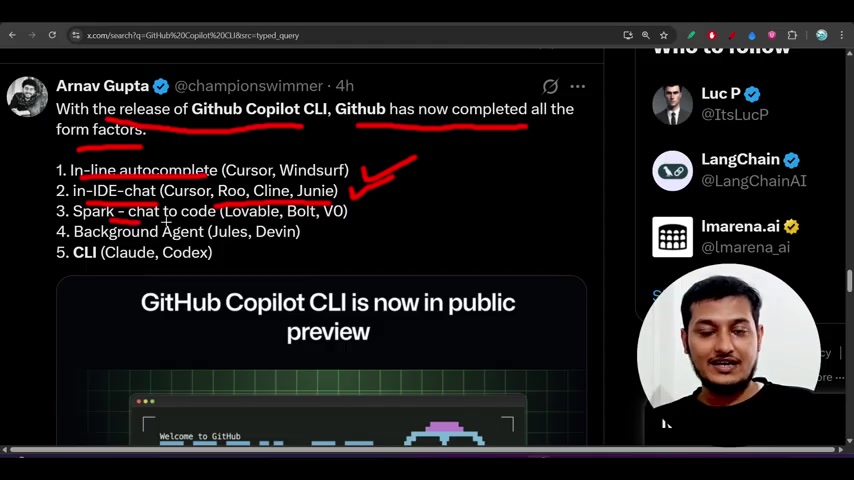
GitHub Copilot CLI is a new command-line interface that extends the AI-powered assistance of GitHub Copilot to your terminal. Unlike the traditional GitHub Copilot, which works primarily within IDEs like VS Code, the CLI version enables you to build, debug, and deploy applications directly from the command line.
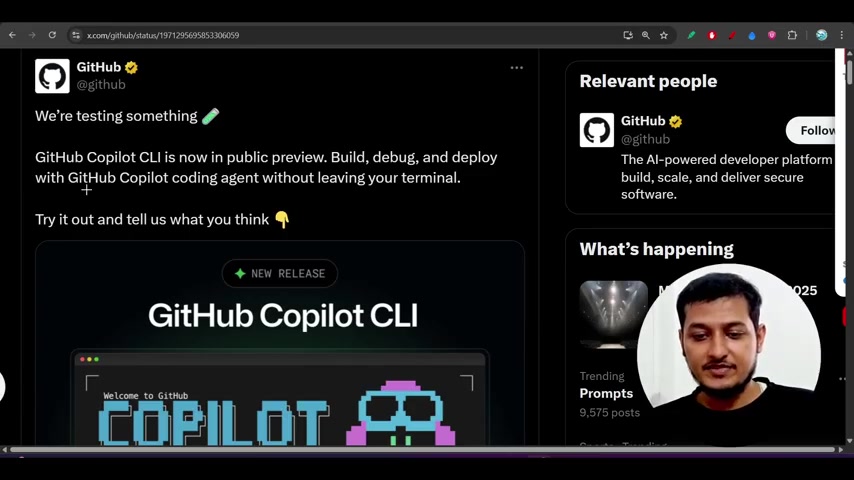
This means you can leverage AI-driven coding suggestions, code completion, and debugging assistance without switching between your terminal and IDE. The goal is to streamline your development workflow, making it more efficient and focused. This tool positions itself alongside other command-line coding assistants such as Gemini CLI, Cursor CLI, and cloud code, providing an alternative for developers who prefer a terminal-centric workflow.
GitHub is testing the waters with this new CLI tool, gathering feedback and incorporating improvements based on developer usage. By keeping your work inside the terminal, GitHub Copilot CLI aims to reduce context switching and keep your fingers on the keyboard, boosting productivity and minimizing distractions. The CLI is built to help with tasks like code generation, debugging, and even suggesting project ideas.
Public Preview and Accessibility
Currently, GitHub Copilot CLI is in public preview, meaning it’s available for developers to try out and provide feedback.
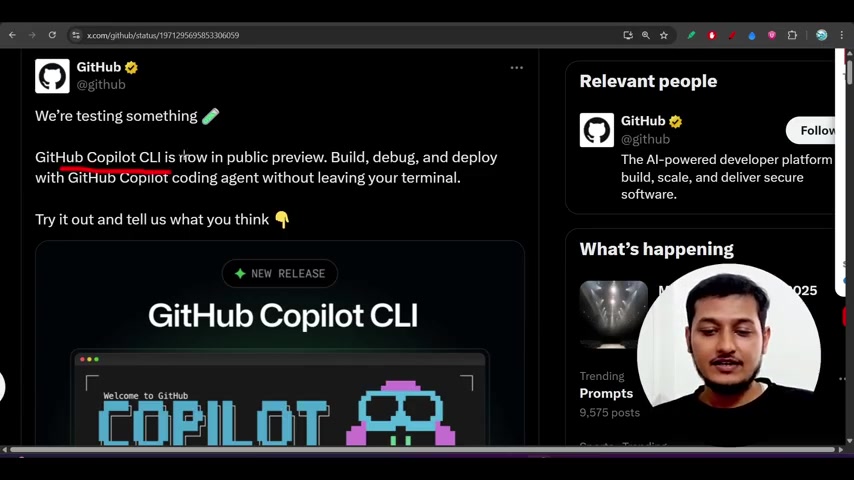
This allows GitHub to gather insights from real-world use cases and refine the tool based on user experiences. The CLI is designed to be intuitive, with options easily accessible through command-line interactions, making it simple to integrate into existing workflows. The tool is experimental, particularly for Windows support, and users encountering issues are encouraged to use the Windows Subsystem for Linux (WSL) or report issues with feedback.
To gain access to the GitHub Copilot CLI, you'll need an active GitHub Copilot subscription. GitHub mentions Copilot plans on their documentation page. Once you have a valid subscription, you can install the CLI and start using it right away.
Getting Started with GitHub Copilot CLI
Installation and Setup
Before diving into the features, you'll need to install the GitHub Copilot CLI. Here’s how to get started:
-
Prerequisites: Ensure you have Node.js version 22 or higher and npm version 10 or higher installed on your system. Check your Node.js version by typing
node -vin your terminal.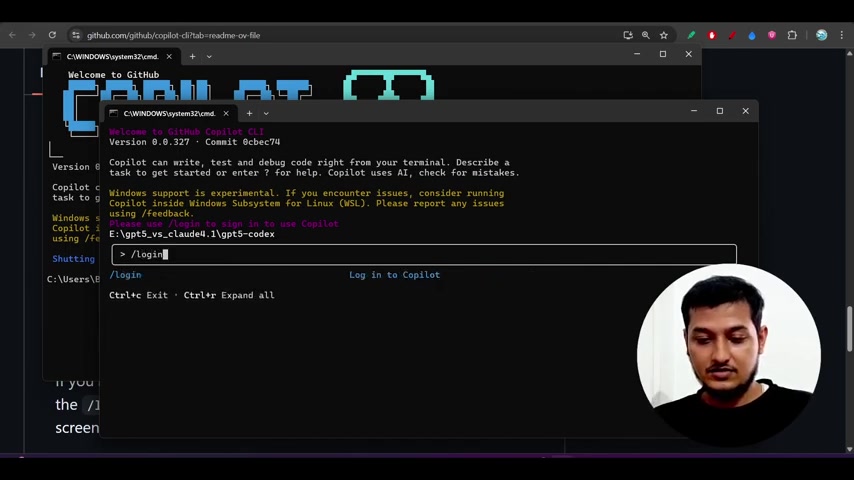
If necessary, download the latest version from the official Node.js website.
-
Installation Command: Open your terminal and run the following npm command to install the GitHub Copilot CLI globally:
npm install -g @github/copilot -
Launching the CLI: After the installation, you can launch the CLI by simply typing
copilotin your terminal. This will bring up the GitHub Copilot CLI interface. -
Logging In: The CLI requires you to log in to your GitHub account. Use the
/logincommand to authenticate. Follow the on-screen instructions to complete the authentication process.
Basic Commands and Interactions
Once you have successfully installed and launched the GitHub Copilot CLI, interacting with it is straightforward. Here are some basic commands to get you started:
- Accessing Options: Press
/to view a list of available options. This displays a range of commands you can use within the CLI. - Adding Directories: Use the
/add-dircommand to add directories for file access.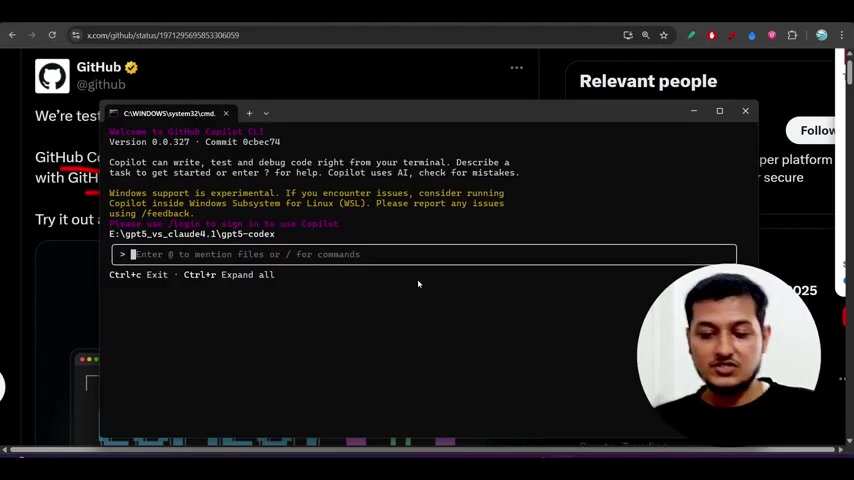
This allows the CLI to understand your project structure and provide relevant suggestions.
- Clearing the Screen: The
/clearcommand helps you clear the chat history and screen, providing a fresh start. - Getting Help: If you need assistance or want to learn about other available commands, use the
/helpcommand. This will show a list of interactive commands with descriptions. - Managing MCP (My Copilot Protocol) Server Configuration: Use the
/mcpcommand to manage your MCP server configuration. Add, edit, delete, or enable MCP servers to extend capabilities. - Managing User settings: You can manage Github user list through user function.
- Exiting the CLI: Use the
/exitcommand to exit the GitHub Copilot CLI.
By using these commands, you can interact with GitHub Copilot CLI to improve your development workflow.
Key Features and Capabilities
Terminal-Native Development
One of the core features is terminal-native development, which allows you to work directly in your command line without needing to switch to a different context.
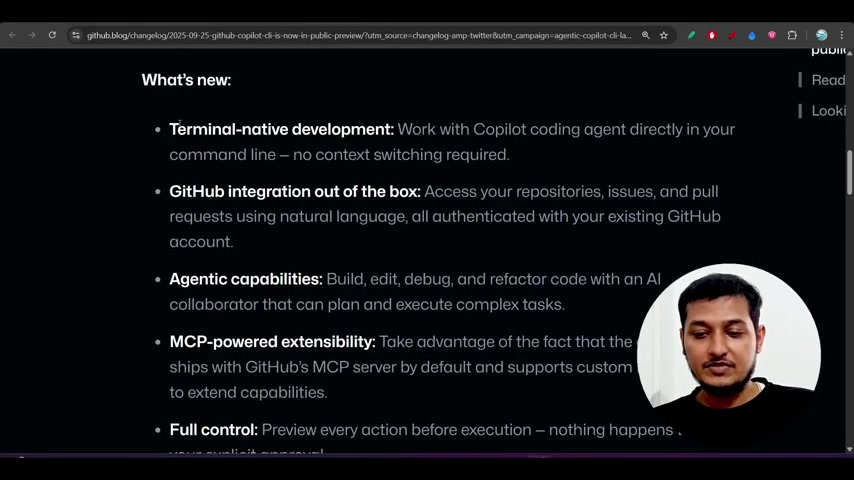
This ensures you can focus on coding and debugging without distractions. The GitHub Copilot coding agent assists in your command line, making coding more straightforward and seamless.
GitHub Integration Out of the Box
GitHub integration out of the box lets you access your repositories, issues, and pull requests using natural language.
This is authenticated with your existing GitHub account, providing a seamless and secure development experience.
Agentic Capabilities
The GitHub Copilot CLI allows you to build, edit, debug, and refactor code with an AI collaborator that can plan and execute complex tasks.
This feature ensures that you can handle complex coding tasks with the assistance of AI. You can edit, debug and refactor your code directly with copilot agent.
MCP-Powered Extensibility
MCP-powered extensibility lets you take advantage of the coding agent, ships with GitHub's MCP server by default, and supports custom MCP servers to extend capabilities.
You can take advantage of the fact that the coding agent ships with GitHub's MCP server by default, and supports custom MCP servers.
Full Control
With GitHub Copilot CLI, you have full control, and you can preview every action before execution. Nothing happens without your explicit approval, ensuring transparency and security.








Most people like




























Report
Please select a reason for reporting
- 13 Reasons to Switch from Snapchat to Text Messaging
- 7 Powerful Speech to Text Apps to Boost Productivity
- 10 Best Speech to Text Tools for Effortless Transcription
- 13 Free Tools to Easily Transcribe Audio to Text
- 15 Surprising Ways Google's Speech-to-Text Boosts Productivity
- 7 Best Free Online Audio to Text Transcription Tools
- 9 Tips to Transcribe Speech to Text Faster and Better
- 13 Best Speech to Text Software for Windows 10 in 2023
- 7 Tips for Choosing the Best Transcriber for Audio to Text
- 11 Reasons Why Dragon Speech-to-Text Apps are Game-Changers
- 6 Secrets to Enhance Your Speech to Text Transcription
- 6 Brilliant Ways to Boost Productivity with Talk-to-Text on Your MacBook
- 6 Ways Transcription Software Converts Audio to Text
- 8 Tips to Transcribe Speech to Text Like a Pro
- 6 Reasons IBM Watson Speech to Text is a Game-Changer
- 14 Powerful Ways Talk-to-Text Improves Your Workflow
- 12 Top Windows Speech-to-Text Software for Efficient Transcription
- 12 Game-Changing Benefits of Apple's Speech to Text Technology
- 9 Powerful Use Cases for AWS Speech to Text Technology
- 10 Easy Steps to Transcribe YouTube Videos to Text
- transcription audio en texte
- online audio transcription
- free audio file transcription
- free ai audio transcription
- audio transcription service
- audio transcription online free
- audio transcription free online
- audio to transcription software
- audio and transcript
- ai audio transcription free
- voice recording to text converter
- translate voice recording to text
- record voice to text
- audio recording to text converter
- voice recording and transcription
- chatgpt voice to text
- gmail voice to text
- speech to text reader
- speech to text ai free
- speech to talk
- Revolutionizing Storytelling: From Novels to Screenplays with AI
- Create Engaging Animated Explainer Videos with a Free AI Tool
- Stop Multi-Subscribing: Benchmark Top AI Visual Models in One Canvas
- Best Seedance 2.5 API Provider: Every Price on the Market, Checked at Source
- AI OnlyFans: How to Generate $30,000/Month (Legally)
- Transform Your Script into an Engaging Video with AI Video Maker!
- AI Marketing Automation: A Comprehensive Guide for Small Businesses
- Midjourney Alternative for Anime Art Creators: Why PixAI May Be Better for Character Workflows
- 10 Things Most People Get Wrong About AI Image Search
- AI Girlfriend Apps: Top Choices Redefining Relationships 2025
- Shopify vs. Durable: Which E-commerce Platform is Right for You?
- Top 4 AI Background Remover Tools for Flawless Image Editing
- Top 4 AI Lip-Sync Generators Tested: Features, Differences, and Real Results
- Top 4 Face Swap Generator Tools to Transform Your Visual Content
- Master Canva's Video Background Remover with 5 Essential Tips
- Mastering Microsoft Stream: Video Management Tips & Tricks
- AI Video Generation: Extend AI Videos for Free
- Master Loom: Create and Share Professional Videos with AI
- Create Captivating AI News Videos: Step-by-Step Guide
- Create Your Own AI News Channel with AI-Powered News Video Generator and AI Lip Sync

Copyright ©2026 toolify