































Table of Contents
- Key Points
- Understanding Microsoft Graph API
- Exploring the Microsoft Graph Explorer
- Step-by-Step Guide: Calling Microsoft Graph API
- Microsoft Graph API Pricing and Usage
- Advantages and Disadvantages of Using Microsoft Graph API
- Exploring Core Features of Microsoft Graph API
- Use Cases for Microsoft Graph API
- Frequently Asked Questions About Microsoft Graph API
- Related Questions About Microsoft Graph API



Understanding Microsoft Graph API
What is Microsoft Graph API?
The Microsoft Graph API is a RESTful web API that enables you to access Microsoft Cloud service resources. It simplifies accessing data across Microsoft 365 services, including user information, emails, calendars, files, and more.
As a developer, you can use this API to build applications that interact with Microsoft 365, enriching user experiences and automating workflows. Understanding the basics of Microsoft Graph API is the first step towards creating powerful integrated solutions.
Key benefits include:
- Unified Access: A single endpoint to access multiple Microsoft 365 services.
- Security: Adheres to Microsoft's stringent security standards, ensuring data privacy.
- Extensibility: Allows you to tailor data access to specific application needs.
By using the Microsoft Graph API, developers can deeply integrate their applications with the Microsoft ecosystem, creating customized and efficient solutions that Align with user workflows.
Why Use Microsoft Graph API?
The Microsoft Graph API is essential for any developer looking to build robust applications interacting with Microsoft 365 services. It acts as a centralized gateway, offering seamless integration across multiple platforms and services.
Here’s why you should consider using it:
- Enhanced productivity: Streamlines development by providing a unified access point.
- Improved User Experience: Facilitates personalized and context-aware applications.
- Data-Driven Insights: Enables access to rich datasets for analytics and reporting.
The Graph API helps extract valuable insights from Microsoft 365 data, creating applications that are not only functional but also smart and intuitive. It simplifies complex data retrieval processes, leading to faster development cycles and innovative user experiences.
Microsoft Graph API and Microsoft 365
Microsoft Graph API is deeply integrated with Microsoft 365 and provides a secure and unified API that can be used to access Microsoft 365 data and intelligence.
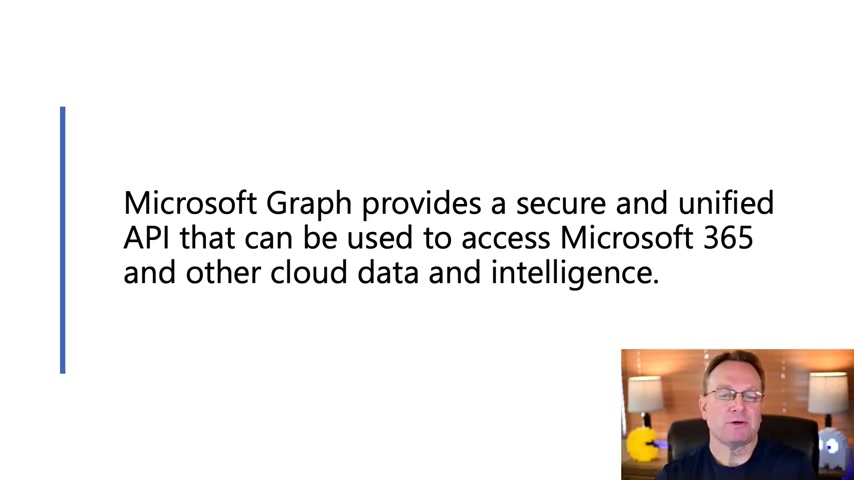
Here is an Outline to help understand Microsoft Graph API and Microsoft 365:
- User Information: Access profiles, photos, job details, and organizational structure.
- Communication: Retrieve emails, calendar events, chat messages, and contacts.
- Files: Manage files stored in OneDrive and SharePoint, enabling seamless document management.
- Task Management: Integrate tasks and to-do lists for enhanced productivity.
- Security and Compliance: Utilize security features and adhere to compliance standards. By retrieving information such as users' emails, chats, files, meetings, to-do lists, tasks, and pulling that information into apps, users can log in and see a list of meetings related to a topic right there in the app, or emails related to the same topic. Microsoft Graph API provides a very secure manner with the user's consent to access the data and integrate it into their applications. The user approves first and has to give what’s called consent.
Exploring the Microsoft Graph Explorer
Introduction to Microsoft Graph Explorer
The Microsoft Graph Explorer is a web-based tool that provides a sandbox environment to explore Microsoft Graph API's capabilities without writing any code. It's an excellent resource for understanding how the API works, discovering available endpoints, and testing queries before implementing them in your applications.
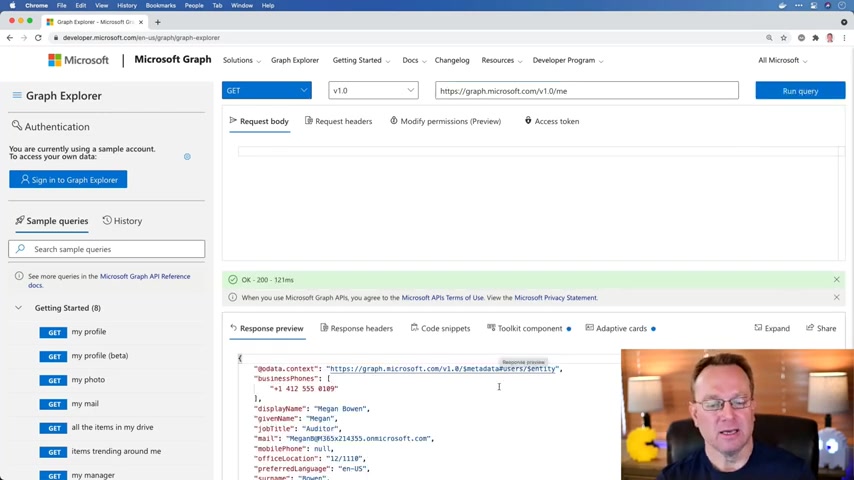
You can access Graph Explorer at aka.ms/ge. It's designed for both beginners and experienced developers, offering features that streamline the exploration process and enhance understanding.
Graph Explorer acts as your personal API playground, allowing you to experiment and validate your API calls in a safe and controlled environment.
How to Use the Microsoft Graph Explorer
The Microsoft Graph Explorer provides a straightforward interface for interacting with the Microsoft Graph API.
Here are the steps to get started:
- Access Graph Explorer: Navigate to
aka.ms/gein your web browser. - Sign In: To access your own data, sign in with your Microsoft 365 account. Alternatively, you can use sample data without signing in.
- Compose Your Query: Enter your API endpoint in the query box. For example,
https://graph.microsoft.com/v1.0/meto retrieve your profile. - Run the Query: Click the 'Run query' button to execute the API call.
- Examine the Response: Review the JSON response in the response preview section to understand the returned data structure.
Graph Explorer includes a sample query section on the left side of the screen where different queries can be run to obtain different types of information
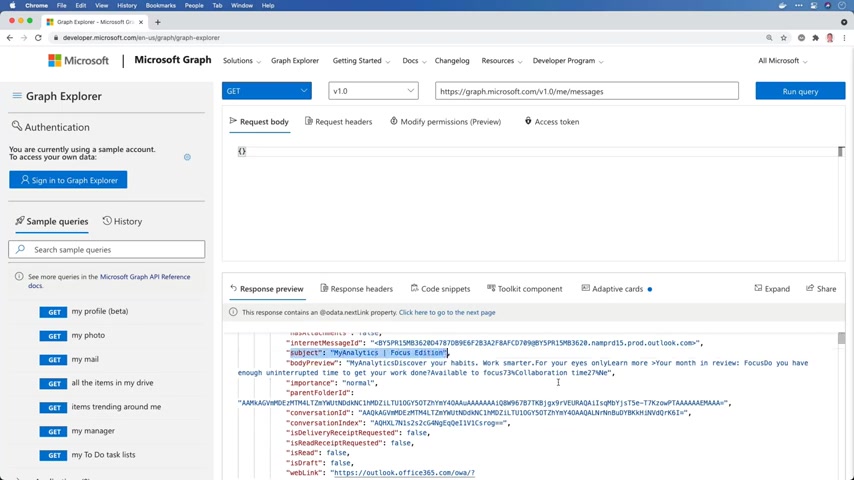
. There are options such as getting the logged in user’s photo or my mail, and this information can be obtained without logging in . However, the logged in user needs to consent to providing their information in order for the requests to be executed . There are also options to filter information to help extract what is important .
Once logged in, there are options to select the types of subject information and properties wanted from the API endpoints by adding query parameters . This is done by typing an ampersand and then “filter equals”, using the OData functionality .
Navigating Graph Explorer's Interface
Familiarizing yourself with the Graph Explorer interface is essential for efficient API exploration.
Here’s a breakdown of the main components:
- Query Bar: Located at the top, this is where you input the API endpoint you want to query.
- HTTP Method Selector: Allows you to choose the HTTP method (GET, POST, PUT, DELETE) for your API request.
- Version Selector: Select the desired Microsoft Graph API version (e.g., v1.0, beta).
- Sample Queries Panel: Provides a list of pre-built queries for common use cases.
- Request Body: Where you add the JSON payload for POST, PUT, and PATCH requests.
- Response Preview: Displays the JSON response returned by the API.
Understanding each component enables you to construct and execute API calls effectively, streamlining your learning process.
Common Errors and Troubleshooting in Graph Explorer
While using Graph Explorer, you may encounter some common issues. Understanding how to troubleshoot them ensures a smooth learning experience.
Here are a few tips:
- Check Permissions: Ensure that you have the necessary permissions to access the data you're querying. Use the 'Modify permissions' tab to grant consent.
- Verify the Endpoint: Double-check the API endpoint for typos or incorrect syntax.
- Inspect the Response: Pay attention to the error messages in the response preview for clues about what went wrong.
- Use Sample Queries: If you're unsure how to construct a query, start with a sample query and modify it to fit your needs.
These troubleshooting techniques help you quickly resolve issues and continue exploring the Microsoft Graph API effectively.





Most people like


































Report
Please select a reason for reporting
- 13 Reasons to Switch from Snapchat to Text Messaging
- 7 Powerful Speech to Text Apps to Boost Productivity
- 10 Best Speech to Text Tools for Effortless Transcription
- 13 Free Tools to Easily Transcribe Audio to Text
- 15 Surprising Ways Google's Speech-to-Text Boosts Productivity
- 7 Best Free Online Audio to Text Transcription Tools
- 9 Tips to Transcribe Speech to Text Faster and Better
- 13 Best Speech to Text Software for Windows 10 in 2023
- 7 Tips for Choosing the Best Transcriber for Audio to Text
- 11 Reasons Why Dragon Speech-to-Text Apps are Game-Changers
- 6 Secrets to Enhance Your Speech to Text Transcription
- 6 Brilliant Ways to Boost Productivity with Talk-to-Text on Your MacBook
- 6 Ways Transcription Software Converts Audio to Text
- 8 Tips to Transcribe Speech to Text Like a Pro
- 6 Reasons IBM Watson Speech to Text is a Game-Changer
- 14 Powerful Ways Talk-to-Text Improves Your Workflow
- 12 Top Windows Speech-to-Text Software for Efficient Transcription
- 12 Game-Changing Benefits of Apple's Speech to Text Technology
- 9 Powerful Use Cases for AWS Speech to Text Technology
- 10 Easy Steps to Transcribe YouTube Videos to Text
- transcription audio en texte
- online audio transcription
- free audio file transcription
- free ai audio transcription
- audio transcription service
- audio transcription online free
- audio transcription free online
- audio to transcription software
- audio and transcript
- ai audio transcription free
- voice recording to text converter
- translate voice recording to text
- record voice to text
- audio recording to text converter
- voice recording and transcription
- chatgpt voice to text
- gmail voice to text
- speech to text reader
- speech to text ai free
- speech to talk
- Meshy AI: How to Create 3D Models from Text and Images
- How SEO and Marketing Dashboards Empower Agencies to Drive Results
- How to Use AI Tools to Find Internal Linking Opportunities Across a Business Website
- Discover Your Perfect Haircut with AI Hairstyle Apps
- Free Reputation Calculator Tools: How They're Adapting to Score AI Visibility, Not Just Rankings
- Design Professional Flyers for Free on Your Phone
- Best Free Flyer Maker Apps for Android: Design Like a Pro
- How to Know If Your Business Is Ready for an AI Customer Service Agent
- Revolutionizing Storytelling: From Novels to Screenplays with AI
- Create Engaging Animated Explainer Videos with a Free AI Tool
- Automate Lead Generation: A Comprehensive Guide with AI Agents
- Revideo.io: The Future of Reverse Video Search Technology
- Revolutionizing Email Marketing Agency with AI
- Breaking the Character Drift Dilemma: A Practical Test of Smart Shot
- Meshy AI: How to Create 3D Models from Text and Images
- ASOMobile Helps Teams Benchmark App Store Screenshots Against Competitors
- How to Match LMS Software With Your Organization's Training Plan
- How to Convert BTC to HNT
- Unleashing the Power of AI: Cognizant's Roadmap for Transformation
- Frame to Video Review: A Practical Look at Turning Two Still Frames Into Motion

Copyright ©2026 toolify