































Table of Contents
- Key Points
- Understanding the SSIS Data Conversion Tool
- Diving Deeper: Practical Implementation
- Step-by-Step Implementation: Converting a String to an Integer
- Pros and Cons
- FAQ
- Related Questions


Understanding the SSIS Data Conversion Tool
What is the SSIS Data Conversion Tool?
The SSIS Data Conversion Tool is a transformation component in SQL Server Integration Services (SSIS) that converts data from one data type to another. This is a vital step in the ETL process, ensuring that data from various sources is compatible with the destination data warehouse. In a simplified explanation, the Data Conversion Tool basically does the conversion of a data type, from one data type to another data type.
Why is this important? Data frequently comes from different sources with varying data formats. These differences must be resolved before loading the data into a unified data warehouse. For example, a date might come as text from one source, but the data warehouse expects a date data type. Or a numerical value could come as a string and needs to be converted to Integer. This tool is key to fixing that and ensuring your data can be properly loaded.
Here’s a breakdown of what the Data Conversion tool helps to address:
- Data Type Incompatibilities
- Data Standardisation
- Improved Data Quality
The Role of the Data Conversion Tool in ETL Processes
The Data Conversion Tool fits squarely into the transformation (T) stage of the ETL pipeline.
Let's think about extraction, it's all about pulling data in from different data sources, think text files, CSV files, Excel files, and SQL. Because data can come from all different places, the types of data it carries can vary. ETL ensures the destination can handle data type consistencies and conversions. These sources often use different data types, even for the same kind of information. The conversion of this extracted data is essential for maintaining the integrity of your data.
Transformation, in its turn, is vital in the ETL cycle. After the extraction comes a need for standardization and compatibility, especially for data warehousing purposes where the storage and analytics demand data types be uniform. Imagine a data warehouse where data such as dates and numeric values conform to a specific format.
Here's where a Data Conversion Tool comes to play, offering conversion of data types for consistency.
When it comes to loading it within your data warehouse; that needs to conform, ensuring smooth integration without rejections or corruption issues.
Common Scenarios for Using the Data Conversion Tool
Several common scenarios require the use of the SSIS Data Conversion Tool. Here are a few examples:
-
Converting Text to Numeric: Data sources like CSV files often store numerical data as text. Before performing calculations, you must convert the text to an integer or decimal data type.
-
Converting Dates: Dates can come in various formats (MM/DD/YYYY, DD/MM/YYYY, etc.). The Data Conversion Tool standardises these into a single date format suitable for the data warehouse. We want to ensure dates load to destination data warehouses smoothly.
-
String Encoding Changes: If you’re moving data between systems with different character encodings, this tool handles conversions like ANSI to Unicode.
-
Ensure Compatibility for Data Types for Data Warehouses: Data warehouses often have strict data type requirements. The Data Conversion Tool can meet these requirements.
Diving Deeper: Practical Implementation
A Real-World Scenario
Let's walk through an example showcasing the practical implementation of the SSIS Data Conversion Tool. Assume you're importing data from a flat file containing customer information into an SQL Server database.
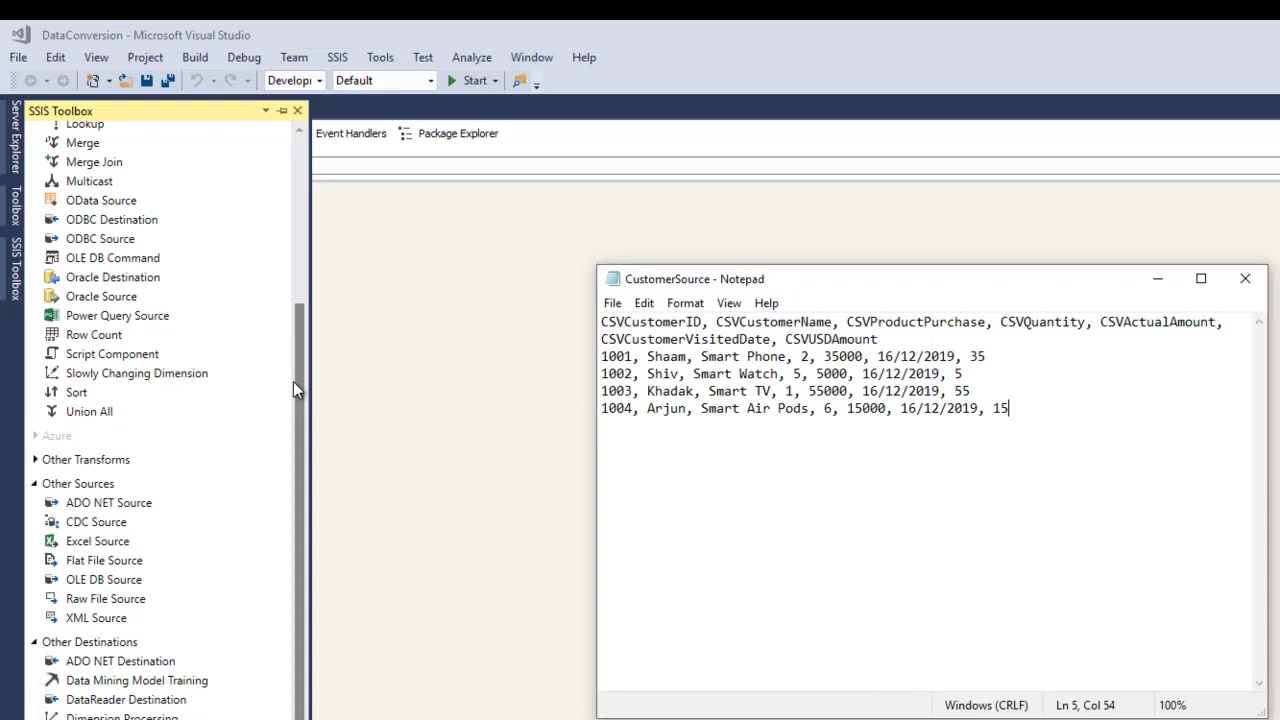
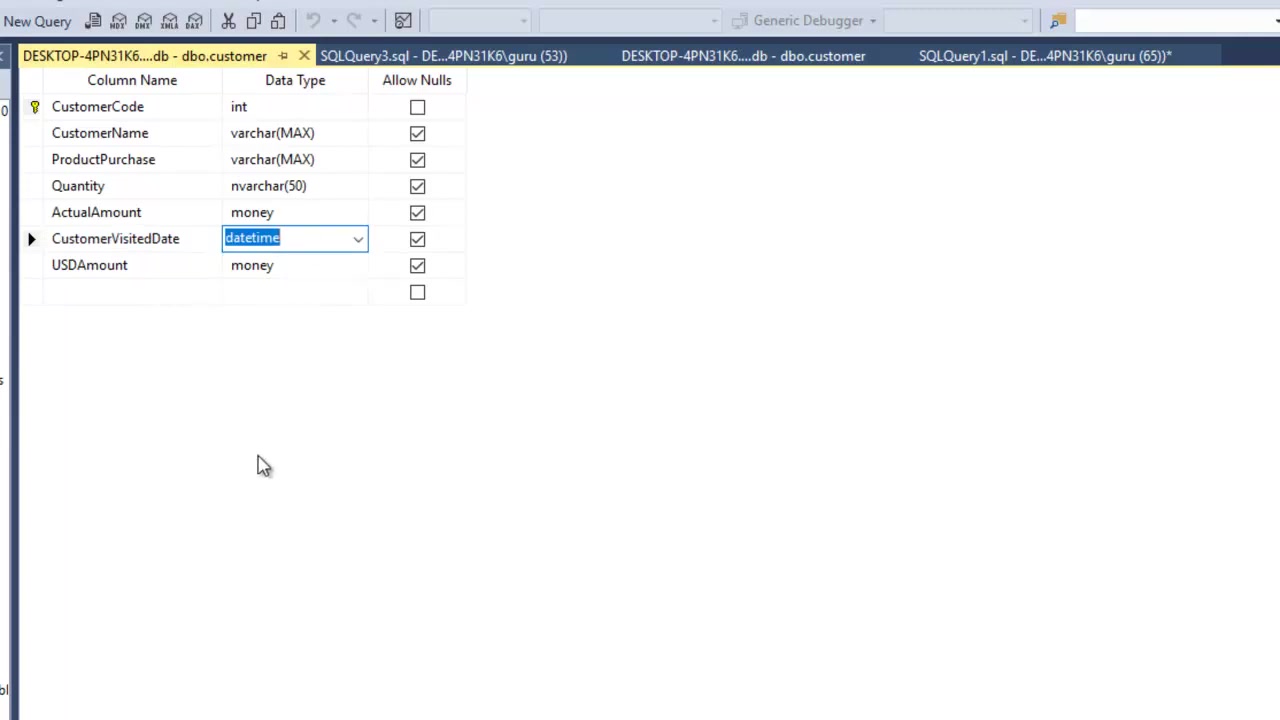
The flat file contains a 'CustomerCode' column, which is currently in the string format. However, your SQL Server database expects it to be an integer. Let's see how to handle this in your project.
Here's a text file example.
| CSVCustomerID | CSVCustomerName | CSVProductPurchase | CSVQuantity | CSVAcutalAmount | CSVCustomerVisitedDate | CSVUSDAmount |
|---|---|---|---|---|---|---|
| 1001 | Shaam | Smart Phone | 2 | 35000 | 16/12/2019 | 35 |
| 1002 | Shiv | Smart Watch | 5 | 5000 | 16/12/2019 | 5 |
| 1003 | Khadak | Smart TV | 1 | 55000 | 16/12/2019 | 55 |
| 1004 | Arjun | Smart Air Pods | 6 | 15000 | 16/12/2019 | 15 |
Using the Data Conversion component helps transform string to integer for data import.
Step-by-Step Implementation: Converting a String to an Integer
Setting up the Data Flow Task
-
Add a Data Flow Task: Start by adding a Data Flow Task to your SSIS control flow.
-
Configure the Flat File Source: Inside the Data Flow Task, add a Flat File Source component to read data from your CSV file. Configure the component by specifying the file path, delimiter, and column properties. You will have to configure it by specifying the file path.
Adding and Configuring the Data Conversion Transformation
-
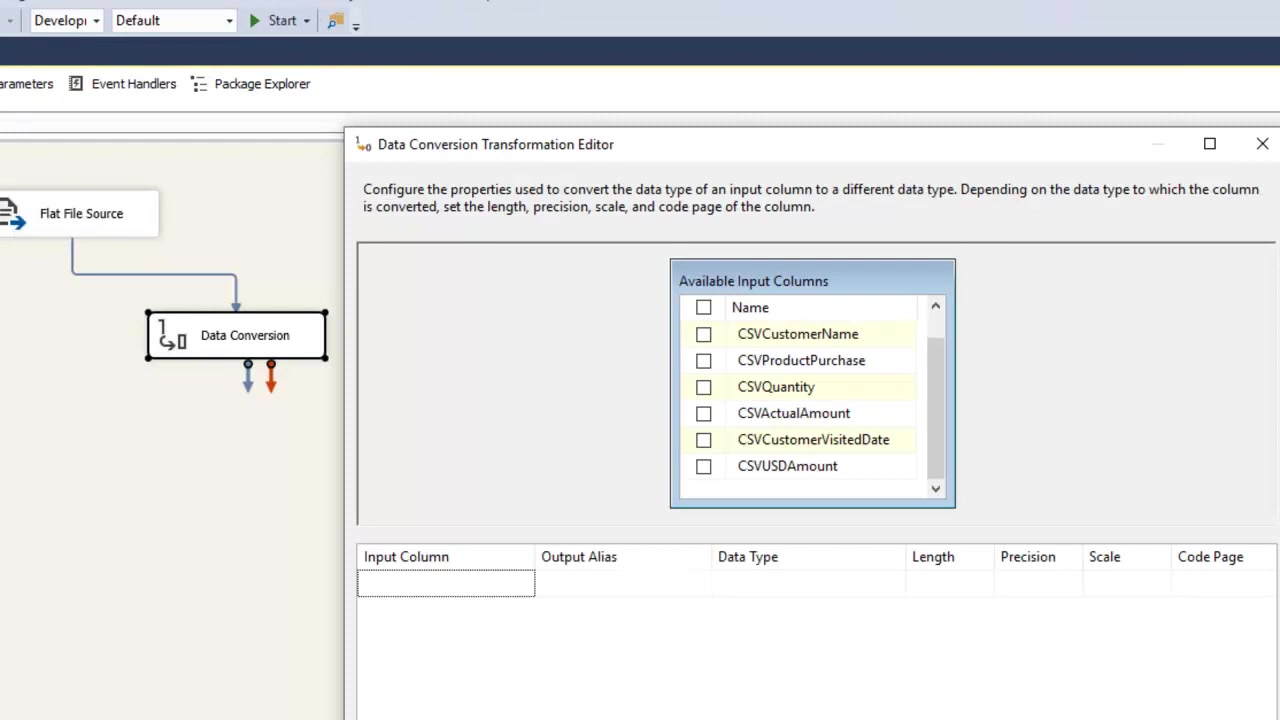
Add the Data Conversion Component: Drag a Data Conversion transformation component from the SSIS toolbox to the data flow surface.
-
Connect the Components: Connect the output of the Flat File Source to the Data Conversion component. Connect the output of the Flat File Source to the Data Conversion component. This is important because the Data Conversion Tool comes as a tool for data transformation.
-
Configure the Data Conversion: Right-click on the Data Conversion component and select 'Edit.'
- Select the 'CustomerID' column from the 'Available Input Columns' pane.
- In the Data Type dropdown, choose a numeric type such as 'four-byte signed integer [DT_I4]'.
- Modify the output alias as needed (e.g., 'NewCustomerID'). It's useful so that you can make sure they are different.
- Click 'OK' to save your settings.
Configuring the Destination
- Add a Destination: Add a destination component (e.g., 'ADO NET Destination') to your data flow.
- Connect to SQL Server: Configure the destination to connect to your SQL Server database. The connection is new, use the connection to SQL server.
- Table Selection: Select the target table within the destination.
- Mapping: In the 'Mappings' tab, map the transformed output columns (like 'NewCustomerID') to the corresponding columns in the destination table. This ensures your data finds its place within the table.
Error Handling
Error handling needs to be looked at before you run your SSIS package. It offers options including either failing the component, redirecting rows or ignore failures.
- Configure error output to manage potential conversion failures.
- Determine action on failure: fail component, redirect rows, or ignore failure.






Most people like


































Report
Please select a reason for reporting
- 13 Reasons to Switch from Snapchat to Text Messaging
- 7 Powerful Speech to Text Apps to Boost Productivity
- 10 Best Speech to Text Tools for Effortless Transcription
- 13 Free Tools to Easily Transcribe Audio to Text
- 15 Surprising Ways Google's Speech-to-Text Boosts Productivity
- 7 Best Free Online Audio to Text Transcription Tools
- 9 Tips to Transcribe Speech to Text Faster and Better
- 13 Best Speech to Text Software for Windows 10 in 2023
- 7 Tips for Choosing the Best Transcriber for Audio to Text
- 11 Reasons Why Dragon Speech-to-Text Apps are Game-Changers
- 6 Secrets to Enhance Your Speech to Text Transcription
- 6 Brilliant Ways to Boost Productivity with Talk-to-Text on Your MacBook
- 6 Ways Transcription Software Converts Audio to Text
- 8 Tips to Transcribe Speech to Text Like a Pro
- 6 Reasons IBM Watson Speech to Text is a Game-Changer
- 14 Powerful Ways Talk-to-Text Improves Your Workflow
- 12 Top Windows Speech-to-Text Software for Efficient Transcription
- 12 Game-Changing Benefits of Apple's Speech to Text Technology
- 9 Powerful Use Cases for AWS Speech to Text Technology
- 10 Easy Steps to Transcribe YouTube Videos to Text
- transcription audio en texte
- online audio transcription
- free audio file transcription
- free ai audio transcription
- audio transcription service
- audio transcription online free
- audio transcription free online
- audio to transcription software
- audio and transcript
- ai audio transcription free
- voice recording to text converter
- translate voice recording to text
- record voice to text
- audio recording to text converter
- voice recording and transcription
- chatgpt voice to text
- gmail voice to text
- speech to text reader
- speech to text ai free
- speech to talk
- How SEO and Marketing Dashboards Empower Agencies to Drive Results
- How to Use AI Tools to Find Internal Linking Opportunities Across a Business Website
- Discover Your Perfect Haircut with AI Hairstyle Apps
- Free Reputation Calculator Tools: How They're Adapting to Score AI Visibility, Not Just Rankings
- Design Professional Flyers for Free on Your Phone
- Best Free Flyer Maker Apps for Android: Design Like a Pro
- How to Know If Your Business Is Ready for an AI Customer Service Agent
- Revolutionizing Storytelling: From Novels to Screenplays with AI
- Create Engaging Animated Explainer Videos with a Free AI Tool
- Stop Multi-Subscribing: Benchmark Top AI Visual Models in One Canvas
- 5 Data Problems That Stall AI Projects in Financial Compliance
- Master Storyboard Drawing: Expert Tips for Non-artists
- The Future of Smart Glasses: Explained & Assembling Guide
- DeepL Translator: The AI-Powered Translation Tool
- AI Video Upscaling: Top Tools Compared for Enhanced Quality
- Bridging the Gap: How One Indie Developer Solved the "Art Asset Nightmare" Using AI Style Transfer
- How I Direct Consistent AI Clips: A Hands-On Guide to Multi-Model Generation
- My Honest Review of VideoAI: The Ultimate Character Voice Generator I've Been Using Lately
- Why do so many AI tools underdeliver for online stores?
- My Brand New Logo: AI-Powered Logo Design for Startups

Copyright ©2026 toolify