































Table of Contents
- Key Points
- Introduction to Microsoft Copilot Studio
- Benefits of AI Agents in Microsoft Copilot Studio
- Step-by-Step Guide to Building an AI Agent with Microsoft Copilot Studio
- Microsoft Copilot Studio Pricing
- Microsoft Copilot Studio: Weighing the Benefits and Drawbacks
- Frequently Asked Questions
- Related Questions



Introduction to Microsoft Copilot Studio
What is Microsoft Copilot Studio?
Microsoft Copilot Studio is a powerful platform that empowers users to create and deploy AI agents without requiring extensive coding knowledge. It's designed to democratize AI development, making it accessible to a wider range of professionals, including business analysts, Customer Service representatives, and knowledge workers. With Copilot Studio, you can build AI agents that automate tasks, provide information, and enhance customer engagement. This platform leverages natural language processing (NLP), allowing you to define agent behavior using simple, conversational commands. This intuitive approach streamlines the development process, enabling you to focus on the agent's functionality rather than getting bogged down in complex code.
Microsoft Copilot Studio offers a range of pre-built templates and connectors, enabling seamless integration with various Microsoft 365 applications and third-party services. This flexibility allows you to create AI agents that meet your specific business needs and integrate seamlessly into your existing workflows. Whether you're looking to automate customer service inquiries, streamline internal processes, or provide personalized recommendations, Microsoft Copilot Studio offers the tools and capabilities to achieve your goals.
Here are several key benefits of Microsoft Copilot Studio:
- No-code development: Create AI agents without writing any code, making AI development accessible to a broader audience.
- Natural language interface: Define agent behavior using simple, conversational commands.
- Pre-built templates and connectors: Integrate with various Microsoft 365 applications and third-party services.
- Customizable workflows: Create AI agents that meet your specific business needs.
- Enhanced productivity: Automate repetitive tasks and streamline internal processes.
Key Features of Microsoft Copilot Studio
Microsoft Copilot Studio is packed with features designed to simplify AI agent creation and deployment. Let's take a closer look at some of the core capabilities:
-
Visual authoring canvas: The intuitive visual authoring canvas allows you to design and customize agent workflows using drag-and-drop components.
-
Natural language understanding (NLU): The platform's NLU capabilities enable your AI agents to understand and respond to user input in a natural and conversational manner. This leads to an improved customer experience.
-
Entity extraction: Microsoft Copilot Studio can automatically extract key information from user input, such as names, dates, and locations. This data can then be used to personalize responses and automate tasks.
-
Contextual awareness: The AI agents you create retain context throughout the conversation, enabling them to provide more relevant and personalized responses.
-
Multi-channel deployment: Deploy your AI agents across various channels, including websites, mobile apps, and messaging platforms.
-
Analytics and reporting: Track agent performance and identify areas for improvement using the platform's built-in analytics and reporting tools.
Microsoft Copilot studio is a fantastic option to make AI Agents, and there are other options available, such as:
-
Researcher
-
Analyst
-
Visual Creator
-
Prompt Coach
-
Writing Coach
-
Idea Coach
-
Career Coach
-
Learning Coach
With this list of features, you can definitely leverage Microsoft Copilot Studio.
Step-by-Step Guide to Building an AI Agent with Microsoft Copilot Studio
Accessing Microsoft Copilot Studio
The first step to unleash the power of AI is to visit Microsoft 365 Copilot. Head to microsoft365.com, the digital gateway to kickstart your AI adventures. Once there, sign in with your Microsoft work or school account. Keep in mind that personal Microsoft accounts won't unlock the Copilot Studio magic – this tool is tailored for professional or educational settings.
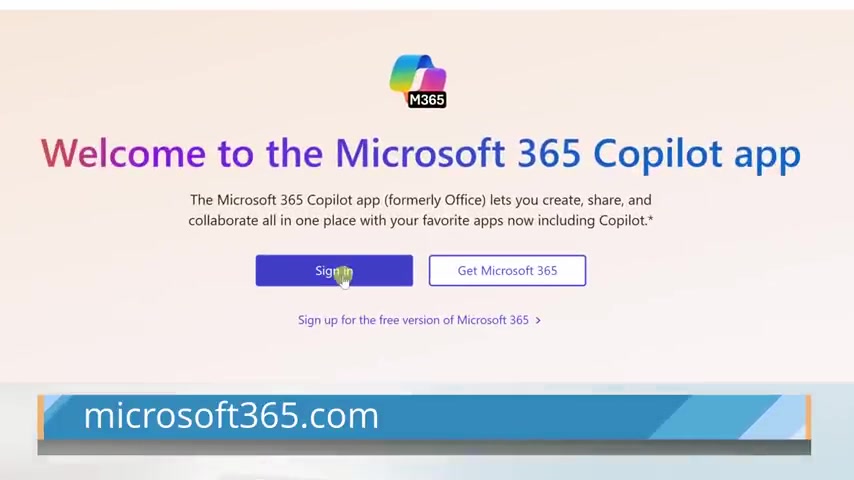
This is a shame, but still a great option nonetheless!
Navigating to All Agents
Once you're logged in, it’s time to find the command center for agent creation. Look to the left-hand side of your screen for the ‘Chat’ option, your portal to engaging with the AI world. After you select 'Chat', find ‘All agents’. This is where you’ll discover a variety of agents, ready to use and adapt to your specific needs. It is here where you'll find access to all of your Microsoft AI Agents.
Exploring Available Agents
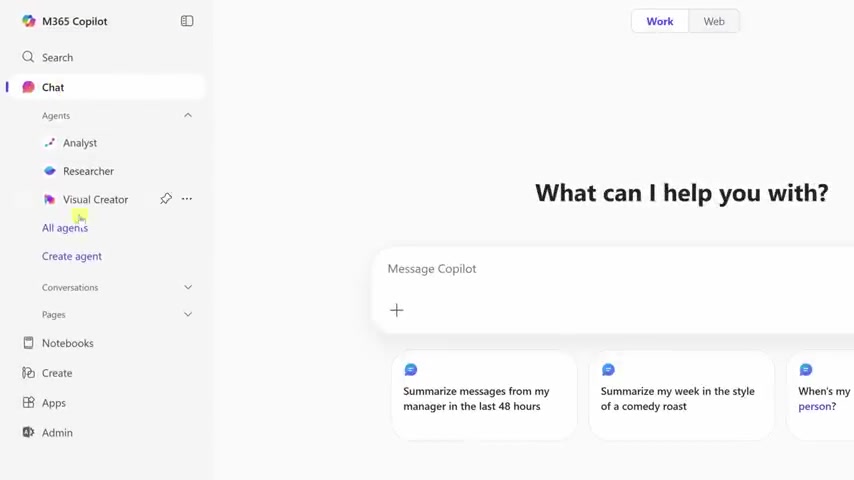
Once in the ‘All agents’ section, you'll encounter a diverse selection of ready-to-use agents, each designed to handle specific tasks. Take your time to browse the available options and identify agents that align with your automation goals. Microsoft Copilot Studio truly allows you to automate most tasks with these agents. You can also look at different agent examples to decide on which ones to use.
Creating a Custom AI Agent
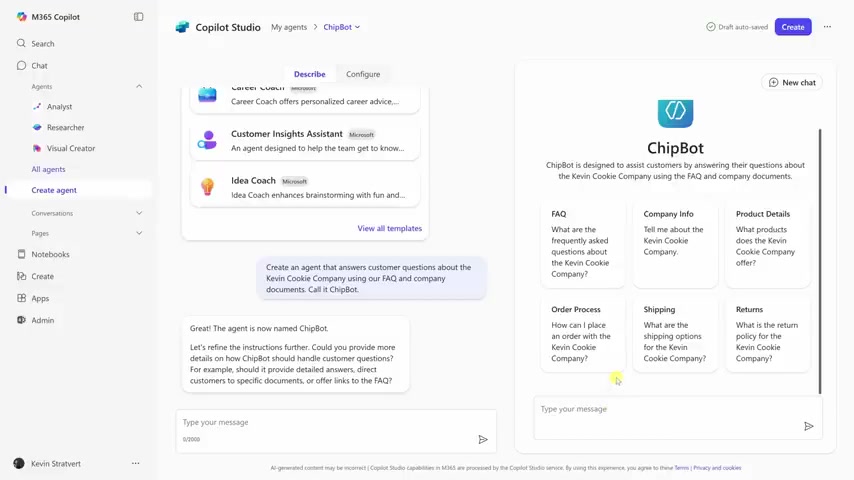
One of the key highlights of Microsoft Copilot Studio is the ability to create your own custom AI agents. To begin the creation process, navigate to the ‘All agents’ section and click on the ‘Create agent’ option. This will launch the Copilot Studio interface, where you can define the behavior and functionality of your AI agent using natural language. Let's go over the Copilot Studio interface.
- Templates: Start from premade templates, to create a customer service agent.
- Prompts: This is where you create what you would like to build using your own words.
- Test: Where you can test your agent to make sure all parameters are what you expected.
- Additional Knowledge: You can further add a link to you website, to add even more knowledge into your agent.
Describing Your Agent with Natural Language
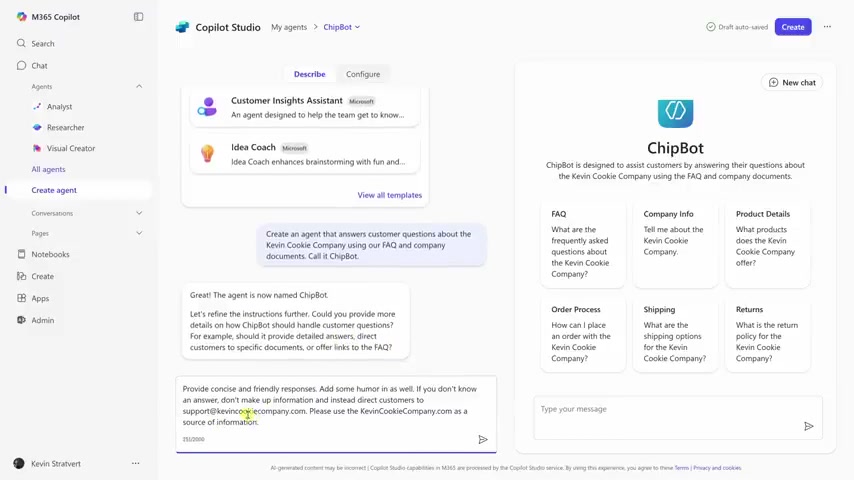
In Copilot Studio, you don't need to write code to define how your agent works. Instead, you use natural language to describe its purpose and functionality. In the text field provided, clearly articulate what you want your AI agent to accomplish. For example, you could type: “Create an agent that answers customer questions about the Kevin Cookie Company using our FAQ and company documents. Call it ChipBot.” The platform will use your description to guide the agent's behavior and responses. You also have the option to set the tone with your responses, or point them to the source if you are unaware of the particular FAQ.
Configuring and Refining Your Agent
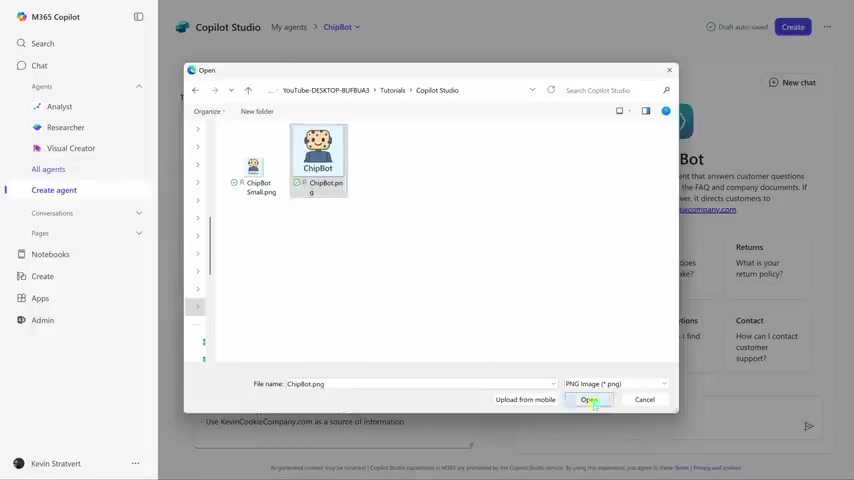
Once you've described your agent, Microsoft Copilot Studio will automatically generate a basic structure based on your input. You can then refine and customize the agent's behavior by adding more specific instructions and knowledge sources. Upload relevant documents, FAQs, and website links to train your agent and enable it to provide accurate and helpful responses. This is what helps the agent learn and provide correct answers to users.
Remember to add concise and friendly responses, so it sounds more authentic to the users.
Testing and Publishing Your AI Agent
After configuring your AI agent, it's essential to test its functionality to ensure it's working as expected. Use the built-in testing tools to simulate conversations and evaluate the agent's responses. Once you're satisfied with the agent's performance, you can publish it to make it available to users. You can also share it to different channels in your organization. With the right testing, you can easily use and release your AI Agent.
Enhancing Your AI Agent with Tools and Triggers
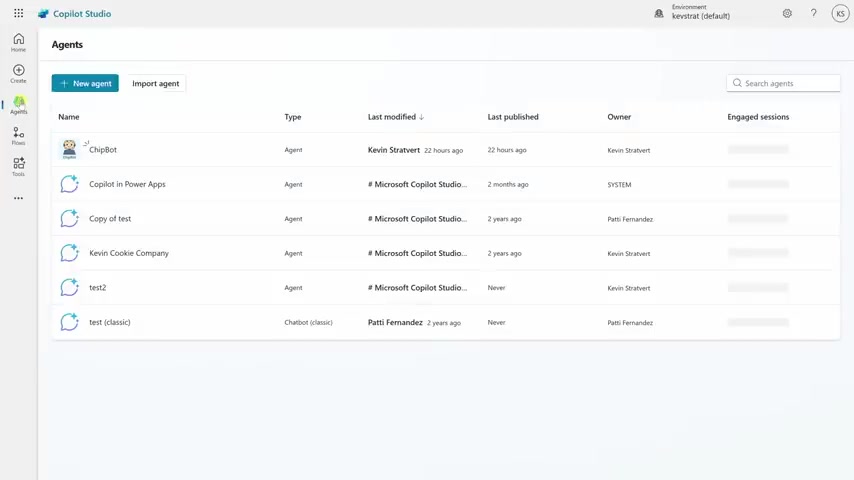
To take your AI agent to the next level, explore the available tools and triggers within Copilot Studio. Tools allow your agent to perform specific actions, such as sending emails, updating records, or retrieving data from external systems. Triggers, on the other hand, define the events that will activate your agent, such as a new email arriving or a form being submitted. Adding tools to your agent really helps make it personalized and a good asset to your organization.
Accessing analytics tab
Take control over your copilot studio and view key metrics using the analytic tab. Some of the metrics include:
- total successful runs
- failed runs
- tool success rates average duration total number of billed messages








Most people like































Report
Please select a reason for reporting
- 13 Reasons to Switch from Snapchat to Text Messaging
- 7 Powerful Speech to Text Apps to Boost Productivity
- 10 Best Speech to Text Tools for Effortless Transcription
- 13 Free Tools to Easily Transcribe Audio to Text
- 15 Surprising Ways Google's Speech-to-Text Boosts Productivity
- 7 Best Free Online Audio to Text Transcription Tools
- 9 Tips to Transcribe Speech to Text Faster and Better
- 13 Best Speech to Text Software for Windows 10 in 2023
- 7 Tips for Choosing the Best Transcriber for Audio to Text
- 11 Reasons Why Dragon Speech-to-Text Apps are Game-Changers
- 6 Secrets to Enhance Your Speech to Text Transcription
- 6 Brilliant Ways to Boost Productivity with Talk-to-Text on Your MacBook
- 6 Ways Transcription Software Converts Audio to Text
- 8 Tips to Transcribe Speech to Text Like a Pro
- 6 Reasons IBM Watson Speech to Text is a Game-Changer
- 14 Powerful Ways Talk-to-Text Improves Your Workflow
- 12 Top Windows Speech-to-Text Software for Efficient Transcription
- 12 Game-Changing Benefits of Apple's Speech to Text Technology
- 9 Powerful Use Cases for AWS Speech to Text Technology
- 10 Easy Steps to Transcribe YouTube Videos to Text
- transcription audio en texte
- online audio transcription
- free audio file transcription
- free ai audio transcription
- audio transcription service
- audio transcription online free
- audio transcription free online
- audio to transcription software
- audio and transcript
- ai audio transcription free
- voice recording to text converter
- translate voice recording to text
- record voice to text
- audio recording to text converter
- voice recording and transcription
- chatgpt voice to text
- gmail voice to text
- speech to text reader
- speech to text ai free
- speech to talk
- How SEO and Marketing Dashboards Empower Agencies to Drive Results
- How to Use AI Tools to Find Internal Linking Opportunities Across a Business Website
- Discover Your Perfect Haircut with AI Hairstyle Apps
- Free Reputation Calculator Tools: How They're Adapting to Score AI Visibility, Not Just Rankings
- Design Professional Flyers for Free on Your Phone
- Best Free Flyer Maker Apps for Android: Design Like a Pro
- How to Know If Your Business Is Ready for an AI Customer Service Agent
- Revolutionizing Storytelling: From Novels to Screenplays with AI
- Create Engaging Animated Explainer Videos with a Free AI Tool
- Stop Multi-Subscribing: Benchmark Top AI Visual Models in One Canvas
- ASOMobile Helps Teams Benchmark App Store Screenshots Against Competitors
- How to Match LMS Software With Your Organization's Training Plan
- Revolutionizing Email Marketing Agency with AI
- How to Convert BTC to HNT
- Unleashing the Power of AI: Cognizant's Roadmap for Transformation
- Frame to Video Review: A Practical Look at Turning Two Still Frames Into Motion
- NVIDIA NIM: Revolutionizing Supply Chain Data Analysis with AI
- Top AI Tools That Help Brands Stand Out Offline (Not Just Online)
- Top 5 Cold Email Software: Maximize Your Outreach in 2025
- Magic School AI: Revolutionizing Quiz & Assessment Generation

Copyright ©2026 toolify