































Table of Contents
- Key Points
- Streamlining Your Writing Process with QuillBot in Google Docs
- Enhancing Content Quality: Advanced Features of QuillBot
- How to Paraphrase Text with QuillBot in Google Docs
- QuillBot Pricing Options
- Advantages and Disadvantages of Using QuillBot in Google Docs
- Frequently Asked Questions About QuillBot in Google Docs
- Related Questions


Streamlining Your Writing Process with QuillBot in Google Docs
Why Integrate a Paraphrasing Tool into Google Docs?
Integrating a paraphrasing tool directly into Google Docs addresses the need for seamless editing and refining of written content. Rather than switching between different applications, users can quickly modify and reword text within their writing environment. This approach is particularly valuable when working with AI-generated content or simply aiming to express an idea in a more polished or distinct manner. The ability to easily paraphrase within Google Docs not only saves time but also helps in maintaining a focused writing workflow.
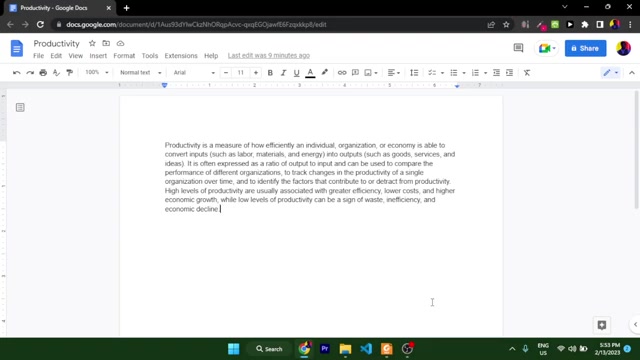
Using a paraphrasing tool integrated into Google Docs enhances efficiency, reduces context switching, and improves the overall quality of your writing.
Introducing QuillBot: A Powerful Paraphrasing Solution
QuillBot is a well-regarded paraphrasing tool designed to reword text while preserving its original meaning. It offers various modes for paraphrasing, allowing users to tailor the output to their specific needs, whether it's for academic, professional, or Creative Writing purposes. The tool's ability to provide synonyms and alternative phrasing options makes it an invaluable asset for anyone looking to enhance the clarity, tone, or style of their writing.
With QuillBot, users can also summarize long texts into shorter forms. QuillBot has summarization capabilities and also a Grammar Checker. This suite of tools is suitable for students, researchers and professional content writers.
This paraphrasing and summarizing tool boasts of several functions:
- Paraphraser
- Grammar Checker
- Plagiarism Checker
- Summarizer
- Citation Generator
Installing QuillBot as a Google Docs Add-On: A Step-by-Step Guide
Installing QuillBot as a Google Docs add-on is a straightforward process. Here's how to do it:
-
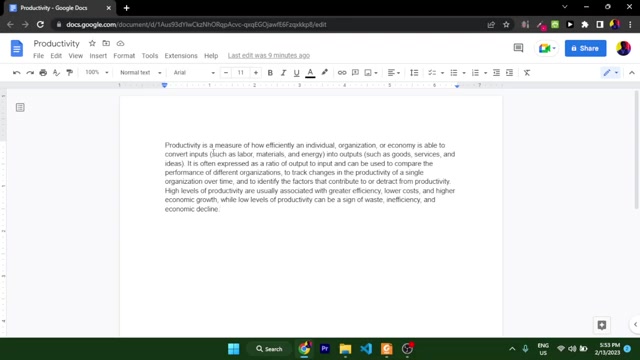
Open Google Docs: Start by opening a new or existing document in Google Docs.
-
Access Add-ons: Navigate to the 'Extensions' menu at the top of the screen and select 'Add-ons'.
-
Get Add-ons: In the 'Add-ons' menu, click on 'Get add-ons'. This will open the Google Workspace Marketplace.
-
Search for QuillBot: In the Marketplace, search for 'QuillBot'.
-
Install QuillBot: Once you find QuillBot, click on it and then click the 'Install' button.
-
Grant Permissions: You'll be prompted to grant QuillBot certain permissions to access and modify your documents. Carefully review these permissions and click 'Allow' to proceed with the installation.
-
Access QuillBot: After installation, you can access QuillBot from the 'Extensions' menu by selecting 'QuillBot - Paraphrasing & Summarizing Tool' and then 'Launch QuillBot'.
Now, QuillBot will open in a sidebar within your Google Docs environment, ready for use. You must login into your Google account to use the tool.
Enhancing Content Quality: Advanced Features of QuillBot
Exploring Modes and Synonym Suggestions
QuillBot provides a range of modes to suit different writing requirements. These modes include Standard, Fluency, Creative, Formal, Shorten, and Expand. Each mode offers a unique approach to paraphrasing, allowing users to optimize their text for clarity, conciseness, or creativity. Additionally, QuillBot offers synonym suggestions for individual words and phrases, enabling users to further refine the tone and style of their writing.
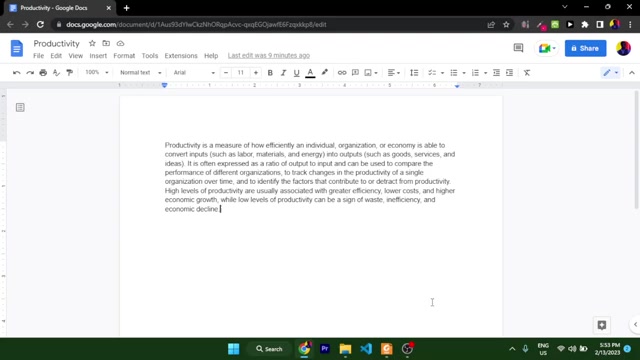
By experimenting with different modes and synonym options, writers can achieve the perfect balance between originality and accuracy in their paraphrased content. This ability to customize the output makes QuillBot a versatile tool for various writing tasks, from academic research to professional content creation.
How to Paraphrase Text with QuillBot in Google Docs
Simple Steps to Effective Paraphrasing
With QuillBot installed, paraphrasing text in Google Docs is quick and easy. Follow these steps:
-
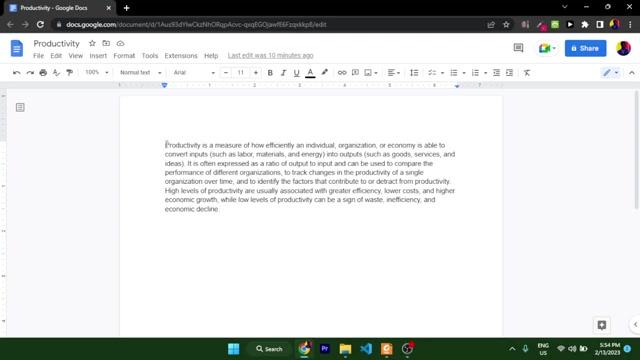
Select Text: Highlight the text you want to paraphrase within your Google Doc.
-
Open QuillBot: If you haven't already, launch QuillBot from the 'Extensions' menu as described earlier.
-
Paraphrase Text: Click the 'Paraphrase' button in the QuillBot sidebar.
-
Review and Refine: QuillBot will then reword the selected text and display it in the sidebar. Review the changes and refine them as needed using the various modes and synonym suggestions.
-
Insert Paraphrased Text: Once you're satisfied with the paraphrased text, click the 'Insert' button to replace the original text in your document with the new version.
QuillBot’s synonyms provide alternative words for the rephrased sentence which gives you some control over the feel of your rewritten text.








Most people like































Report
Please select a reason for reporting
- 13 Reasons to Switch from Snapchat to Text Messaging
- 7 Powerful Speech to Text Apps to Boost Productivity
- 10 Best Speech to Text Tools for Effortless Transcription
- 13 Free Tools to Easily Transcribe Audio to Text
- 15 Surprising Ways Google's Speech-to-Text Boosts Productivity
- 7 Best Free Online Audio to Text Transcription Tools
- 9 Tips to Transcribe Speech to Text Faster and Better
- 13 Best Speech to Text Software for Windows 10 in 2023
- 7 Tips for Choosing the Best Transcriber for Audio to Text
- 11 Reasons Why Dragon Speech-to-Text Apps are Game-Changers
- 6 Secrets to Enhance Your Speech to Text Transcription
- 6 Brilliant Ways to Boost Productivity with Talk-to-Text on Your MacBook
- 6 Ways Transcription Software Converts Audio to Text
- 8 Tips to Transcribe Speech to Text Like a Pro
- 6 Reasons IBM Watson Speech to Text is a Game-Changer
- 14 Powerful Ways Talk-to-Text Improves Your Workflow
- 12 Top Windows Speech-to-Text Software for Efficient Transcription
- 12 Game-Changing Benefits of Apple's Speech to Text Technology
- 9 Powerful Use Cases for AWS Speech to Text Technology
- 10 Easy Steps to Transcribe YouTube Videos to Text
- transcription audio en texte
- online audio transcription
- free audio file transcription
- free ai audio transcription
- audio transcription service
- audio transcription online free
- audio transcription free online
- audio to transcription software
- audio and transcript
- ai audio transcription free
- voice recording to text converter
- translate voice recording to text
- record voice to text
- audio recording to text converter
- voice recording and transcription
- chatgpt voice to text
- gmail voice to text
- speech to text reader
- speech to text ai free
- speech to talk
- How to Use AI Tools to Find Internal Linking Opportunities Across a Business Website
- Discover Your Perfect Haircut with AI Hairstyle Apps
- Free Reputation Calculator Tools: How They're Adapting to Score AI Visibility, Not Just Rankings
- Design Professional Flyers for Free on Your Phone
- Best Free Flyer Maker Apps for Android: Design Like a Pro
- How to Know If Your Business Is Ready for an AI Customer Service Agent
- Revolutionizing Storytelling: From Novels to Screenplays with AI
- Create Engaging Animated Explainer Videos with a Free AI Tool
- Stop Multi-Subscribing: Benchmark Top AI Visual Models in One Canvas
- Best Seedance 2.5 API Provider: Every Price on the Market, Checked at Source
- Top AI Social Media Management Tools: Automate Your Content Strategy
- Free AI Text to Video Generator: Create Stunning Videos from Text
- Discover 17 ChatGPT Alternatives: A Comprehensive Comparison
- Character.AI vs. Janitor AI: Which AI Chat Platform Reigns Supreme?
- Top Virtual Assistant Companies in 2026: Reviews, Pricing, and Plans Compared
- Unveiling FaceCheck.ID: Revolutionizing Reverse Image Searches with AI
- 11 Best AI Dialers in 2026: Features, Pricing, Pros and Cons
- How I Direct Consistent AI Clips: A Hands-On Guide to Multi-Model Generation
- A Realistic Review of the Photo Generator Image Tool
- Playwright MCP Server: Automated Web Testing with Agent Mode

Copyright ©2026 toolify