































Table of Contents
- Key Points
- Understanding the Reloop Buddy DJ Controller Layout
- Mastering the Mixer Section
- Using the Reloop Buddy DJ Controller Effectively
- Reloop Buddy Pricing
- Reloop Buddy DJ Controller: The Verdict
- Core Features of the Reloop Buddy
- Use Cases for the Reloop Buddy
- Frequently Asked Questions
- Related Questions


Understanding the Reloop Buddy DJ Controller Layout
Performance Sections and Mixer
The Reloop Buddy is meticulously designed to offer a comprehensive DJing experience in a compact form factor.
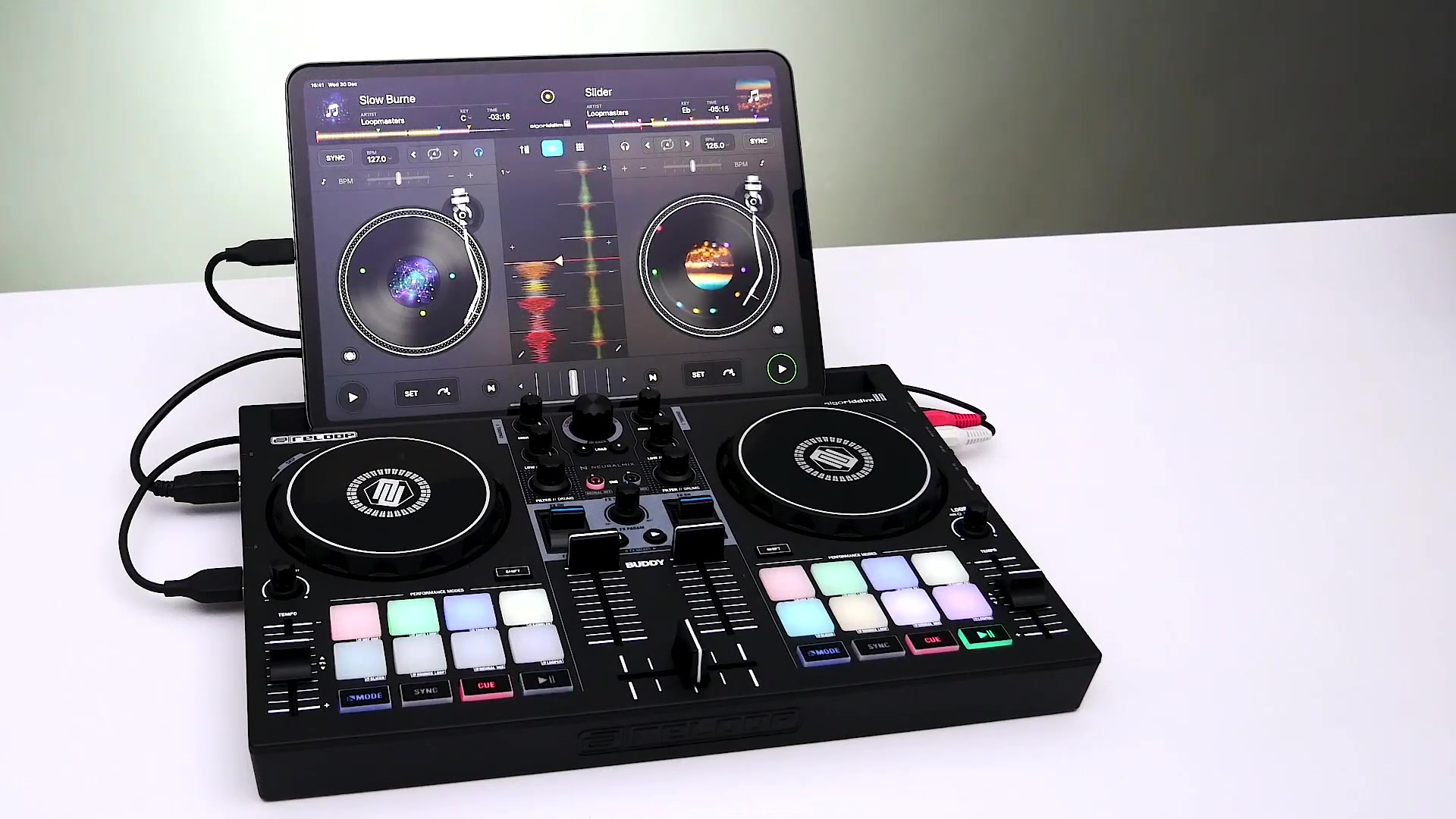
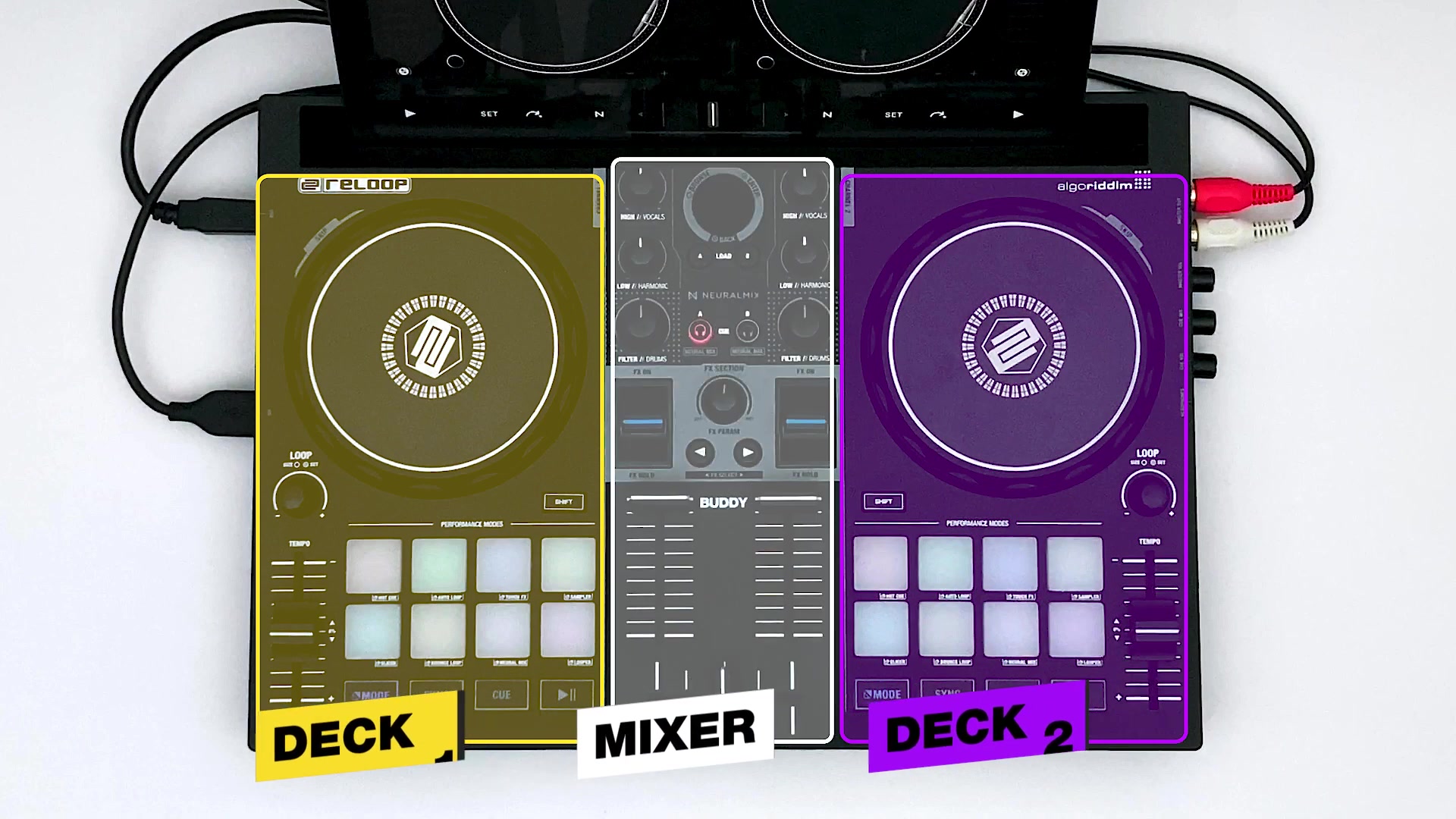
The layout is logically divided into three key sections: the performance section for deck one, the performance section for deck two, and a central mixer section. This setup mirrors professional DJ setups, allowing you to transition smoothly between tracks and experiment with creative mixing techniques. Understanding the function of each section is critical to mastering the Reloop Buddy.
- Deck 1 & Deck 2 Performance Sections: These sections primarily focus on controlling individual tracks. They include features such as jog wheels, performance pads, loop controls, and track navigation, allowing for real-time manipulation of the audio.
- Mixer Section: The mixer section is the heart of the Reloop Buddy, providing the tools to Blend and transition between the two decks. It features Channel faders to adjust volume levels, EQ knobs to Shape the Sonic characteristics of each track, and a crossfader to seamlessly switch between the decks.
Loading Tracks: Smart Devices and Navigation Encoder
The Reloop Buddy offers flexibility in how you load your tracks, catering to different workflows.
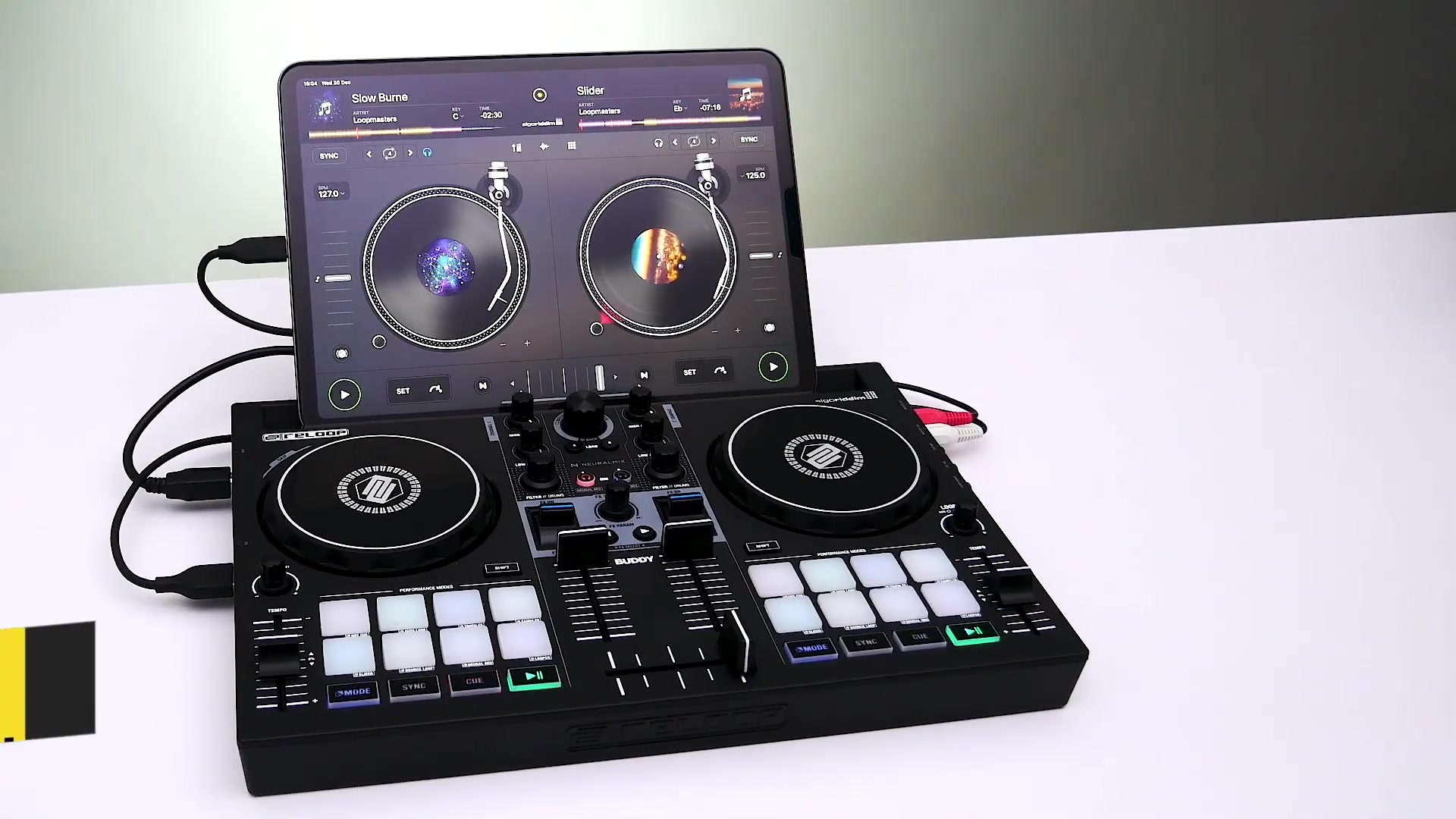
When using a smart device, loading tracks is as simple as tapping the track load icon within the DJ software interface. This opens the library browser, allowing you to select tracks from various sources, including your device's local storage and compatible streaming services like Tidal, SoundCloud, Beatport, Beatsource and Spotify.
Alternatively, you can load tracks directly from the Reloop Buddy using the navigation encoder. Activating the navigation encoder automatically opens the library browser on your connected device. You can then scroll through your Music library and load tracks to either deck by pressing the corresponding load button. This tactile method is a great way to stay focused on the controller and your mix.
Let's demonstrate loading tracks using Algoriddim's djay Pro AI:
- Via Smart Device: Within djay Pro AI, tap the track load icon on the desired deck to open the library browser. From there, navigate to your music library, which could include local files, Tidal, SoundCloud, Beatport, Beatsource and Spotify.
- Using Navigation Encoder: Rotating the navigation encoder on the Reloop Buddy will open the music library browser in the djay Pro AI software, allowing you to browse and select a track directly from the controller. Once selected, press the load button (Load A or Load B) to load the track to your decks.
Mastering the Mixer Section
Channel Faders, EQ, and Filters: Sculpting Your Sound
The mixer section is where you truly shape your mix.
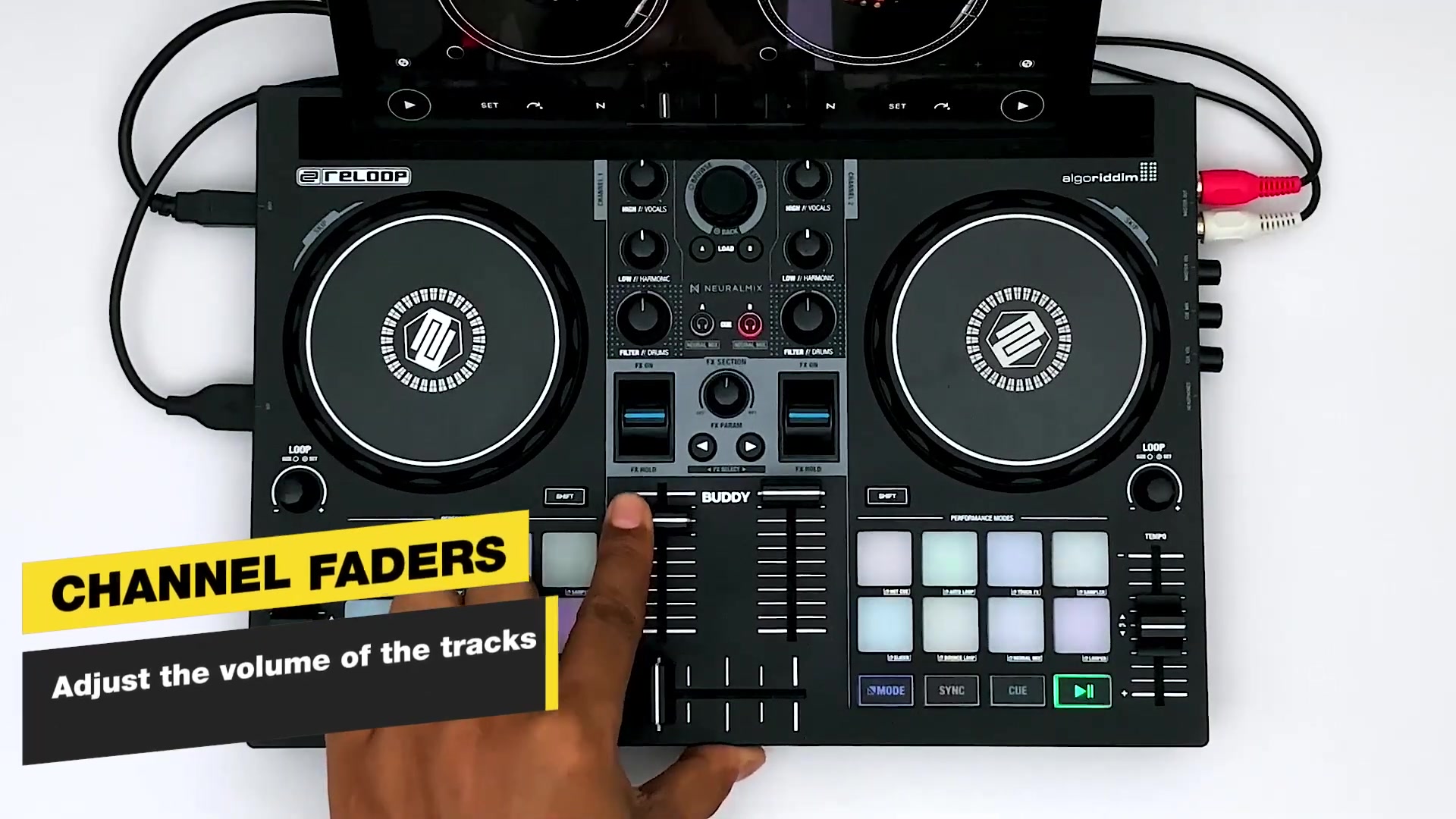
It's not just about playing two songs simultaneously; it's about weaving them together into a Cohesive audio experience. The Reloop Buddy equips you with the essential tools to achieve this:
- Channel Faders: These are your primary volume controls for each deck. Mastering the channel faders is key to creating smooth transitions. Bringing a track in gradually with the channel fader allows you to control the energy and build-up of your mix.
- 2-Band Equalizer: The 2-band EQ allows you to manipulate the high and low frequencies of each track. This is crucial for preventing sonic clashes between tracks, creating space for each track's key elements, and generating interesting sonic textures. For example, you might cut the bass frequencies on one track while bringing in another with the bass boosted to create a seamless transition.
- Filter: The filter provides another layer of sonic manipulation, allowing you to Sweep through the frequencies of a track. This can be used to create dramatic build-ups, isolate certain elements of the track, or create subtle shifts in mood and atmosphere.
Understanding Track Structure and Waveforms
Electronic music, much of what you'll be playing, is built upon repeating blocks. These blocks are typically organized into bars of four beats, and these bars are then grouped into phrases. This structure is visually represented in the audio waveform, giving you valuable cues for mixing.
By observing the waveform, you can identify key points in a track, such as intro and outro sections, breakdowns, build-ups, and drops.
Recognizing these sections allows you to plan your transitions more effectively, ensuring that your mixes are both smooth and dynamic.
DJay Pro AI displays the waveform, the name of the track, key and time remaining, the audio waveform of the loaded tracks are displayed at the top of the screen.
Knowing where the changes are in a track is going to improve your djing and allow you to understand how to mix more effectively.
Using the Reloop Buddy DJ Controller Effectively
Jog Wheel Techniques
The jog wheels on the Reloop Buddy are versatile tools that offer a range of control options.
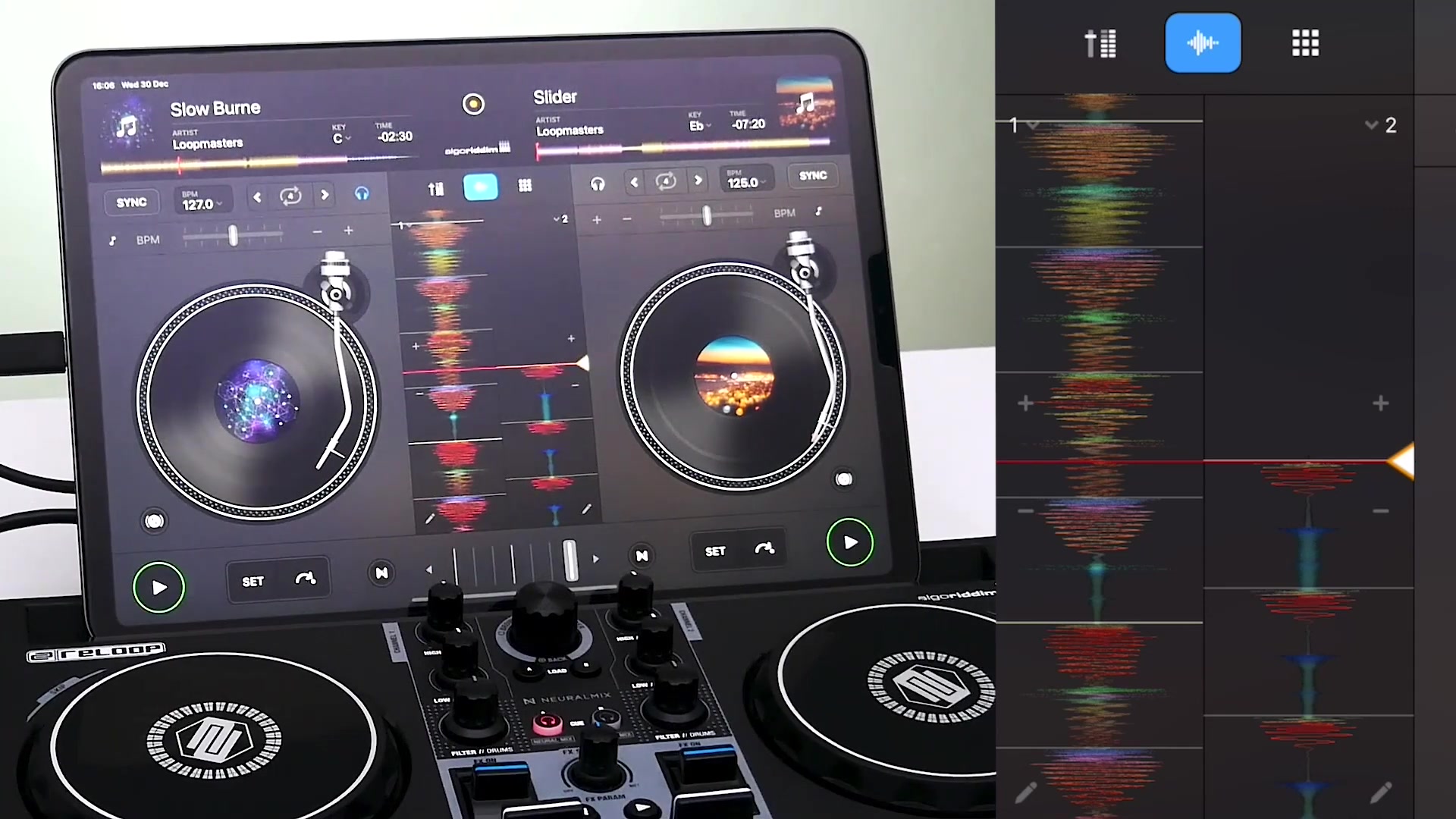
They can be used to:
- Stop Playback: Placing your HAND on the jog wheel immediately halts the track. This is useful for creating breaks, setting cue points, or simply pausing the music.
- Scrub Through Tracks: Turning the jog wheel clockwise or counterclockwise allows you to quickly navigate through the track, either forward or backward. This is invaluable for finding specific sections of the song or correcting beat alignment.
- Nudge for Beatmatching: Slightly nudging the outer edge of the jog wheel provides fine-grained control over the track's tempo. Nudging clockwise speeds up the track momentarily, while nudging counterclockwise slows it down. This is essential for maintaining beat synchronization during mixing. *Scratching: You can scratch using the jog wheels but more on that in the scratching tutorial.
Cue Functions
The Reloop Buddy has a dedicated cue function. To cue a track effectively:
- Pause the Track: First, pause the track at the desired cue point.
- Fine-Tune the Cue Point: Use the jog wheel to manually position the track's playhead at the precise beat you want to use as your cue point. Zooming in on the waveform can allow for extremely precise adjustments.
- Set the Cue Marker: Press the Cue button on the Reloop Buddy to set the cue point at the current playhead position.
- Restarting the Track: You can restart the track by pressing the play button on the Reloop Buddy. To restart using the cue point, hit the Cue button again.
To tease a track, tap the cue button, then press play to start at the desired cue.
Jump to Positions
There are several ways to jump to different positions within a track:
- Tapping the Audio Waveform: Tap directly on the audio waveform on the device screen to jump to that position in the song.
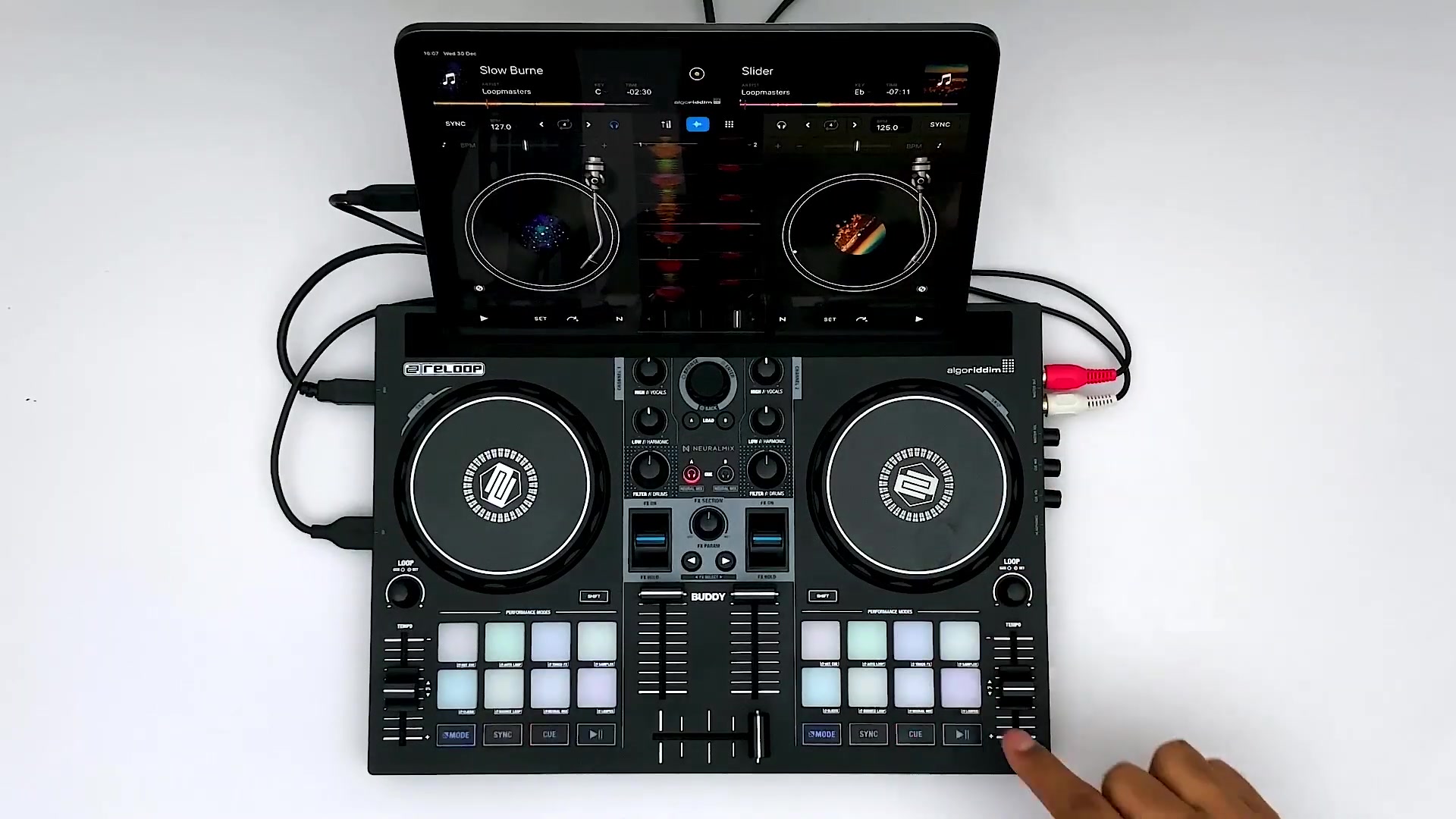
This offers visual precision, allowing you to target specific sections.
- Holding Shift and Turning Jog Wheel: This combination enables fast forward or Rewind functionality within the track. *Moving Needle Position: You can move the needle across the digital turntable to also change where you want the song to start.
Enable Waveform Panel for a Detailed View
Enabling the waveform panel gives a more detailed view of your song. This helps in identifiying certain parts of your tracks to get a better understanding of how and when you will want to mix them together. This panel will be helpful especially when starting out to get used to identifing song structure.





Most people like
































Report
Please select a reason for reporting
- 13 Reasons to Switch from Snapchat to Text Messaging
- 7 Powerful Speech to Text Apps to Boost Productivity
- 10 Best Speech to Text Tools for Effortless Transcription
- 13 Free Tools to Easily Transcribe Audio to Text
- 15 Surprising Ways Google's Speech-to-Text Boosts Productivity
- 7 Best Free Online Audio to Text Transcription Tools
- 9 Tips to Transcribe Speech to Text Faster and Better
- 13 Best Speech to Text Software for Windows 10 in 2023
- 7 Tips for Choosing the Best Transcriber for Audio to Text
- 11 Reasons Why Dragon Speech-to-Text Apps are Game-Changers
- 6 Secrets to Enhance Your Speech to Text Transcription
- 6 Brilliant Ways to Boost Productivity with Talk-to-Text on Your MacBook
- 6 Ways Transcription Software Converts Audio to Text
- 8 Tips to Transcribe Speech to Text Like a Pro
- 6 Reasons IBM Watson Speech to Text is a Game-Changer
- 14 Powerful Ways Talk-to-Text Improves Your Workflow
- 12 Top Windows Speech-to-Text Software for Efficient Transcription
- 12 Game-Changing Benefits of Apple's Speech to Text Technology
- 9 Powerful Use Cases for AWS Speech to Text Technology
- 10 Easy Steps to Transcribe YouTube Videos to Text
- transcription audio en texte
- online audio transcription
- free audio file transcription
- free ai audio transcription
- audio transcription service
- audio transcription online free
- audio transcription free online
- audio to transcription software
- audio and transcript
- ai audio transcription free
- voice recording to text converter
- translate voice recording to text
- record voice to text
- audio recording to text converter
- voice recording and transcription
- chatgpt voice to text
- gmail voice to text
- speech to text reader
- speech to text ai free
- speech to talk
- How to Use AI Tools to Find Internal Linking Opportunities Across a Business Website
- Discover Your Perfect Haircut with AI Hairstyle Apps
- Free Reputation Calculator Tools: How They're Adapting to Score AI Visibility, Not Just Rankings
- Design Professional Flyers for Free on Your Phone
- Best Free Flyer Maker Apps for Android: Design Like a Pro
- How to Know If Your Business Is Ready for an AI Customer Service Agent
- Revolutionizing Storytelling: From Novels to Screenplays with AI
- Create Engaging Animated Explainer Videos with a Free AI Tool
- Stop Multi-Subscribing: Benchmark Top AI Visual Models in One Canvas
- Best Seedance 2.5 API Provider: Every Price on the Market, Checked at Source
- Top AI Social Media Management Tools: Automate Your Content Strategy
- Free AI Text to Video Generator: Create Stunning Videos from Text
- Discover 17 ChatGPT Alternatives: A Comprehensive Comparison
- Character.AI vs. Janitor AI: Which AI Chat Platform Reigns Supreme?
- Top Virtual Assistant Companies in 2026: Reviews, Pricing, and Plans Compared
- Unveiling FaceCheck.ID: Revolutionizing Reverse Image Searches with AI
- 11 Best AI Dialers in 2026: Features, Pricing, Pros and Cons
- How I Direct Consistent AI Clips: A Hands-On Guide to Multi-Model Generation
- A Realistic Review of the Photo Generator Image Tool
- Playwright MCP Server: Automated Web Testing with Agent Mode

Copyright ©2026 toolify