































Table of Contents
- Key Points
- Getting Started with Stable Diffusion on Google Colab
- Best Practices and Tips for Google Colab Stable Diffusion
- Benefits and Drawbacks of Google Colab for Stable Diffusion
- Frequently Asked Questions
- Related Questions


Getting Started with Stable Diffusion on Google Colab
Why Google Colab for Stable Diffusion?
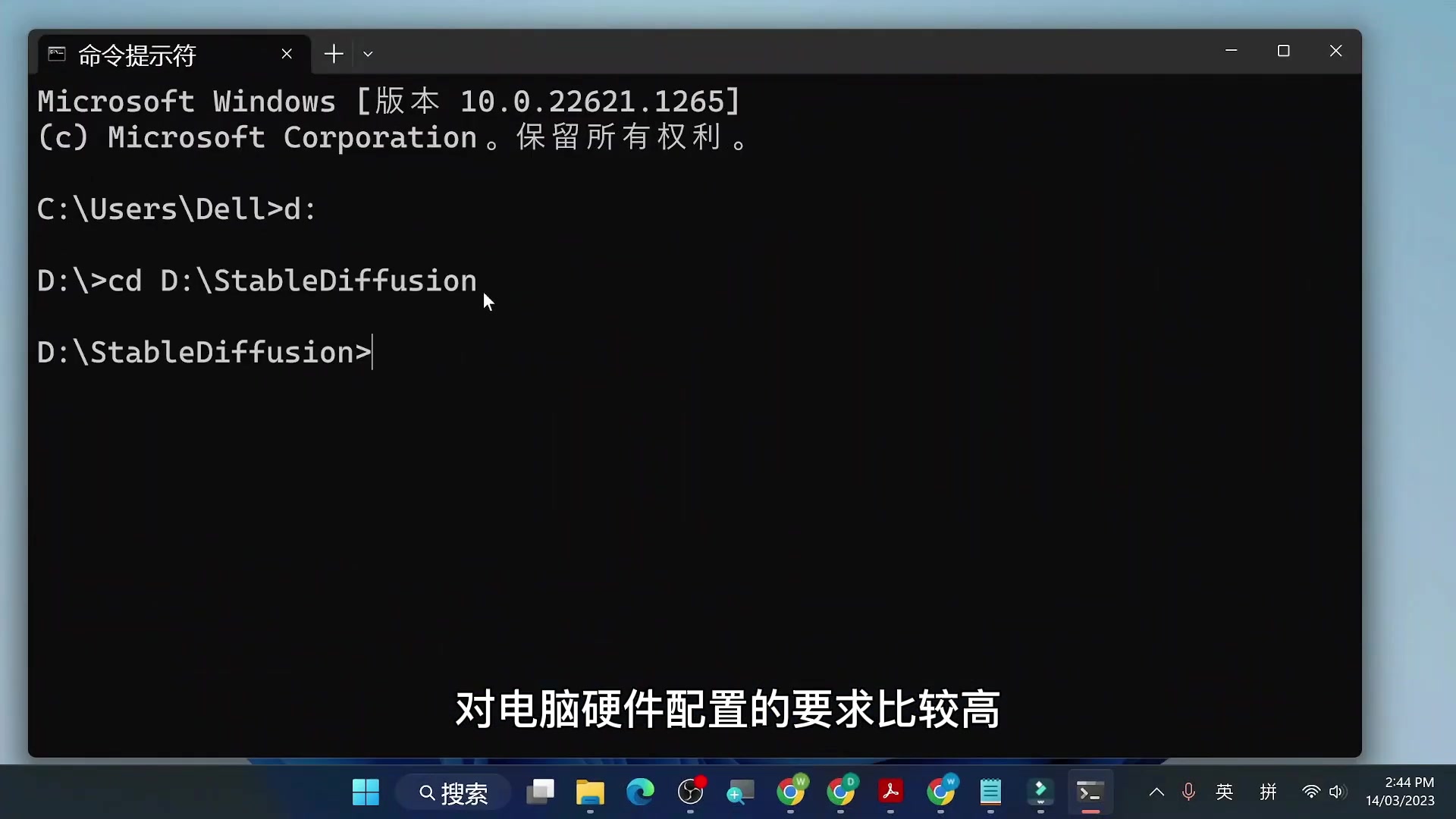
Stable Diffusion, while incredibly powerful, can be a challenge to run on personal computers. The model benefits greatly from having a dedicated, powerful GPU. Not everyone has access to, or can afford such hardware, so using a service like Google Colab opens new doors.
Google Colab is a cloud-based platform that provides access to computing resources, including GPUs, for free. This enables users to run demanding applications like Stable Diffusion without needing high-end local hardware. This not only reduces the financial barrier to entry but also simplifies the setup process, as the necessary dependencies are often pre-installed or easily installed within the Colab environment. This approach democratizes access to AI-powered image generation, allowing anyone with an internet connection and a Google account to explore the world of Stable Diffusion.
Prerequisites: Setting Up Your Accounts
Before diving into the technical steps, it's essential to prepare your online accounts. Start by creating a Google account if you don't already have one, as this is necessary to access Google Colab and Google Drive. Additionally, consider registering accounts with CIVITAI and Hugging Face. These platforms serve as repositories for a vast collection of pre-trained Stable Diffusion models, expanding your creative possibilities. The accounts can be created simply on the official websites. CIVITAI is civitai.com, and Hugging Face is huggingface.co.
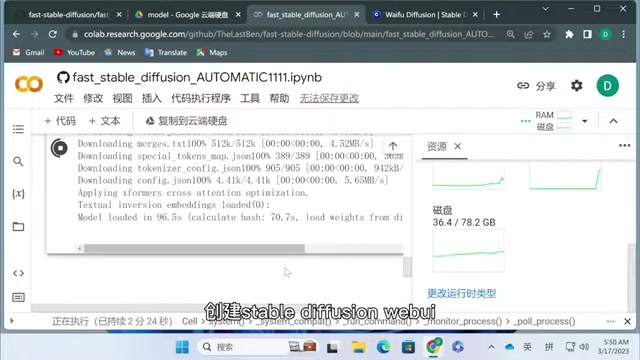
Keep in mind that cloud storage space is limited. A Google account gives 15GB of storage for free, which needs to take in to account all used space in your account. So only two models can be retained simultaneously if you have a normal usage.
Step-by-Step Guide: Running Stable Diffusion on Google Colab
Here’s how to get Stable Diffusion up and running on Google Colab. This Tutorial is designed to provide a streamlined and accessible method for both beginners and experienced users. This way, setting up the stable diffusion environment is streamlined, allowing the user to access the AI image generation as easily as possible.
1. Create a 'Model' Folder in Google Drive
Begin by creating a dedicated folder in your Google Drive to store the downloaded Stable Diffusion models. This will simplify the model loading process later on. Right-click in your Google Drive, select "New Folder," and name it "model." This is essential for easily accessing the models later.
2. Open Google Colab and Upload a Notebook
Navigate to Google Colab (colab.research.google.com) and create a new notebook. Alternatively, upload a pre-existing Stable Diffusion Colab notebook. This notebook contains the necessary code to download, configure, and run Stable Diffusion. A suitable notebook can be found on Github.
3. Connect to Google Drive
Connect the Colab notebook to your Google Drive to enable persistent storage of models and outputs. This is accomplished by running a specific code snippet within the notebook. Executing this code establishes a link between the Colab environment and your Google Drive.
4. Modify the Colab Notebook
-
Update the model path to reflect the folder created in step one. If the created folder is located elsewhere, make sure to update the path accordingly.
-
Change the runtime type by navigating to Runtime > Change runtime type. Make sure that the hardware accelerator is set to GPU. If using this Colab book for the first time, make sure to verify.
5. Add Additional Lines of Code
-
Add additional lines of code that connect to the recently created folder.
-
Add a line that uses wget with an URL. This command will install the download into the folder so that it can be used. Remember to add spaces for formatting, as well as an additional line that will download the model into the correct directory. Now click on the “Play” icon to the left of the code box.
6. Run the Notebook
Execute the code cells in the Colab notebook sequentially. This process downloads the required Stable Diffusion components, configures the environment, and launches the Stable Diffusion web UI. This Web UI allows you to easily generate images. Running the notebook initiates the Stable Diffusion setup process, which may take some time depending on network speed and resource availability.
7. Access the Stable Diffusion Web UI
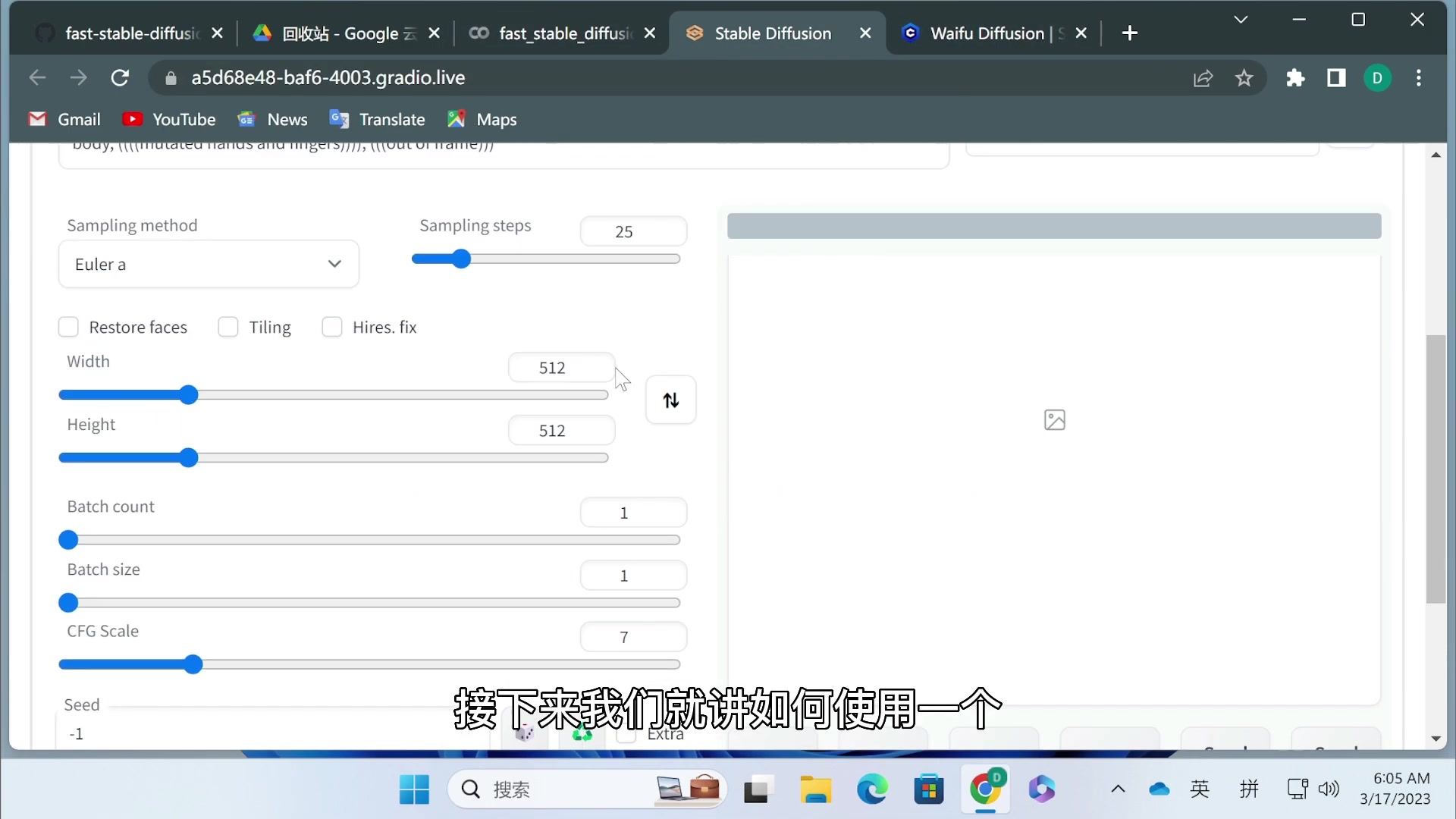
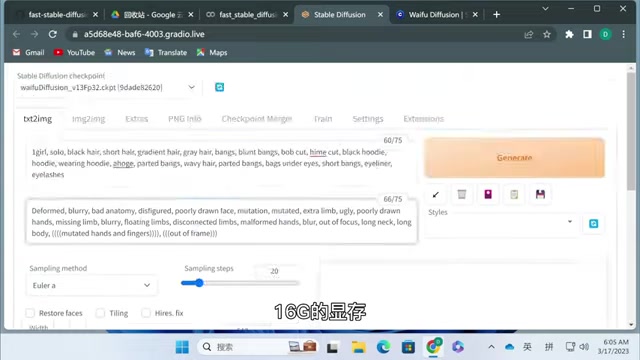
Once the setup is complete, the Colab notebook will provide a public URL, launching the Stable Diffusion web UI. Use this to interact with the model and generate images. This typically utilizes Gradio. Gradio allows a simple and easy-to-use Web UI to function within the Google Colab environment. The Stable Diffusion Web UI offers an intuitive interface for text-to-image generation, allowing users to experiment with different prompts and settings.
8. Save the Notebook for Further Use
To save your progress, go to “File” and “Save a Copy in Drive”. Then, go back to the model document and give it a new name. With your model stored safely, future sessions can be continued from that point without restarting the process.
Best Practices and Tips for Google Colab Stable Diffusion
Managing Google Drive Storage
Since Google Drive offers limited free storage, managing space efficiently is essential. Regularly delete unused models or generated images to avoid exceeding your storage quota. Google Colab is a service where users may be accessing and downloading the model for different needs. By optimizing storage, users will be able to best leverage AI image generation.
Addressing Google Colab Disconnections
Google Colab's free tier is subject to disconnections due to inactivity or resource limitations. Save the notebook to ensure your modifications persist across sessions and be mindful of resource usage to minimize disconnections. If you do disconnect, it is easy to reconnect and keep going from the same spot, so there's nothing to worry about!
Navigating Potential Model Issues
Downloading large models can sometimes encounter errors. When downloading a model using wget, include the following at the end of the link.
--content-disposition
Adding this code allows the download to continue. Additionally, it is best practice to download each model one at a time. This helps manage potential conflicts during the download process and ensure that each model is downloaded correctly.


Most people like




































Report
Please select a reason for reporting
- 13 Reasons to Switch from Snapchat to Text Messaging
- 7 Powerful Speech to Text Apps to Boost Productivity
- 10 Best Speech to Text Tools for Effortless Transcription
- 13 Free Tools to Easily Transcribe Audio to Text
- 15 Surprising Ways Google's Speech-to-Text Boosts Productivity
- 7 Best Free Online Audio to Text Transcription Tools
- 9 Tips to Transcribe Speech to Text Faster and Better
- 13 Best Speech to Text Software for Windows 10 in 2023
- 7 Tips for Choosing the Best Transcriber for Audio to Text
- 11 Reasons Why Dragon Speech-to-Text Apps are Game-Changers
- 6 Secrets to Enhance Your Speech to Text Transcription
- 6 Brilliant Ways to Boost Productivity with Talk-to-Text on Your MacBook
- 6 Ways Transcription Software Converts Audio to Text
- 8 Tips to Transcribe Speech to Text Like a Pro
- 6 Reasons IBM Watson Speech to Text is a Game-Changer
- 14 Powerful Ways Talk-to-Text Improves Your Workflow
- 12 Top Windows Speech-to-Text Software for Efficient Transcription
- 12 Game-Changing Benefits of Apple's Speech to Text Technology
- 9 Powerful Use Cases for AWS Speech to Text Technology
- 10 Easy Steps to Transcribe YouTube Videos to Text
- transcription audio en texte
- online audio transcription
- free audio file transcription
- free ai audio transcription
- audio transcription service
- audio transcription online free
- audio transcription free online
- audio to transcription software
- audio and transcript
- ai audio transcription free
- voice recording to text converter
- translate voice recording to text
- record voice to text
- audio recording to text converter
- voice recording and transcription
- chatgpt voice to text
- gmail voice to text
- speech to text reader
- speech to text ai free
- speech to talk
- Meshy AI: How to Create 3D Models from Text and Images
- How SEO and Marketing Dashboards Empower Agencies to Drive Results
- How to Use AI Tools to Find Internal Linking Opportunities Across a Business Website
- Discover Your Perfect Haircut with AI Hairstyle Apps
- Free Reputation Calculator Tools: How They're Adapting to Score AI Visibility, Not Just Rankings
- Design Professional Flyers for Free on Your Phone
- Best Free Flyer Maker Apps for Android: Design Like a Pro
- How to Know If Your Business Is Ready for an AI Customer Service Agent
- Revolutionizing Storytelling: From Novels to Screenplays with AI
- Create Engaging Animated Explainer Videos with a Free AI Tool
- Automate Lead Generation: A Comprehensive Guide with AI Agents
- Revideo.io: The Future of Reverse Video Search Technology
- Revolutionizing Email Marketing Agency with AI
- Breaking the Character Drift Dilemma: A Practical Test of Smart Shot
- Meshy AI: How to Create 3D Models from Text and Images
- ASOMobile Helps Teams Benchmark App Store Screenshots Against Competitors
- How to Match LMS Software With Your Organization's Training Plan
- How to Convert BTC to HNT
- Unleashing the Power of AI: Cognizant's Roadmap for Transformation
- Frame to Video Review: A Practical Look at Turning Two Still Frames Into Motion

Copyright ©2026 toolify