































Table of Contents
- Key Points About Excel AI-Powered by Microsoft Copilot
- Microsoft Copilot in Excel: A New Era of AI-Powered Data Analysis
- Copilot Versus ChatGPT - An In-depth Look Into LLM Functions
- Enhance Your Excel Workflow: How to Use Microsoft Copilot
- Frequently Asked Questions about Excel AI
- Related Questions for Excel and AI



Microsoft Copilot in Excel: A New Era of AI-Powered Data Analysis
What is Microsoft Copilot for Excel?
Microsoft Copilot for Microsoft 365 is an AI-powered digital assistant designed to enhance productivity across popular applications like Microsoft Excel, WORD, and PowerPoint.

Within Excel, Copilot combines the power of Large Language Models (LLMs) with your own data stored securely on OneDrive or SharePoint. This integration allows for a more intuitive and powerful data analysis experience, directly within the familiar Excel environment. This Excel AI integration has the potential to bring your data capabilities to new heights. However, it is very important to remember that Copilot requires internet access, and your Excel files must be saved to OneDrive or SharePoint to fully utilize its functionalities. While it operates within Excel itself, providing a seamless user experience, it does not have the functionality to perform completely offline.
Key Functions: Empowering Excel Users With AI
Copilot's core functionalities are designed to streamline data tasks and unlock deeper insights from your Excel spreadsheets. Let's take a look at the core features:
- Creating New Formula Columns: Copilot can assist in generating complex Excel formulas using natural language input. Describe what you want to achieve, and Copilot will generate the formula for you. Copilot can also suggest formulas in the first place.
- Highlighting, Sorting, and Filtering Data: Quickly sort and filter your data for fast retrieval. Copilot makes these common tasks more efficient by understanding natural language commands.
- Analyzing Data and Showing Insights: Copilot analyzes the data in the workbook to offer insights. Discover hidden patterns and trends, visualize the findings through pivot tables and charts, and make more well-informed decisions.
- Data Security and Internet Requirements: An essential takeaway: Copilot requires internet usage to function, and spreadsheets should be stored using OneDrive and SharePoint.
Copilot Versus ChatGPT - An In-depth Look Into LLM Functions
Comparing Excel Copilot and ChatGPT: Choosing the Right AI Tool
Copilot and ChatGPT share underlying AI similarities, such as LLMs.
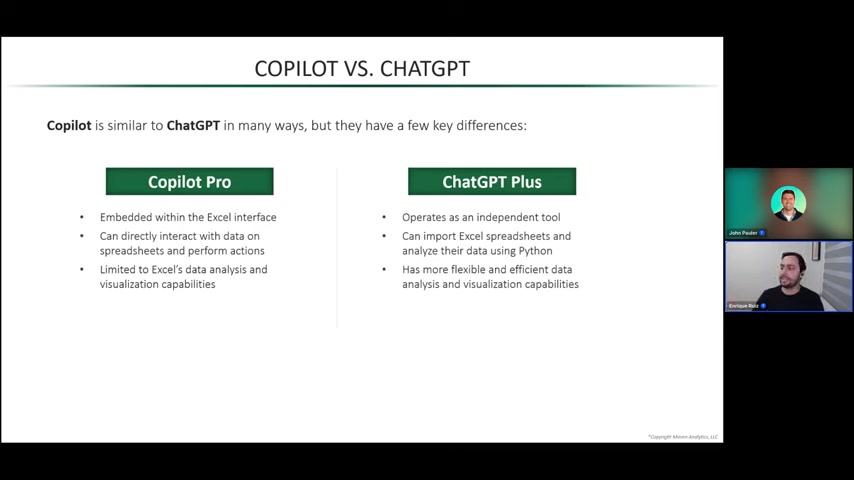
However, it is important to note that Copilot is embedded within the Excel and Microsoft environment and has strong functions to support spreadsheet analyses. ChatGPT, on the other hand, operates as an independent tool, accessible via a browser or dedicated app, and is not embedded within a specific document like Excel. It also uses Python to import Excel spreadsheets and analyses data using that software, which is not as native as Excel Copilot.
Here's how to differentiate:
- Excel Integration: Excel Copilot is embedded within the Excel environment and can directly interact with your data. ChatGPT operates as a separate tool, requiring you to import and manage data externally.
- Power and Flexibility: Excel Copilot leverages existing Excel tools and functionalities and provides a more efficient data experience. ChatGPT, by leveraging Python, grants you more flexibility for complex analytical functions.
- Contextual Awareness: Copilot has direct access to the data in your Excel files, diminishing the need to provide extensive context or instructions. ChatGPT requires a detailed explanation of what you need it to do.
- Functionality: Copilot directly implements functions to make changes within the Excel app itself. ChatGPT only tells you how to execute the desired functions.





Most people like



































Report
Please select a reason for reporting
- 13 Reasons to Switch from Snapchat to Text Messaging
- 7 Powerful Speech to Text Apps to Boost Productivity
- 10 Best Speech to Text Tools for Effortless Transcription
- 13 Free Tools to Easily Transcribe Audio to Text
- 15 Surprising Ways Google's Speech-to-Text Boosts Productivity
- 7 Best Free Online Audio to Text Transcription Tools
- 9 Tips to Transcribe Speech to Text Faster and Better
- 13 Best Speech to Text Software for Windows 10 in 2023
- 7 Tips for Choosing the Best Transcriber for Audio to Text
- 11 Reasons Why Dragon Speech-to-Text Apps are Game-Changers
- 6 Secrets to Enhance Your Speech to Text Transcription
- 6 Brilliant Ways to Boost Productivity with Talk-to-Text on Your MacBook
- 6 Ways Transcription Software Converts Audio to Text
- 8 Tips to Transcribe Speech to Text Like a Pro
- 6 Reasons IBM Watson Speech to Text is a Game-Changer
- 14 Powerful Ways Talk-to-Text Improves Your Workflow
- 12 Top Windows Speech-to-Text Software for Efficient Transcription
- 12 Game-Changing Benefits of Apple's Speech to Text Technology
- 9 Powerful Use Cases for AWS Speech to Text Technology
- 10 Easy Steps to Transcribe YouTube Videos to Text
- transcription audio en texte
- online audio transcription
- free audio file transcription
- free ai audio transcription
- audio transcription service
- audio transcription online free
- audio transcription free online
- audio to transcription software
- audio and transcript
- ai audio transcription free
- voice recording to text converter
- translate voice recording to text
- record voice to text
- audio recording to text converter
- voice recording and transcription
- chatgpt voice to text
- gmail voice to text
- speech to text reader
- speech to text ai free
- speech to talk
- Meshy AI: How to Create 3D Models from Text and Images
- How SEO and Marketing Dashboards Empower Agencies to Drive Results
- How to Use AI Tools to Find Internal Linking Opportunities Across a Business Website
- Discover Your Perfect Haircut with AI Hairstyle Apps
- Free Reputation Calculator Tools: How They're Adapting to Score AI Visibility, Not Just Rankings
- Design Professional Flyers for Free on Your Phone
- Best Free Flyer Maker Apps for Android: Design Like a Pro
- How to Know If Your Business Is Ready for an AI Customer Service Agent
- Revolutionizing Storytelling: From Novels to Screenplays with AI
- Create Engaging Animated Explainer Videos with a Free AI Tool
- Automate Lead Generation: A Comprehensive Guide with AI Agents
- Revideo.io: The Future of Reverse Video Search Technology
- Revolutionize Learning: Discover Quizzes AI for Engaging Interactive Quizzes
- Revolutionizing Email Marketing Agency with AI
- Breaking the Character Drift Dilemma: A Practical Test of Smart Shot
- Meshy AI: How to Create 3D Models from Text and Images
- ASOMobile Helps Teams Benchmark App Store Screenshots Against Competitors
- How to Match LMS Software With Your Organization's Training Plan
- How to Convert BTC to HNT
- Unleashing the Power of AI: Cognizant's Roadmap for Transformation

Copyright ©2026 toolify