































Table of Contents
- Key Points
- Diving into Windsurf: An AI Code Editor Tutorial
- Windsurf Fast: Targeted AI edits within Windsurf
- How To Use Windsurf Effectively
- Windsurf: Weighing the Pros and Cons
- Frequently Asked Questions about Windsurf
- Related Questions on the market


Diving into Windsurf: An AI Code Editor Tutorial
What is Windsurf?
Windsurf is an AI-powered code editor striving to transform the way developers write and manage code.

It's designed to be more than just a text editor; it's intended as a collaborative partner that understands the nuances of your code and offers intelligent assistance. With features like AI-assisted code completion, automated bug detection, and intelligent code generation, Windsurf aims to streamline the development process, reduce errors, and boost overall productivity. This editor is a fork of VS Code, making for an easy transition.
The key advantage of using Windsurf is its ability to leverage AI to automate repetitive tasks and provide real-time suggestions. This allows developers to focus on higher-level problem-solving and creative coding, rather than getting bogged down in syntax and routine tasks. Imagine having a co-pilot that anticipates your next move, suggests optimal code structures, and flags potential issues before they become major problems. This is the promise of Windsurf, and this Tutorial will explore just how well it delivers on that promise.
Windsurf Pricing Plans Explained
Before diving into the features, it's crucial to understand Windsurf's pricing structure to see if it aligns with your budget and needs. Windsurf offers several plans, including a free option, but understanding the limitations of each tier is essential.

Here's a breakdown of Windsurf's pricing plans:
Windsurf Pricing Plans
| Plan | Price | Key Features |
|---|---|---|
| Free | $0/month | Access to the Windsurf Editor, all Codeium Extensions, In-editor AI chats, AI command instructions, and no training on non-sensitive data. |
| Pro | $10/month | Everything in Free, priority access to GPT-40, Claude Sonnet, and larger models, expanded context lengths, and advanced context awareness. |
| Pro Ultimate | $60/month | Everything in Pro, infinite premium model user Prompt credits, support for custom context items, and monthly rollovers. |
Note: The Free plan, while accessible, does not permit you to modify files. To unlock the true power of Windsurf, including the ability for the AI to directly modify and integrate code into your projects, upgrading to a paid plan is needed.
The $10/month Pro plan is likely the most popular option for individual developers, offering a balance of features and affordability. Compared to other AI code editors like Cursor (priced at $20/month), Windsurf's Pro plan presents a competitive value proposition.For those needing even more power and resources, the Pro Ultimate plan offers a robust set of features at $60/month.
Setting Up Windsurf: Installation and Initial Configuration
Now that we've covered pricing, let's walk through the setup process.
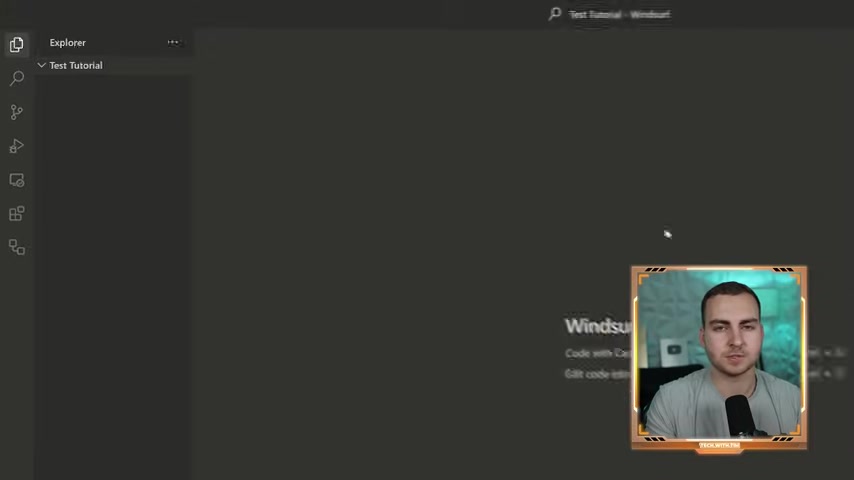
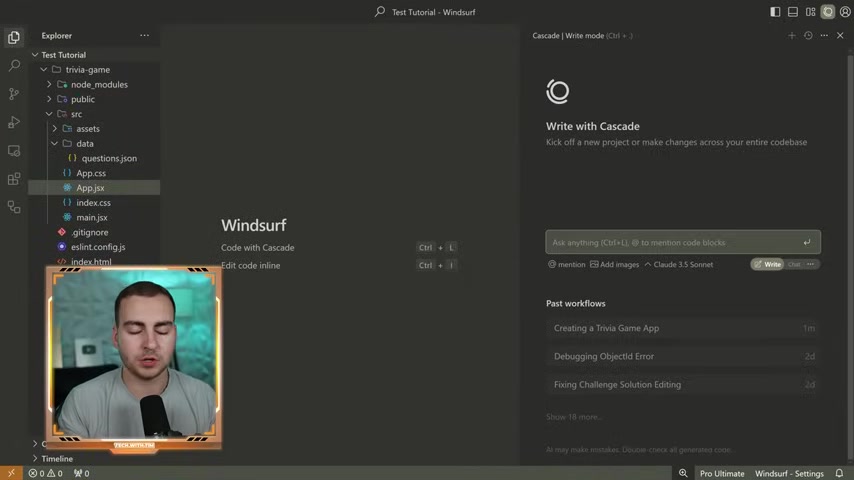
Windsurf, being a fork of VS Code, provides a familiar and straightforward installation experience for users already familiar with the popular editor.
The Key Steps:
- Download Windsurf: Download the application from the Codeium website.
- Install the Editor: Follow the instructions to install the code editor on your operating system.
- Import Settings: During the initial setup, Windsurf will prompt you to import your existing VS Code settings. Choose yes. You can transfer your existing themes and settings from VS Code to have a familiar experience.
- Open a Project Folder: Click the button that says Open Folder and add your code projects for AI analysis.
Windsurf’s seamless integration with VS Code means that developers can quickly adapt to the new AI-powered environment. With settings and extensions preserved, the transition is smooth and efficient.
Once you have configured Windsurf, the Cascade window will appear. This is Windsurf’s version of Copilot and is where you will make most modifications to your codebase.
Making a Plan Before You Start Coding with Windsurf
Before unleashing the power of AI code generation, take a moment to formulate a plan. Although AI offers incredible assistance, it's not a substitute for strategic thinking and a clear vision.
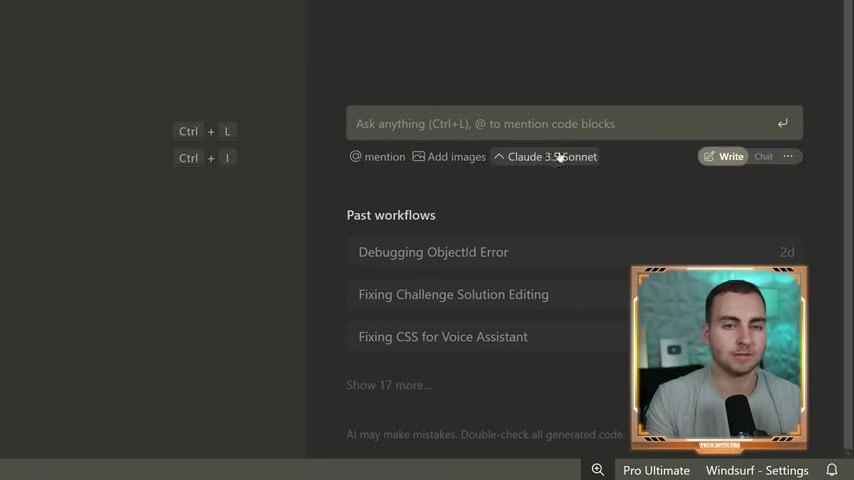
Before you prompt it and get it generating all kinds of code you will want to create a plan so you are getting the outcome you want. To ensure you get the best results from Windsurf, follow these steps:
- Define Your Goal: What specific functionality are you trying to implement? Describe your objective as clearly as possible.
- Sketch Your Vision: Even a rough sketch of the desired user interface can guide the AI toward the right solution.
- Choose Frameworks and Languages: You must pick the languages and frameworks so that the AI does not pick a random framework. You’ll want to make sure this is using the correct code.
These AI models may go down some crazy tangents, and if you don’t know exactly what you want it to do it is very difficult to produce the output you’re looking for. This can assist in making sure to get the best results.
Navigating Chat and Write Modes in Windsurf

When using Windsurf, you'll encounter two primary modes: Chat and Write. Understanding the distinction is essential for harnessing the editor's full potential.
- Chat Mode: In this mode, you can interact with the AI assistant, ask questions about your codebase, and receive explanations. However, the AI won't directly modify your files.
- Write Mode: This mode unlocks the true potential of Windsurf, allowing the AI to directly modify, add, and refactor code within your project files. Exercise caution when using this mode.
To maximize your productivity and maintain control over your codebase, you need to familiarize yourself with the Chat and Write features.
Leveraging AI to Run Terminal Commands within Windsurf
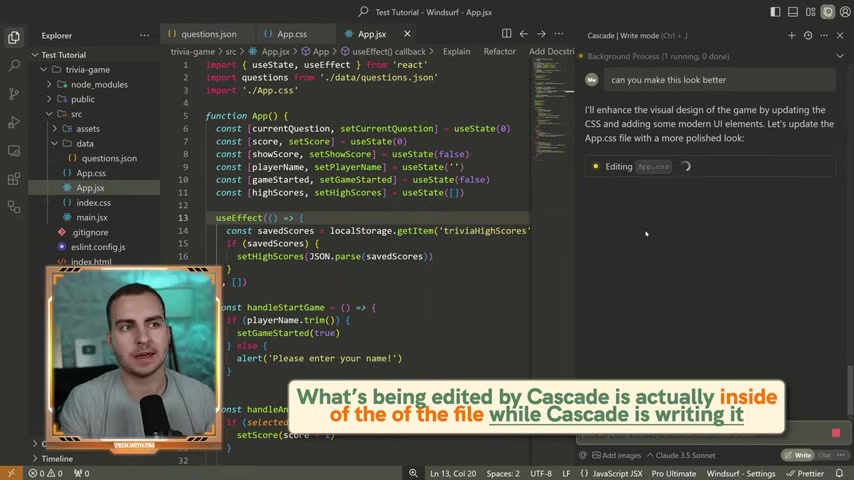
One of the standout features of Windsurf is its ability to execute terminal commands directly. This function streamlines development by automating tasks such as dependency installation, testing, and building processes.
How to use:
- Provide a prompt that needs the use of a terminal. The AI will automatically generate the command.
- You can then choose to accept the use of the command.
- After you accept, you can view all of your terminal outputs in the terminal.
Windsurf's integration of AI-driven terminal commands simplifies the development workflow and boosts productivity.
Understanding the Cascade Diff and Staging Area
Windsurf incorporates a staging area that lets you review, compare, and approve all changes before they are permanently applied to your code. As Cascade edits your code, changes will go straight into your code base but will not be officially accepted.
This area acts as a buffer, giving you complete control over which modifications are integrated into your project. All files that were edited are listed in the Cascade menu.
To utilize the staging area:
- Click on an edited file.
- Review proposed changes.
- Reject or accept to put changes into code.
This process ensures transparency and allows developers to maintain a clean and well-organized codebase. This means that you can test to make sure Cascade works how you expect it to before you press Accept all. If you don’t want the change you can hit Reject.
Targeted AI Edits with Control + I Shortcut
Windsurf allows you to do some targeted editing by selecting text and prompting the AI to perform a task. Targeted AI Edits can be performed by first selecting the section you want edited. You can then press the shortcut Control + I (Command+I for Apple users). Now, you can provide the prompt for the AI and it will generate a response.
These edits allow for performing a specific task on just the area you’ve highlighted to improve focus for the AI and help it perform what you need of it.
Leveraging the 'Continue' Feature in Windsurf
The “Continue” feature in Windsurf offers a seamless experience by enabling the AI to automatically pick up where it left off. Instead of having to prompt a new message, the AI can automatically do the next most logical step to complete the project.
To use this feature:
- After any prompt, all you need to do is type Continue and hit enter.
- From there the AI will pick up where it left off with the last task.
Unlocking the Potential: Tips for Optimal Windsurf Results
Here are some crucial tips to keep in mind when using Windsurf:
- File Specificity Is Key: To ensure precise edits, tell the AI exactly the file you want edited by tagging the file. The more specific you are the less of a chance that the AI can make a mistake.
- Work in Small Increments: Divide complex tasks into smaller, manageable steps. Then, make sure the AI does what you are intending it to.
- Directory Structures and Naming: To create a good code base to have a better context, make sure you are using naming conventions and good directory structures. Having better variable names improves your ability to track the context automatically.
- Read and Comprehend AI Code: A vital skill to have is to check out the AI’s code so that it is safe to use and isn't malicious. You want to have some general idea of what the code it produces is doing.











Most people like




























Report
Please select a reason for reporting
- 13 Reasons to Switch from Snapchat to Text Messaging
- 7 Powerful Speech to Text Apps to Boost Productivity
- 10 Best Speech to Text Tools for Effortless Transcription
- 13 Free Tools to Easily Transcribe Audio to Text
- 15 Surprising Ways Google's Speech-to-Text Boosts Productivity
- 7 Best Free Online Audio to Text Transcription Tools
- 9 Tips to Transcribe Speech to Text Faster and Better
- 13 Best Speech to Text Software for Windows 10 in 2023
- 7 Tips for Choosing the Best Transcriber for Audio to Text
- 11 Reasons Why Dragon Speech-to-Text Apps are Game-Changers
- 6 Secrets to Enhance Your Speech to Text Transcription
- 6 Brilliant Ways to Boost Productivity with Talk-to-Text on Your MacBook
- 6 Ways Transcription Software Converts Audio to Text
- 8 Tips to Transcribe Speech to Text Like a Pro
- 6 Reasons IBM Watson Speech to Text is a Game-Changer
- 14 Powerful Ways Talk-to-Text Improves Your Workflow
- 12 Top Windows Speech-to-Text Software for Efficient Transcription
- 12 Game-Changing Benefits of Apple's Speech to Text Technology
- 9 Powerful Use Cases for AWS Speech to Text Technology
- 10 Easy Steps to Transcribe YouTube Videos to Text
- transcription audio en texte
- online audio transcription
- free audio file transcription
- free ai audio transcription
- audio transcription service
- audio transcription online free
- audio transcription free online
- audio to transcription software
- audio and transcript
- ai audio transcription free
- voice recording to text converter
- translate voice recording to text
- record voice to text
- audio recording to text converter
- voice recording and transcription
- chatgpt voice to text
- gmail voice to text
- speech to text reader
- speech to text ai free
- speech to talk
- Revolutionizing Storytelling: From Novels to Screenplays with AI
- Create Engaging Animated Explainer Videos with a Free AI Tool
- Stop Multi-Subscribing: Benchmark Top AI Visual Models in One Canvas
- Best Seedance 2.5 API Provider: Every Price on the Market, Checked at Source
- AI OnlyFans: How to Generate $30,000/Month (Legally)
- Transform Your Script into an Engaging Video with AI Video Maker!
- AI Marketing Automation: A Comprehensive Guide for Small Businesses
- Midjourney Alternative for Anime Art Creators: Why PixAI May Be Better for Character Workflows
- 10 Things Most People Get Wrong About AI Image Search
- AI Girlfriend Apps: Top Choices Redefining Relationships 2025
- Top 4 AI Lip-Sync Generators Tested: Features, Differences, and Real Results
- Top 4 Face Swap Generator Tools to Transform Your Visual Content
- Master Canva's Video Background Remover with 5 Essential Tips
- Mastering Microsoft Stream: Video Management Tips & Tricks
- AI Video Generation: Extend AI Videos for Free
- Master Loom: Create and Share Professional Videos with AI
- Create Captivating AI News Videos: Step-by-Step Guide
- Create Your Own AI News Channel with AI-Powered News Video Generator and AI Lip Sync
- Unleash the Power of Heygen AI: Create Unlimited Videos for Free!
- Kapwing Smart Cut: AI Video Editing for Creators & Marketers

Copyright ©2026 toolify