































Table of Contents
- Key Points
- Understanding Adobe Firefly
- Additional Adobe Firefly Capabilities
- Step-by-Step Guide: Removing and Replacing Image Backgrounds with Adobe Firefly
- Adobe Firefly: Weighing the Pros and Cons
- Frequently Asked Questions about Adobe Firefly
- Related Questions


Understanding Adobe Firefly
What is Adobe Firefly?
Adobe Firefly is Adobe's innovative suite of creative Generative AI models aimed at revolutionizing how creators approach their work. Firefly is designed to assist with a wide array of creative tasks, such as generating images, creating text effects, and modifying existing content. What sets Firefly apart is its user-friendly interface and its ability to understand and execute complex instructions through simple text prompts. This means that users don't need to be experts in Graphic Design or possess advanced technical skills to produce high-quality, professional-looking results.
Firefly's AI-driven approach allows it to learn from user inputs and adapt its output accordingly. This makes the tool highly versatile and capable of delivering customized content that aligns precisely with the user's vision. The models are trained on Adobe Stock images and openly licensed content, ensuring that the generated content is safe for commercial use.
One of the key applications of Adobe Firefly is in image editing. Traditional image editing software often requires meticulous manual adjustments, especially when dealing with tasks like removing or replacing backgrounds. Firefly streamlines this process with its AI-powered tools. Users can quickly remove backgrounds, fill in missing details, and even generate entirely new backgrounds with just a few clicks. This not only saves time but also opens up new creative possibilities that might have been too complex or time-consuming to achieve with conventional methods.
Whether you're a professional designer looking to boost your productivity or an amateur enthusiast eager to explore the world of digital art, Adobe Firefly offers a powerful and accessible platform to bring your ideas to life. By leveraging the capabilities of generative AI, Firefly is making creative expression more intuitive and efficient than ever before. The ability to seamlessly generate and modify content positions Adobe Firefly as a central tool for anyone seeking to enhance their creative workflow. The generative AI Tools within Firefly can dramatically speed up the time to production of almost any creative asset. Adobe Firefly not only simplifies complex image editing tasks, but also encourages experimentation and innovation.
Additional Adobe Firefly Capabilities
Generating Similar Backgrounds for a Consistent Look
In addition to completely replacing backgrounds, Adobe Firefly also allows you to generate similar backgrounds to maintain a consistent look and feel. This is particularly useful when you want to remove an element or section of the image and replace it with a seamless extension of the existing background.
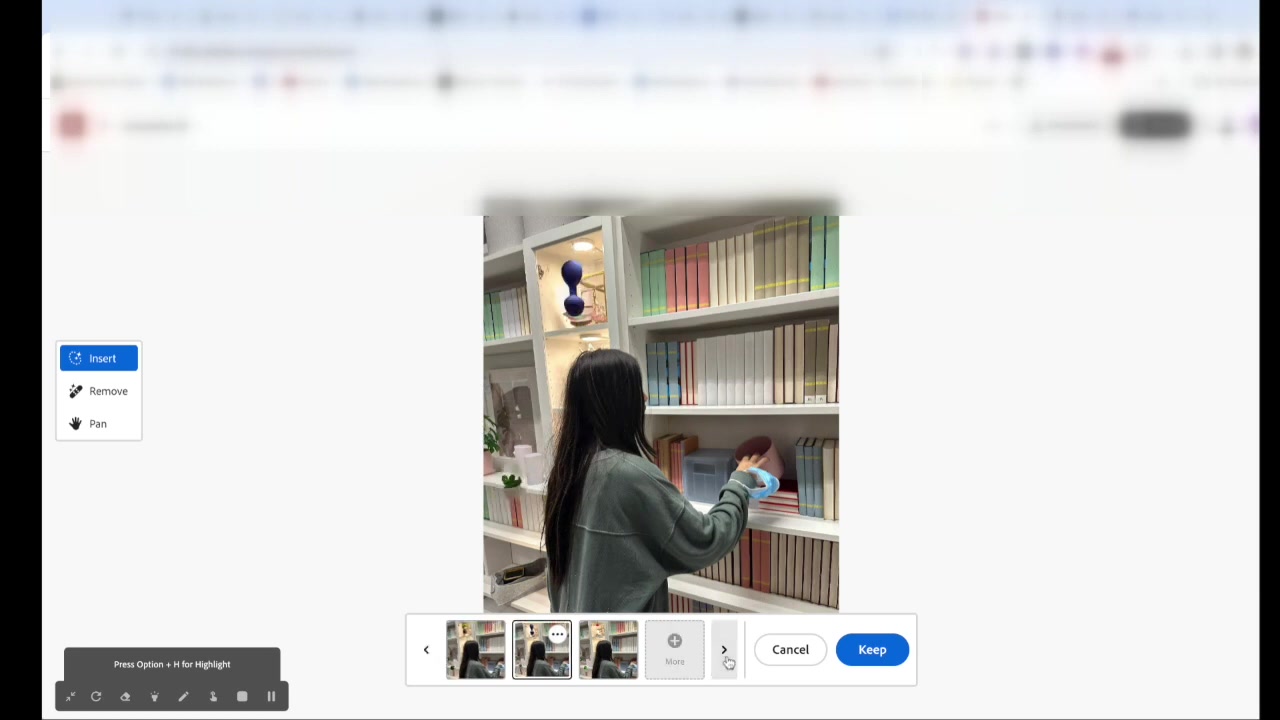
To generate a similar background, follow the same steps as before, but instead of entering a specific text prompt, leave the Prompt box blank. Firefly’s AI will then analyze the surrounding areas of the image and generate a background that blends seamlessly with the existing content. This technique is ideal for removing blemishes, extending landscapes, or creating uniform textures.
By leveraging this feature, you can ensure that your images have a polished and professional appearance, without any jarring transitions or inconsistencies.
Prompt Engineering Tips for Better Results
The quality of the results you achieve with Adobe Firefly often depends on the quality of the text prompts you use. Crafting effective prompts is an art known as prompt engineering. Here are some tips to help you get the most out of Firefly’s AI capabilities:
- Be Specific: The more specific your prompt, the better Firefly can understand your vision. Instead of typing 'a nice background,' try 'a serene beach at sunset with Palm trees and gentle waves.'
- Use Descriptive Language: Use vivid and descriptive language to paint a clear picture for the AI. Include details about colors, textures, and lighting.
- Experiment with Different Styles: Try specifying different artistic styles, such as 'photorealistic,' 'impressionistic,' or 'abstract,' to achieve unique and creative results.
- Iterate and Refine: Don’t be afraid to experiment with different prompts and refine them based on the results you get. This iterative process will help you discover new and exciting creative possibilities.
By mastering the art of prompt engineering, you can unlock the full potential of Adobe Firefly and create stunning visuals that bring your ideas to life.
Step-by-Step Guide: Removing and Replacing Image Backgrounds with Adobe Firefly
Accessing the Adobe Firefly Application
To begin, you'll need to access the Adobe Firefly application. This can be done through the Adobe Creative Cloud platform or directly via the Adobe Firefly website. Ensure that you have an active Adobe account to take full advantage of Firefly's features. Once you are logged in, navigate to the image editing section, where you’ll find the tools necessary for background removal and replacement.
Uploading Your Image
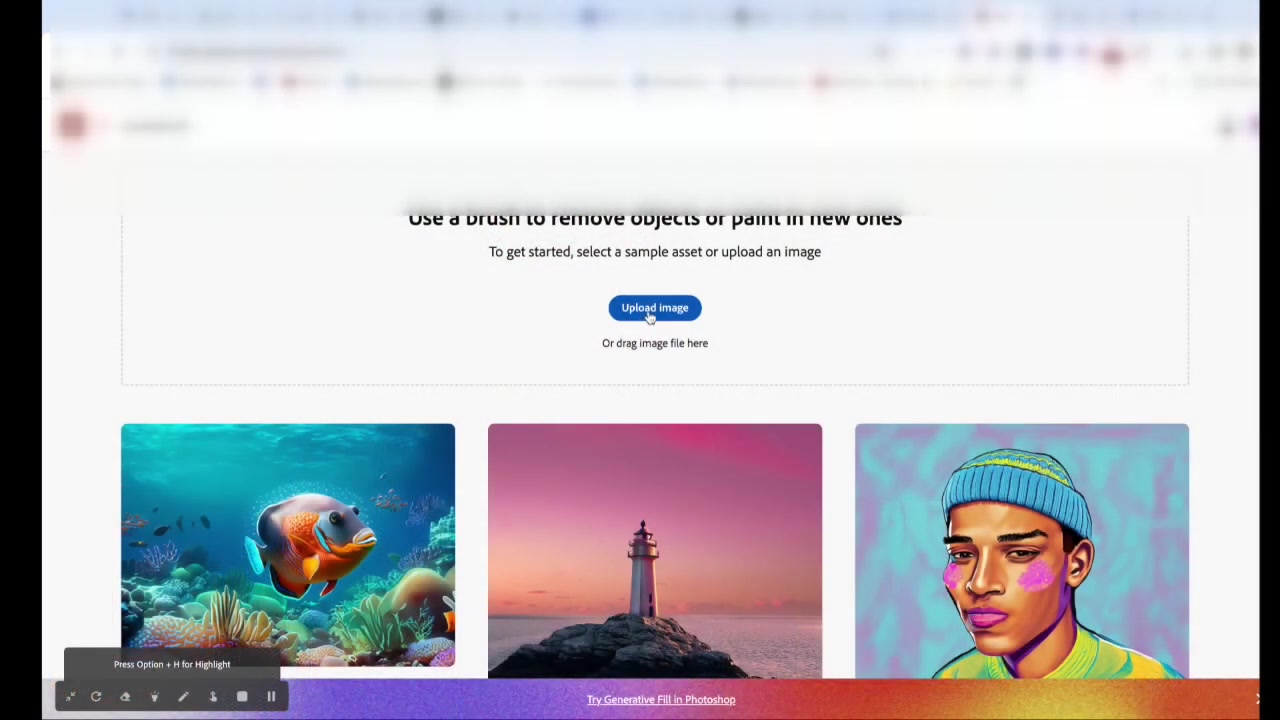
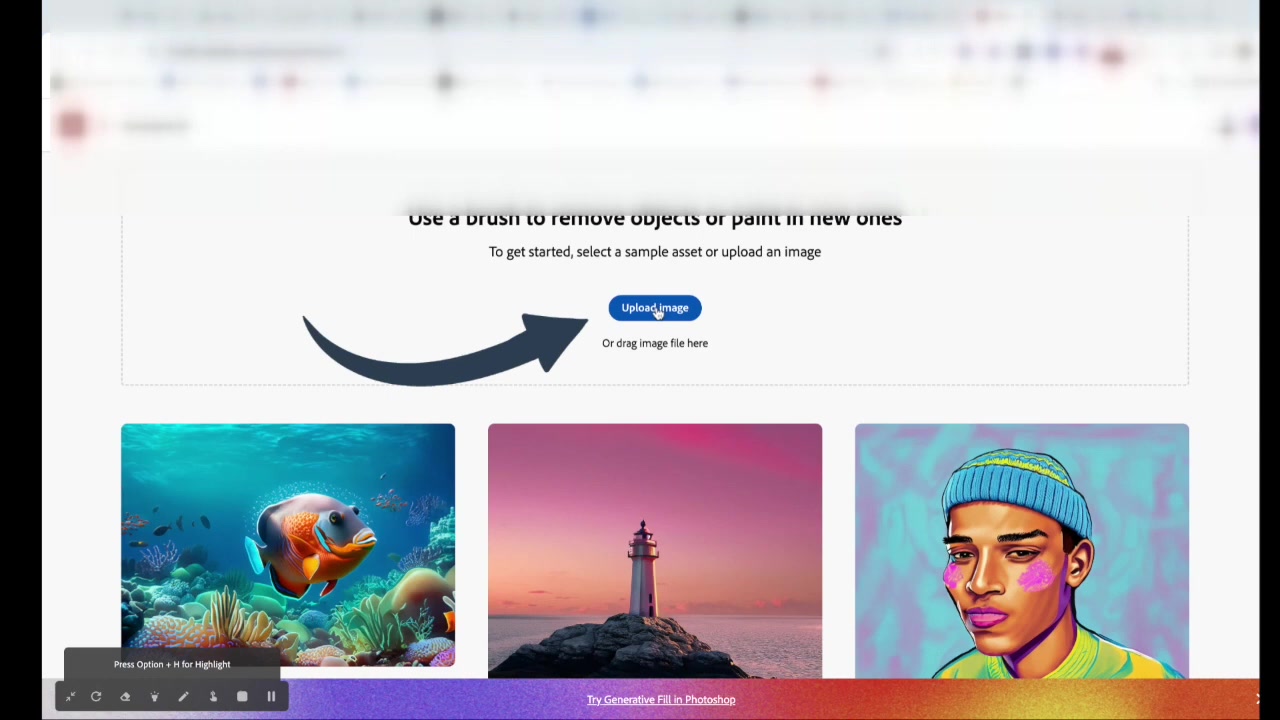
The first step in the background removal process is to upload the image you wish to edit. Click on the 'Upload Image' button located within the Firefly interface. You can either drag and drop an image file directly into the application or select a file from your computer's file system. Firefly supports a variety of image formats, including JPEG, PNG, and TIFF, ensuring compatibility with most common image sources.
Selecting the 'Remove' Tool
Once your image is uploaded, the next step is to select the 'Remove' tool. This tool is designed to intelligently identify and remove the background of your image. After selecting it, a brush will appear that you can use to manually refine the selection.
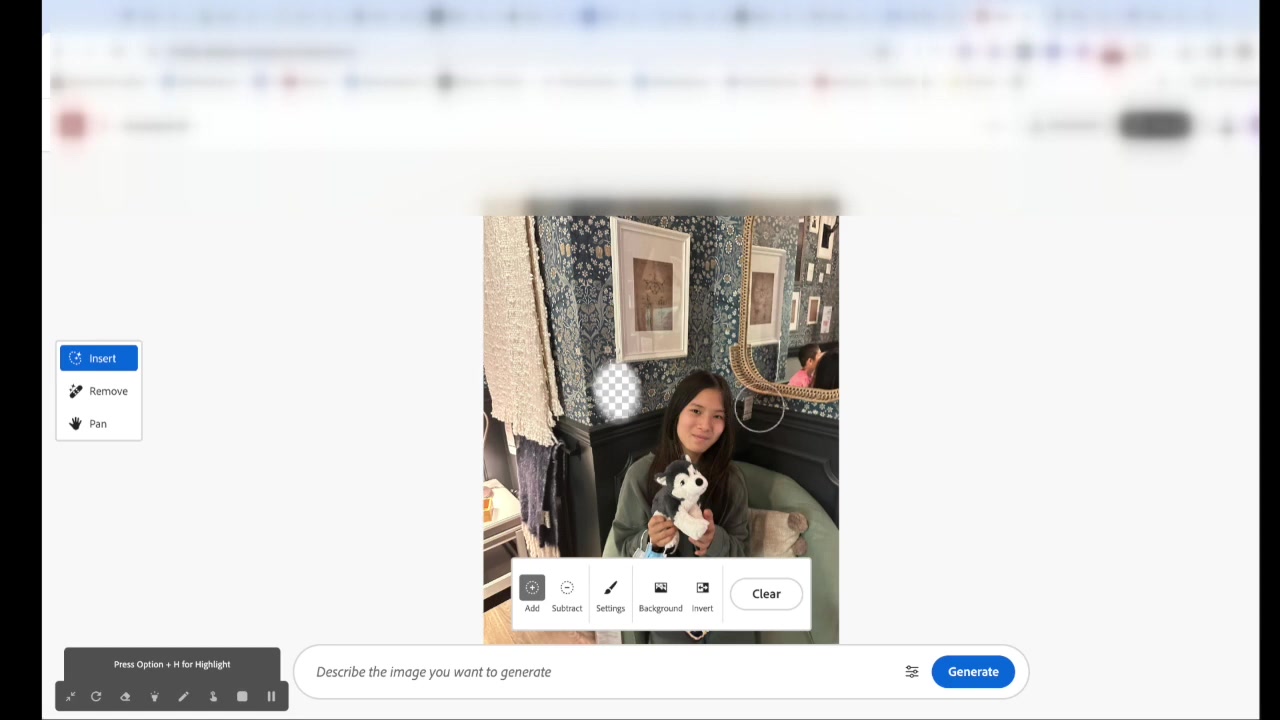
The 'Remove' tool uses AI algorithms to automatically detect the edges of the foreground object, making the initial selection process quick and easy. However, manual refinement is often necessary to ensure a clean and accurate result.
Manually Refining the Selection with the Brush Tool
After the initial background selection, it’s crucial to refine the selection manually using the brush tool. This ensures that all unwanted areas are completely removed, and no essential parts of the foreground object are accidentally deleted. Adjust the brush size to suit the level of detail required. For finer details, use a smaller brush size to achieve greater precision.
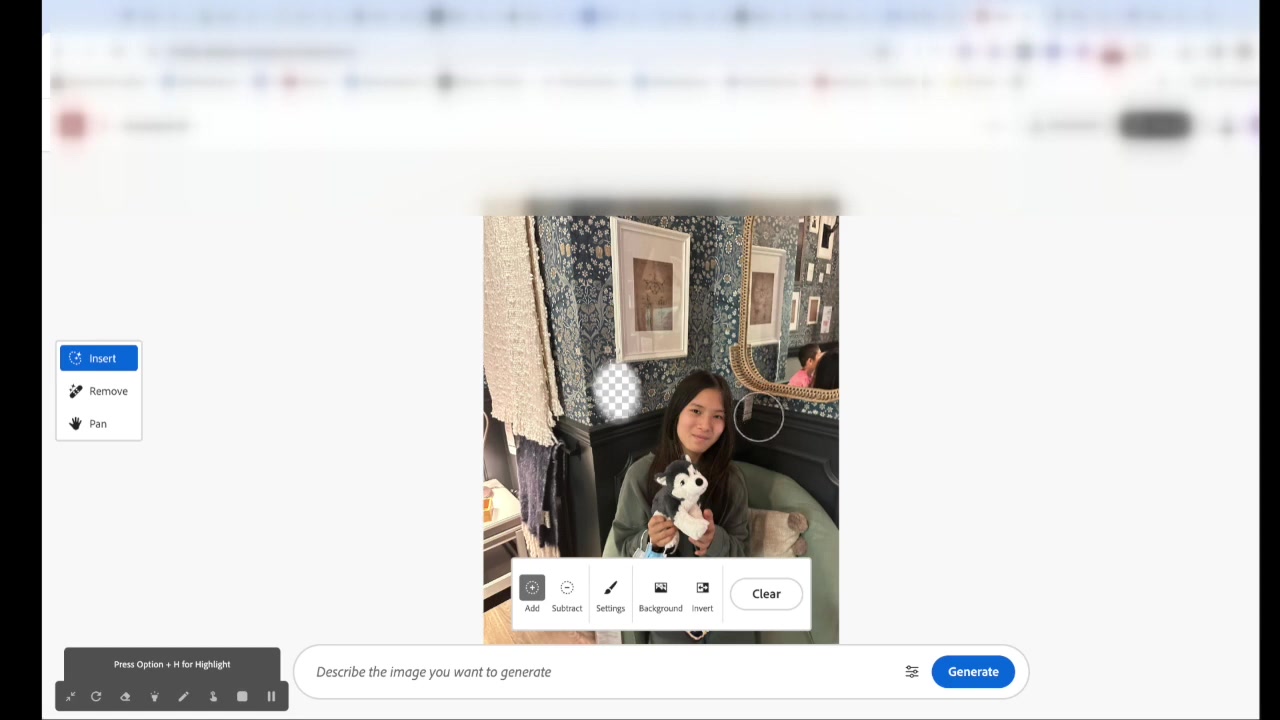
To remove additional areas, simply paint over them with the brush. If you accidentally remove part of the foreground object, use the 'Add' function to restore those areas. This iterative process allows you to carefully fine-tune the selection until you are satisfied with the result.
It's important to take your time during this step to ensure that the final image looks polished and professional. Pay close attention to areas with complex edges, such as hair or foliage, as these may require extra attention.
Generating a New Background or Fill
With the background successfully removed, you have several options for replacing it. You can either fill the background with a solid color, upload a new image to use as the background, or generate an entirely new background using Firefly’s AI capabilities.
To fill the background with a solid color, select the 'Background' option and choose your desired color from the color picker. This is a simple and effective way to create a clean and uniform look.
To upload a new image, select the 'Upload' option and choose an image from your computer. Ensure that the image is of high quality and complements the foreground object.
To generate a new background using AI, enter a descriptive text prompt into the prompt box. For example, you could type 'a serene beach at sunset' or 'a futuristic cityscape'. Firefly’s AI will then generate a background that matches your description. Experiment with different prompts to achieve the desired effect.
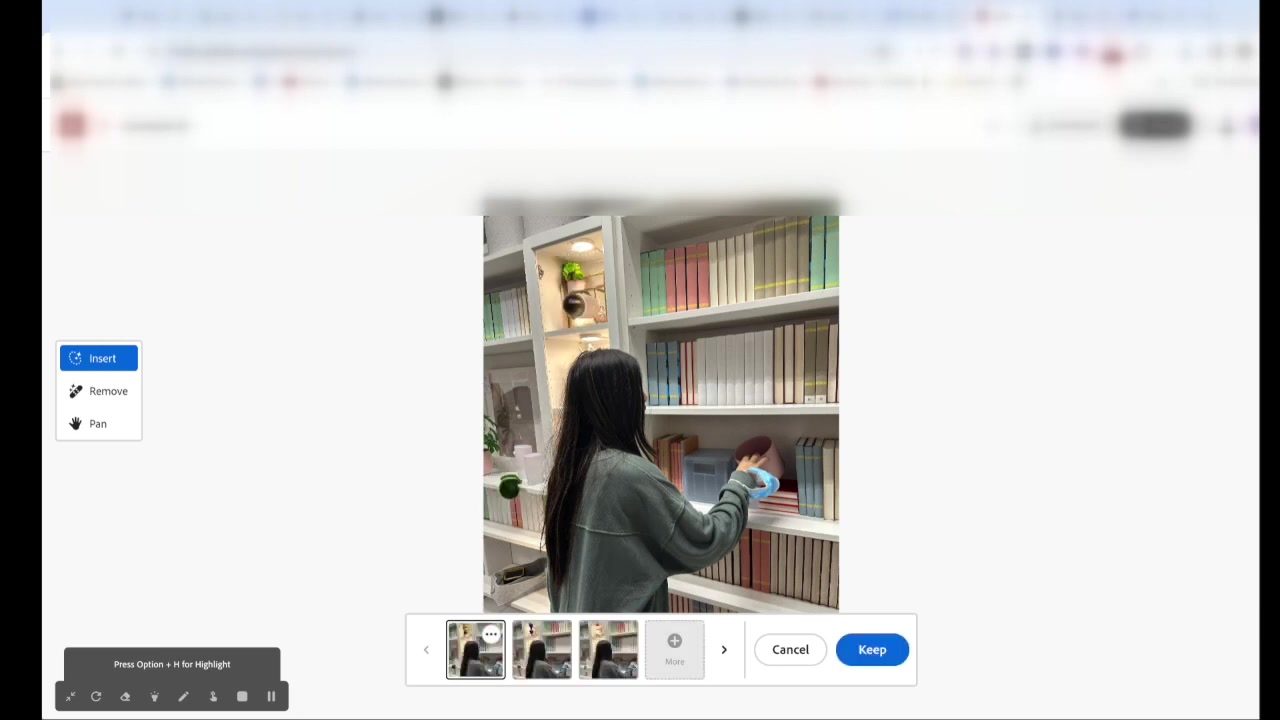
Fine-Tuning the Generated Image
Once you’ve generated a new background, you may need to fine-tune the image to achieve the best possible result. Firefly offers several tools for adjusting the image, such as brightness, contrast, and saturation. Use these tools to Blend the foreground object seamlessly with the new background.
If the generated background doesn’t quite match your expectations, try modifying the text prompt and generating a new background. You can also use the 'Add' and 'Remove' tools to make further refinements to the selection. It may take a few iterations to achieve the perfect result, so don’t be afraid to experiment. Also be mindful not to add any personal or private information to the text prompts.
By carefully fine-tuning the image, you can create a professional-looking result that enhances the overall aesthetic of your project.
Removing Unwanted Elements: Price Tags Example
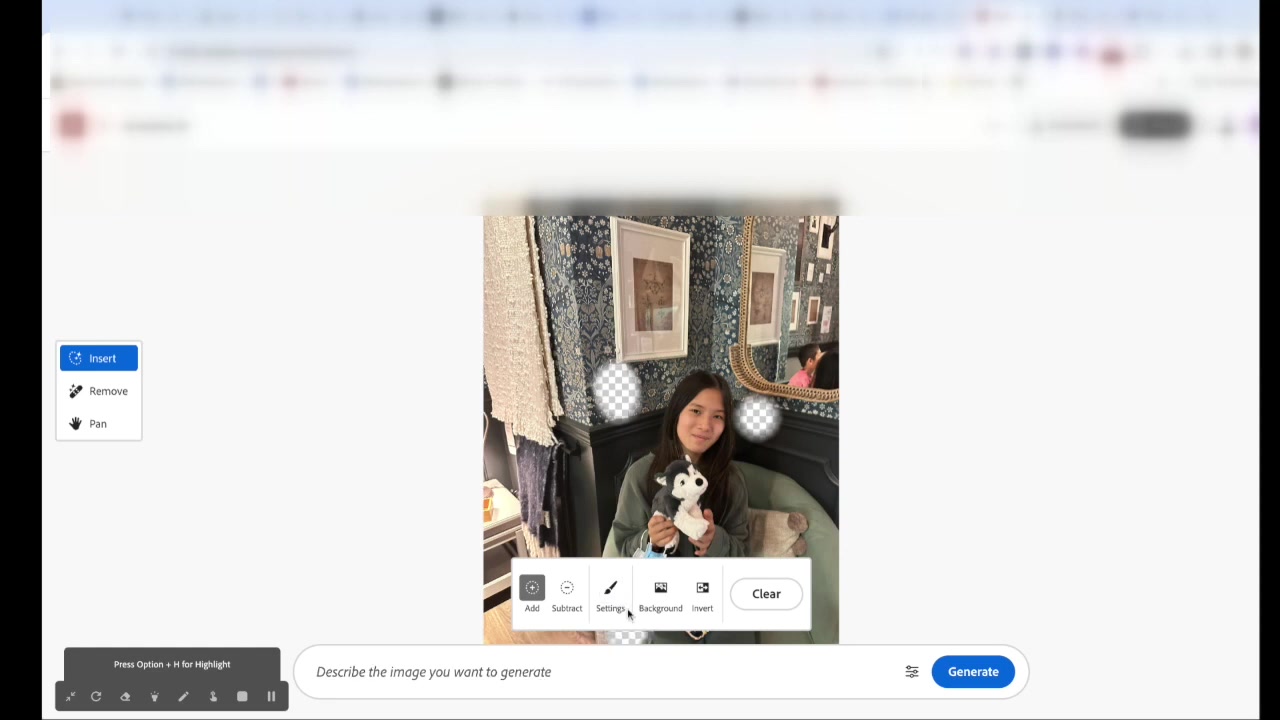
Adobe Firefly isn't just for background changes; it's excellent for cleaning up images. One common use case is removing unwanted elements, like price tags on furniture in a home setting. This is showcased in the video. Upload the image with the price tags. Select the 'Remove' tool. Use the brush to carefully paint over the price tags. Let Firefly generate the cleaned-up area. If you want a similar surrounding background fill just leave the generate text box empty. This method helps create natural-looking photos for marketing or personal use by removing these distractions.





Most people like
































Report
Please select a reason for reporting
- 13 Reasons to Switch from Snapchat to Text Messaging
- 7 Powerful Speech to Text Apps to Boost Productivity
- 10 Best Speech to Text Tools for Effortless Transcription
- 13 Free Tools to Easily Transcribe Audio to Text
- 15 Surprising Ways Google's Speech-to-Text Boosts Productivity
- 7 Best Free Online Audio to Text Transcription Tools
- 9 Tips to Transcribe Speech to Text Faster and Better
- 13 Best Speech to Text Software for Windows 10 in 2023
- 7 Tips for Choosing the Best Transcriber for Audio to Text
- 11 Reasons Why Dragon Speech-to-Text Apps are Game-Changers
- 6 Secrets to Enhance Your Speech to Text Transcription
- 6 Brilliant Ways to Boost Productivity with Talk-to-Text on Your MacBook
- 6 Ways Transcription Software Converts Audio to Text
- 8 Tips to Transcribe Speech to Text Like a Pro
- 6 Reasons IBM Watson Speech to Text is a Game-Changer
- 14 Powerful Ways Talk-to-Text Improves Your Workflow
- 12 Top Windows Speech-to-Text Software for Efficient Transcription
- 12 Game-Changing Benefits of Apple's Speech to Text Technology
- 9 Powerful Use Cases for AWS Speech to Text Technology
- 10 Easy Steps to Transcribe YouTube Videos to Text
- transcription audio en texte
- online audio transcription
- free audio file transcription
- free ai audio transcription
- audio transcription service
- audio transcription online free
- audio transcription free online
- audio to transcription software
- audio and transcript
- ai audio transcription free
- voice recording to text converter
- translate voice recording to text
- record voice to text
- audio recording to text converter
- voice recording and transcription
- chatgpt voice to text
- gmail voice to text
- speech to text reader
- speech to text ai free
- speech to talk
- How to Use AI Tools to Find Internal Linking Opportunities Across a Business Website
- Discover Your Perfect Haircut with AI Hairstyle Apps
- Free Reputation Calculator Tools: How They're Adapting to Score AI Visibility, Not Just Rankings
- Design Professional Flyers for Free on Your Phone
- Best Free Flyer Maker Apps for Android: Design Like a Pro
- How to Know If Your Business Is Ready for an AI Customer Service Agent
- Revolutionizing Storytelling: From Novels to Screenplays with AI
- Create Engaging Animated Explainer Videos with a Free AI Tool
- Stop Multi-Subscribing: Benchmark Top AI Visual Models in One Canvas
- Best Seedance 2.5 API Provider: Every Price on the Market, Checked at Source
- Top AI Social Media Management Tools: Automate Your Content Strategy
- Free AI Text to Video Generator: Create Stunning Videos from Text
- Discover 17 ChatGPT Alternatives: A Comprehensive Comparison
- Character.AI vs. Janitor AI: Which AI Chat Platform Reigns Supreme?
- Top Virtual Assistant Companies in 2026: Reviews, Pricing, and Plans Compared
- Unveiling FaceCheck.ID: Revolutionizing Reverse Image Searches with AI
- 11 Best AI Dialers in 2026: Features, Pricing, Pros and Cons
- How I Direct Consistent AI Clips: A Hands-On Guide to Multi-Model Generation
- A Realistic Review of the Photo Generator Image Tool
- Playwright MCP Server: Automated Web Testing with Agent Mode

Copyright ©2026 toolify