























Automate GitHub Tasks: Model Context Protocol & Cursor IDE

Updated on Apr 10,2025








Table of Contents
- Key Points
- GitHub Automation with Model Context Protocol (MCP)
- Detailed Step-by-Step Guide to Installing and Configuring GitHub MCP Server in Cursor IDE
- Automating GitHub Tasks with MCP and Cursor: A Practical Guide
- Pricing
- Advantages and Disadvantages of MCP and Cursor IDE for GitHub Automation
- Core Features
- Use Cases
- Frequently Asked Questions (FAQ)
- Related Questions


GitHub Automation with Model Context Protocol (MCP)
What is Model Context Protocol (MCP)?
The Model Context Protocol (MCP) is an open protocol designed to enable seamless integration between Large Language Model (LLM) applications and external data sources and tools.
In the context of GitHub automation, MCP acts as a bridge connecting your development environment with GitHub's functionalities, allowing you to execute various tasks programmatically. This integration eliminates the need to switch between different platforms or manually execute commands, streamlining your workflow. The core principle behind MCP is to provide a standardized way for LLMs to interact with external systems, making it easier to automate complex processes. It provides the necessary infrastructure for building custom AI workflows and chat interfaces, tailored to specific development needs. By offering a unified approach, MCP simplifies the integration process and empowers developers to leverage the power of AI in their daily tasks. MCP’s ability to link LLM applications with external data sources is valuable, because it provides a way to create customized AI workflows and chat interfaces, addressing specific development needs. The adoption of Model Context Protocol can lead to enhanced automation, improved collaboration, and more efficient software development lifecycles.
How MCP Automates GitHub Tasks
MCP's primary strength lies in its ability to automate repetitive and time-consuming tasks associated with GitHub.
Consider the process of creating a new repository. Traditionally, this would involve navigating to the GitHub website, filling out the required fields, and configuring the settings manually. With MCP, this entire process can be automated with a single command within the Cursor IDE. Similarly, tasks such as adding files, pushing changes, creating pull requests, and managing issues can be automated, saving developers valuable time and effort. By connecting the LLM applications to the external data sources, it streamlines the software development lifecycles.
For example, consider a Scenario where you need to create a new repository named 'testing' and set it to public. Using the Cursor IDE with MCP, you can simply type a command like 'Create a repository named testing and it is public'. The MCP tool then interprets this command and automatically performs the necessary actions on GitHub, creating the repository and configuring it according to your specifications. This level of automation significantly reduces the manual overhead and allows developers to focus on more strategic and creative aspects of their work.
Detailed Step-by-Step Guide to Installing and Configuring GitHub MCP Server in Cursor IDE
Preparing for the Installation
Before diving into the installation process, ensure that you have the necessary prerequisites in place. This typically involves having a GitHub account, a personal access token with the required permissions, and the Cursor IDE installed on your system. Having these components ready will ensure a smooth and seamless installation experience.
- GitHub Account: You need a GitHub account with sufficient privileges to create repositories and manage issues.
- Personal Access Token (PAT): Create a personal access token (PAT) with the appropriate permissions. The PAT requires 'repo' scope for private repositories. Select:
repo:status,repo_deployment,public_repo,repo:invite,security_events. - Cursor IDE: Have the latest version of Cursor IDE installed on your machine. This IDE will be the primary interface for interacting with the GitHub MCP server.
Step 1: Create a Shell Script
The GitHub MCP server needs a shell script to execute commands directly within the Cursor IDE. Follow these steps to create the script:
-
Open Terminal: Launch your terminal application.
-
Create a Script File: Use the
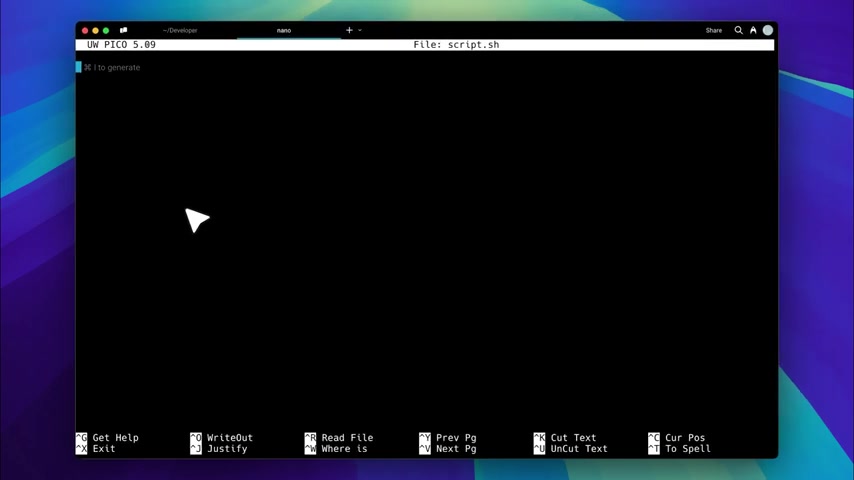
touchcommand to create a new shell script file. For example:touch script.shortouch run.sh.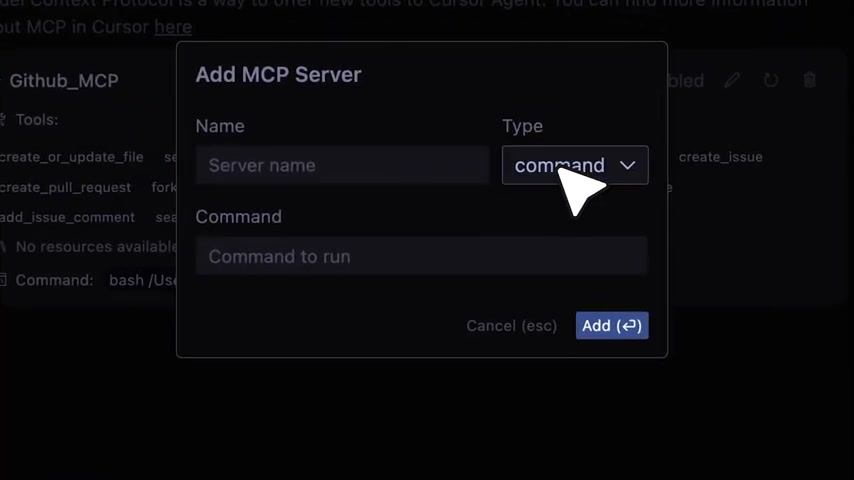
-
Edit the Script File: Open the newly created script file using a text editor like
nano. For example:nano script.sh. -
Add Command: Paste the NPX command into the file. Be sure to replace YOUR_TOKEN_HERE with your actual GitHub personal access token:
GITHUB_PERSONAL_ACCESS_TOKEN=YOUR_TOKEN_HERE npx -y @modelcontextprotocol/server-github- Save the File: Press
Ctrl+Oto save, then pressEnter. PressCtrl+Xto exit. - Make Executable: Ensure the script is executable by running
chmod +x script.sh.
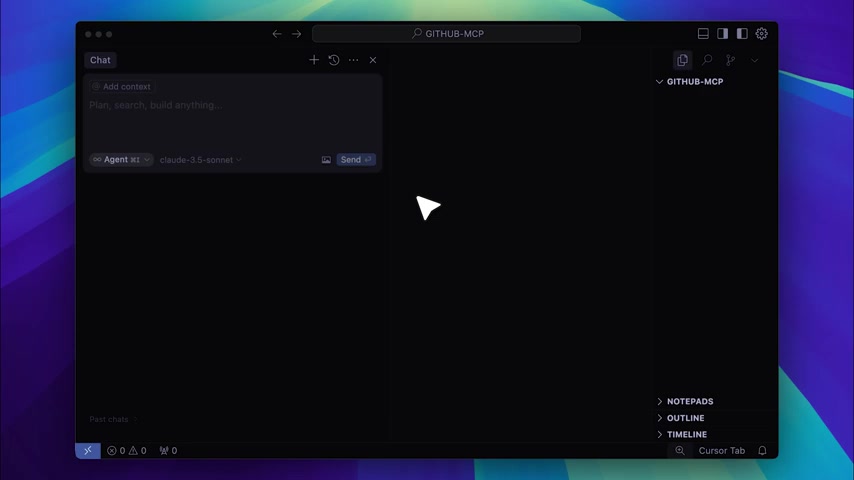
Step 2: Add MCP to Cursor Settings
With the shell script prepared, integrate the MCP server into Cursor IDE:
-
Open Cursor Settings: In Cursor IDE, navigate to the settings menu.
-
Go to MCP Section: Find and click on the
MCPsection within the settings panel.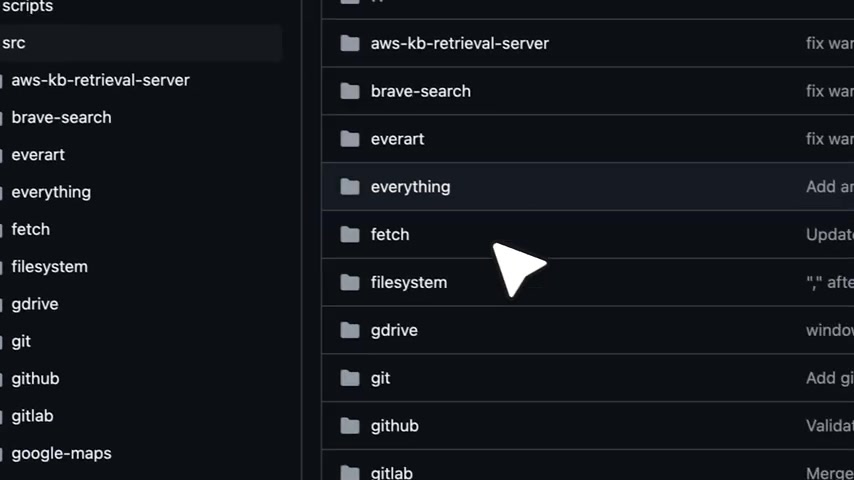
-
Add New MCP Server: Click on
Add new MCP server. -
Configure Server: In the menu, assign a name to the MCP server. Select
commandtype. Paste the script path (e.g.,/Users/yourusername/Developer/run.sh) in the command section. -
Validate: After configuration, you should see a green light, indicating successful integration. All available tools will be shown.
Automating GitHub Tasks with MCP and Cursor: A Practical Guide
Creating a New Repository
To create a new GitHub repository, use the following steps:
-
Open Chat: In Cursor IDE, open the chat panel.
-
Enter Agent Mode: Ensure you're in agent mode by verifying the agent selection.
-
Type Command: Type a command like
Create a repository named testing and it is publicin the chat panel.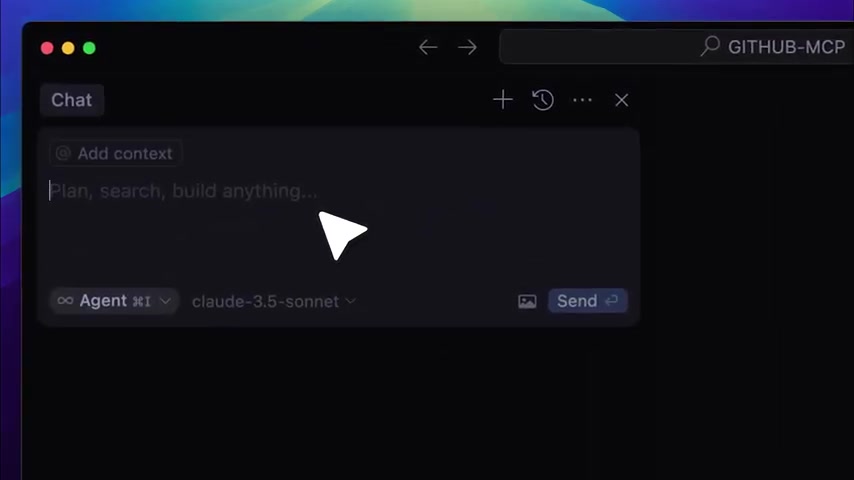
-
Send Request: Send the request, and the MCP tool will automatically create a new public repository named 'testing' on your GitHub account. It then uses the 'create repository' tool automatically.
-
Verification: Check your GitHub dashboard to confirm that the repository has been created.
Adding and Pushing Files
To add a file to the repository:
-
Open Chat: Open the chat panel in Cursor IDE.
-
Enter Command: Type a command like
Add a simple HTML file with some greeting in the repo and push it.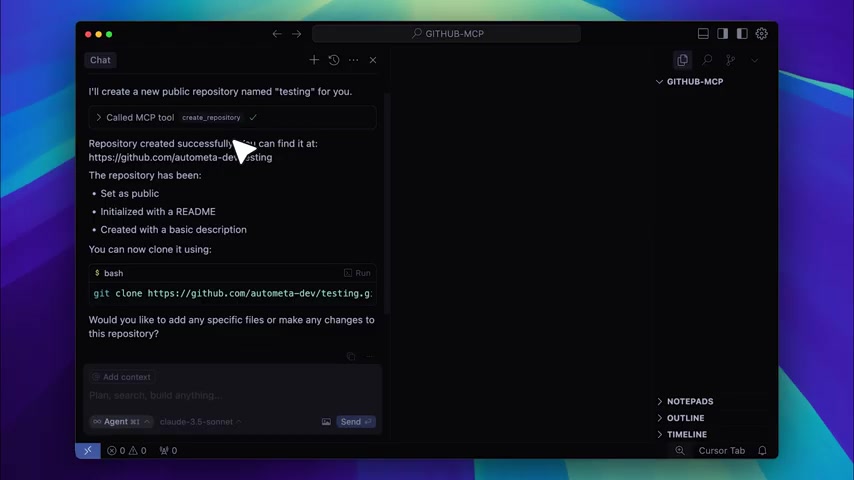
-
Send Request: Send the request. The MCP tool will create an HTML file with a greeting and push it to your repository.
-
Verification: Check your GitHub repository to see the new HTML file.
Creating Pull Requests
Creating a pull request is streamlined as well:
- Open Chat: Open the chat panel.
- Enter Command: Enter a command to create a pull request, specifying the necessary details.
- Send Request: Send the request. The MCP tool will automatically create a pull request with the specified parameters.
- Verification: Check your GitHub repository to view the new pull request.
Searching GitHub
MCP allows you to search GitHub using natural language:
- Open Chat: Open the chat panel in Cursor IDE.
- Enter Command: Type
Search for cole medin on GitHub. The MCP tool will look for the user profiles. - Send Request: Send the request. The MCP tool will perform the search and display the results in the chat panel.
- Verification: Review the results to find the user’s GitHub profile.








Most people like
































Report
Please select a reason for reporting
- 13 Reasons to Switch from Snapchat to Text Messaging
- 7 Powerful Speech to Text Apps to Boost Productivity
- 10 Best Speech to Text Tools for Effortless Transcription
- 13 Free Tools to Easily Transcribe Audio to Text
- 15 Surprising Ways Google's Speech-to-Text Boosts Productivity
- 7 Best Free Online Audio to Text Transcription Tools
- 9 Tips to Transcribe Speech to Text Faster and Better
- 13 Best Speech to Text Software for Windows 10 in 2023
- 7 Tips for Choosing the Best Transcriber for Audio to Text
- 11 Reasons Why Dragon Speech-to-Text Apps are Game-Changers
- 6 Secrets to Enhance Your Speech to Text Transcription
- 6 Brilliant Ways to Boost Productivity with Talk-to-Text on Your MacBook
- 6 Ways Transcription Software Converts Audio to Text
- 8 Tips to Transcribe Speech to Text Like a Pro
- 6 Reasons IBM Watson Speech to Text is a Game-Changer
- 14 Powerful Ways Talk-to-Text Improves Your Workflow
- 12 Top Windows Speech-to-Text Software for Efficient Transcription
- 12 Game-Changing Benefits of Apple's Speech to Text Technology
- 9 Powerful Use Cases for AWS Speech to Text Technology
- 10 Easy Steps to Transcribe YouTube Videos to Text
- transcription audio en texte
- online audio transcription
- free audio file transcription
- free ai audio transcription
- audio transcription service
- audio transcription online free
- audio transcription free online
- audio to transcription software
- audio and transcript
- ai audio transcription free
- voice recording to text converter
- translate voice recording to text
- record voice to text
- audio recording to text converter
- voice recording and transcription
- chatgpt voice to text
- gmail voice to text
- speech to text reader
- speech to text ai free
- speech to talk
- How to Use AI Tools to Find Internal Linking Opportunities Across a Business Website
- Discover Your Perfect Haircut with AI Hairstyle Apps
- Free Reputation Calculator Tools: How They're Adapting to Score AI Visibility, Not Just Rankings
- Design Professional Flyers for Free on Your Phone
- Best Free Flyer Maker Apps for Android: Design Like a Pro
- How to Know If Your Business Is Ready for an AI Customer Service Agent
- Revolutionizing Storytelling: From Novels to Screenplays with AI
- Create Engaging Animated Explainer Videos with a Free AI Tool
- Stop Multi-Subscribing: Benchmark Top AI Visual Models in One Canvas
- Best Seedance 2.5 API Provider: Every Price on the Market, Checked at Source
- Top AI Social Media Management Tools: Automate Your Content Strategy
- Free AI Text to Video Generator: Create Stunning Videos from Text
- Discover 17 ChatGPT Alternatives: A Comprehensive Comparison
- Character.AI vs. Janitor AI: Which AI Chat Platform Reigns Supreme?
- Top Virtual Assistant Companies in 2026: Reviews, Pricing, and Plans Compared
- Unveiling FaceCheck.ID: Revolutionizing Reverse Image Searches with AI
- 11 Best AI Dialers in 2026: Features, Pricing, Pros and Cons
- How I Direct Consistent AI Clips: A Hands-On Guide to Multi-Model Generation
- A Realistic Review of the Photo Generator Image Tool
- Playwright MCP Server: Automated Web Testing with Agent Mode

Copyright ©2026 toolify