































Table of Contents
- Key Points
- Getting Started with Automatic1111 Image Generation
- Exploring the Automatic1111 WebUI: Top Bar
- Crafting Your Image: A Step-by-Step Guide to Prompting
- Weighing Your Options: Pros and Cons of Automatic1111
- Frequently Asked Questions
- Related Questions


Getting Started with Automatic1111 Image Generation
Entering Prompts and Editing Parameters
Let's dive into the most exciting part: image generation!
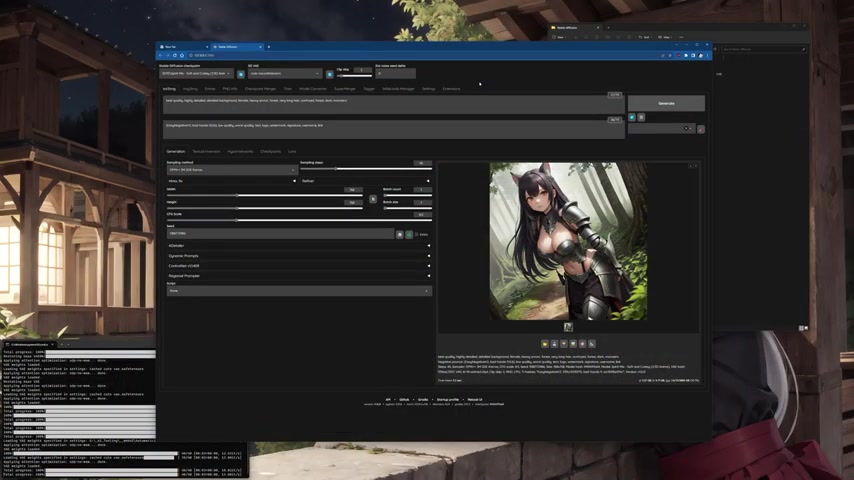
This involves entering prompts, tweaking parameters, and witnessing the magic happen. While some users might skip directly to this stage, it's beneficial to revisit earlier sections for a comprehensive understanding. This section provides a general overview of the WebUI, focusing primarily on the 'text-to-image' tab.
The Core Concept: From Noise to Image
To effectively use Automatic1111, it's vital to grasp the fundamental process. Stable Diffusion's text-to-image functionality operates by first generating a random, noisy image. This noisy image is essentially a canvas of random colors, positions, and arrangements. The seed value plays a crucial role, determining the initial noise pattern. This initial noise is then refined through a series of steps within Stable Diffusion's latent space.
Latent Space: A Hidden World
The latent space is where Stable Diffusion performs its calculations. It's not directly related to pixel data; it's raw data. This data interprets the Prompt based on what you intend to create. During the sampling process, Stable Diffusion analyzes the data, using the sampling parameter to generate a latent image over several steps.
To generate images, this latent information is then translated by the Stable Diffusion VAE (Variational Autoencoder) file that can be set up within Automatic1111's WebUI interface. This final step converts the latent space representation into a pixel-based image, that's what you see on screen. The whole process may be summarized with a diagram:
| Step | Description | Input | Output |
|---|---|---|---|
| 1 | Generate Random Noise | Seed | Noisy Image |
| 2 | Latent Space Iteration | Noisy Image, Prompt | Latent Image (Data) |
| 3 | VAE Decode | Latent Image | Pixel-Based Image |
Understanding these steps is essential because every parameter you modify impacts how each step unfolds. This knowledge allows you to better guide the image generation process and achieve more predictable and desirable outcomes.
It’s very important to know those sorts of steps because everything that we modify is going to modify how those steps take place.
Exploring the Automatic1111 WebUI: Top Bar
Checkpoint Selection and Essential Settings
Now, let's explore the WebUI interface.
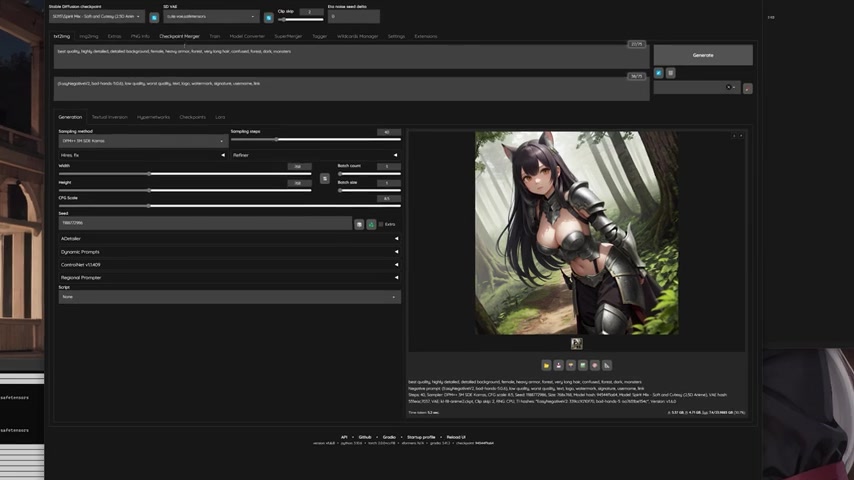
I suggest beginning by checking the top bar for vital configurations to guarantee a successful image generation workflow. Let’s start by clearing the prompt to remove all the parameters and prompts, both negative and positive. Now look at the top-left corner to configure Stable Diffusion check-points and VAE.
Stable Diffusion Checkpoints
Start by selecting Spirit Mix, which provides the basis and the art style of your image. The Stable Diffusion checkpoint determines the foundational style and characteristics of the generated images. It's like selecting a specific artist's model to guide the AI's creative process. Automatic1111 supports numerous checkpoints that can be found online. If you downloaded a custom model and you want to use that one, you just won’t be able to follow along exactly and the results that you get might not be what you expect.
Variational Autoencoder (VAE)
After the checkpoint, the second selection is the VAE. If the images use models outside of Spirit Mix, consult the model’s webpage to see what kind of VAE they recommend. In most cases, the model will have the VAE that the original creator used baked in, which in this case is cute VAE. If there are any problems, it’s easy to choose a different one to override the automatic setting.
Clip Skip
Clip Skip tells Stable Diffusion what to skip to keep the image from being oversaturated with an art style. Like the VAE selection, consult the models webpage if using any kind of model other than Spirit Mix to see what they recommend for clip skip. Automatic1111 will default settings as well, so messing with this parameter may not have much of an impact on the image if left alone.
| Setting | Description |
|---|---|
| Stable Diffusion Checkpoint | Determines base style. |
| VAE | Translates latent data into pixel data. |
| Clip Skip | Stops art style oversaturation. |








Most people like































Report
Please select a reason for reporting
- 13 Reasons to Switch from Snapchat to Text Messaging
- 7 Powerful Speech to Text Apps to Boost Productivity
- 10 Best Speech to Text Tools for Effortless Transcription
- 13 Free Tools to Easily Transcribe Audio to Text
- 15 Surprising Ways Google's Speech-to-Text Boosts Productivity
- 7 Best Free Online Audio to Text Transcription Tools
- 9 Tips to Transcribe Speech to Text Faster and Better
- 13 Best Speech to Text Software for Windows 10 in 2023
- 7 Tips for Choosing the Best Transcriber for Audio to Text
- 11 Reasons Why Dragon Speech-to-Text Apps are Game-Changers
- 6 Secrets to Enhance Your Speech to Text Transcription
- 6 Brilliant Ways to Boost Productivity with Talk-to-Text on Your MacBook
- 6 Ways Transcription Software Converts Audio to Text
- 8 Tips to Transcribe Speech to Text Like a Pro
- 6 Reasons IBM Watson Speech to Text is a Game-Changer
- 14 Powerful Ways Talk-to-Text Improves Your Workflow
- 12 Top Windows Speech-to-Text Software for Efficient Transcription
- 12 Game-Changing Benefits of Apple's Speech to Text Technology
- 9 Powerful Use Cases for AWS Speech to Text Technology
- 10 Easy Steps to Transcribe YouTube Videos to Text
- transcription audio en texte
- online audio transcription
- free audio file transcription
- free ai audio transcription
- audio transcription service
- audio transcription online free
- audio transcription free online
- audio to transcription software
- audio and transcript
- ai audio transcription free
- voice recording to text converter
- translate voice recording to text
- record voice to text
- audio recording to text converter
- voice recording and transcription
- chatgpt voice to text
- gmail voice to text
- speech to text reader
- speech to text ai free
- speech to talk
- How to Use AI Tools to Find Internal Linking Opportunities Across a Business Website
- Discover Your Perfect Haircut with AI Hairstyle Apps
- Free Reputation Calculator Tools: How They're Adapting to Score AI Visibility, Not Just Rankings
- Design Professional Flyers for Free on Your Phone
- Best Free Flyer Maker Apps for Android: Design Like a Pro
- How to Know If Your Business Is Ready for an AI Customer Service Agent
- Revolutionizing Storytelling: From Novels to Screenplays with AI
- Create Engaging Animated Explainer Videos with a Free AI Tool
- Stop Multi-Subscribing: Benchmark Top AI Visual Models in One Canvas
- Best Seedance 2.5 API Provider: Every Price on the Market, Checked at Source
- Top AI Social Media Management Tools: Automate Your Content Strategy
- Free AI Text to Video Generator: Create Stunning Videos from Text
- Discover 17 ChatGPT Alternatives: A Comprehensive Comparison
- Character.AI vs. Janitor AI: Which AI Chat Platform Reigns Supreme?
- Top Virtual Assistant Companies in 2026: Reviews, Pricing, and Plans Compared
- Unveiling FaceCheck.ID: Revolutionizing Reverse Image Searches with AI
- 11 Best AI Dialers in 2026: Features, Pricing, Pros and Cons
- How I Direct Consistent AI Clips: A Hands-On Guide to Multi-Model Generation
- A Realistic Review of the Photo Generator Image Tool
- Playwright MCP Server: Automated Web Testing with Agent Mode

Copyright ©2026 toolify