































Table of Contents
- Key Points
- Introduction to Continue
- Step-by-Step Guide to Installing and Using Continue
- Pros and Cons of Using Continue
- Core Features of Continue
- FAQ
- Related Questions


Introduction to Continue
What is Continue?
Continue is an open-source autopilot designed for seamless integration with both VS Code and JetBrains IDEs . It's crafted to make coding with LLMs easier. This extension is created to enhance the coding process by providing a way to integrate Large Language Models directly into your coding workflow. This tool is particularly aimed at streamlining coding and offering assistance in various coding tasks.
As AI and LLMs become more prevalent, extensions like Continue will become instrumental in optimizing coding processes. The growing focus on coding-oriented LLMs highlights the necessity of tools such as Continue to make coding more accessible and efficient. By automating tedious tasks and integrating AI-driven assistance, Continue helps developers focus on more complex and creative aspects of their work.
Key Features and Functionality
Continue is built with numerous features designed to augment coding efficiency and productivity
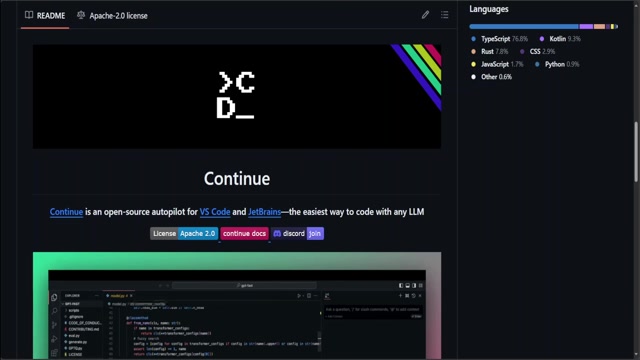
. These include:
- LLM Integration: Facilitates the integration of Large Language Models (LLMs) directly into VS Code and JetBrains editors.
- Streamlined Coding: Automates coding tasks, including boilerplate generation, Code Refactoring, and unit test creation.
- Various LLM Support: Supports a variety of LLMs like OpenAI, open source models, and provides customization options for workflow integration.
- Code Selection and Questioning: Enables users to select specific code segments and ask targeted questions to LLMs, making it easier to understand and optimize code.
- Workflow Customization: Offers customization options for seamless workflow integration, enabling developers to tailor the tool to their specific needs.
By focusing on these features, Continue strives to streamline the coding process, reduce manual and repetitive tasks, and provide AI-driven support directly within the coding environment. This results in a more efficient and productive workflow, enabling developers to concentrate on the creative and challenging aspects of their work.
Step-by-Step Guide to Installing and Using Continue
Installing Continue in VS Code
To harness the power of Continue in your VS Code environment, follow these steps for a seamless installation
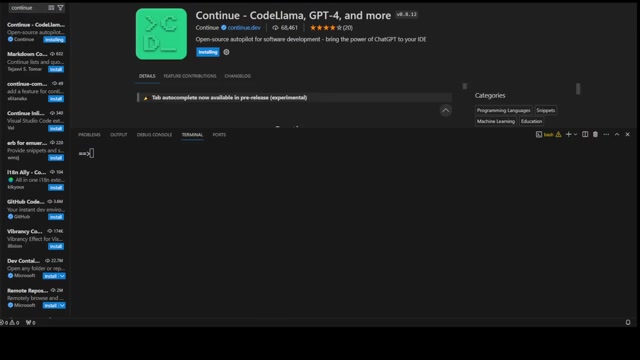
:
- Open VS Code: Launch your Visual Studio Code editor.
- Navigate to Extensions: On the left sidebar, click on the Extensions icon (usually represented by a square icon with other squares branching from it).
- Search for Continue: In the Extensions search bar, type "Continue" to find the Continue extension.
- Install the Extension: Locate "Continue - CodeLlama, GPT-4, and more" and click the Install button.
- Restart VS Code: Once the installation is complete, restart VS Code to ensure the extension is properly activated.
Once installed, the Continue extension is ready to streamline your coding process.
Initial Setup and Configuration
After installation, setting up and configuring Continue for optimal use is straightforward
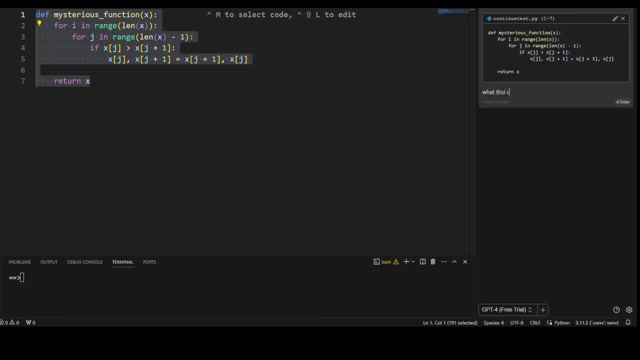
:
- Locate the Continue Sidebar: After restarting VS Code, find the Continue icon in the left sidebar. Click on it to open the Continue panel.
- Drag to the Right Sidebar: For a better user experience, it’s recommended to move the Continue panel to the right sidebar. This prevents it from covering your file explorer and makes it more accessible during coding. Simply drag the Continue icon to the right side of your VS Code window.
[Picture of VS Code with Continue dragged to the right sidebar]
With this initial setup, Continue is now easily accessible and ready to enhance your coding workflow.
Using Continue in Action
Now that Continue is installed and set up, let's explore how to use it effectively in your coding projects
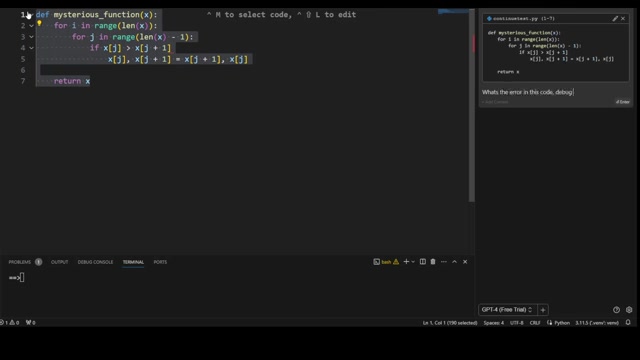
:
-
Select Code: Open any code file in VS Code. Highlight a section of code you want to work with or understand better.
-
Engage Continue: Press
Ctrl+M(orCmd+Mon macOS). This action toggles the Continue input box on the right sidebar, pre-filled with the selected code.[Picture of code selected in VS Code with Continue input box open]
-
Ask a Question: Type your question or command in the input box. For example:
- "What does this code do?"
- "How can I optimize this function?"
- "Please generate unit tests for this code."
-
Submit and Review: Press
Enterto submit your query to the LLM. Continue will process your request and display the results in the sidebar. -
Interact and Iterate: Review the response, and engage further by asking follow-up questions or requesting specific actions based on the initial output. This interactive process can significantly improve your understanding and efficiency.
-
Automatic Debugging: You can highlight code with error and then engage Continue to get error fixed.
By using these steps, you can effectively leverage Continue to understand, optimize, and generate code directly within your VS Code environment.
Core Features of Continue
Automation and Integration
Continue focuses on automating several coding tasks
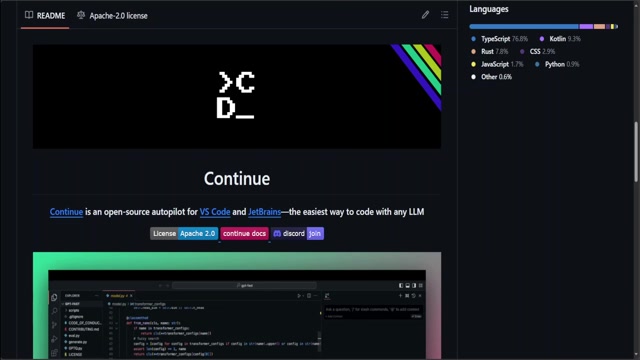
. The aim is to streamline workflows and make coding with LLMs more accessible directly from your code editor.
- Boilerplate Generation: Quickly create standard code structures with minimal manual effort. Reduce time spent on setting up initial code frameworks.
- Code Refactoring: Improve the structure, readability, and performance of existing code. Maintain and enhance code quality with AI assistance.
- Unit Test Creation: Automatically generate unit tests to ensure code reliability and correctness. Enhance code robustness and reduce potential bugs.
This helps developers to focus on more important aspects of coding.
LLM Support
It has support for multiple large language models
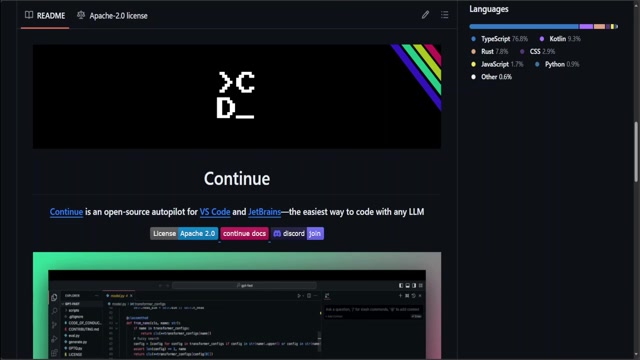
, such as OpenAI's models and various open-source alternatives. It provides customization for workflow integration. This offers great flexibility to integrate any LLM into VS Code and JetBrains, regardless of its source. Customizing the workflow with ease lets developers tailor the tool to their specific needs and environments.





Most people like




































Report
Please select a reason for reporting
- 13 Reasons to Switch from Snapchat to Text Messaging
- 7 Powerful Speech to Text Apps to Boost Productivity
- 10 Best Speech to Text Tools for Effortless Transcription
- 13 Free Tools to Easily Transcribe Audio to Text
- 15 Surprising Ways Google's Speech-to-Text Boosts Productivity
- 7 Best Free Online Audio to Text Transcription Tools
- 9 Tips to Transcribe Speech to Text Faster and Better
- 13 Best Speech to Text Software for Windows 10 in 2023
- 7 Tips for Choosing the Best Transcriber for Audio to Text
- 11 Reasons Why Dragon Speech-to-Text Apps are Game-Changers
- 6 Secrets to Enhance Your Speech to Text Transcription
- 6 Brilliant Ways to Boost Productivity with Talk-to-Text on Your MacBook
- 6 Ways Transcription Software Converts Audio to Text
- 8 Tips to Transcribe Speech to Text Like a Pro
- 6 Reasons IBM Watson Speech to Text is a Game-Changer
- 14 Powerful Ways Talk-to-Text Improves Your Workflow
- 12 Top Windows Speech-to-Text Software for Efficient Transcription
- 12 Game-Changing Benefits of Apple's Speech to Text Technology
- 9 Powerful Use Cases for AWS Speech to Text Technology
- 10 Easy Steps to Transcribe YouTube Videos to Text
- transcription audio en texte
- online audio transcription
- free audio file transcription
- free ai audio transcription
- audio transcription service
- audio transcription online free
- audio transcription free online
- audio to transcription software
- audio and transcript
- ai audio transcription free
- voice recording to text converter
- translate voice recording to text
- record voice to text
- audio recording to text converter
- voice recording and transcription
- chatgpt voice to text
- gmail voice to text
- speech to text reader
- speech to text ai free
- speech to talk
- How to Use AI Tools to Find Internal Linking Opportunities Across a Business Website
- Discover Your Perfect Haircut with AI Hairstyle Apps
- Free Reputation Calculator Tools: How They're Adapting to Score AI Visibility, Not Just Rankings
- Design Professional Flyers for Free on Your Phone
- Best Free Flyer Maker Apps for Android: Design Like a Pro
- How to Know If Your Business Is Ready for an AI Customer Service Agent
- Revolutionizing Storytelling: From Novels to Screenplays with AI
- Create Engaging Animated Explainer Videos with a Free AI Tool
- Stop Multi-Subscribing: Benchmark Top AI Visual Models in One Canvas
- Best Seedance 2.5 API Provider: Every Price on the Market, Checked at Source
- Top AI Social Media Management Tools: Automate Your Content Strategy
- Free AI Text to Video Generator: Create Stunning Videos from Text
- Discover 17 ChatGPT Alternatives: A Comprehensive Comparison
- Character.AI vs. Janitor AI: Which AI Chat Platform Reigns Supreme?
- Top Virtual Assistant Companies in 2026: Reviews, Pricing, and Plans Compared
- Unveiling FaceCheck.ID: Revolutionizing Reverse Image Searches with AI
- 11 Best AI Dialers in 2026: Features, Pricing, Pros and Cons
- How I Direct Consistent AI Clips: A Hands-On Guide to Multi-Model Generation
- A Realistic Review of the Photo Generator Image Tool
- Playwright MCP Server: Automated Web Testing with Agent Mode

Copyright ©2026 toolify