































Table of Contents
- Key Points
- Automating Bank Statement Conversion with Python
- Additional Features to Consider for Your Python Converter
- How to Use this Python script
- Pros and Cons of Using Python for PDF to Excel Conversion
- FAQ
- Related Questions


Automating Bank Statement Conversion with Python
Why Convert PDF Bank Statements to Excel?
Manually extracting data from PDF bank statements and entering it into Excel spreadsheets can be a tedious and time-consuming task. The process is prone to errors, which can lead to inaccuracies in financial reporting and analysis.
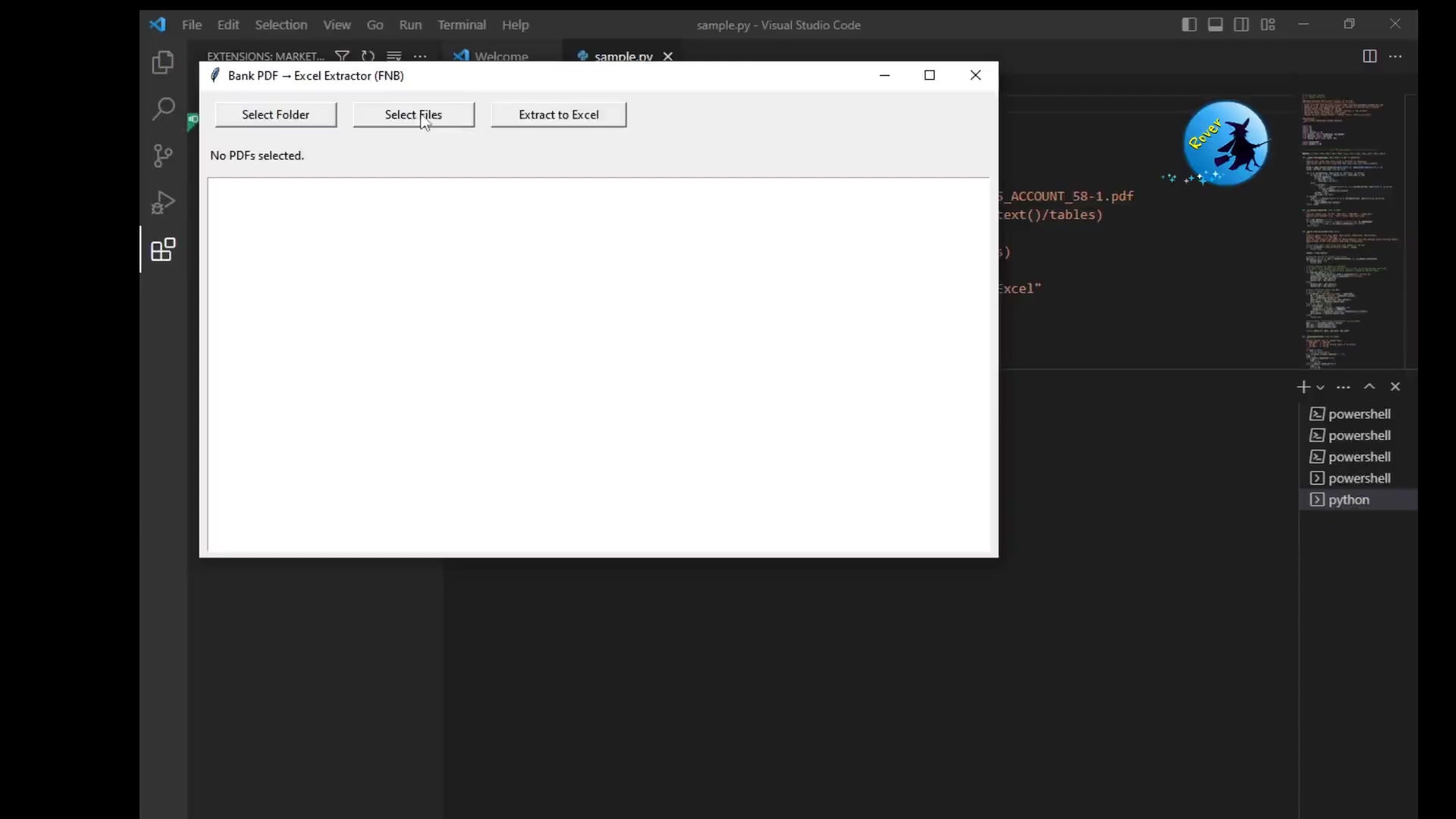
Automating this process offers significant advantages:
- Time Savings: Automate data extraction and save valuable time.
- Accuracy: Reduce manual data entry errors and ensure accuracy.
- Efficiency: Streamline financial workflows and improve overall efficiency.
- Scalability: Handle large volumes of bank statements with ease.
- Improved Analysis: Enable easier data manipulation and analysis in Excel.
Essential Python Libraries
To create a PDF bank statement to Excel converter, you'll need several Python libraries:
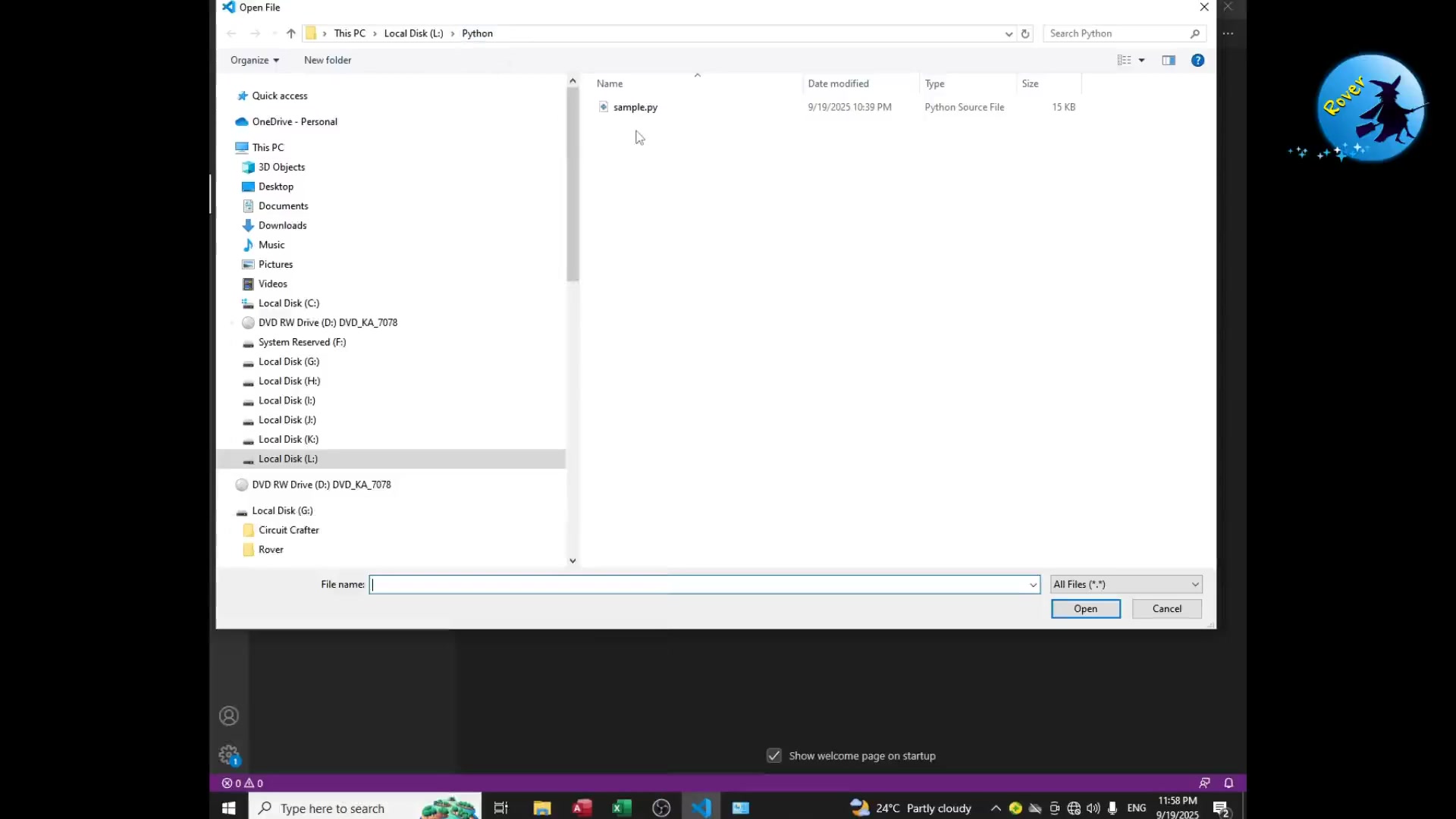
These libraries provide the necessary functionality for building the user interface, extracting data from PDF files, and organizing it into a structured format for Excel.
- Tkinter: This library provides tools to create a graphical user interface. It's instrumental to make the application user-friendly. Tkinter is commonly used for building simple desktop applications.
- pdfplumber: To extract text and tables from PDF files, use pdfplumber. Its ability to handle text structures accurately makes it the perfect choice for bank statements.
- Pandas: If your conversion app is to be successful, you need Pandas. This tool creates a structured data form in the system which allows the data to be manipulated effectively. This also makes it easy to transfer data to excel.
These are the core libraries that needs to be installed and imported before getting started to developing a software using Python to convert PDF statements into Excel. The software makes use of these tool libraries to run operations on the data. The software will also help with saving time spent manually extracting such data.
Step-by-Step Guide to Building the Converter
Let's outline the key steps involved in building the PDF bank statement to Excel converter with Python. Keep in mind that the sample code is provided for your reference
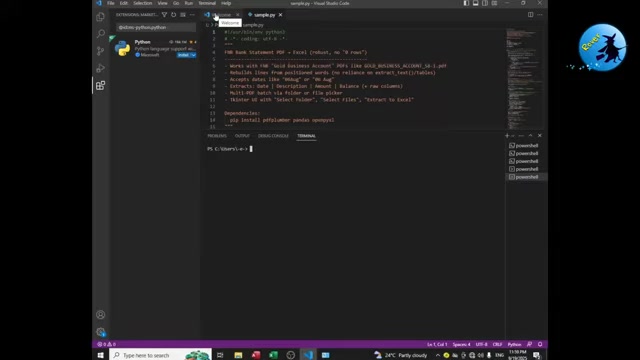
.
- Set Up the Environment:
- Install Python and necessary libraries (Tkinter, pdfplumber, Pandas). Use the pip install method to ensure that you have access to all the right libraries to build the converter.
- Create a Graphical User Interface (GUI):
- Utilize Tkinter to design a user-friendly interface with buttons for folder selection, file selection, and extraction to Excel.
- Write Code to Extract Text from PDF Files:
- Integrate pdfplumber to read and parse PDF bank statements, extracting relevant data such as dates, descriptions, amounts, and balances.
- Organize Extracted Data Using Pandas:
- Use Pandas DataFrames to structure the extracted data into a table format, making it easier to manipulate and export to Excel.
- Export Data to Excel:
- Implement functionality to export the structured data from Pandas DataFrames into Excel (.xlsx) files.
- Test and Refine:
- Test the converter with various bank statement formats and refine the code to handle different layouts and data structures. This is crucial to ensure the versatility of your tool.
Follow these steps for building a PDF conversion application. The application helps in saving time spent manually. A user needs to set up the working environment first, then design a graphical user interface before implementing the conversion. This is the standard procedure for development that should be followed for a great program.
Tips for Optimizing Your PDF to Excel Converter
To enhance the functionality and efficiency of your converter, consider implementing the following tips:
- Error Handling: Implement robust error handling to manage unexpected scenarios, such as corrupted PDF files or incorrect data formats.
- Customizable Extraction Rules: Allow users to define custom extraction rules to accommodate different bank statement layouts.
- Progress Indicators: Add progress indicators to provide users with feedback during the extraction and conversion processes. This can improve the user experience, especially for large files.
- Batch Processing: Enable batch processing to convert multiple PDF bank statements simultaneously. Batch processing significantly boosts your productivity by allowing you to handle numerous files in one go.
How to Use this Python script
How to run the program
In order to successfully run the program you should do the following:
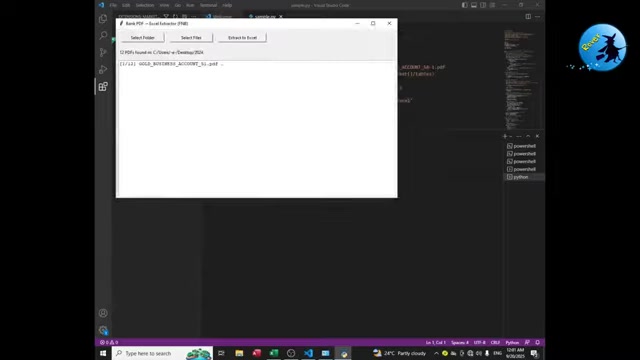
- Open Visual Studio Code
- Click File
- Select open file
- Select the location of the python source code file
- Select the terminal
- Create new terminal
- Add the location of the file to the terminal console and press enter.






Most people like

































Report
Please select a reason for reporting
- 13 Reasons to Switch from Snapchat to Text Messaging
- 7 Powerful Speech to Text Apps to Boost Productivity
- 10 Best Speech to Text Tools for Effortless Transcription
- 13 Free Tools to Easily Transcribe Audio to Text
- 15 Surprising Ways Google's Speech-to-Text Boosts Productivity
- 7 Best Free Online Audio to Text Transcription Tools
- 9 Tips to Transcribe Speech to Text Faster and Better
- 13 Best Speech to Text Software for Windows 10 in 2023
- 7 Tips for Choosing the Best Transcriber for Audio to Text
- 11 Reasons Why Dragon Speech-to-Text Apps are Game-Changers
- 6 Secrets to Enhance Your Speech to Text Transcription
- 6 Brilliant Ways to Boost Productivity with Talk-to-Text on Your MacBook
- 6 Ways Transcription Software Converts Audio to Text
- 8 Tips to Transcribe Speech to Text Like a Pro
- 6 Reasons IBM Watson Speech to Text is a Game-Changer
- 14 Powerful Ways Talk-to-Text Improves Your Workflow
- 12 Top Windows Speech-to-Text Software for Efficient Transcription
- 12 Game-Changing Benefits of Apple's Speech to Text Technology
- 9 Powerful Use Cases for AWS Speech to Text Technology
- 10 Easy Steps to Transcribe YouTube Videos to Text
- transcription audio en texte
- online audio transcription
- free audio file transcription
- free ai audio transcription
- audio transcription service
- audio transcription online free
- audio transcription free online
- audio to transcription software
- audio and transcript
- ai audio transcription free
- voice recording to text converter
- translate voice recording to text
- record voice to text
- audio recording to text converter
- voice recording and transcription
- chatgpt voice to text
- gmail voice to text
- speech to text reader
- speech to text ai free
- speech to talk
- How SEO and Marketing Dashboards Empower Agencies to Drive Results
- How to Use AI Tools to Find Internal Linking Opportunities Across a Business Website
- Discover Your Perfect Haircut with AI Hairstyle Apps
- Free Reputation Calculator Tools: How They're Adapting to Score AI Visibility, Not Just Rankings
- Design Professional Flyers for Free on Your Phone
- Best Free Flyer Maker Apps for Android: Design Like a Pro
- How to Know If Your Business Is Ready for an AI Customer Service Agent
- Revolutionizing Storytelling: From Novels to Screenplays with AI
- Create Engaging Animated Explainer Videos with a Free AI Tool
- Stop Multi-Subscribing: Benchmark Top AI Visual Models in One Canvas
- Top 5 Cold Email Software: Maximize Your Outreach in 2025
- Magic School AI: Revolutionizing Quiz & Assessment Generation
- Create Your Own Email Bot and Automate Your Email Tasks
- Beyond Pure Prompts: Optimizing Production with 'Text With Reference' Generation
- Stop Using Boring TTS: My Honest Deep Dive Into VideoAI and the Hunt for the Perfect Custom Voices
- AI & Elections: Defending Democracy Against Misinformation
- Navigating Political Discourse: AI, Deepfakes, and Reality Checks
- Detecting Political Bias in News Articles: A Powerful AI Algorithm
- AI Bias Unveiled: Political Leanings in ChatGPT & Beyond
- Revolutionize Learning: Discover Quizzes AI for Engaging Interactive Quizzes

Copyright ©2026 toolify