































Table of Contents
- Key Points
- Diving Deep into Notion's Task and Project Management Features
- Advanced Notion Techniques for Project Management
- Step-by-Step Guide: Creating a Vertical Bar Chart in Notion
- Notion Pricing Plans
- Weighing the Advantages and Disadvantages of Using Notion
- Key Features of Notion for Task and Project Management
- Real-World Applications of Notion
- Frequently Asked Questions About Notion
- Related Questions About Task Management



Diving Deep into Notion's Task and Project Management Features
What is Notion?
Notion is an all-in-one workspace that combines note-taking, Project Management, and database functionalities. It allows users to create customized dashboards, wikis, and calendars, making it an ideal solution for organizing information and managing tasks. Its flexible structure supports various use cases, from personal productivity to Team Collaboration. The platform's adaptability is one of its strongest assets, allowing users to tailor it to their specific needs.
Notion helps users manage and track tasks, projects, and teams. Users can create custom databases to track project progress, assign tasks to team members, and set deadlines. Notion also offers multiple views such as tables, calendars, and boards to Visualize your data in the way that best suits you. With real-time collaboration, teams can work together efficiently, ensuring everyone is on the same page.
Moreover, Notion's interconnected pages and databases make it easy to link related information, providing a holistic view of projects and tasks. This interconnectedness reduces the need to switch between different applications, streamlining workflow and improving productivity. Notion's extensibility through integrations with other apps further enhances its utility, allowing users to create a seamless digital workspace.
Leveraging Notion for Charting and Data Visualization
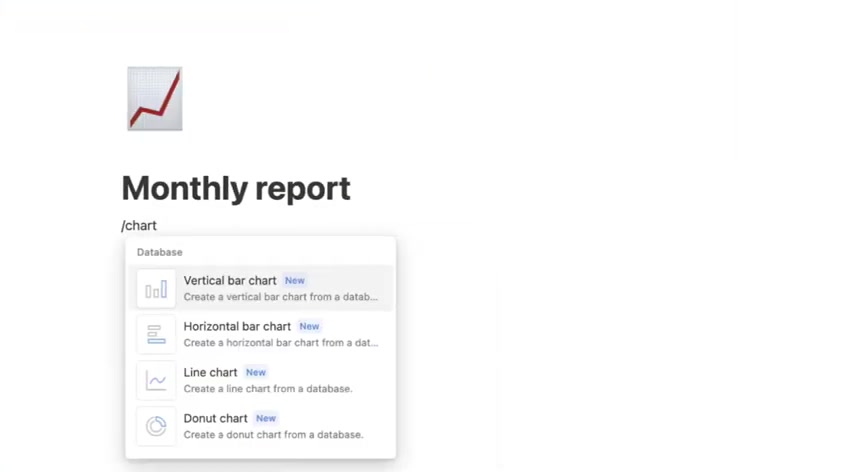
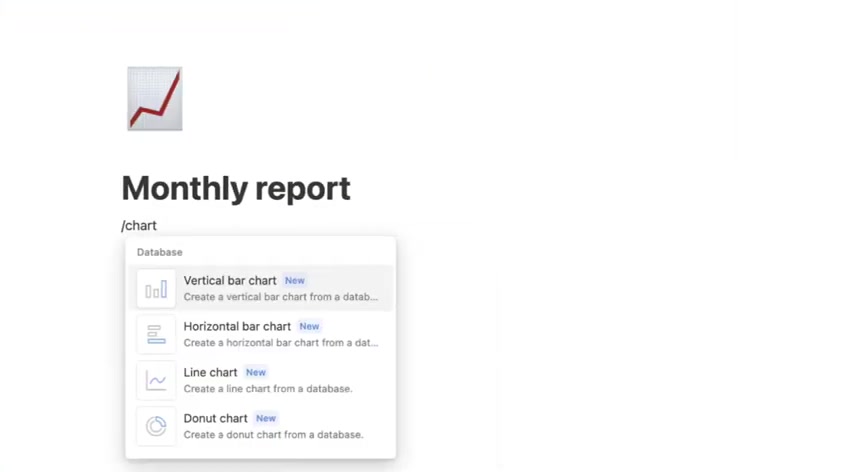
Notion's charting capabilities empower users to visualize data in Meaningful ways, aiding in data-driven decision-making. Whether it's tracking project progress, analyzing budget allocation, or monitoring team performance, Notion offers a range of Chart types to suit diverse needs. Users can create vertical bar charts, horizontal bar charts, line charts, and donut charts directly from their databases. This feature eliminates the need for external Charting tools, keeping everything within the Notion ecosystem.
The process of creating charts in Notion is straightforward. Users simply select the desired chart type and specify the data source. Notion automatically generates the chart, which can be customized to display specific information. This ease of use makes charting accessible to users with varying levels of technical expertise. Furthermore, Notion's interactive charts allow users to drill down into the data, providing deeper insights and facilitating better understanding.
Customization options are plentiful, allowing users to modify chart colors, labels, and axes to match their preferences. This level of customization ensures that charts are not only informative but also visually appealing, enhancing the overall user experience. Notion's charting feature is a valuable asset for anyone looking to make sense of their data and communicate insights effectively.
Advanced Notion Techniques for Project Management
Creating a Product Roadmap in Notion
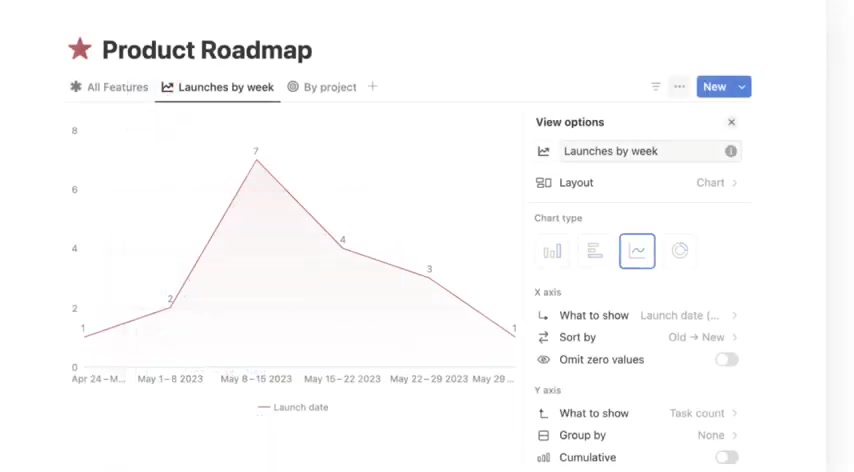
A product roadmap is essential for outlining the direction of a product over time. In Notion, you can create a dynamic product roadmap to track releases, features, and milestones. Start by creating a database with properties like 'Feature Name,' 'Status,' 'Launch Date,' and 'Project.' Then, use different views to visualize your roadmap, such as a timeline view or a calendar view. This allows you to see the big picture and manage dependencies effectively.
By adding filters and sorting options, you can focus on specific aspects of your roadmap. For example, you can filter by 'Status' to see which features are in development, testing, or completed. You can also sort by 'Launch Date' to prioritize upcoming releases. Notion's flexibility makes it easy to adapt your roadmap as priorities change, ensuring that your team stays aligned and informed.
Furthermore, Notion allows you to embed documents, mockups, and other Relevant resources directly into your product roadmap. This provides a centralized location for all project-related information, streamlining communication and collaboration. With Notion's real-time collaboration features, team members can contribute to the roadmap, providing valuable feedback and insights.
Building a Budget Tracker in Notion
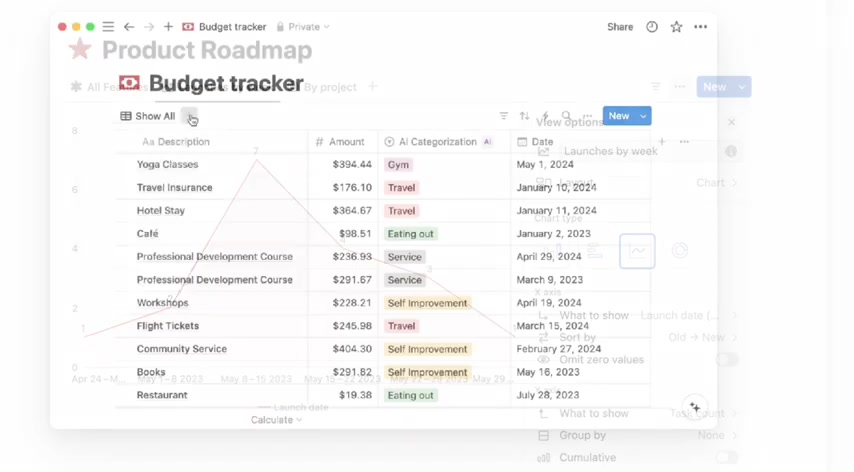
Effective budget tracking is crucial for financial management, whether for personal or business purposes. Notion provides a flexible platform for creating a customized budget tracker. Begin by setting up a database with properties like 'Date,' 'Description,' 'Category,' and 'Amount.' You can then create different views to analyze your spending Patterns, such as a table view or a chart view. This helps you identify areas where you can save money and optimize your budget.
Notion's formula feature allows you to calculate totals and track progress towards your financial goals. For example, you can create a formula to calculate your total expenses for a given period or to track your savings rate. These calculations provide valuable insights into your financial health, empowering you to make informed decisions. Notion's ability to create charts from your budget data allows you to visualize your spending habits, making it easier to identify trends and anomalies.
Moreover, Notion's recurring task feature enables you to automate the process of tracking recurring expenses and income. This ensures that your budget tracker is always up-to-date, saving you time and effort. With Notion's mobile app, you can access your budget tracker from anywhere, making it easy to monitor your finances on the go. Notion's budget tracker is a powerful tool for achieving financial stability and reaching your financial goals.
Step-by-Step Guide: Creating a Vertical Bar Chart in Notion
Step 1: Create a New Database
Start by creating a new database in Notion. You can choose between different database types, such as a table database or a board database. For a vertical bar chart, a table database is often the most suitable option. Name your database appropriately, such as 'Monthly Sales' or 'Project Progress.' This will help you keep track of your data and charts.
Add properties to your database that will serve as the data points for your chart. For example, if you're tracking monthly sales, you might have properties like 'Month' and 'Sales Amount.' Ensure that the data types are correct, such as 'Number' for sales amounts and 'Date' for months. This will ensure that your chart accurately reflects the data. Populate the database with your data, ensuring that each row represents a data point.
Step 2: Select 'Chart' as the View Option
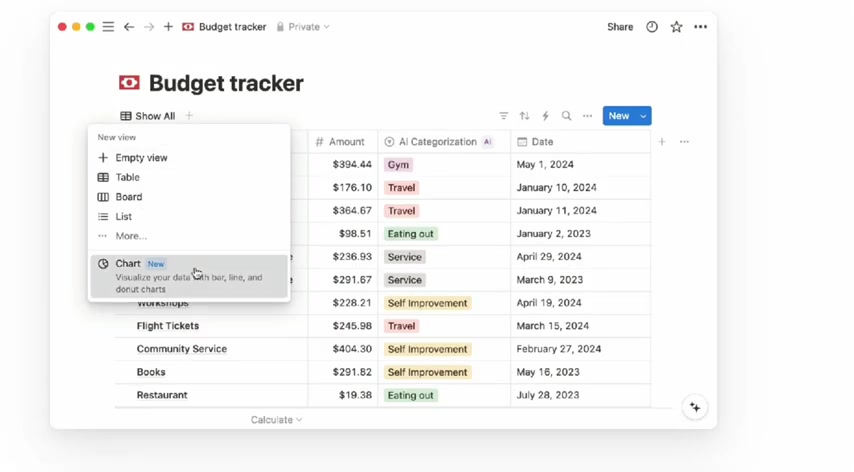
Once you have your data in place, click on the '+' button to add a new view to your database. Choose 'Chart' as the view option. This will create a new chart view of your data. Notion will automatically generate a chart based on the data in your database. You can then customize the chart to display the information that is most relevant to you.
Notion offers various chart types, including vertical bar charts, horizontal bar charts, line charts, and donut charts. Select the 'Vertical Bar Chart' option to create a vertical bar chart. Notion will then display your data in the form of a vertical bar chart. You can customize the chart further to match your preferences.
Step 3: Customize Your Vertical Bar Chart
Notion provides a range of customization options for your vertical bar chart. You can modify the chart colors, labels, and axes to match your preferences. Click on the 'Layout' option to adjust the chart layout, such as the bar width and spacing. You can also modify the chart title and axis labels to make the chart more informative.
Click on the 'Chart Type' option to switch between different chart types, such as vertical bar charts, horizontal bar charts, line charts, and donut charts. Experiment with different chart types to find the one that best represents your data. Notion's customization options allow you to create charts that are not only informative but also visually appealing.
Furthermore, you can add filters and sorting options to your chart to focus on specific data points. For example, you can filter by 'Month' to display sales data for a specific month. You can also sort by 'Sales Amount' to identify the months with the highest and lowest sales. Notion's customization options make it easy to create charts that provide valuable insights into your data.


Most people like





































Report
Please select a reason for reporting
- 13 Reasons to Switch from Snapchat to Text Messaging
- 7 Powerful Speech to Text Apps to Boost Productivity
- 10 Best Speech to Text Tools for Effortless Transcription
- 13 Free Tools to Easily Transcribe Audio to Text
- 15 Surprising Ways Google's Speech-to-Text Boosts Productivity
- 7 Best Free Online Audio to Text Transcription Tools
- 9 Tips to Transcribe Speech to Text Faster and Better
- 13 Best Speech to Text Software for Windows 10 in 2023
- 7 Tips for Choosing the Best Transcriber for Audio to Text
- 11 Reasons Why Dragon Speech-to-Text Apps are Game-Changers
- 6 Secrets to Enhance Your Speech to Text Transcription
- 6 Brilliant Ways to Boost Productivity with Talk-to-Text on Your MacBook
- 6 Ways Transcription Software Converts Audio to Text
- 8 Tips to Transcribe Speech to Text Like a Pro
- 6 Reasons IBM Watson Speech to Text is a Game-Changer
- 14 Powerful Ways Talk-to-Text Improves Your Workflow
- 12 Top Windows Speech-to-Text Software for Efficient Transcription
- 12 Game-Changing Benefits of Apple's Speech to Text Technology
- 9 Powerful Use Cases for AWS Speech to Text Technology
- 10 Easy Steps to Transcribe YouTube Videos to Text
- transcription audio en texte
- online audio transcription
- free audio file transcription
- free ai audio transcription
- audio transcription service
- audio transcription online free
- audio transcription free online
- audio to transcription software
- audio and transcript
- ai audio transcription free
- voice recording to text converter
- translate voice recording to text
- record voice to text
- audio recording to text converter
- voice recording and transcription
- chatgpt voice to text
- gmail voice to text
- speech to text reader
- speech to text ai free
- speech to talk
- ChatGPT Knows Ford. It Just Doesn't Quote Ford
- Meshy AI: How to Create 3D Models from Text and Images
- How SEO and Marketing Dashboards Empower Agencies to Drive Results
- How to Use AI Tools to Find Internal Linking Opportunities Across a Business Website
- Discover Your Perfect Haircut with AI Hairstyle Apps
- Free Reputation Calculator Tools: How They're Adapting to Score AI Visibility, Not Just Rankings
- Design Professional Flyers for Free on Your Phone
- Best Free Flyer Maker Apps for Android: Design Like a Pro
- How to Know If Your Business Is Ready for an AI Customer Service Agent
- Revolutionizing Storytelling: From Novels to Screenplays with AI
- Your Business Data Could Be Worth Up to $4M. Find Out Without Uploading a Single File.
- Can an eSIM Plan Save You Time During Travel Setup?
- AI Video Editor Review: A Hands-On Look at Prompt-Based Video Editing
- Keep Characters Consistent Across Scenes With Image-to-Video AI
- How to Convert BTC to HNT
- ProxyWing DuckDuckGo Proxy Review: Plans, Setup and Who It Is For
- ChatGPT Knows Ford. It Just Doesn't Quote Ford
- Automate Lead Generation: A Comprehensive Guide with AI Agents
- Revideo.io: The Future of Reverse Video Search Technology
- Revolutionizing Email Marketing Agency with AI

Copyright ©2026 toolify