































Table of Contents
- Key Points
- Understanding the Power of Obsidian for Knowledge Management
- The Dynamic Duo: Combining Obsidian and Cursor AI
- Step-by-Step Guide: Using Cursor AI with Your Obsidian Knowledge Base
- Obsidian with Cursor AI: Weighing the Advantages and Disadvantages
- Frequently Asked Questions
- Related Questions


Understanding the Power of Obsidian for Knowledge Management
What is Obsidian?
Obsidian is a private and flexible writing app that adapts to the way you think. For developers, it's more than just a note-taking tool; it's a central hub for organizing and connecting all crucial information.
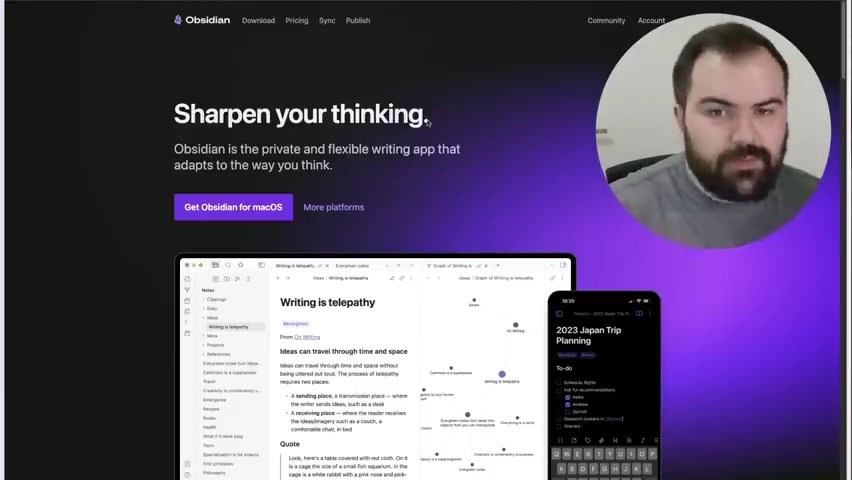
It acts as a personal Knowledge Base, helping you to:
- Centralize Engineering Logs and Notes: Developers can maintain detailed engineering logs, track project notes, and document key processes all in one place, accessible anytime.
- Aggregate Highlights: Important passages from books, articles, and research Papers can be stored and easily retrieved, promoting continuous learning.
- Manage Bookmarks: Valuable links and online resources can be saved, allowing for rapid access to relevant information when needed.
- Store Example Code: Code snippets and solutions to various problems can be kept in an organized manner, speeding up development and promoting code reuse.
Essentially, Obsidian becomes a developer’s second brain, improving productivity and problem-solving capabilities by organizing data in a clean and easily accessible format. This is a huge boost in efficiency, and reduces development time.
Traditional Knowledge Management vs. Obsidian’s Unified Approach
Traditionally, Knowledge Management required juggling multiple apps for different functions, leading to fragmented information and inefficiencies. You might use:
- A note-taking app (e.g., Evernote, OneNote) for logs and notes.
- A highlighting tool for books and articles.
- Browser bookmarks for saving links.
- A code repository for example code.
Obsidian consolidates these experiences, offering a unified interface to manage diverse types of knowledge. This integrated approach saves time and promotes better knowledge retention and application. This efficient organization results in less time spent searching for key information, and more time developing innovative code.
The Dynamic Duo: Combining Obsidian and Cursor AI
Integrating Obsidian with Cursor AI
Integrating Obsidian with Cursor AI streamlines workflows, creating a single source of truth for your projects. It involves incorporating Obsidian files directly into the Cursor AI environment.
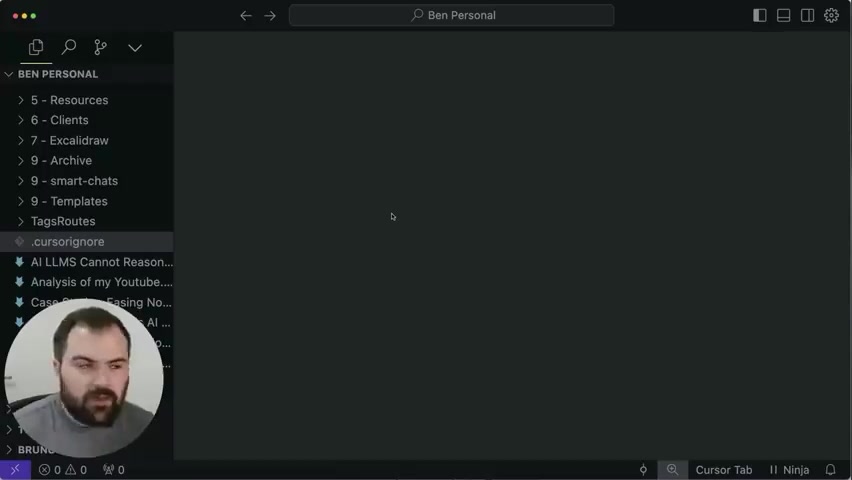
Here’s a step-by-step guide on how to achieve this seamlessly:
- Open Obsidian Folder in Cursor: Launch Cursor AI and open your Obsidian vault or folder directly within the editor.
- Initial Synchronization: Allow Cursor AI to index the codebase, which includes all Obsidian markdown files. This process enables Cursor AI to understand the structure and content of your notes.
- Configuration: Adjust settings to ignore specific file types (such as
.excalidraw.mdfor Excalidraw diagrams) to ensure efficient indexing and search. - AI Interaction: Use Cursor AI's AI chat to interact with your Obsidian knowledge base. Pose questions related to your projects, Prompt engineering, and past solutions.
Integrating these elements is the foundation for a more connected workflow.
Practical Applications of Obsidian and Cursor AI Integration
By combining Obsidian and Cursor AI, developers can achieve impressive results in several areas:
- Enhanced Code Understanding: Cursor AI gains a deeper understanding of your coding context by leveraging your Obsidian notes, improving its autocompletion and suggestion capabilities.
- Faster Problem Solving: Search through Obsidian for solutions. Cursor AI can then analyze and give suggestions based on what is found in the database.
- Streamlined Documentation: Centralized documentation.
- Improved Collaboration: Use same knowledge base to provide insights.












Most people like

























Report
Please select a reason for reporting
- 13 Reasons to Switch from Snapchat to Text Messaging
- 7 Powerful Speech to Text Apps to Boost Productivity
- 10 Best Speech to Text Tools for Effortless Transcription
- 13 Free Tools to Easily Transcribe Audio to Text
- 15 Surprising Ways Google's Speech-to-Text Boosts Productivity
- 7 Best Free Online Audio to Text Transcription Tools
- 9 Tips to Transcribe Speech to Text Faster and Better
- 13 Best Speech to Text Software for Windows 10 in 2023
- 7 Tips for Choosing the Best Transcriber for Audio to Text
- 11 Reasons Why Dragon Speech-to-Text Apps are Game-Changers
- 6 Secrets to Enhance Your Speech to Text Transcription
- 6 Brilliant Ways to Boost Productivity with Talk-to-Text on Your MacBook
- 6 Ways Transcription Software Converts Audio to Text
- 8 Tips to Transcribe Speech to Text Like a Pro
- 6 Reasons IBM Watson Speech to Text is a Game-Changer
- 14 Powerful Ways Talk-to-Text Improves Your Workflow
- 12 Top Windows Speech-to-Text Software for Efficient Transcription
- 12 Game-Changing Benefits of Apple's Speech to Text Technology
- 9 Powerful Use Cases for AWS Speech to Text Technology
- 10 Easy Steps to Transcribe YouTube Videos to Text
- transcription audio en texte
- online audio transcription
- free audio file transcription
- free ai audio transcription
- audio transcription service
- audio transcription online free
- audio transcription free online
- audio to transcription software
- audio and transcript
- ai audio transcription free
- voice recording to text converter
- translate voice recording to text
- record voice to text
- audio recording to text converter
- voice recording and transcription
- chatgpt voice to text
- gmail voice to text
- speech to text reader
- speech to text ai free
- speech to talk
- Create Engaging Animated Explainer Videos with a Free AI Tool
- Stop Multi-Subscribing: Benchmark Top AI Visual Models in One Canvas
- Best Seedance 2.5 API Provider: Every Price on the Market, Checked at Source
- AI OnlyFans: How to Generate $30,000/Month (Legally)
- Transform Your Script into an Engaging Video with AI Video Maker!
- AI Marketing Automation: A Comprehensive Guide for Small Businesses
- Midjourney Alternative for Anime Art Creators: Why PixAI May Be Better for Character Workflows
- 10 Things Most People Get Wrong About AI Image Search
- AI Girlfriend Apps: Top Choices Redefining Relationships 2025
- How to Reduce Quoting Errors in Salesforce with AI-Assisted Quote Creation
- Convert PDF to Audio: Free Urdu Text-to-Speech Tool
- Automatically Transcribe and Subtitle Audio and Video with Descript
- Revolutionize your video editing with AI-generated transcripts
- Mastering Wordpad: Essential Tips for Windows 10 Users
- AfirstSoft PDF Editor: The Ultimate PDF Solution of 2025
- UPDF: The Ultimate PDF Editor for iPadOS and macOS
- Translate PDF Documents: A Comprehensive Guide with OnlineDocTranslator
- Tenorshare PDNob PDF Editor: Smarter AI-Powered Editing
- uPDF Pro Review: AI-Powered PDF Editing for Professionals
- Master the Art of Wrapping Text in Illustrator CC

Copyright ©2026 toolify