































Table of Contents
- Key Points
- Introduction to LEADTOOLS Document Analyzer v21
- Unlocking the Potential: Features and Functionalities
- How to Extract Data from Insurance Cards Using LEADTOOLS Document Analyzer
- LEADTOOLS Document Analyzer v21 Pricing
- Pros and Cons of LEADTOOLS Document Analyzer v21
- LEADTOOLS Document Analyzer v21 Core Features
- Real-World Use Cases for LEADTOOLS Document Analyzer
- Frequently Asked Questions (FAQ)
- Related Questions


Introduction to LEADTOOLS Document Analyzer v21
What is LEADTOOLS Document Analyzer?
The LEADTOOLS Document Analyzer v21
is a cutting-edge tool designed to simplify and automate the process of extracting valuable data from documents. It provides an array of features that allow users to manipulate and analyze documents effectively, irrespective of their format or structure. With a ready-to-use demo already installed, users can immediately experience the power and versatility of the tool. The Document Analyzer offers capabilities to search, find, hide, highlight, or extract specific information from office documents, PDFs, and even pictures of documents without the need for a structured layout.
The availability of source code makes the analyzer a great tool. Developers can create applications which significantly reduces the time of manually processing large numbers of files. This capability is invaluable for businesses seeking to enhance efficiency, reduce errors, and optimize data management processes. The analyzer works irrespective of the layout, thereby saving on time and resources.
Manual data extraction is a task that can be tedious and inaccurate. The Document Analyser automates and simplifies the process, reducing the time required and minimizing the likelihood of errors.
It is a very valuable and worthwhile addition to any organization that relies heavily on document processing.
Unlocking the Potential: Features and Functionalities
Core Functionalities of the LEADTOOLS Document Analyzer
The LEADTOOLS Document Analyzer is packed with features designed to improve document handling and data extraction processes. Let's explore some of its key functionalities:
- Search and Find:
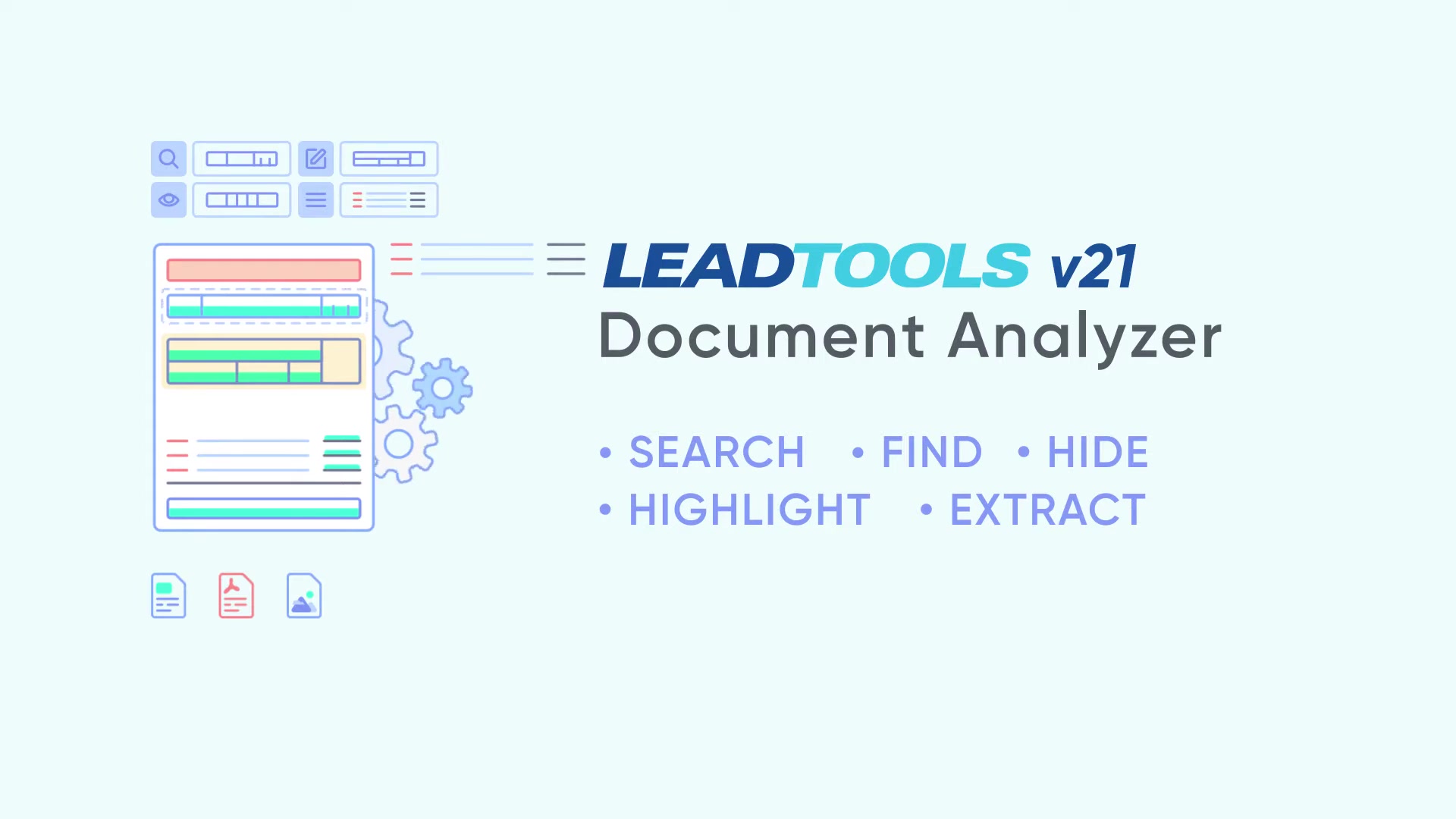
Efficiently locate specific keywords or phrases within documents. This is particularly useful for large volumes of documents, where manual searching would be impractical.
- Hide: Redact sensitive information by hiding specified text or areas within a document. This feature is vital for maintaining privacy and complying with data protection regulations.
- Highlight: Emphasize important information by highlighting specific text within the document. This is beneficial for drawing attention to critical data points.
- Extract: Precisely extract specific data from documents, such as names, dates, policy numbers or addresses. Data can be automatically extracted and populated into a desired database or spreadsheet.
These features enhance the overall usability of the tool, ensuring it meets the diverse needs of various industries and applications. The Document Analyzer allows businesses to focus on core operations rather than manual document processing, saving time, reducing errors, and improving productivity.
Supported File Types and Formats
LEADTOOLS Document Analyzer offers extensive support for various file types and formats, ensuring compatibility and flexibility across different platforms and applications. Some of the primary supported formats include:
- Office Documents: Supports Microsoft Office formats such as DOC, DOCX, XLS, XLSX, and PPT, allowing for comprehensive analysis of office-generated content.
- PDF: Analyzes and extracts data from PDF files, a widely used format for document sharing and archiving.
- Images: Capable of processing images containing document information, including scanned documents and photographs. This feature uses OCR (Optical Character Recognition) technology to convert images into readable text.
This broad support ensures that the LEADTOOLS Document Analyzer can handle virtually any document type, making it an invaluable tool for organizations dealing with diverse information sources. The ability to work with both structured and unstructured data enhances its versatility, providing a complete solution for document processing needs.
Technical Architecture and Customization
The LEADTOOLS Document Analyzer stands out due to its customizable architecture, which allows developers to tailor the tool to their exact requirements. Here are some technical aspects that make it highly adaptable:
- Source Code Availability:
The provision of source code enables developers to deeply understand the tool and customize its functionalities, leading to specialized applications.
- .NET Core Support: Designed to work with .NET Core, ensuring cross-platform compatibility and modern development practices.
- Multi-Platform Compatibility: Supports various platforms including Windows, Linux, and macOS, providing deployment flexibility.
The analyzer provides a great starting point for developers to create applications to streamline the workflow for users that have to find specific information by manually processing large numbers of files.
How to Extract Data from Insurance Cards Using LEADTOOLS Document Analyzer
Setting Up Rule Sets
The initial step in extracting data from insurance cards involves creating rule sets that define the specific types of information you want to extract. These rule sets guide the Document Analyzer in identifying and capturing the required data points.
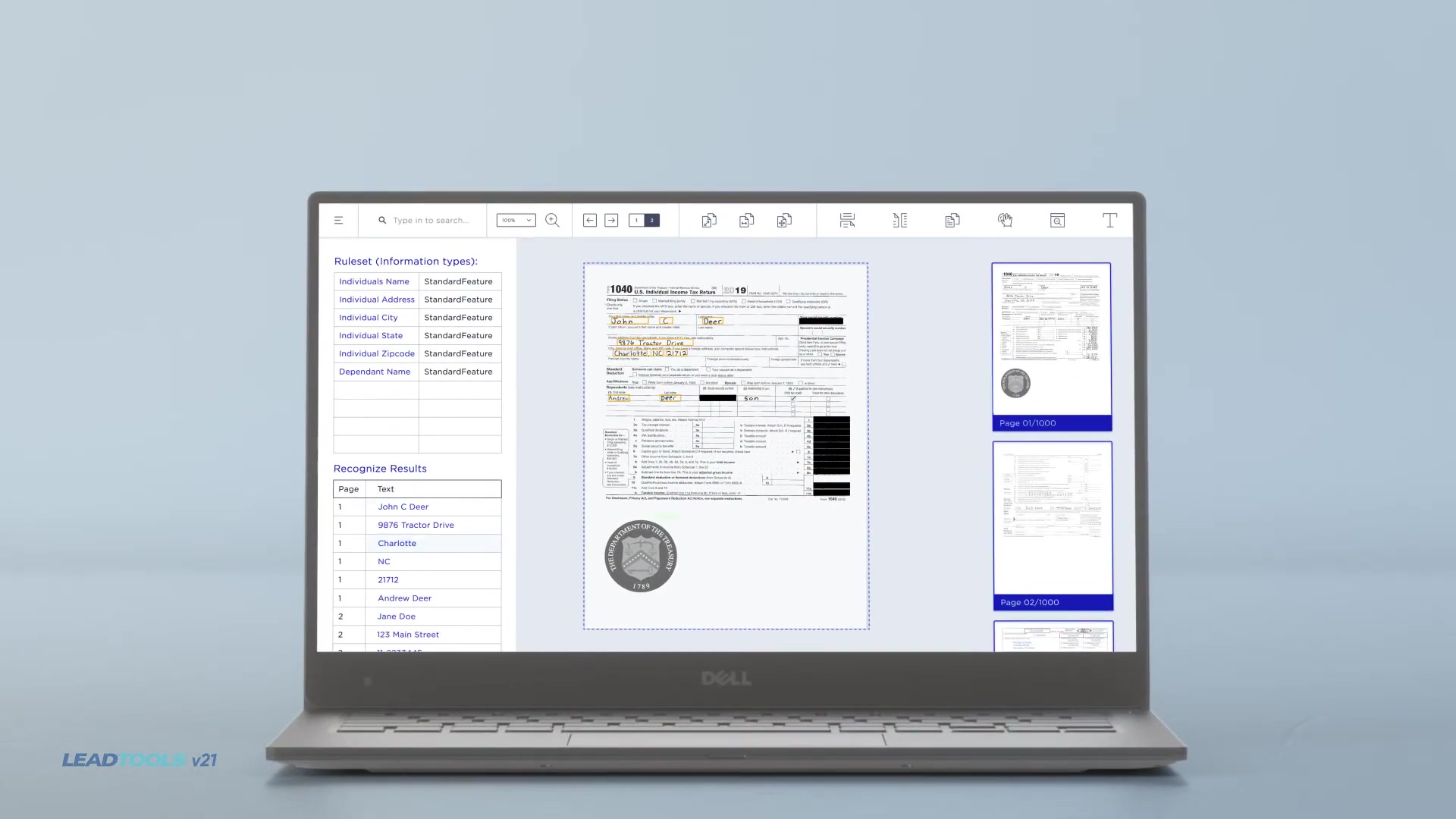
- Defining Information Types: Determine what information you need from the insurance cards, such as policy number, expiration date, vehicle identification number (VIN), and insured name. These will form the basis of your rule sets.
- Creating Rule Sets: Use the Document Analyzer's interface to create specific rule sets for each piece of information you want to extract. For example, create a rule set for 'Policy Number,' 'Expiration Date,' 'VIN,' and 'Insured Name'.
- Highlight and Create Rule: Highlight an example of the information, right-click, and select ‘Create Rule’. The Document Analyzer will attempt to automatically identify the pattern to correctly extract the information from the document. You can edit the pattern if it is not accurate.
By defining precise rule sets, you ensure that the Document Analyzer accurately targets and extracts the necessary data from each insurance card, improving the overall efficiency and reliability of the data extraction process.
Configuring Rule Patterns
Once rule sets are defined, configuring the appropriate rule patterns is crucial for accurate data extraction. Rule patterns instruct the Document Analyzer on how to recognize and extract the specified information.
- Identifying Patterns: Examine the format and structure of the data fields on the insurance cards. Look for consistent patterns that the Document Analyzer can use to identify the data.
- Using Regular Expressions: Implement regular expressions to define the patterns for each rule set. For example, use a regular expression to specify the format of a policy number or a date.
- Testing and Refining: Test the rule patterns on a sample of insurance cards to ensure they accurately extract the data. Refine the patterns based on the results to improve accuracy.
This step is vital for dealing with the variances in insurance card layouts from the many different companies and ensures that only valid and accurate data is extracted from the documents, enhancing the overall quality of the extracted information. This process will save manual effort.
Running the Rule Sets and Extracting Data
With the rule sets and patterns configured, you are now ready to run the Document Analyzer and extract data from the insurance cards.
- Loading Insurance Cards: Load the insurance card images into the Document Analyzer.
- Running the Analysis: Initiate the document analysis process, applying the configured rule sets to each insurance card.
- Reviewing the Results: Examine the extracted data for each card to verify its accuracy. The Document Analyzer typically presents the results in a structured format, making it easy to review and validate the information.
This automated extraction process significantly reduces the time and effort required to process large volumes of insurance cards. The extracted data can then be exported to a database, spreadsheet, or other application for further analysis and use.






Most people like
































Report
Please select a reason for reporting
- 13 Reasons to Switch from Snapchat to Text Messaging
- 7 Powerful Speech to Text Apps to Boost Productivity
- 10 Best Speech to Text Tools for Effortless Transcription
- 13 Free Tools to Easily Transcribe Audio to Text
- 15 Surprising Ways Google's Speech-to-Text Boosts Productivity
- 7 Best Free Online Audio to Text Transcription Tools
- 9 Tips to Transcribe Speech to Text Faster and Better
- 13 Best Speech to Text Software for Windows 10 in 2023
- 7 Tips for Choosing the Best Transcriber for Audio to Text
- 11 Reasons Why Dragon Speech-to-Text Apps are Game-Changers
- 6 Secrets to Enhance Your Speech to Text Transcription
- 6 Brilliant Ways to Boost Productivity with Talk-to-Text on Your MacBook
- 6 Ways Transcription Software Converts Audio to Text
- 8 Tips to Transcribe Speech to Text Like a Pro
- 6 Reasons IBM Watson Speech to Text is a Game-Changer
- 14 Powerful Ways Talk-to-Text Improves Your Workflow
- 12 Top Windows Speech-to-Text Software for Efficient Transcription
- 12 Game-Changing Benefits of Apple's Speech to Text Technology
- 9 Powerful Use Cases for AWS Speech to Text Technology
- 10 Easy Steps to Transcribe YouTube Videos to Text
- transcription audio en texte
- online audio transcription
- free audio file transcription
- free ai audio transcription
- audio transcription service
- audio transcription online free
- audio transcription free online
- audio to transcription software
- audio and transcript
- ai audio transcription free
- voice recording to text converter
- translate voice recording to text
- record voice to text
- audio recording to text converter
- voice recording and transcription
- chatgpt voice to text
- gmail voice to text
- speech to text reader
- speech to text ai free
- speech to talk
- How to Use AI Tools to Find Internal Linking Opportunities Across a Business Website
- Discover Your Perfect Haircut with AI Hairstyle Apps
- Free Reputation Calculator Tools: How They're Adapting to Score AI Visibility, Not Just Rankings
- Design Professional Flyers for Free on Your Phone
- Best Free Flyer Maker Apps for Android: Design Like a Pro
- How to Know If Your Business Is Ready for an AI Customer Service Agent
- Revolutionizing Storytelling: From Novels to Screenplays with AI
- Create Engaging Animated Explainer Videos with a Free AI Tool
- Stop Multi-Subscribing: Benchmark Top AI Visual Models in One Canvas
- Best Seedance 2.5 API Provider: Every Price on the Market, Checked at Source
- Top AI Social Media Management Tools: Automate Your Content Strategy
- Free AI Text to Video Generator: Create Stunning Videos from Text
- Discover 17 ChatGPT Alternatives: A Comprehensive Comparison
- Character.AI vs. Janitor AI: Which AI Chat Platform Reigns Supreme?
- Top Virtual Assistant Companies in 2026: Reviews, Pricing, and Plans Compared
- Unveiling FaceCheck.ID: Revolutionizing Reverse Image Searches with AI
- 11 Best AI Dialers in 2026: Features, Pricing, Pros and Cons
- How I Direct Consistent AI Clips: A Hands-On Guide to Multi-Model Generation
- A Realistic Review of the Photo Generator Image Tool
- Playwright MCP Server: Automated Web Testing with Agent Mode

Copyright ©2026 toolify