































Table of Contents
- Key Points
- Introduction to AKOOL AI Video Suite
- Creating Talking AI Avatars with AKOOL: A Step-by-Step Guide
- How to use AKOOL for Generating a Video
- AKOOL Pricing: Flexible Plans for Every Creator
- AKOOL Pros and Cons
- AKOOL Use Cases: Unlock Your Video Creativity
- Frequently Asked Questions about AKOOL
- Related Questions About Using AI for Video Content Creation


Introduction to AKOOL AI Video Suite
What is AKOOL?
AKOOL is an innovative platform that utilizes artificial intelligence to simplify video content creation. It enables users to create talking AI avatars, Translate videos, and even perform face swaps, all without needing extensive technical skills or expensive equipment. Whether you are a marketer, educator, or content creator, AKOOL offers powerful tools to enhance your video production process. AKOOL's video suite brings you Streaming Avatar, Talking Avatar, Video Translation, Face Swap, Image Generator and Result Library.
The versatility and user-friendly interface make it accessible to anyone wanting to create engaging video content. The AKOOL AI Video Suite can transform the way you engage with your audience online by making your videos stand out through advanced AI features. By enabling you to create engaging AI content, AKOOL ensures your videos can captivate and retain viewers' attention, crucial in today's competitive digital landscape. Its intuitive interface and range of features enable you to create high-quality videos with less effort and more impact.
The Power of AI Avatars AI avatars are digital representations of individuals that can speak and perform actions in videos. AKOOL enables you to create these avatars in a few simple steps, opening up new possibilities for content creation. The platform uses sophisticated algorithms to ensure the avatars' lip movements and expressions synchronize with the audio, enhancing the realism and engagement of your videos. AKOOL makes it easier than ever to inject personality and professionalism into your video content by providing both custom AI avatar creation and stock AI avatars.
Creating Talking AI Avatars with AKOOL: A Step-by-Step Guide
Generating Avatars from Images
One of AKOOL’s standout features is its ability to create talking AI avatars from images. This process is straightforward and yields impressive results. Here's how you can do it:
-
Navigate to the Talking Avatar Tool:
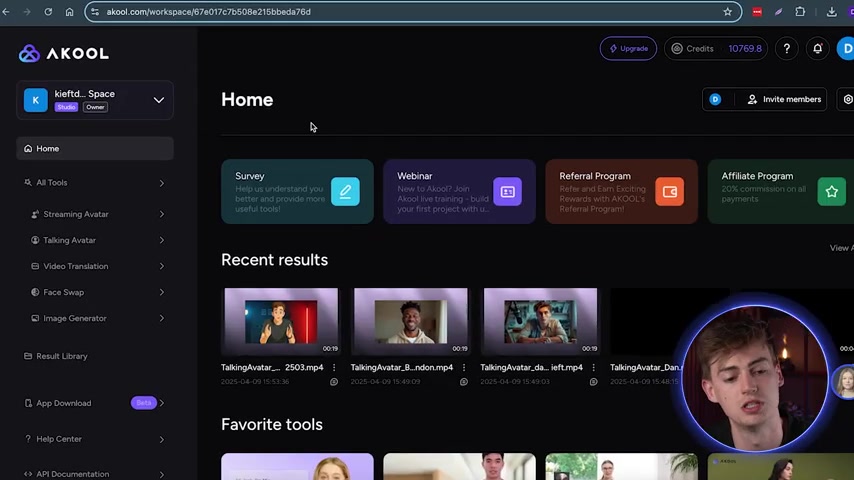
Start by logging into your AKOOL account. Once logged in, find and click on the 'Talking Avatar' option in the menu.
-
Initiate Avatar Generation: Within the Talking Avatar section, select the 'Generate Avatar' option. AKOOL offers two methods for generating avatars: from a description or from an image. For this method, choose 'Generate with Image'.
-
Upload Your Image: You can upload your own image or use one of AKOOL’s demo images. To use your own, click the 'Upload New Image' button and select an image from your computer. Make sure it’s a high-quality image for the best results.
-
Image Considerations: If you don't have an image readily available, AKOOL allows you to create one using AI image generators like Midjourney. By typing in a Prompt, you can generate a unique image for your avatar directly within the platform.
-
Frame and Confirm: Once the image is uploaded, you can adjust the framing to focus on the subject’s face. Select either 'Landscape' or 'portrait' mode depending on the image orientation. Once you are satisfied with the framing, click 'Confirm'.
-
Describe Avatar Motion: You can prompt the AI for specific motions or keep the default setting for natural speaking movements. Enter any specific motion requests in the text box provided. If you’re unsure, you can use the default description.
-
Generate Your Avatar: Finally, click 'Generate Avatar'. Your new talking AI avatar will be created, ready to use in your video projects.
Example Prompt: 3D hyperrealistic render of a 24-year-old attractive male seated behind a desk, wearing a casual shirt, looking directly into the camera lens (no camera visible), lifelike facial features with intricate skin textures, soft natural lighting, dimly lit YouTube home studio, serene backdrop with vibrant yet soft color hues, immersive and cinematic atmosphere, on the desk: a microphone, a laptop, and scattered Papers, the subject exudes charisma and quiet authority, medium shot with hands and desk fully visible, realistic depth of field, highly detailed as 16:9
This streamlined process makes it easy to bring any character to life, providing a personal touch to your video content. The AI does all the hard work, enabling even those without technical skills to produce professional-looking videos effortlessly.
Generating Avatars from Text Descriptions
If you don't have a suitable image or prefer a more creative approach, AKOOL lets you generate avatars using text descriptions. This method allows you to craft unique characters based purely on your imagination.
-
Navigate to Talking Avatar: Follow the same initial steps as generating avatars from images: log in to AKOOL and select 'Talking Avatar' from the menu.
-
Select Generate with Description: When prompted to choose how to generate your avatar, select the 'Generate with Description' option.
-
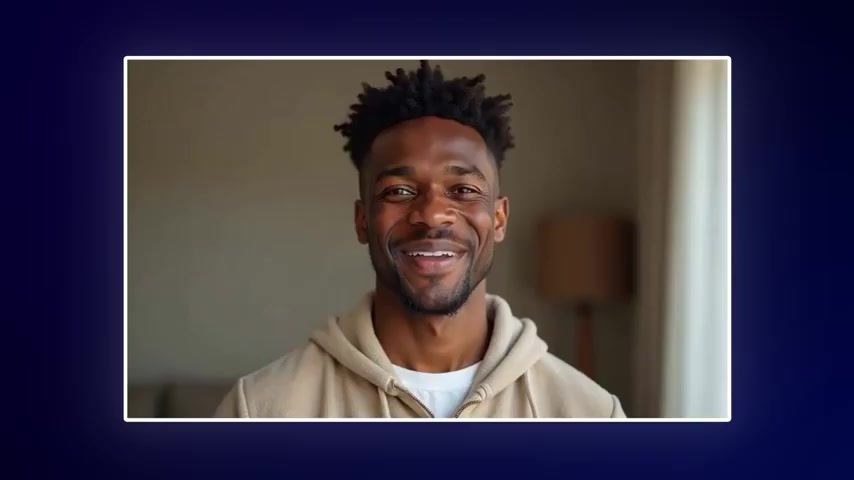
Fill in the Details: You will be presented with a form to fill in various details about your avatar, including name, age, gender, ethnicity, clothing, and background. This step allows you to customize your avatar to match your vision precisely.
-
Describe Your Avatar’s Motion: As with image-based generation, you can describe the desired motion for your avatar in the provided text box. If no specific motions are described, the AI will generate natural speaking movements.
-
Generate Your Avatar: After filling in all the details and describing the motion, click 'Generate Avatar'. AKOOL's AI will interpret your descriptions and create a unique talking avatar accordingly.
This text-based generation method offers a level of creativity and customization that is ideal for creating unique characters and scenarios, ensuring your content stands out. This means you have a new character that can attract a wider audience.
Adding Voice-Overs and Cloning Your Voice
To bring your AI avatar to life, you need a voice-over. AKOOL offers several options for adding voice to your avatar:
-
Typing Your Script:
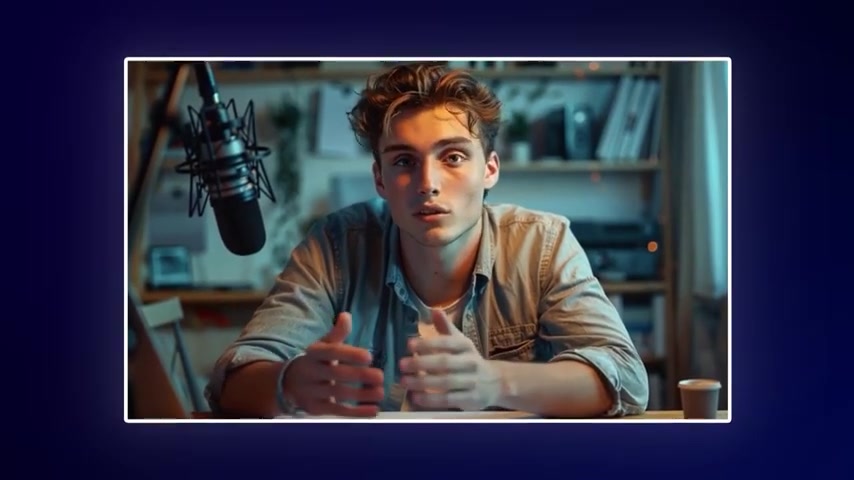
After creating your avatar, type your script into the text box provided. Ensure that the text is clear and concise to help the AI deliver the best performance.
-
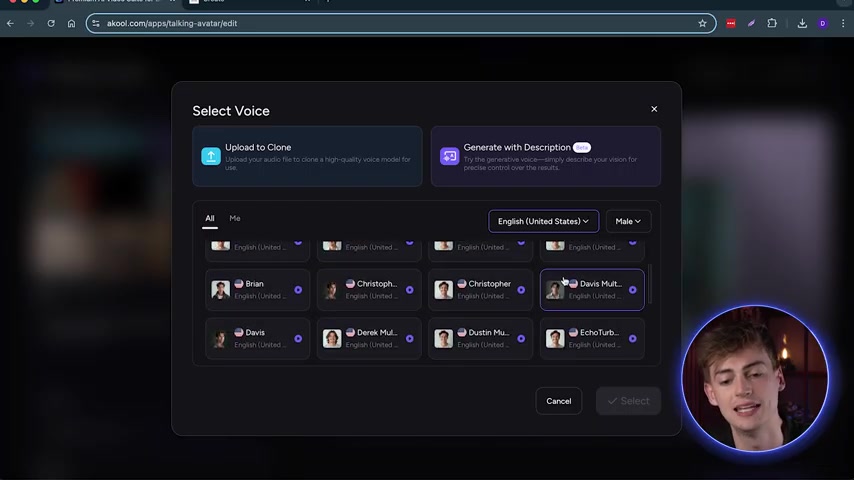
Choosing a Voice: Select a voice from AKOOL’s library of AI voices. You can filter voices by gender and language to find the perfect match for your avatar.
-
Previewing the Audio: Before finalizing, use the 'Preview Audio' feature to listen to your script being read by the selected voice. This helps ensure the tone and pronunciation match your expectations.
-
Uploading Your Own Audio: For a more personalized touch, upload your own audio file. This is particularly useful if you have a specific tone or style you want your avatar to emulate.
-
Cloning Your Voice: AKOOL also offers a unique feature that allows you to clone your own voice. By uploading a high-quality audio sample of your voice, AKOOL's AI can create a digital replica that your avatar can use. This feature adds a personal touch, making your avatar sound genuinely like you. Just select Upload to Clone, and get started!
These voice-over options empower you to create compelling and engaging dialogue for your AI avatar, enhancing the overall quality of your video content.
AKOOL Pricing: Flexible Plans for Every Creator
Understanding AKOOL's Subscription Options
AKOOL offers flexible pricing plans to cater to different user needs, whether you're a casual creator or a professional video producer. Here’s a breakdown of their subscription options:
| Plan | Price (Monthly) | Features |
|---|---|---|
| Basic | Free | 25 images or 1.5 mins of video, 3 instant avatars, 60+ free Studio Avatars |
| Pro | $30 | 600 credits, watermark removal, 5 instant avatars, larger file uploads |
| Pro Max | $119 | 2400 credits, 10 customized instant avatars, even larger file uploads, faster processing |
| Studio | $500 | 12000 credits, 50 customized avatars, largest file uploads, fastest processing |
Credit counts were taken in September 2025
Choosing the Right Plan
- Basic (Free): Great for beginners or those who need minimal video creation capabilities.
- Pro: Suitable for individuals or small teams requiring more resources and professional features.
- Pro Max: Ideal for regular content creators needing higher capacity and faster processing times.
- Studio: Designed for professional studios or large teams with extensive video production needs.
AKOOL ensures there’s a plan to match your video creation goals, providing both flexibility and scalability as your projects grow.








Most people like


































Report
Please select a reason for reporting
- 13 Reasons to Switch from Snapchat to Text Messaging
- 7 Powerful Speech to Text Apps to Boost Productivity
- 10 Best Speech to Text Tools for Effortless Transcription
- 13 Free Tools to Easily Transcribe Audio to Text
- 15 Surprising Ways Google's Speech-to-Text Boosts Productivity
- 7 Best Free Online Audio to Text Transcription Tools
- 9 Tips to Transcribe Speech to Text Faster and Better
- 13 Best Speech to Text Software for Windows 10 in 2023
- 7 Tips for Choosing the Best Transcriber for Audio to Text
- 11 Reasons Why Dragon Speech-to-Text Apps are Game-Changers
- 6 Secrets to Enhance Your Speech to Text Transcription
- 6 Brilliant Ways to Boost Productivity with Talk-to-Text on Your MacBook
- 6 Ways Transcription Software Converts Audio to Text
- 8 Tips to Transcribe Speech to Text Like a Pro
- 6 Reasons IBM Watson Speech to Text is a Game-Changer
- 14 Powerful Ways Talk-to-Text Improves Your Workflow
- 12 Top Windows Speech-to-Text Software for Efficient Transcription
- 12 Game-Changing Benefits of Apple's Speech to Text Technology
- 9 Powerful Use Cases for AWS Speech to Text Technology
- 10 Easy Steps to Transcribe YouTube Videos to Text
- transcription audio en texte
- online audio transcription
- free audio file transcription
- free ai audio transcription
- audio transcription service
- audio transcription online free
- audio transcription free online
- audio to transcription software
- audio and transcript
- ai audio transcription free
- voice recording to text converter
- translate voice recording to text
- record voice to text
- audio recording to text converter
- voice recording and transcription
- chatgpt voice to text
- gmail voice to text
- speech to text reader
- speech to text ai free
- speech to talk
- How to Use AI Tools to Find Internal Linking Opportunities Across a Business Website
- Discover Your Perfect Haircut with AI Hairstyle Apps
- Free Reputation Calculator Tools: How They're Adapting to Score AI Visibility, Not Just Rankings
- Design Professional Flyers for Free on Your Phone
- Best Free Flyer Maker Apps for Android: Design Like a Pro
- How to Know If Your Business Is Ready for an AI Customer Service Agent
- Revolutionizing Storytelling: From Novels to Screenplays with AI
- Create Engaging Animated Explainer Videos with a Free AI Tool
- Stop Multi-Subscribing: Benchmark Top AI Visual Models in One Canvas
- Best Seedance 2.5 API Provider: Every Price on the Market, Checked at Source
- Top AI Social Media Management Tools: Automate Your Content Strategy
- Free AI Text to Video Generator: Create Stunning Videos from Text
- Discover 17 ChatGPT Alternatives: A Comprehensive Comparison
- Character.AI vs. Janitor AI: Which AI Chat Platform Reigns Supreme?
- Top Virtual Assistant Companies in 2026: Reviews, Pricing, and Plans Compared
- Unveiling FaceCheck.ID: Revolutionizing Reverse Image Searches with AI
- 11 Best AI Dialers in 2026: Features, Pricing, Pros and Cons
- How I Direct Consistent AI Clips: A Hands-On Guide to Multi-Model Generation
- A Realistic Review of the Photo Generator Image Tool
- Playwright MCP Server: Automated Web Testing with Agent Mode

Copyright ©2026 toolify